How to Make a User Administrator in Windows 11

- 6 steps
- Needs administrator rights
- Includes a restart or sign-out
Making a user an administrator in Windows 11 gives that account full control. It can install apps, change system settings, and manage other profiles on the PC. Standard accounts block system-wide changes, and administrator accounts let you get past those limits.
You change the account type in the Settings app. Open Accounts, then go to the page that lists the other people on the PC. Depending on your build, it is labelled Family & other users (earlier Windows 11 releases) or Other users (newer ones). Pick the person, click Change account type, and switch them from Standard User to Administrator. The steps are the same on Windows 11 Home and Pro.
Open Settings, go to Accounts Other users, select the person, click Change account type, then choose Administrator from the dropdown and click OK. The account gains full control immediately.
What is an Administrator Account?
An administrator account is a user profile with full control over the computer. A standard account can run apps and change its own settings. An administrator account can also install new apps, change important system settings, and manage the other people who use the same PC.
Administrators still see User Account Control (UAC) prompts when something wants to change the system. The prompt is Windows asking you to confirm. Don’t treat it as a sign that something is wrong with the account.
- Standard UserCan use the computer but cannot make big changes. They cannot install software for the whole PC, change system-wide settings, or manage other accounts. If they try, Windows asks for an administrator’s password.
- AdministratorHas full access. Can change almost anything on the PC, including installing software, changing security settings, and editing or removing other accounts.
A new user account on Windows 11 begins as a Standard User, which limits what that person can do. To give them more authority, you change their account type to Administrator. They can then install software and change PC settings.
This works for both local accounts and Microsoft accounts. The person has to already have an account on this PC, so add them first under the same Accounts page if they don’t show up in the list.
How to Change a User to Administrator
If you are not sure whether your own account is an administrator, check under your name in Settings Accounts. An administrator account is labelled Administrator there.
- Open the Settings App
Click the Start menu (the Windows icon on the bottom left) and select Settings. Or press Win+I on your keyboard to open Settings quickly. Learn more about Windows Settings
The Settings window opens, with a list of categories down the left side.
- Go to Accounts
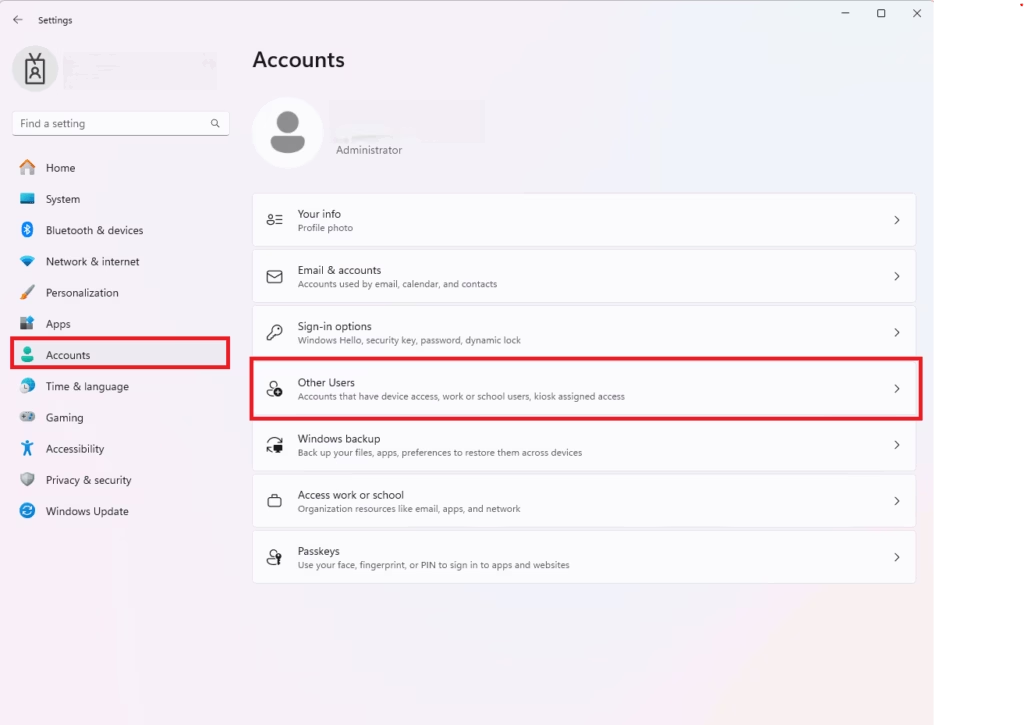
In the Settings window, click Accounts in the menu on the left side.
The right side now shows your own account details and a list of account-related pages.
- Choose Other Users
On the right side, find and click the Other Users section to see the list of users. On some Windows 11 builds this entry is called Family & other users. It is the same page.
You should see every other account on the PC listed under Other users.
- Select the User You Want to Change
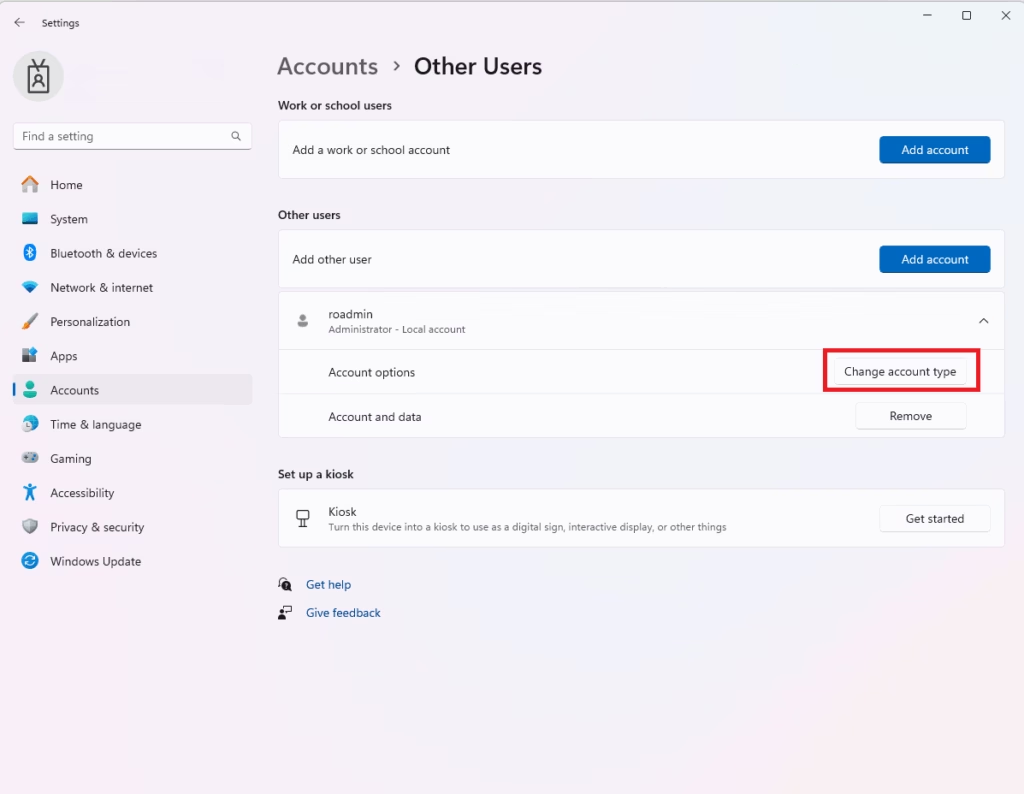
Click the user account you want to make an Administrator.
The entry expands and shows extra options for that account, including the account type button.
Windows Accounts Others - Change Account Type
Click the Change account type button. ⚠️ This step requires admin privileges.
If you are signed in as a standard user, the button won’t be available. Sign out and sign back in with an administrator account, then start again. A UAC prompt may also appear. Approve it to continue.
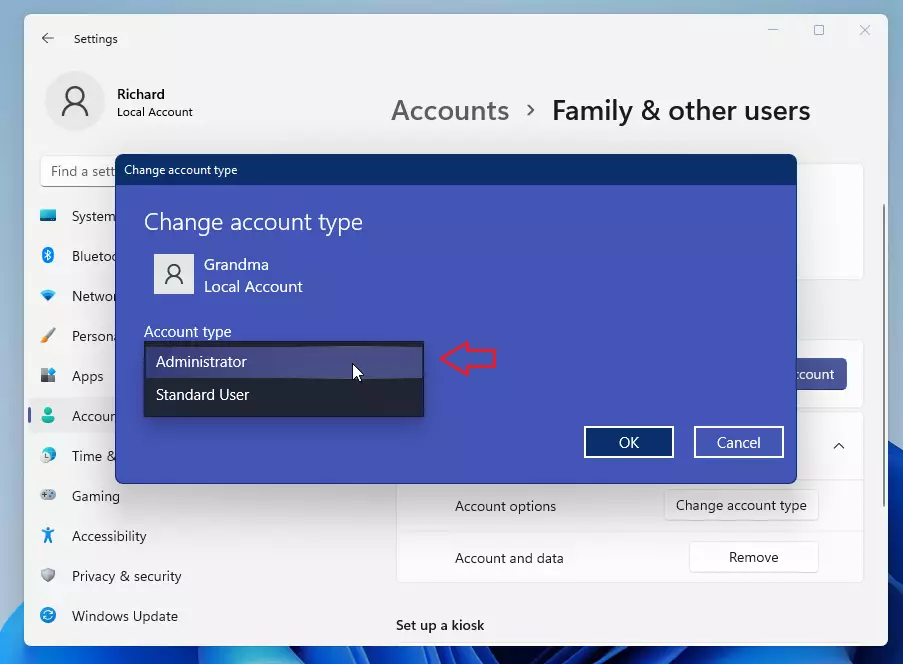
A small pop-up window opens.
Changing user account type in Windows 11 settings for permissions. - Set to Administrator
In the pop-up window, click the drop-down menu and select Administrator, then click OK.
The pop-up closes, and the account is now listed as Administrator under the user’s name.
windows 11 change account type
That’s it! The user now has Administrator rights on your Windows 11 PC. You don’t need to restart the computer. If that person is currently signed in, ask them to sign out and back in so the new rights apply to their session.
Important Tips
- Only give Administrator rights to people you trust. They can change important settings, install software, and remove other accounts. Malware that runs under an administrator account can also do far more damage.
- If you want to change roles later, just come back to Settings Accounts Other Users and use Change account type again.
- Keep an eye on user accounts and their permissions. Review the list now and then and drop accounts to Standard User when the extra access is no longer needed. This keeps your PC safe.
Summary
Making someone an Administrator in Windows 11 means giving them full control over your PC. You do it through Settings Accounts Other Users (or Family & other users, on some builds) by changing their account type to Administrator. You need to be signed in as an administrator to make the change, and you can reverse it at any time by setting the account back to Standard User.
Have a question about this guide?
Answered by AI from this guide. Good questions may be added to this page — please don't include personal details.
Did this guide fix your problem?

About the Author
Richard
Tech Writer, IT Professional
Richard is a writer at Geek Rewind who turns complex IT tasks into clear, step-by-step guides. He draws on years of hands-on experience in system administration and enterprise IT operations, focusing on Windows, Linux and WordPress: the problems people actually run into, and the fixes that work. His server and WordPress guides come from systems he runs himself. Richard builds and maintains the platform behind Geek Rewind, from its Ubuntu servers and Nginx configuration to its custom WordPress plugins. Many new tutorials start with readers' questions, and he's always glad to answer them in the comments.
[…] You must be signed in as an administrator to delete user accounts. Also, you cannot delete an account that is currently signed in — […]