How to Create New Files in Windows 11

Creating a new file in Windows 11 takes just two clicks on your desktop or inside any folder. A file is a digital container that holds your text, photos, or notes in one place. This guide covers six ways to make one, from the right-click menu to the command line, so you can pick whichever fits how you work.
The fastest way to make a new file is to right-click empty space, point to New, and pick the type of document you want, such as a Text Document. You can also press Ctrl+Shift+N to quickly create a brand new folder to organize your stuff. That shortcut works in File Explorer and on the Desktop. It makes a folder, not a file.
Right-click an empty space in File Explorer or on your Desktop, select New, then choose the desired file type. Alternatively, use the New button in File Explorer’s command bar.
1Create a New File Using File Explorer
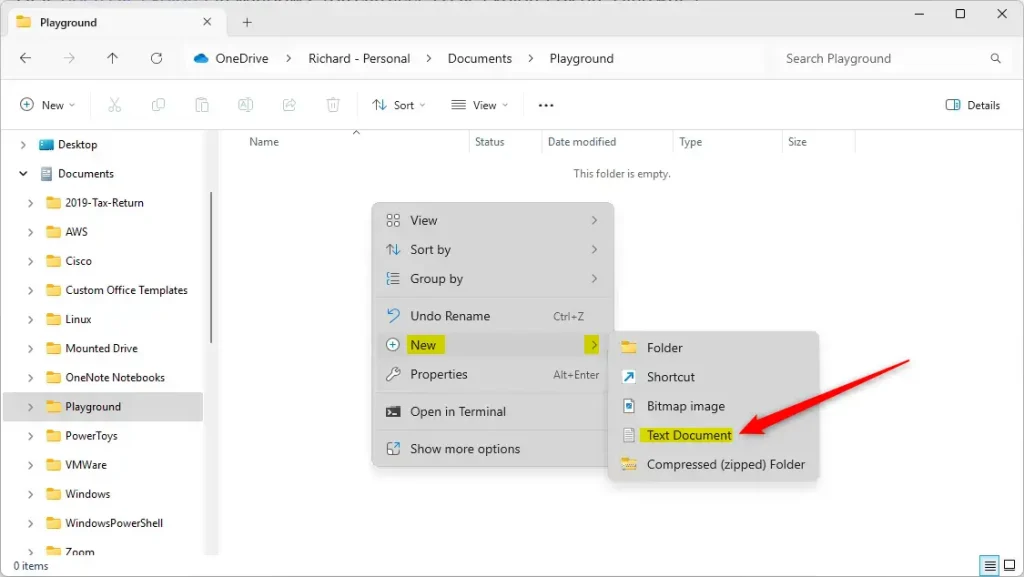
File Explorer lets you create new files in Windows 11 by using a right-click menu inside any folder. To use this method, press Win+E to open File Explorer , go to the folder where you want the file, right-click any blank space, point to New, and pick the file type you need from the list. This is the method most people use every day, and it works the same on Home and Pro editions.
- Open File Explorer : Press Win+E on your keyboard or click the folder icon on your taskbar . A File Explorer window opens, usually on Home, with your folders listed in the left sidebar. If the folder icon is not on your taskbar , the Win+E shortcut still works.

Your window may look slightly different if you changed the default start folder. The sidebar and the address bar at the top are the same either way.
- Go to the folder where you want to create the file. Use the left sidebar to pick a folder like Documents or Desktop. The main pane now shows the contents of that folder. If you do not see the folder you need, double-click through folders in the main pane or type the path into the address bar.
- Right-click on an empty space in the folder. A menu will pop up. Click blank space, not a file or folder, or you will get the menu for that item instead.
- Hover over New and then click the type of file you want, like Text Document (this makes a simple
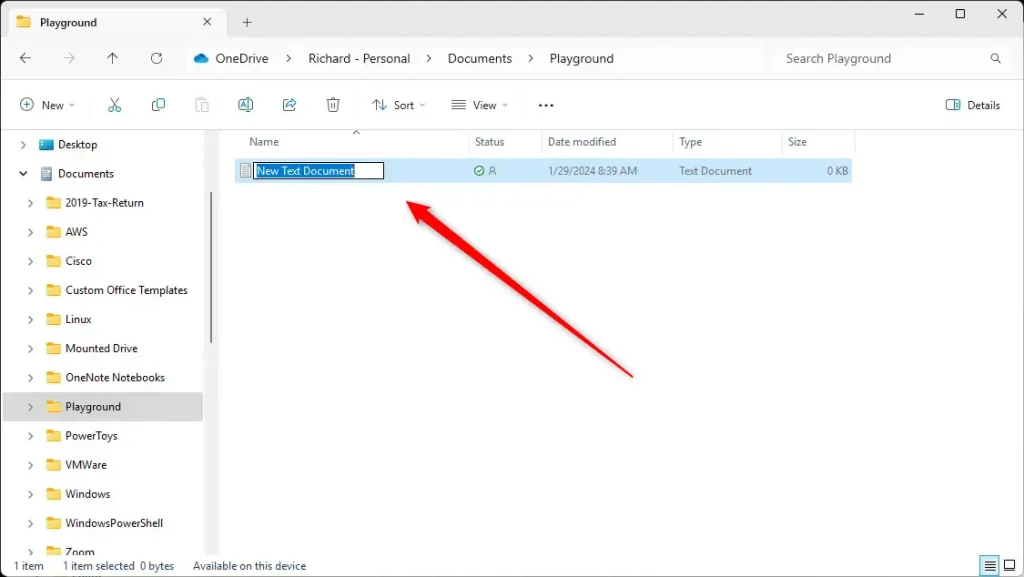
.txtfile). The list depends on the apps you have installed. If you have Microsoft Office, for example, you will also see entries for Word, Excel and PowerPoint files. A new file appears in the folder with its name highlighted.
If the New entry is missing, you are probably in a view that is not a real folder, such as Home or This PC. Open an actual folder like Documents and try again. Some system folders, such as those under 📁C:\
- Type a name for your new file and press Enter. The name box is already active, so just start typing. If you click away or press Esc first, the file keeps its default name, such as New Text Document. You can rename it later by selecting it and pressing F2.
Windows hides file extensions like .txt by default, so you only see the name you typed. To see them, open the View menu in File Explorer and go to View Show File name extensions. Turn it on before you rename a file if you want to change its type. Turn it off the same way to undo it.
2Create a New File Using the File Explorer Command Bar
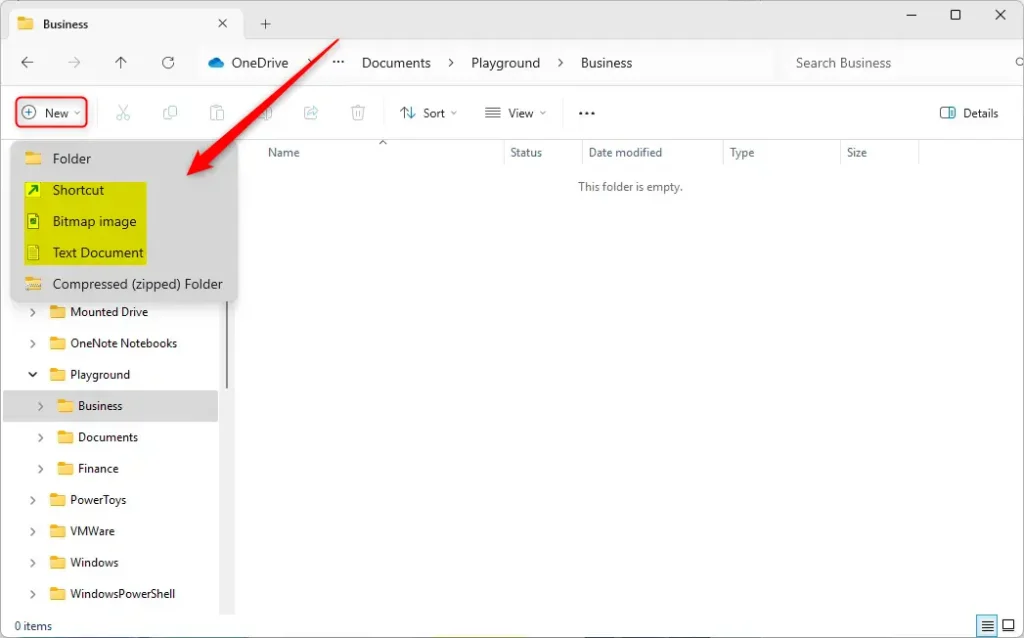
The File Explorer command bar provides a quick button at the top of the window to create a new file in Windows 11. Open File Explorer, go to your target folder, click the New button on the top toolbar, and select your desired file format from the menu that appears. This is handy if you prefer the toolbar to the right-click menu, which in Windows 11 is more compact.
- Open File Explorer and go to the folder you want. Press Win + E if it is not already open. The folder's contents show in the main pane, and the command bar runs across the top.
- Click the New button on the command bar at the top. A drop-down list opens. It usually offers Folder, Shortcut and the file types you can create, such as Text Document.
- Select the type of file you want to create. The new file appears in the folder with its name highlighted for editing.
- Give your file a name and press Enter. The file is now saved in that folder under the name you chose.
If the New button is greyed out, you are in a location where files cannot be created, such as This PC. Open a real folder and it becomes available. If the command bar looks different from the one described here, your Windows 11 build may be older. Updating Windows usually fixes that.
3Create a New File Right on the Desktop
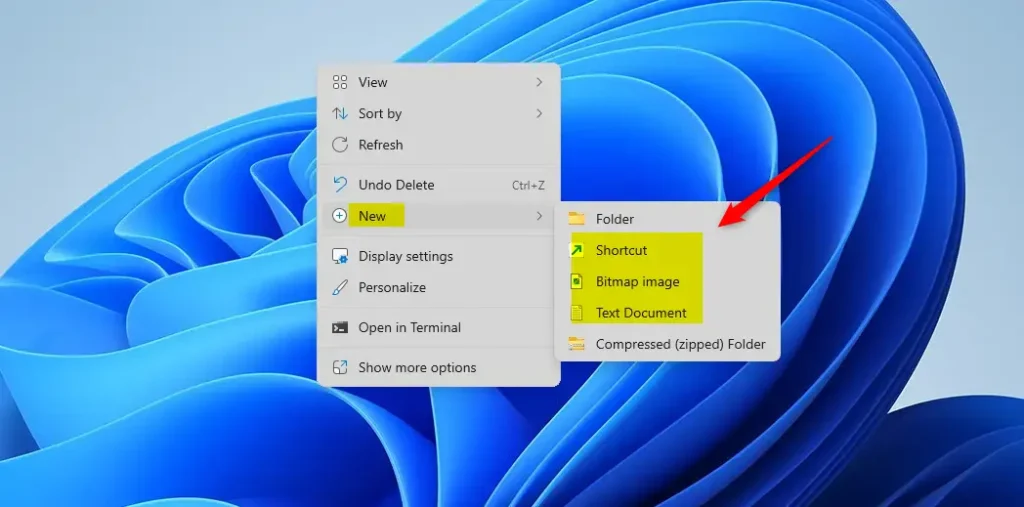
Creating a new file directly on your Windows 11 Desktop lets you skip opening File Explorer entirely. Press Win + D to show your Desktop, right-click any empty space, hover over New, and select the file format you want to add to your screen. The Desktop is just a folder in your user profile, so the same menu applies.
- Go to your Desktop by pressing Win + D or minimizing all windows. Your open windows drop out of the way and the Desktop is visible. Press Win + D again to bring them back.
- Right-click on any empty space on the Desktop. A context menu opens. Avoid clicking on an icon, which gives you that icon's menu instead.
- Hover over New and choose the file type you want. A new file icon appears on the Desktop with its name highlighted.
- Name your file and press Enter. The icon now shows the name you typed.
If your Desktop icons are hidden, right-click the Desktop and choose View, then make sure Show desktop icons is ticked. Otherwise the new file is created but you will not see it. If your Desktop is synced with OneDrive, the file is also uploaded to the cloud.
4Create a New File Using Windows Terminal (Command Prompt)
Windows Terminal running Command Prompt lets you create a new file using text commands in Windows 11. Open Windows Terminal, navigate to your target folder using the cd command, and type copy NUL "YourFileName.txt" to generate a blank text file instantly. The result is an empty file of zero bytes, the same as one made from the right-click menu.
- Press Win + S, type Windows Terminal or cmd, then open the app. Windows Terminal normally opens a PowerShell tab by default. To get Command Prompt, either search for cmd or open a new Command Prompt tab from the drop-down arrow next to the plus tab button. You should see a prompt that looks like C:\Users\YourName>.
- Go to the folder where you want to create the file by typing, for example:
cd Documents
Press Enter and the prompt changes to show the new folder. If the folder is on another drive, type the drive letter first, such as D:, and press Enter. Put the path in quotation marks if it contains spaces. - Create a new file by typing:
copy NUL "YourFileName.txt"
Replace YourFileName with the name you want. Press Enter and Command Prompt reports that one file was copied. Pick a name that does not already exist in that folder, because copying over an existing file can replace its contents.
5Create a New File Using Windows Terminal (PowerShell)
PowerShell offers another command-line option to create a new file in Windows 11 using specific cmdlets. Open Windows Terminal with PowerShell, switch to your target folder with the cd command, and type New-Item -Name "YourFileName.txt" -ItemType "file" to build the file. PowerShell is the better choice if you later want to script file creation.
- Open Windows Terminal with PowerShell (right-click Start button and pick Windows Terminal or press Win + X and select Windows Terminal). On some Windows 11 builds the menu entry is labelled Terminal. A terminal window opens with a prompt that starts with PS.
- Change folder with
cdjust like in Command Prompt. The prompt updates to show the folder you are now in. Use quotation marks around any path with spaces. - Create a new file by typing:
New-Item -Name "YourFileName.txt" -ItemType "file"
Press Enter and PowerShell prints a small table showing the new file's name and details. If a file with that name already exists, PowerShell shows an error rather than overwriting it.
6Use Keyboard Shortcuts to Create a New Text File
Keyboard shortcuts let you create a new text file inside File Explorer without touching your mouse in Windows 11. Open your target folder, press Alt + F, press W, and then press T to instantly generate a blank text file ready for your notes. Press the keys one after the other, not all at once.
- Open the folder in File Explorer where you want the new file. Make sure the File Explorer window is the active one, because the keys only work when it has focus.
- Press these keys one after the other: Alt + F, then W, and then T. Alt + F opens the File menu, and the next two letters pick the New and Text Document entries.
- A new text file will appear — just type a name and press Enter. The file is saved in the folder you opened.
This shortcut depends on the File Explorer menu layout, which can differ between Windows 11 builds. If nothing happens, or a different menu opens, use the right-click New menu instead.
Learning how to change file names or formats requires reviewing this guide to renaming files in Windows 11. Remember that changing the extension, such as .txt to .md, changes which app opens the file. It does not convert the contents.
Summary
Creating new files in Windows 11 can be done through File Explorer right-clicks, command bar buttons, Desktop shortcuts, command-line tools, or keyboard commands. Each method produces a blank file in your chosen folder, ready for your content. If a method does not work in a given location, the cause is usually that the location is not a real folder or that you lack permission to write there.
What happens when you create a file? A blank file materializes in the chosen directory, prepared for text, images, or other data.
Six distinct methods for generating new files in Windows 11 are available:
- Using File Explorer and right-click menus
- Using the File Explorer command bar
- Creating files directly on your Desktop
- Using Windows Terminal with Command Prompt
- Using Windows Terminal with PowerShell
- Using keyboard shortcuts
Testing different methods helps determine the best workflow for organizing files. Windows 11 supports multiple approaches, so select the one matching individual project requirements. For everyday use, the right-click menu is hard to beat. The terminal methods pay off when you need to create several files quickly or work on a remote or headless machine.
Questions or tips belong in the comments section below.
Have a question about this guide?
Answered by AI from this guide. Good questions may be added to this page — please don't include personal details.
Did this guide fix your problem?

About the Author
Richard
Tech Writer, IT Professional
Richard is a writer at Geek Rewind who turns complex IT tasks into clear, step-by-step guides. He draws on years of hands-on experience in system administration and enterprise IT operations, focusing on Windows, Linux and WordPress: the problems people actually run into, and the fixes that work. His server and WordPress guides come from systems he runs himself. Richard builds and maintains the platform behind Geek Rewind, from its Ubuntu servers and Nginx configuration to its custom WordPress plugins. Many new tutorials start with readers' questions, and he's always glad to answer them in the comments.
No comments yet — be the first to share your thoughts!