How to Encrypt Files in Windows 11


Encrypting files in Windows 11 uses the Encrypting File System (EFS), a built-in feature that scrambles a file or folder so only your user account can read it. It needs Windows 11 Pro or higher and a drive formatted as NTFS.
Start by finding the file or folder you want to secure. In File Explorer, note which drive it is on. The drive’s format decides whether the encryption option appears at all.
Right-click the file or folder in File Explorer, choose Properties, click Advanced… on the General tab, tick Encrypt contents to secure data, then click OK and Apply. Windows 11 Pro or higher is required, and the drive must be formatted as NTFS. Only your user account can open the encrypted item afterwards.
What is Encryption?
Think of encryption as a lockbox for sensitive documents. The data is scrambled so that only authorized accounts can read it. If a laptop or drive is lost or stolen, the files stay unreadable even when someone plugs the drive into another machine.
Why encrypt your files? If your hardware is stolen, your personal documents stay unreadable to the thief as long as the encryption is in place.
What happens when you encrypt a folder? Files you add to that folder later are encrypted automatically. There is no need to repeat the steps for each new document.
This feature ties encryption to your Windows user account. You open your own files as normal, with no password prompt. Other user accounts on the same PC get an access denied message.
Important Things to Know
This built-in file encryption is not available on Windows 11 Home. It requires Windows 11 Pro or higher, and the Enterprise and Education editions also include it. On Home, the encryption option in the steps below will be missing or greyed out.
Some items cannot be encrypted this way:
- Compressed files. A file or folder with NTFS compression turned on can’t be encrypted until you clear the compression option. ZIP archives are the compressed items most people think of, so treat them with the same caution.
- Core system files.
- Mandatory operating system folders.
The drive must also be formatted as NTFS. Drives formatted as FAT32 or exFAT, which are common on USB sticks, will not offer the option.
To check a drive, open This PC, right-click the drive and click Properties. The General tab shows the file system.
How to Lock or Unlock Files and Folders Using Properties
The graphical menus are the fastest way to secure individual files or folders. No restart is needed. The change takes effect as soon as you confirm it with OK.
Steps to Encrypt (Lock) a File or Folder:
These steps show how to encrypt files in Windows 11 so that only your user account can open them.
- Open File Explorer. Browse to the file or folder you want to protect, and note which drive it is on.
- Right-click the item and click Properties. Selecting the item and pressing Alt+Enter does the same. The Properties window opens.
- Click Advanced… on the General tab. The Advanced Attributes window opens.
- Check Encrypt contents to secure data. If the box is greyed out, you are probably on Windows 11 Home, the drive is not NTFS, or compression is ticked. If compression is ticked, clear Compress contents to save disk space first, then tick the encryption box.
- Click OK in the Advanced Attributes window. The window closes and you are back in Properties.
- Click OK or Apply in the Properties window. An Encryption Warning or Confirm Attribute Changes window appears.
- Choose whether to encrypt just this item or everything inside it. The next section explains what each choice does.
- Click OK to apply the choice. A small padlock appears on the icon of the encrypted item.
- Back up your file encryption key if Windows prompts you. Skipping this can leave the files unrecoverable if you lose your profile.
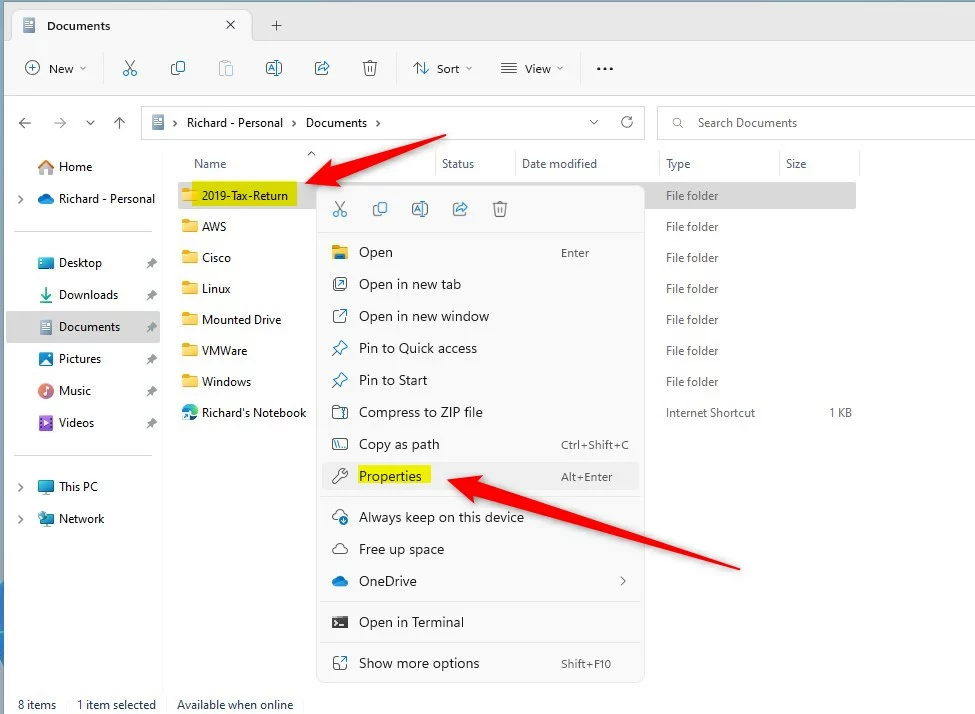
The next few paragraphs explain the screens behind those steps. First, right-click your folder or file and choose Properties. This is step 2 above.
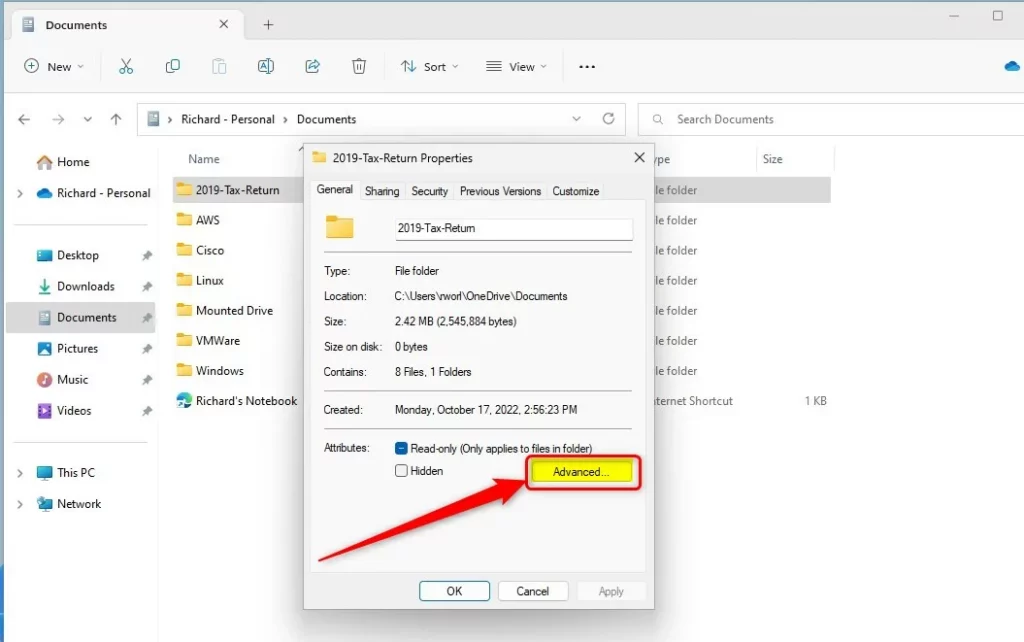
In the Properties window, stay on the General tab. Click the Advanced… button near the bottom to open the extra attribute options.
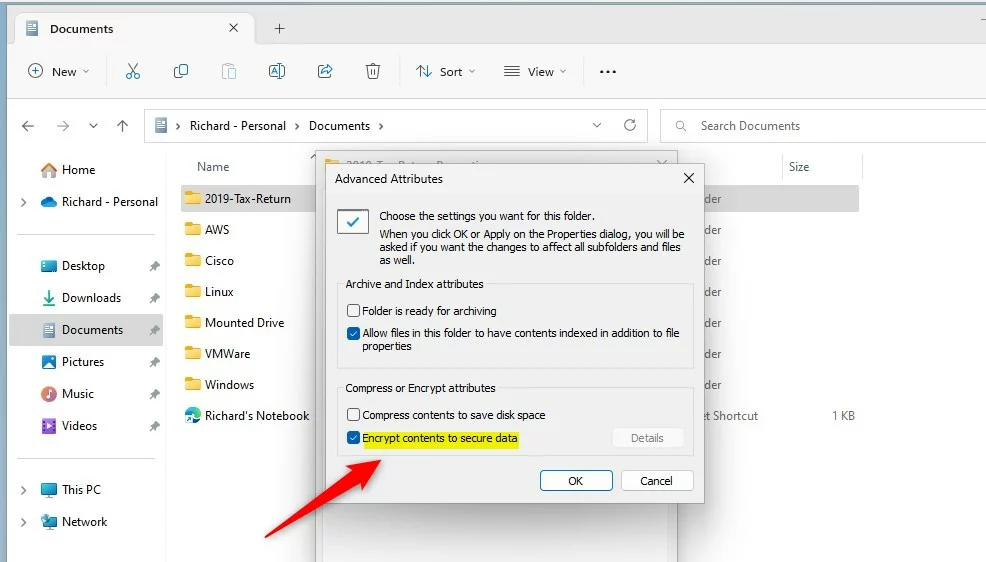
In Advanced Attributes, the checkboxes control the final lock. Check Encrypt contents to secure data, then click OK. If the checkbox is greyed out, go back to the causes listed in step 4.
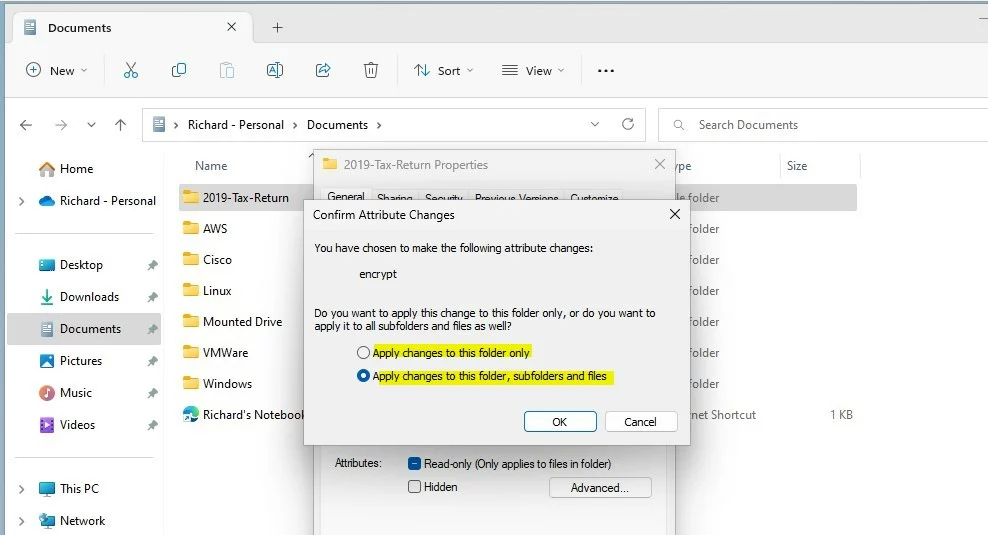
When you apply the change, Windows asks how far the encryption should reach.
For a folder, there are two choices: encrypt only the selected folder, or the folder and all its contents, including subfolders. Pick the second option to protect everything already inside.
How to Decrypt (Unlock) a File or Folder
To reverse the process, open the same menu: Properties General Advanced. Clear the Encrypt contents to secure data checkbox and click OK. Then click OK or Apply in the Properties window.
The item goes back to an unencrypted state. Do this while signed in to the account that encrypted it.
How to Lock or Unlock Files and Folders Using Commands
Encryption can also be handled from a command-line interface: Windows Terminal, PowerShell, or Command Prompt. This suits scripts and jobs that touch many items at once. The same limits apply as in the graphical method: Pro or higher, and an NTFS drive.
To Open Windows Terminal:
To Encrypt (Lock) a File
To encrypt a single file, use this command:
cipher /e "FullFilePathHere"Replace FullFilePathHere with your file’s location. If the path contains spaces, put it in quotation marks. For example:
cipher /e "C:\Users\UserName\SecretDocument.txt"To Decrypt (Unlock) a File
For the next task, use this command. Swap in your own path, and use quotation marks if it contains spaces:
cipher /d "FullFilePathHere"Example:
cipher /d "C:\Users\UserName\SecretDocument.txt"To Encrypt (Lock) a Folder and Everything Inside
For the next task, use this command. The same rules about your own path and quotation marks apply:
cipher /e /s:"FullFolderPathHere"Example:
cipher /e /s:"C:\Users\UserName\SecretDocument"To Decrypt (Unlock) a Folder and Everything Inside
For the last task, use this command. Again, replace the path with your own:
cipher /d /s:"FullFolderPathHere"Example:
cipher /d /s:"C:\Users\UserName\SecretDocument"Summary
Safeguarding private documents takes minimal effort. Locking sensitive records thwarts snooping attempts during hardware theft. This foundational security measure defends data integrity against unauthorized entry.- Encryption helps keep your private files safe from others.
- You can encrypt or decrypt files easily using Properties or commands.
- Encrypting files is a good idea if your computer is lost or stolen.
- If you have Windows 11 Home, encryption with this method is not available. Consider upgrading to Windows 11 Pro.
- Stay safe and protect your data!
Frequently asked questions
How to encrypt a folder in 🪟 Windows 11?
To encrypt a folder in Windows 11 Pro, right-click the folder and choose Properties. On the General tab, click Advanced, tick Encrypt contents to secure data, then click OK and Apply. Files you add to the folder later are encrypted automatically. Only your user account can open them.
How to lock a file?
Windows has no simple password lock for single files. The closest built-in option is Encrypting File System, available in Windows 11 Pro. Right-click the file, open Properties, select Advanced on the General tab, tick Encrypt contents to secure data, and click OK. Only your Windows account can then open it.
Can you encript a file on 🪟 Windows 11?
Yes, if you have Windows 11 Pro or higher and the file is on an NTFS drive. Right-click the file in File Explorer, choose Properties, select Advanced, tick Encrypt contents to secure data, and click OK. Windows 11 Home doesn't offer this option, so you'll need a third-party tool.
How to encrypt a file in 🪟 Windows 11 home?
Windows 11 Home doesn't include Encrypting File System, so you can't encrypt individual files the built-in way. Upgrading to Windows 11 Pro adds it. Without an upgrade, put the file in a password-protected archive with 7-Zip. Save the password somewhere safe, because a lost password means the file can't be recovered.
How do I encrypt a file in 🪟 Windows 11?
Right-click the file in File Explorer and choose Properties. On the General tab, click Advanced, tick Encrypt contents to secure data, then click OK and Apply. This needs Windows 11 Pro or higher and a file on an NTFS drive. Afterward, only your user account can read the file.
How to encrypt files with 🪟 Windows 11 efs?
Encrypting File System (EFS) is the built-in Windows feature that scrambles files so only your user account can read them. Open the file's or folder's Properties, select Advanced on the General tab, and tick Encrypt contents to secure data. It requires Windows 11 Pro or higher and an NTFS drive. Back up your encryption certificate, since losing your account password can lock you out of the files.
Still have a question?
Answered by AI from this guide. Good questions may be added to this page — please don't include personal details.
Did this guide fix your problem?

About the Author
Richard
Tech Writer, IT Professional
Richard is a writer at Geek Rewind who turns complex IT tasks into clear, step-by-step guides. He draws on years of hands-on experience in system administration and enterprise IT operations, focusing on Windows, Linux and WordPress: the problems people actually run into, and the fixes that work. His server and WordPress guides come from systems he runs himself. Richard builds and maintains the platform behind Geek Rewind, from its Ubuntu servers and Nginx configuration to its custom WordPress plugins. Many new tutorials start with readers' questions, and he's always glad to answer them in the comments.
No comments yet — be the first to share your thoughts!