How to View File Details and Metadata in OneDrive

OneDrive file details and metadata show facts about your documents, such as when you last changed a file, its size, and who can see it. This metadata acts like a digital label that gives you more context than a file name alone.
The OneDrive website displays this information in your web browser, so you don’t need to install anything. Checking these details helps you keep track of your files and share them safely. For example, you can confirm which version of a file is newest, see who else has access, or find out why a folder is using so much space.
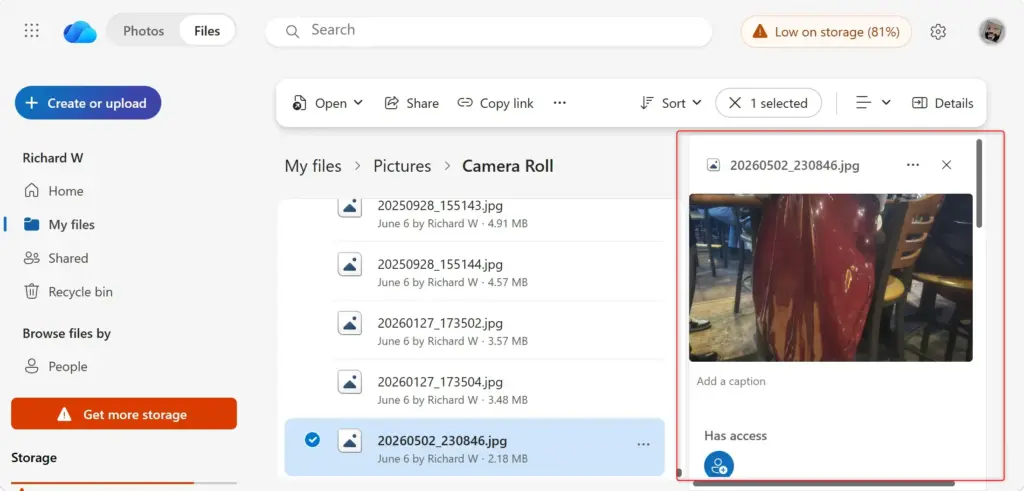
Click once on a file or folder in OneDrive.com to select it, then click the Info icon (small “i” in a circle) at the top right. The Details pane opens on the right side and shows metadata like sharing status, file size, creation and modification dates, and for photos, camera settings and location data.
Opening the Details Pane
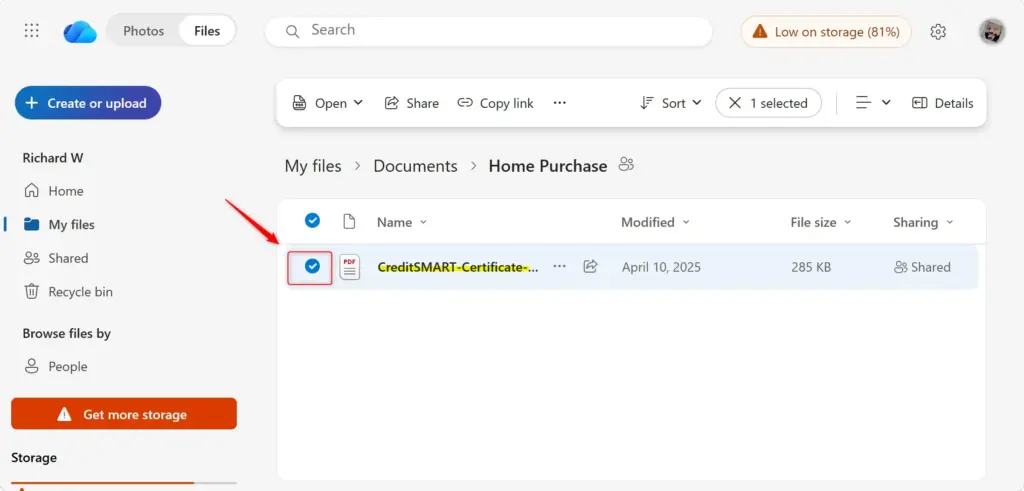
Viewing OneDrive file details starts on the OneDrive website. Sign in to your Microsoft account, find the file or folder you want to check, and select it. A checkmark appears on the item. You can then click the Info icon in the top right corner to open a side panel with the details for that file.
- Go to OneDrive.com and sign in with your Microsoft account. You should see your files in the main area of the page.
- Find the file or folder you want to learn more about. You can be in any section, such as “My files” or “Photos.”
- Click once on the file or folder to select it. A checkmark appears next to it. Click only once. A double-click opens the file instead of selecting it.
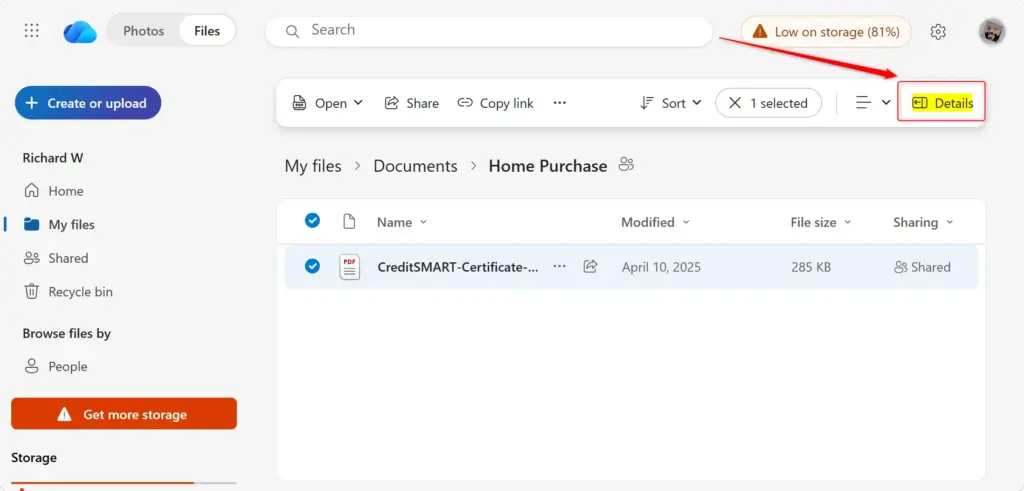
- Look for the Info icon. It looks like a small “i” inside a circle. It sits at the top right of the page, near the view options. If it isn’t there, select the item again, or right-click the file and choose Details from the menu.
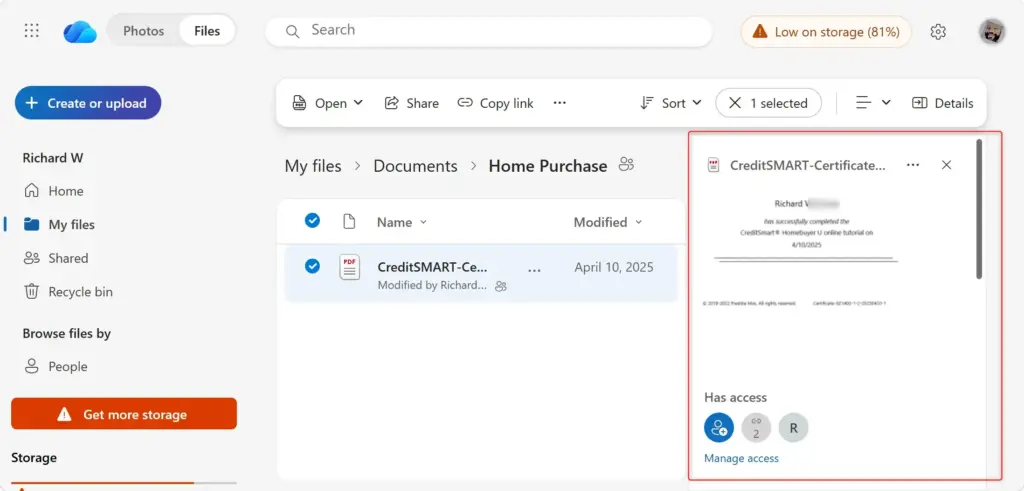
- Click the Info icon. A pane opens on the right side of your screen. This is the Details pane, and it shows the name of your selected item at the top.
The pane stays open while you click other files, and it updates to show whichever item you select. If you click an empty area with nothing selected, it usually shows details for the current folder. To close the pane, click the Info icon again or use the close (X) button on the pane. Nothing is changed on your files by opening or closing it, and you don’t need to restart anything.
What Kind of Details Can You See?
The Details pane displays different information depending on the file type. A photo shows different fields from a Word document or a folder. Some fields only appear when the file contains that data. For example, camera details only exist if the camera saved them into the photo. Common attributes include:
For Any File or Folder:
The onedrive file details pane displays core information for any standard file or folder in your account. You can instantly check who the item is shared with, what permissions those people have, and when the file was last changed or created, helping you keep track of your shared documents without opening them.- Sharing InformationSee who you’ve shared the file with and what they can do (like edit or just view). You can also see files shared with you.
- Last Modified DateShows when the file was last changed.
- Created DateShows when the file was first added to OneDrive.
- File SizeTells you how much space the file takes up.
- LocationShows which folder the file is in.
For Photos:
- Camera InformationIf you took the photo with a camera, you might see details like the camera model, settings used (like aperture or shutter speed).
- Phone DetailsIf you took the photo with your phone, you might see the phone model.
- Location DataIf your phone or camera saved location info, you might see where the photo was taken.
- Extracted TextFor photos with text (like a sign or a document), OneDrive might show you the text it found, making it searchable.
For Documents:
Microsoft OneDrive displays author names stored directly within document properties. Author information appears as a specific attribute alongside file sizes and last modified timestamps.
Reference:
https://support.microsoft.com/en-US/onedrive/change-views-on-the-onedrive-website
Summary
Reviewing extra details about OneDrive files and photos remains efficient: select a file or folder and click the ‘i’ icon to open the Details pane. This pane shows sharing status, modification dates, file size, camera settings, and location data.
If a detail you expect is missing, check whether you selected the right item and whether the file type stores that information. Files uploaded from another source may carry less metadata than ones made on your own device. If the Info icon seems to do nothing, refresh the page or try a different browser window.
Frequently asked questions
How to check file location in one drive online?
Select the file and click the Info icon in the top right corner. The Details pane shows the folder path. You can also read the trail of folder names at the top of the page, which shows each level from your main OneDrive down to the folder the file is in.
How to find the date I shared a Microsoft folders?
OneDrive online doesn't show the exact date you shared a folder. Open Shared in the left menu to see what you've shared with others. For recent sharing activity on one item, select it and check the Activity section in the Info pane.
How can I see how big a folder is on OneDrive online?
Select the folder, then click the Info icon in the top right corner. The Details pane shows the folder's total size and the number of files it holds. Large folders may take a moment to calculate, so wait before you rely on the number.
How to see what types of files storage OneDrive?
OneDrive online doesn't break down storage by file type. Go to your Microsoft account storage page to see how much space OneDrive uses overall. To find large files, sort your folder list by size or check each folder's details in the Info pane.
How to see who viewed your pdfdocument in OneDrive?
Select the PDF, then click the Info icon in the top right corner. Open the Activity section in the Details pane to see who has viewed or edited the file and when. The list covers recent actions only, so older views may not appear.
How to view shade files on OneDrive?
Select Shared in the left menu, then choose Shared with me. This list shows every file and folder that other people have shared with your account. Select an item to open it. If you only see files you shared yourself, check this tab instead.
Still have a question?
Answered by AI from this guide. Good questions may be added to this page — please don't include personal details.
Did this guide fix your problem?

About the Author
Richard
Tech Writer, IT Professional
Richard is a writer at Geek Rewind who turns complex IT tasks into clear, step-by-step guides. He draws on years of hands-on experience in system administration and enterprise IT operations, focusing on Windows, Linux and WordPress: the problems people actually run into, and the fixes that work. His server and WordPress guides come from systems he runs himself. Richard builds and maintains the platform behind Geek Rewind, from its Ubuntu servers and Nginx configuration to its custom WordPress plugins. Many new tutorials start with readers' questions, and he's always glad to answer them in the comments.
No comments yet — be the first to share your thoughts!