How to Change Viewing Options in OneDrive (List, Grid, Compact)

OneDrive viewing options let you switch between List, Compact list, and Grid (Tiles) layouts to change how your files and folders look on screen. Grid view shows large picture previews. Compact view fits more items on screen at once. List view, the standard layout, gives you a clean breakdown with details such as size and date.
You can change the view at any time using the layout button at the top right of your OneDrive file list. Picking the right layout helps you find photos and documents faster, and nothing happens to your files when you switch. Only the way they are displayed changes.
Click the layout icon at the top right of your OneDrive file list, then select List, Compact list, or Tiles. The view changes immediately. List shows details like date and size; Compact fits more items on screen; Tiles displays large photo thumbnails.
Understanding the Different Views
OneDrive offers three layouts to help you organise your files. List view shows files in rows with details. Grid view displays large image previews. Compact view tightens the spacing so more items fit on screen. Pick the one that suits the type of files you store.
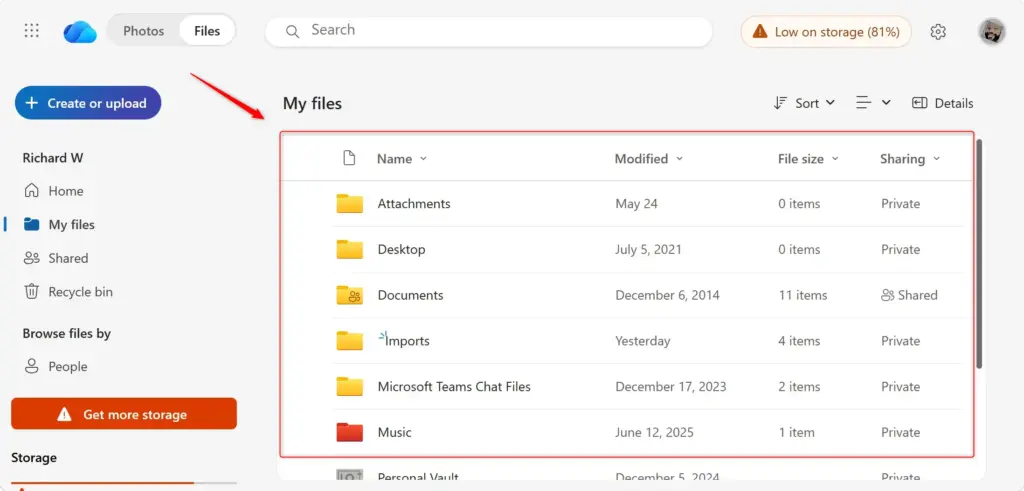
- List viewThis looks like a standard file explorer. Your files and folders are listed one after another, with columns for details such as Name, Modified date, and File size. It is the best view when you want a lot of information at once, and it is the one to use when you want to sort files by a specific detail. Click a column heading to sort by that column.
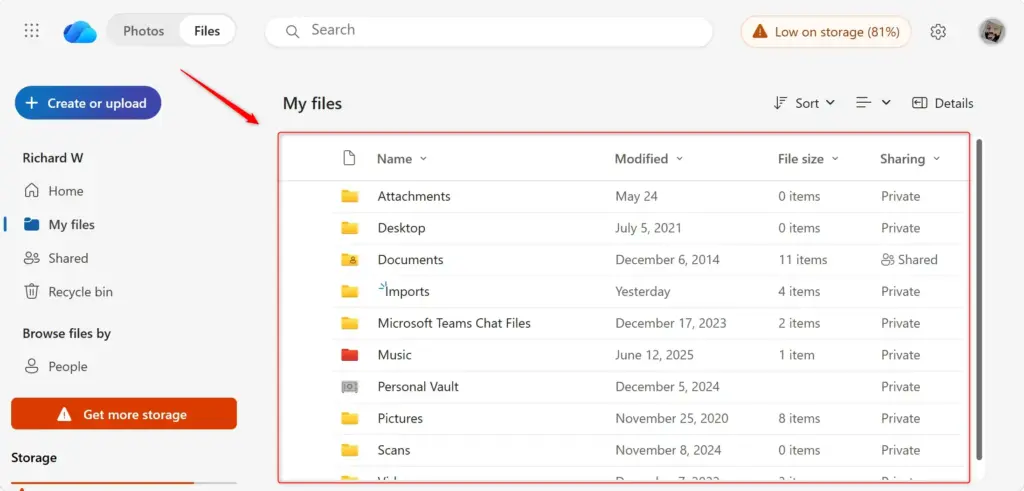
- Compact list viewThis is a tighter version of List view. The rows are closer together, so more items fit on screen and you scroll less. It still shows the main details. Use it for folders with a lot of items.
- Grid view (also called Tiles)This view is built around pictures. Each item gets a larger box. Photos and many documents show a thumbnail of their contents, so you can recognise a file by what is in it, not just by its name. Use it for photo folders and scanned documents. It is less useful for folders full of files with similar thumbnails, such as many spreadsheets, where names matter more.
How to Change Your View
You change the view in OneDrive on the web. Sign in at OneDrive.com and use the layout control near the top right corner of your file list. You can switch between views as often as you like, so try each one and keep whichever works best for the folder you are in.
- Open OneDrive in your browser. Go to OneDrive.com and sign in with your Microsoft account. You should see your files and folders listed in the main area.
- Open a folder if you want to change the view for that location. Click My files in the left pane, or click a folder. The file list is where the layout control appears.
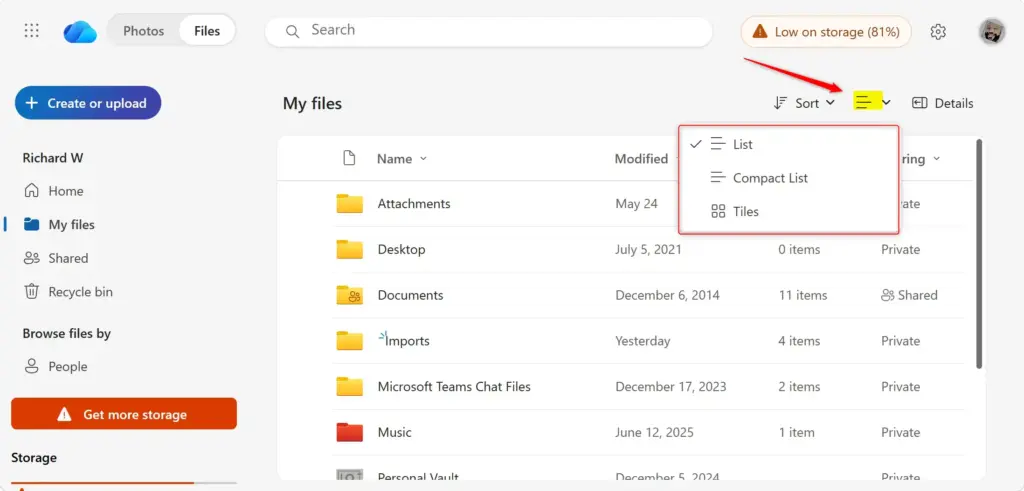
- Find the view options. Look at the top right of the file list, near the sort options. You should see a layout icon, often with a small arrow next to it. The icon changes to match your current view, so it may look like a list or a grid depending on what you are using now.
- Click the layout icon. A small menu opens listing the available views. You should see these choices:
- List for the standard layout with columns of details.
- Compact list for the tighter version of List.
- Tiles (shown as a grid icon) for large thumbnail previews.
- Click the view you want. The file list redraws straight away. For example, if you want image previews, choose the grid or tiles option and your photos appear as large thumbnails.
- Switch back if you don’t like it. Open the same menu and choose another view. There is nothing to save and no restart is needed.
If you use the OneDrive folder in File Explorer on your PC, the view there is controlled by File Explorer’s own View menu, not by the OneDrive website. Changing the layout on the web does not change it in File Explorer, and the reverse is also true.
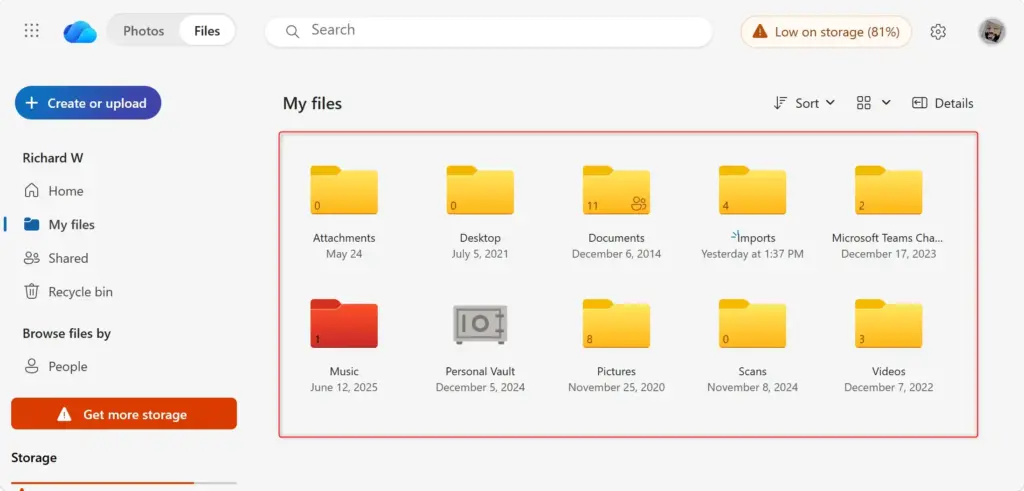
Hover your mouse pointer over the icons to reveal a tooltip identifying each control, such as “List” or “Tiles”. If you can’t find the layout control at all, widen your browser window, since on narrow windows some toolbar items are hidden or moved into a menu.
Reference:
https://support.microsoft.com/en-US/onedrive/change-views-on-the-onedrive-website
Summary
OneDrive offers List, Compact list, and Grid views so you can match the layout to the job. Use List for details and sorting, Compact list to see more items without scrolling, and Grid when you need to recognise files by their previews.
Have a question about this guide?
Answered by AI from this guide. Good questions may be added to this page — please don't include personal details.
Did this guide fix your problem?

About the Author
Richard
Tech Writer, IT Professional
Richard is a writer at Geek Rewind who turns complex IT tasks into clear, step-by-step guides. He draws on years of hands-on experience in system administration and enterprise IT operations, focusing on Windows, Linux and WordPress: the problems people actually run into, and the fixes that work. His server and WordPress guides come from systems he runs himself. Richard builds and maintains the platform behind Geek Rewind, from its Ubuntu servers and Nginx configuration to its custom WordPress plugins. Many new tutorials start with readers' questions, and he's always glad to answer them in the comments.
No comments yet — be the first to share your thoughts!