What Breaks When You Turn Off Mobile Devices in Windows 11

Turning off Mobile devices in Windows 11 cuts the link between your PC and your phone. Phone Link (Microsoft’s app for connecting a phone to a PC) stops showing your calls, texts, notifications and photos, and an Android phone stops working as a connected camera.
Bluetooth , USB cable transfers and Wi-Fi are separate features and keep working. This post explains what the setting controls, what stops, what stays, how to turn it off or back on, and why the option may be missing from your PC.
Turning off Allow this PC to access your mobile devices, found at Settings Bluetooth & devices Mobile devices, stops Phone Link from showing your phone’s calls, texts, notifications and recent photos. An Android phone also drops out as a connected camera in apps like Teams and Zoom. Bluetooth , USB cable transfers and Wi-Fi keep working.
What the Mobile devices setting controls
Mobile devices is a page in the Settings app at Settings Bluetooth & devices Mobile devices It decides whether Windows 11 lets your PC reach phones linked to your Microsoft account (the sign-in you use for Outlook and OneDrive). Phone Link relies on this permission. So do other features that bring phone content onto the PC.
The page has three controls you need to know:
- Allow this PC to access your mobile devices is the main switch. Everything else on the page depends on it.
- Manage devices opens a list of the phones linked to this PC.
- Show me suggestions for using my mobile device with Windows controls prompts that encourage you to link a phone. This is a separate toggle, and turning it off does not break anything.
There is also an Open Phone Link button on the page. It launches the Phone Link app, which does the actual work of showing your phone’s content.
The page needs no administrator rights. Any standard user account can change it, and the setting applies to that account only.
What breaks when you turn off Mobile devices in 🪟 Windows 11
When you switch off Allow this PC to access your mobile devices, the PC stops reaching your phone through your Microsoft account. The effects below are the ones you are most likely to notice. Exact wording and available features vary with your Windows 11 version, your phone, and the Phone Link app version.
Phone Link stops working
Phone Link is the feature you lose first. With the setting off, these items stop appearing on your PC:
- Notifications from your phone
- Text messages you read and send from the PC
- Calls you make or answer on the PC
- Recent photos and screenshots from your phone
Phone Link may show a message that it cannot connect, or it may prompt you to set up the link again. The wording differs between versions, so do not rely on a specific message. The app itself stays installed.
The same applies to iPhone. Phone Link supports iPhone with a narrower feature set, mainly calls, messages and notifications over Bluetooth. Turning the setting off breaks that link as well.
Your Android phone stops working as a connected camera
Windows 11 can use an Android phone's camera as a webcam for the PC. Apps such as Teams, Zoom or the Camera app then list the phone as a camera. This feature depends on the PC having access to your mobile devices. With the setting off, the phone drops out of the camera list in those apps.
If a video call suddenly shows only your laptop webcam, or no camera at all, check this setting first. The call app is rarely the cause.
Phone content in the Start menu may disappear
Some recent Windows 11 versions show a phone panel next to the Start menu. It gives quick access to your phone's notifications and messages. This panel needs the same link to your phone, so expect it to stop working or vanish when you turn the setting off. If your build does not have the panel, nothing changes there.
Quick link prompts stop
That is the job of Show me suggestions for using my mobile device with Windows. If you want fewer nudges but still want Phone Link, turn off only the suggestions toggle. The steps are further down.
What keeps working
People often turn off Mobile devices to reduce clutter and then worry that they broke their phone connections in general. They did not. These features use different settings and keep working:
- Bluetooth: Pairing headphones, speakers, mice, keyboards and your phone under Settings Bluetooth & devices Devices is unchanged.
- USB cable transfers: Plug in a phone and copy files in File Explorer as before. Android may ask you to choose file transfer mode on the phone.
- Wi-Fi and mobile hotspot: Connecting your PC to your phone's hotspot through the Wi-Fi list is a normal network connection, not a Phone Link feature.
- Your Microsoft account: Signing in, syncing settings and using OneDrive are not affected.
- Phone apps and backups: The Link to Windows app (the companion app on your Android phone) stays installed. Your phone's own photo backup to OneDrive continues to work.
To tell which features are affected, ask one question. If a feature needs Phone Link to mirror your phone on the PC, it breaks. If it is a plain Bluetooth, USB or network connection, it does not.
How to turn off Mobile devices
Open Settings, go to Bluetooth & devices, and select Mobile devices. Turn off Allow this PC to access your mobile devices. No restart is needed, and you can reverse the change at any time.
- Open Settings by pressing Windows + I.

- Select Bluetooth & devices in the left pane. The device settings appear on the right.

Windows Settings menu highlighting the Bluetooth and devices option for printers - Select Mobile devices. If you do not see it in the list, go to the section on missing options below.
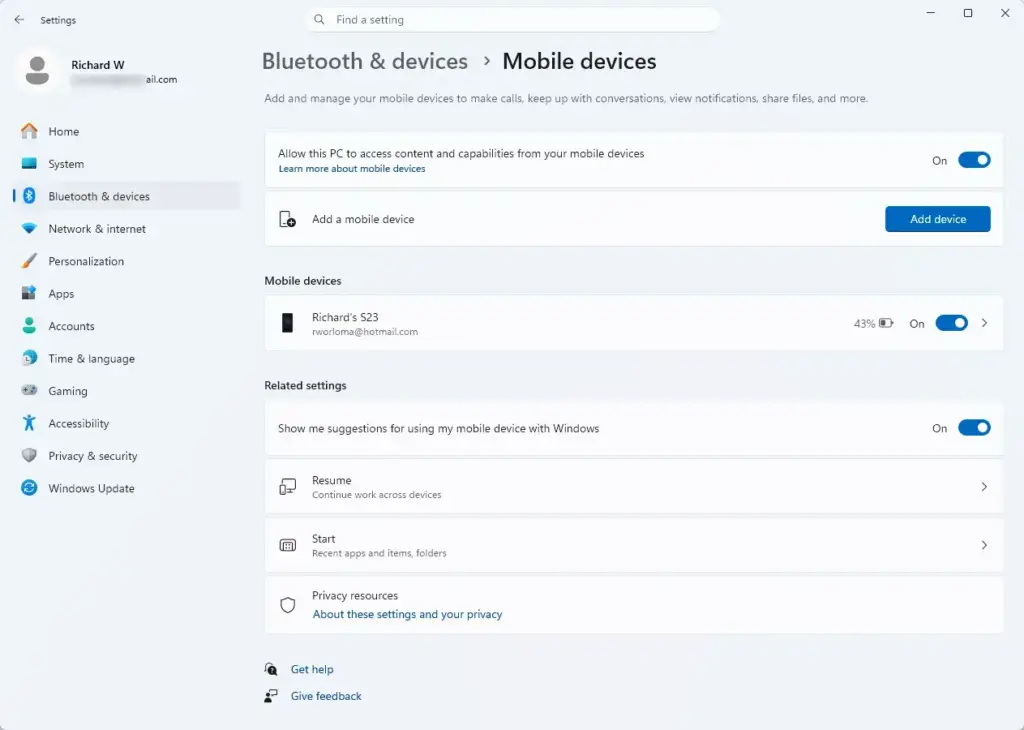
Settings › Bluetooth & devices › Mobile devices - Set Allow this PC to access your mobile devices to Off. The toggle slides left and turns grey.
- Close Settings. If Phone Link is open, close it and reopen it to confirm it can no longer reach your phone.
After the change, Phone Link no longer shows content from your phone. Your linked devices are still listed under Manage devices, so you can restore everything later without setting up again. If the list looks empty after you turn the setting back on, the phone may need to be linked again from the Link to Windows app on the phone.
Turn off only the suggestions
This step stops prompts to link a phone while leaving Phone Link working. Use it if you like Phone Link but find the prompts annoying.
- Open Settings Bluetooth & devices Mobile devices
- Set Show me suggestions for using my mobile device with Windows to Off.
Settings › Bluetooth & devices › Mobile devices
The main Allow this PC to access your mobile devices switch stays as it is, so nothing breaks.
Check which phones are linked
You may only want to remove one old phone.
- Open Settings Bluetooth & devices Mobile devices
- Select Manage devices. A list of phones linked to the PC appears.
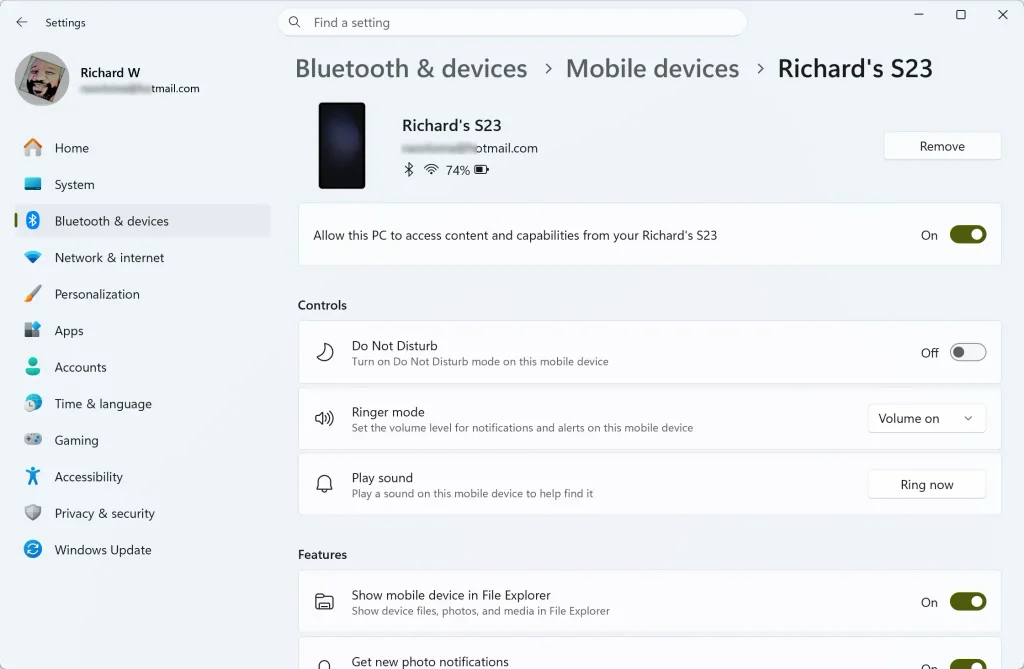
Windows 11 mobile devices settings for enabling phone notifications - Review each entry and the options shown for it. The options available depend on your Windows 11 version and the phone.
Removing a single phone is less disruptive than turning off the main switch, because other phones keep working.
How to turn Mobile devices back on
If a call app lost your phone camera, or Phone Link stopped showing notifications, reverse the change. Switching the setting off deletes nothing.
- Open Settings Bluetooth & devices Mobile devices
- Set Allow this PC to access your mobile devices to On. The toggle slides right and turns on.
- Select Open Phone Link to launch the app.
- Sign in with the same Microsoft account if Phone Link asks. Follow any prompt to pair your phone again.
Phone Link then reconnects and starts showing notifications, messages and photos again. If the phone does not appear, open the Link to Windows app on an Android phone and confirm it is signed in to the same Microsoft account as the PC. Confirm that the phone has Bluetooth turned on and an internet connection.
Why Mobile devices is missing or greyed out
The setting does not always look the way these steps describe. Three causes are common.
Your Windows 11 build is too old. The Mobile devices page is missing from early Windows 11 releases. Go to Settings Windows Update, select Check for updates, and install what is offered. Then look again under Bluetooth & devices.
A work or school account manages your PC. An organisation can lock this setting. If the toggle is greyed out, or a message says your organisation manages some settings, you cannot change it yourself.
Ask your IT administrator. They can tell you which policy controls this setting.
You use a local account (a Windows sign-in that is not tied to a Microsoft account). Phone Link depends on a Microsoft account. If you sign in to Windows with a local account, linking may not complete even when the toggle is on. Sign in to the Phone Link app with a Microsoft account and try again.
Windows 11 Home and Pro show the same page, so the edition is not usually the cause. A managed device is the more likely culprit.
Check that your change took effect
Open Phone Link and check what it shows. The steps below tell you what to expect with the setting off and with it on.
- Open Phone Link from the Start menu.
- Look for your phone's notifications or recent photos.
- With the setting off, expect no content or a connection message. With the setting on, expect your phone's data to load.
To test the camera feature, open a video call app and open its camera list. The phone appears there only when Mobile devices is on and the phone is linked.
What to do next
If you turned the setting off for privacy, review the apps on your phone that talk to Windows, starting with the Link to Windows app. Sign out of it or remove the PC from your phone if you no longer want the pairing. If you turned it back on and Phone Link still fails, update both Phone Link on the PC and Link to Windows on the phone, then restart both devices. Bluetooth pairing problems are a separate task, so check Settings Bluetooth & devices Devices if that is where the fault lies.
Have a question about this guide?
Answered by AI from this guide. Good questions may be added to this page — please don't include personal details.
Did this guide fix your problem?

About the Author
Richard
Tech Writer, IT Professional
Richard is a writer at Geek Rewind who turns complex IT tasks into clear, step-by-step guides. He draws on years of hands-on experience in system administration and enterprise IT operations, focusing on Windows, Linux and WordPress: the problems people actually run into, and the fixes that work. His server and WordPress guides come from systems he runs himself. Richard builds and maintains the platform behind Geek Rewind, from its Ubuntu servers and Nginx configuration to its custom WordPress plugins. Many new tutorials start with readers' questions, and he's always glad to answer them in the comments.
No comments yet — be the first to share your thoughts!