Should You Enable Mobile Device Access in Windows 11 Cross-Device Experiences

Mobile device access in Windows 11 connects your smartphone to your PC so you can view recent photos, check phone notifications, and run mobile apps on your desktop. It works through the Cross Device Experience Host background program and the Phone Link app, which share data between the two devices without a USB cable.
With the setting on, your PC can browse your phone storage and show your latest camera roll pictures inside the Windows Snipping Tool. You can set up the connection on any Windows 11 PC running version 22H2 or newer. Open the main Settings menu and pair your Android or iOS phone. Setup is the same on Home and Pro editions.
Yes, you should enable mobile device access in Windows 11 if you frequently share photos, need phone notifications on your desktop, or want to stream mobile apps to your PC.
System Requirements for 🪟 Windows 11 Cross-Device Experiences
Check the requirements below before you start. Most failed pairings come from a missing requirement, usually an outdated Cross Device Experience Host or two different Microsoft accounts.
Your computer needs Windows 11 with built-in Bluetooth and Wi-Fi . It also needs an up-to-date Cross Device Experience Host, the system app that handles phone connections, from the Microsoft Store. Your phone must run Android 8.0 or newer with the Link to Windows app installed.
- Computer Requirements: You need a computer running Windows 11. Your PC must also support Bluetooth and Wi-Fi . The Cross Device Experience Host must be up to date through the Microsoft Store. If your PC has no Bluetooth, the pairing steps later in this guide will not work.
- Phone Requirements: You need an eligible smartphone. Android devices generally offer the most features, especially devices made by Samsung, Honor, Oppo, OnePlus, and realme. iPhone support is also available through Phone Link, though some advanced file-sharing features may be limited. Do not expect app streaming or full photo access from an iPhone.
- Account Requirements: You must sign in to both your computer and your phone using the same Microsoft account. If the QR code pairing fails, check this first.
The Benefits: Why You Should Enable Mobile Device Access
Turning on mobile device access offers several clear advantages that can make your daily computer use smoother and more efficient. The three main benefits are below.
1Instant Access to Your Photos
With cross-device experiences on, your latest phone pictures and screenshots appear automatically in your computer folders and the Photos app. You can view, edit, or open recent snapshots on your PC seconds after taking them. You do not need a USB cable or an email transfer.
This is the feature most people notice first. It saves the most time if you often grab screenshots or photos of documents and need them in an email or a file on your PC.
2Manage Notifications in One Place
Your phone alerts and text messages pop up on your computer desktop, so everything lands in one place. You can read, check, and dismiss phone alerts directly from your screen and do not have to keep picking up your phone while you work.
If you get a lot of notifications, you can limit which ones are shared. See the tips near the end of this guide.
3Seamless App Streaming and File Sharing
With a compatible phone, you can open and use your mobile apps directly on your Windows desktop. You can also drag and drop files between your phone and your computer, which makes file transfers fast and simple.
App streaming depends on your phone model. It is mostly available on certain Android devices, and not every phone offers it. If you do not see an Apps option in Phone Link, your phone probably does not support it.
The Drawbacks: Why You Might Want to Keep It Off
The features are helpful, but mobile device access is not right for everyone. Consider these downsides before you turn it on.
1Battery and Resource Usage
A constant, active connection means your phone and computer talk to each other over Bluetooth and Wi-Fi all day. That extra background activity can drain your phone battery faster. It may also use a small amount of computer memory and processor power.
On a recent PC the load on the computer is usually hard to notice. On an older laptop or a phone with a tired battery, you may see the difference by the end of the day.
2Privacy Concerns
If other people have access to your PC, they might see your incoming text messages or personal photos.
If you share a PC, think about whether you want the link at all. If you do link, lock your screen whenever you walk away, and unlink the phone when you are done.
3Installation and Update Glitches
This is the most common technical problem with the feature. Fixing it often takes a few extra troubleshooting steps, which are covered later in this guide.
How to Enable Mobile Device Access in 🪟 Windows 11
Enabling mobile device access takes a few clicks in Settings. You open Bluetooth & devices, select Mobile devices, and turn the main toggle on. After that you can view your phone photos, manage text messages, and check notifications from your desktop. These steps are for Windows 11 version 22H2 or newer, and wording can differ slightly between builds.
- Click the Start button and open the Settings app. The Settings window opens.
- Click Bluetooth & devices in the left menu. The list of device options appears on the right.
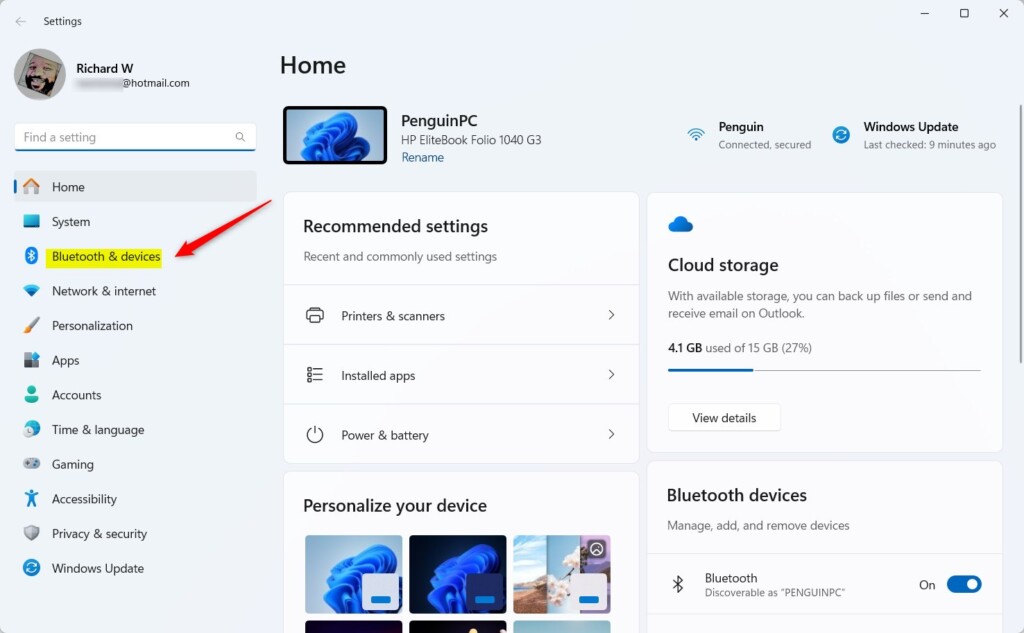
- Click Mobile devices. If you do not see this entry, your Windows 11 build may be older than 22H2. Run Windows Update and check again. On a work PC, an administrator policy may also hide or lock the option.
- Turn the main toggle switch to On to allow Windows to manage your mobile devices. Make sure Bluetooth is also on, or pairing will fail later.
- Click the button to manage your devices, then follow the onscreen instructions. You will link your phone using a QR code and your Microsoft account. Scan the code with your phone camera, install or open the Link to Windows app if prompted, and approve the permission requests. When pairing finishes, your phone shows up as connected.
How to Turn Off Mobile Device Access
Turning off mobile device access means going back to Settings, clicking Bluetooth & devices, selecting Mobile devices, and switching the main toggle to off. Disabling the feature stops your phone from syncing with your PC right away. That protects your privacy and saves battery life on both devices. No restart is needed.
- Click the Start button and open the Settings app.
- Click Bluetooth & devices in the left menu.
- Click Mobile devices.
- Turn the main toggle switch to Off. Syncing stops from this point.
- If your phone is already linked, click the device name and select the option to remove or unlink the device from your computer. Do this if you are giving the PC to someone else or sharing it, because switching the toggle off alone does not remove the pairing.
To undo this later, turn the toggle back on and pair the phone again. If you only turned the toggle off, your phone may reconnect without a new QR code. If you removed the device, you will need to scan one.
Troubleshooting: Fixing Cross Device Experience Host Stuck on Pending
If the Cross Device Experience Host is stuck on pending, start in the Microsoft Store. Check your library and refresh the update queue to get downloads moving again. If the update still will not finish, clear the Store cache with the built-in WSReset tool or restart your computer to force the download to start.
- Open the Microsoft Store app on your computer.
- Click Library in the bottom-left corner. A list of your installed apps and available updates appears.
- Click the Get updates button to refresh the update queue. Wait a minute to see whether the pending item starts downloading.
- If the download remains stuck, click the Start button, type WSReset, and press Enter. This clears the Microsoft Store cache. A black window opens and sits there for a short time, so do not close it yourself. Once it closes, the Store reopens. Go back to Library and try the update again.
- Restart your computer if the installation continues to hang. Then open the Store and check Library once more.
Also check that your PC has a working internet connection and that the date and time are set correctly. Wrong time settings can stop Store downloads.
Unique Expert Tips: Optimizing Your Cross-Device Setup
A few habits keep a cross-device setup quick and light on battery. Pick only the features you actually need, and keep your Bluetooth connections clean. Turning off unused options like app streaming or extra notifications keeps your computer and phone running well together without draining the battery.
- Select Only the Features You Need: You do not have to turn on every available option. If you only want photo access, disable app streaming and notifications. Limiting active features helps save your phone battery.
- Keep Bluetooth Clean: If your phone frequently disconnects from your PC, remove both devices from each other's Bluetooth settings lists and pair them again from scratch. Old, half-working pairings are a common cause of dropouts.
- Check Permissions Carefully: When linking your phone, read the permission prompts carefully. Granting full storage or contact access is required for features to work, but you can always restrict permissions on your phone if you value privacy over convenience. Expect the matching feature to stop working if you take a permission away.
Summary
Windows 11 mobile device access connects your phone and computer so you can share photos, manage notifications, and handle daily tasks in one place. This guide covered the system requirements, the setup steps, the troubleshooting tips, and how to turn the feature on or off. Weigh the convenience against your own privacy and battery needs. If you share your PC or your phone battery is already weak, enable only the features you need, or leave the feature off.
Have a question about this guide?
Answered by AI from this guide. Good questions may be added to this page — please don't include personal details.
Did this guide fix your problem?

About the Author
Richard
Tech Writer, IT Professional
Richard is a writer at Geek Rewind who turns complex IT tasks into clear, step-by-step guides. He draws on years of hands-on experience in system administration and enterprise IT operations, focusing on Windows, Linux and WordPress: the problems people actually run into, and the fixes that work. His server and WordPress guides come from systems he runs himself. Richard builds and maintains the platform behind Geek Rewind, from its Ubuntu servers and Nginx configuration to its custom WordPress plugins. Many new tutorials start with readers' questions, and he's always glad to answer them in the comments.
No comments yet — be the first to share your thoughts!