How to Control Windows 11 Startup Delay for Apps

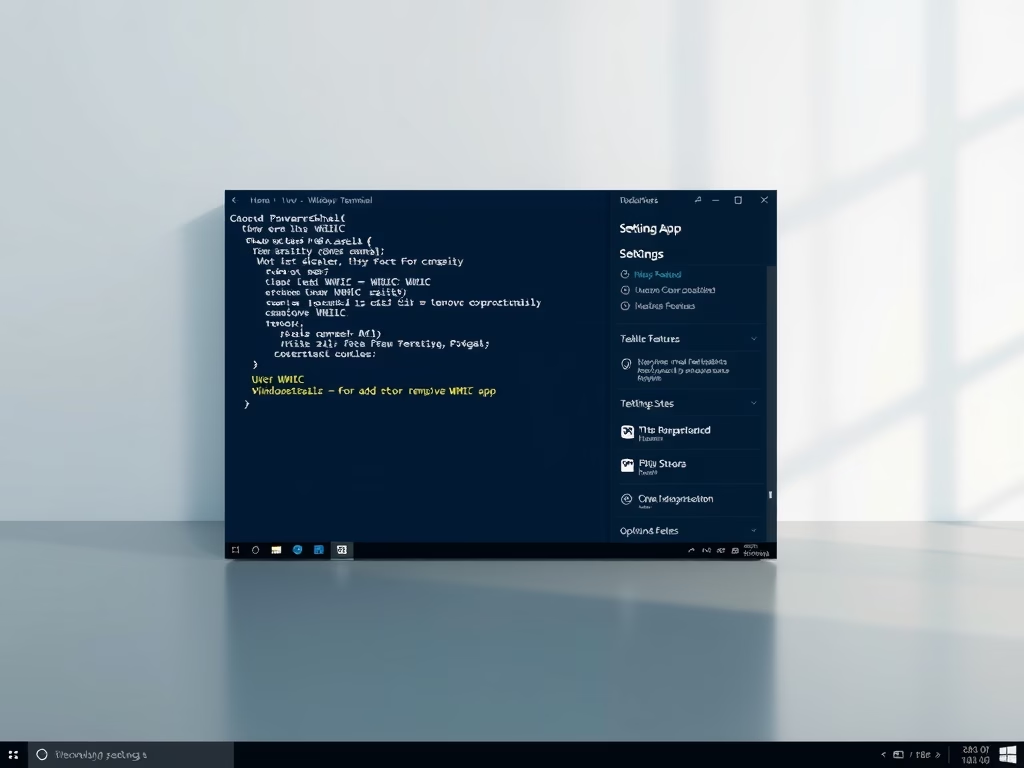
This tutorial shows you how to enable or disable the delay when startup apps run in Windows 11. You can control when these apps open after you sign in to Windows. The steps work the same on Windows 11 Home and Pro, because you only need an administrator Windows Terminal window.
Open Windows Terminal as an administrator and run specific registry commands. Executing the `reg add` commands with values of 0 for StartupDelayInMSec and WaitForIdleState disables the startup delay. This makes your apps launch immediately after you sign in.
What Are Startup Apps?
Startup apps are programs that open automatically when you sign in to Windows 11. You can set any app, shortcut, folder, drive, file, or script to run at startup. Most people manage the list of apps in Settings Apps Startup That page only turns apps on or off. It does not change how long Windows waits before starting them.
Why Would You Want to Change This?
Windows 11 includes a default 10-second startup delay before it runs apps that launch automatically. The delay gives the desktop, taskbar, and background services time to finish loading first, so the computer feels ready sooner after sign-in.
On a fast computer, such as one with an SSD and plenty of memory, you can remove this delay. Your startup apps then run immediately instead of waiting. On an older or slower machine, leave the delay on. Starting everything at once can make the desktop sluggish for the first minute.
How to Enable or Disable Startup App Delay
- [Admin Required] Open Windows Terminal as an administrator. Right-click the Start button and select Terminal (Admin). You can also search for Terminal, then right-click it and select Run as administrator.
- If User Account Control asks for permission, select Yes. A Windows Terminal window opens with “Administrator” in the title bar. If the word is missing, close the window and try again. The commands will not work without administrator rights.
- Run the command below that matches what you want to do. Copy the command, paste it into the terminal, and press Enter.
The change applies the next time you sign in. Sign out and back in, or restart the computer, to see the new behavior. To undo the change at any time, open an administrator terminal again and run the other command.
Enable Delay of Running Startup Apps
This is the default Windows setting. Run this command if you turned the delay off earlier and want to go back to how Windows normally behaves. Startup apps will then wait about 10 seconds after you sign in.
reg delete "HKEY_CURRENT_USER\Software\Microsoft\Windows\CurrentVersion\Explorer\Serialize" /v StartupDelayInMSec /f
reg delete "HKEY_CURRENT_USER\Software\Microsoft\Windows\CurrentVersion\Explorer\Serialize" /v WaitForIdleState /f
Disable Delay of Running Startup Apps
reg add "HKEY_CURRENT_USER\Software\Microsoft\Windows\CurrentVersion\Explorer\Serialize" /v StartupDelayInMSec /t REG_DWORD /d 0 /f
reg add "HKEY_CURRENT_USER\Software\Microsoft\Windows\CurrentVersion\Explorer\Serialize" /v WaitForIdleState /t REG_DWORD /d 0 /f
What Happens?
If you enabled the delay, apps will wait 10 seconds before running. If you disabled the delay, apps will run right away when you sign in.
If the command fails with an access denied message, the terminal is not running as administrator. Close it and open it again using the steps above. If you don't notice a difference after signing back in, make sure the app you are testing is actually set to start with Windows in Settings Apps Startup
Summary
You now know how to control when your startup apps run in Windows 11. Use the administrator command in Windows Terminal to enable or disable the startup delay. This gives you control over how quickly your apps launch when you sign in to your computer. If startup feels slow after removing the delay, switch it back on with the enable command.
Was this guide helpful?

About the Author
Richard
Tech Writer, IT Professional
Richard is a writer at Geek Rewind who turns complex IT tasks into clear, step-by-step guides. He draws on years of hands-on experience in system administration and enterprise IT operations, focusing on Windows, Linux and WordPress: the problems people actually run into, and the fixes that work. His server and WordPress guides come from systems he runs himself. Richard builds and maintains the platform behind Geek Rewind, from its Ubuntu servers and Nginx configuration to its custom WordPress plugins. Many new tutorials start with readers' questions, and he's always glad to answer them in the comments.


No comments yet — be the first to share your thoughts!