3 Simple Steps to Connect Wi-Fi on Windows 11

You can connect a Windows 11 PC to Wi-Fi in two ways: from the Quick Settings panel on the taskbar, or from the Settings app. Quick Settings is faster for a one-off connection. Settings gives you more control, such as managing saved networks. Both methods are covered below.
To connect Wi-Fi on Windows 11, click the network, volume and battery icons at the bottom-right of the taskbar, click the arrow on the Wi-Fi tile, select your network name, enter the password and click Connect. You can also open Settings with Win plus I, then choose Network & internet and Wi-Fi.
Why Connect to Wi-Fi?
Before you start, have the network name and password ready. On most home routers the password is printed on a sticker on the router itself.
What Changed in 🪟 Windows 11?
In Windows 11 the Wi-Fi icon no longer has a place of its own on the taskbar. It now lives inside Quick Settings, a panel that groups Wi-Fi, sound and battery controls on the right side of the taskbar. In the taskbar’s notification area, the icon you see may be a Wi-Fi symbol, a globe or a small network plug, depending on your connection status.
Method 1Connect Using Quick Settings
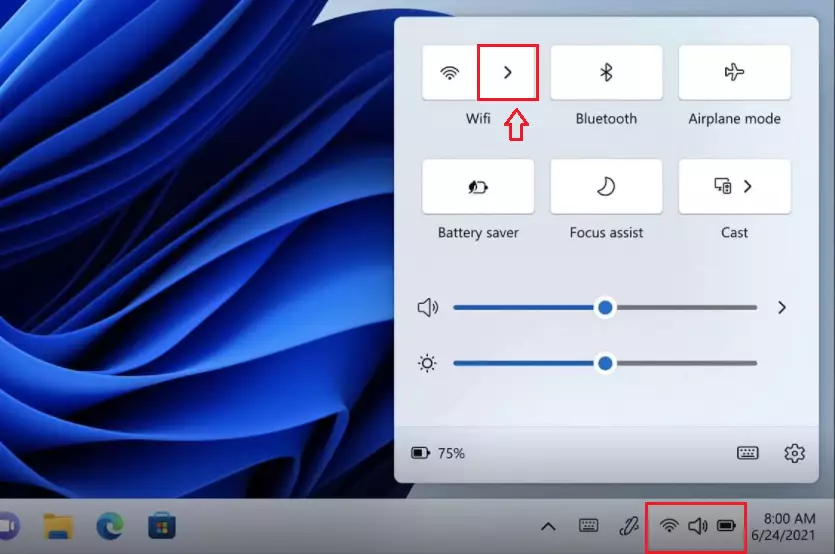
The Quick Settings panel puts the Wi-Fi, Bluetooth, Airplane mode, volume and battery controls in one place. To open it, click the group of network, volume and battery icons in the bottom-right corner of the taskbar. You can also press the Win plus A.
Step 1Open Quick Settings
- Click the network and volume icons at the right end of the taskbar .
The Quick Settings panel slides up above the taskbar. From here you can toggle wireless networking on or off.
Step 2Find the Wi-Fi Option
- Find the Wi-Fi tile near the top of the panel.
- Click the right-pointing arrow on that tile.
The panel changes to a list of wireless networks. If you can’t find a Wi-Fi tile at all, your PC may have no Wi-Fi adapter, which is common on desktops that use an Ethernet cable. You can also click the pencil icon at the bottom of the panel, choose Add, and check whether Wi-Fi was removed from the panel.
Step 3Turn On Wi-Fi (If Needed)
Make sure the Wi-Fi switch is set to On. If it is off, click the Wi-Fi tile once to switch it on. If the tile looks greyed out or keeps switching off, check that Airplane mode is not enabled. Airplane mode turns off all wireless radios. Once Wi-Fi is on, Windows scans and lists every network it can find nearby. This can take a few seconds.
Step 4Select Your Network
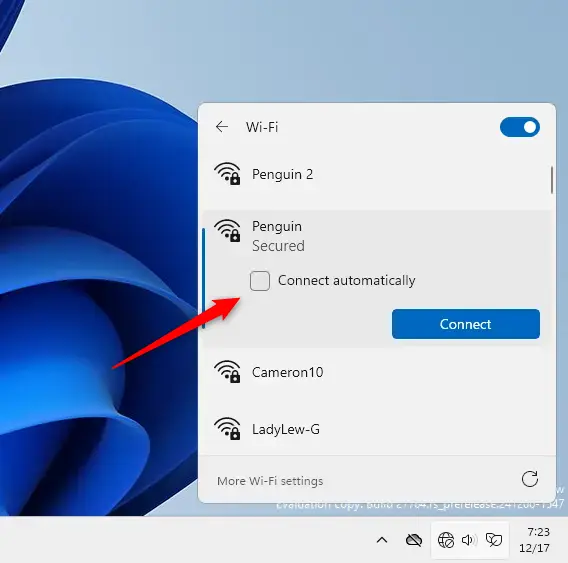
- Find your network name in the list. If you see several similar names, the stronger signal bars usually mark the closest router.
- Click the network name to select it.
The entry expands and shows a Connect automatically checkbox and a Connect button. Tick the checkbox if you want Windows to rejoin this network whenever it is in range. For a network you don’t use often, such as a café, leave it unticked.
Step 5Enter Your Password
Type the Wi-Fi password in the box that appears. Passwords are case sensitive, so “Home” and “home” are different. If you are unsure that you typed it correctly, click the eye icon at the end of the box to show the characters before you continue.
Step 6Connect
Click Connect. Windows checks the password and connects to the network. When it succeeds, the entry shows Connected and the taskbar icon changes to a Wi-Fi symbol. If you get an error about the network security key, the password is wrong, so re-enter it.
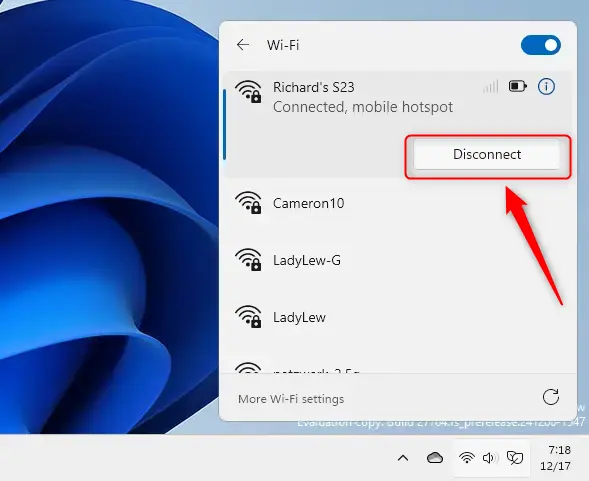
You are now connected to Wi-Fi. Open a web page to confirm that you can reach the internet.
Method 2Connect Using Windows Settings
The Settings app is the central place for all Windows adjustments. For Wi-Fi it gives you more than Quick Settings does: you can see the connection properties, manage saved networks and add a hidden network.
Step 1Open Windows Settings
Press the Win plus I on your keyboard. The Settings app opens straight away.

If you prefer the mouse, you can search for it instead:
- Click the search box on the taskbar .
- Type Settings.
- Click the Settings result to open it.
Step 2Go to Network Settings
- Click Network & internet in the left-hand menu.
- Click Wi-Fi on the right side of the window.
The Wi-Fi page opens. If you don’t see a Wi-Fi entry, your PC has no wireless adapter, or its driver is missing or disabled.
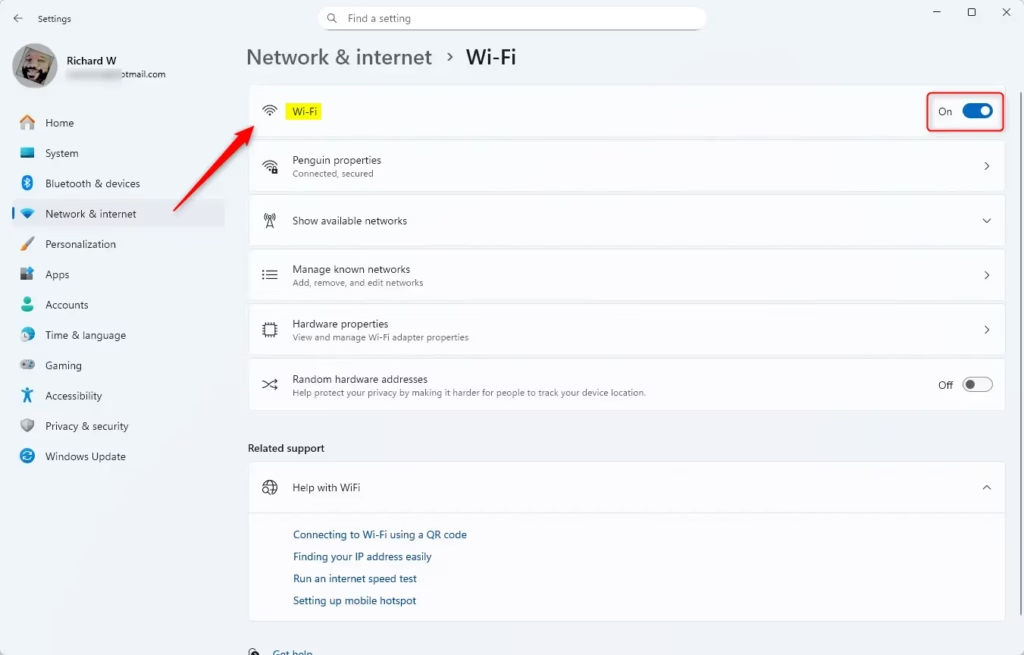
Step 3Turn On Wi-Fi
- Make sure the Wi-Fi switch at the top is set to On.
- Click Show available networks.
The list of nearby networks expands under the switch. If the switch will not stay on, check that Airplane mode is off in Quick Settings.
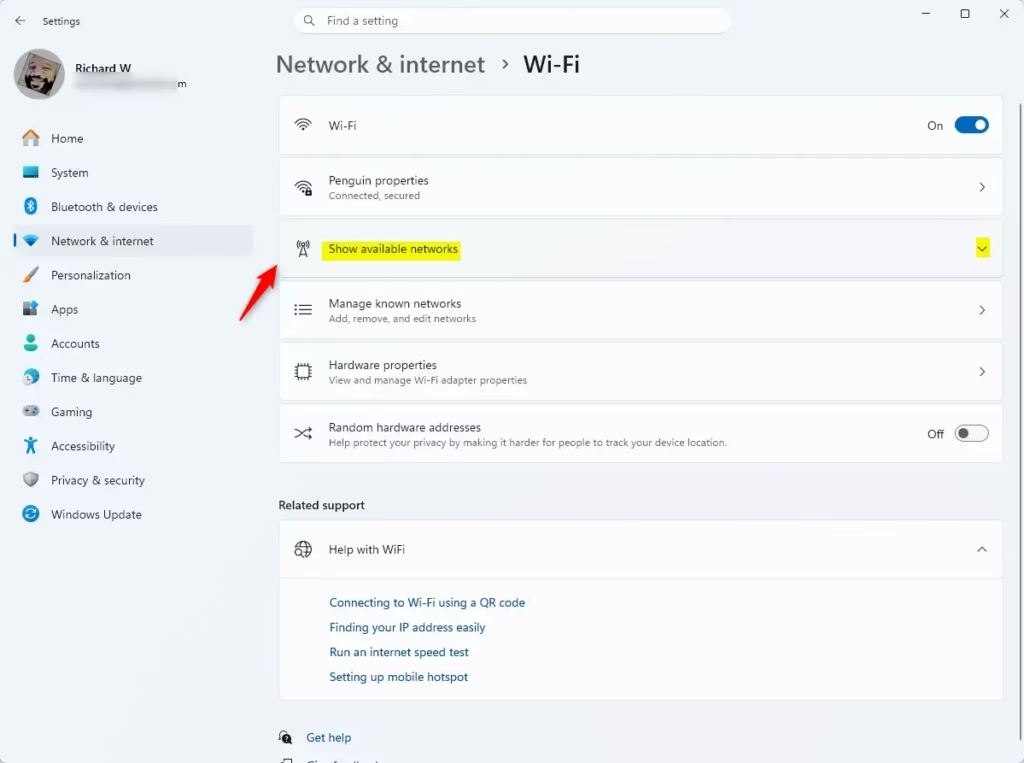
Step 4Select Your Network
Windows now lists all the wireless networks in range. Find your network name and click it. The entry expands and shows a Connect button, and a Connect automatically checkbox if you want to rejoin this network in future.
Step 5Enter Your Password
Type your Wi-Fi password into the field provided. Watch the uppercase and lowercase letters, because the password is case sensitive. Click the eye icon if you want to see what you typed.
Step 6Connect
Click Next or Connect, depending on the button your version shows. Windows connects to the network. When it succeeds, the network shows Connected under its name.
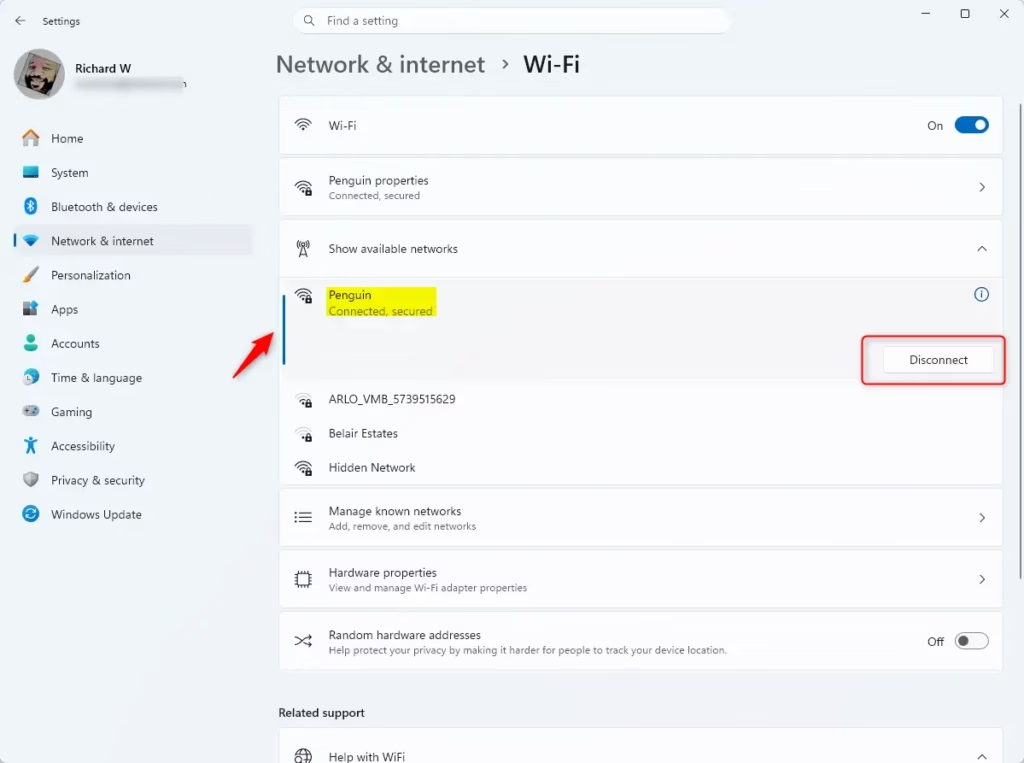
Windows saves the network, so next time it can reconnect without asking for the password. To remove a saved network later, go to Settings Network & internet Wi-Fi Manage known networks, select the network and click Forget.
Summary
Connecting to Wi-Fi on Windows 11 takes only a few seconds with either Quick Settings or the Settings app. Open the network list from the bottom-right corner of the taskbar, pick your network, type the security key and you are online, with no need to dig through menus.
- Quick SettingsClick the network and volume icons on the right of the taskbar, click the arrow next to the Wi-Fi tile, select your network, click Connect and enter your password.
- Windows SettingsPress
Windows key + I, go to Network & internet, click Wi-Fi, select your network, click Connect and enter your password.
Each method takes only a few clicks. Once you have entered the password, Windows connects and remembers the network. If you ticked Connect automatically, it reconnects whenever the network is in range.
Have a question about this guide?
Answered by AI from this guide. Good questions may be added to this page — please don't include personal details.
Did this guide fix your problem?

About the Author
Richard
Tech Writer, IT Professional
Richard is a writer at Geek Rewind who turns complex IT tasks into clear, step-by-step guides. He draws on years of hands-on experience in system administration and enterprise IT operations, focusing on Windows, Linux and WordPress: the problems people actually run into, and the fixes that work. His server and WordPress guides come from systems he runs himself. Richard builds and maintains the platform behind Geek Rewind, from its Ubuntu servers and Nginx configuration to its custom WordPress plugins. Many new tutorials start with readers' questions, and he's always glad to answer them in the comments.
No comments yet — be the first to share your thoughts!