How to Forget WiFi Networks on Windows 11

- 2 ways to do it
- Needs administrator rights
Forgetting a WiFi network on Windows 11 deletes its saved password and stops your computer from connecting to that wireless signal automatically. Windows keeps these connection details as profiles, so you can get online quickly without typing the password every time.
Clear a saved profile when the router password changes, when a connection acts up, or when you no longer use a network. Deleting old profiles keeps your connection list short and makes sure your PC only joins signals you trust. This guide covers three ways to do it: the Taskbar, the Settings app, and Command Prompt. Forgetting a network does not touch the router. You can reconnect later by selecting the network and typing the password again, so make sure you still have the password before you remove anything.
Open Settings by pressing Win+I, click Network & internet, select WiFi, click Manage known networks, find the network you want to remove, and click the Forget button next to it. The network deletes immediately with no restart needed.
What happens when you forget a network?
Clearing an old profile stops your computer from trying to join dead or unwanted signals. It also fixes the common case where Windows keeps using an old password after the router has changed. Removing the profile forces Windows to ask for the new password on the next connection.
| Action | Result |
|---|---|
| Disconnecting | Stops the current session but keeps the password saved. |
| Forgetting | Deletes the password and removes the network profile entirely. |
Method 1Using the Taskbar (For nearby networks)
This is the quickest way to remove a network that is currently in range. It works the same on Windows 11 Home and Pro. It only lists networks your PC can see right now, so use the Settings method below for networks that are out of range.
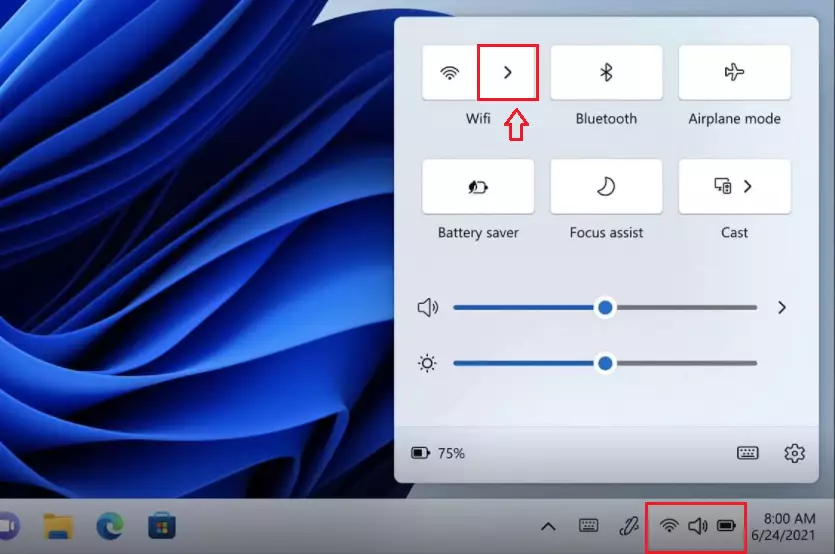
- Click the WiFi icon in the bottom right corner of your Taskbar . The Quick Settings panel opens above the Taskbar.
- Click the arrow next to the WiFi icon to see available networks. You should now see a list of nearby networks, with the one you are connected to at the top. If you don’t see the arrow, your PC has no WiFi adapter or WiFi is turned off.
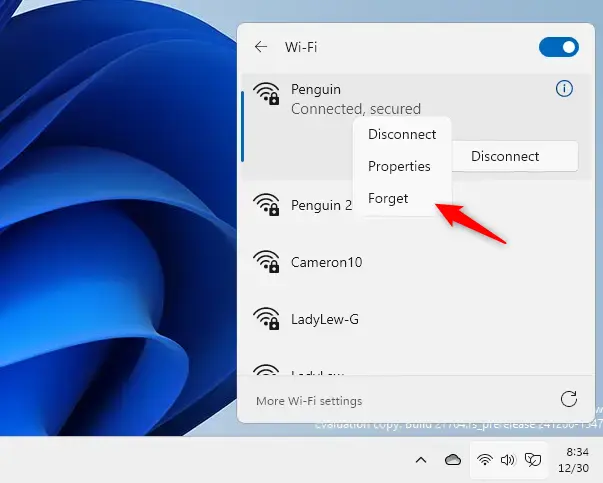
- Right-click the network you want to remove. A small menu appears. Only networks with a saved profile show a Forget option. If you only see Connect, Windows has nothing saved for that network.
- Select Forget. If you were connected to that network, Windows disconnects you right away. The network stays in the list while it is in range, but it no longer has a saved password.
Method 2Using System Settings (For all saved networks)
To forget WiFi networks Windows 11 saves automatically, use the main Settings app. It lists every saved connection, including networks that are not in range, so it is the best place to clean up several at once. Open Settings by pressing the Win+I on your keyboard, click Network & internet in the left menu, select WiFi on the right side of the screen, and then click Manage known networks to view and delete every network your computer remembers.
- Open Settings by pressing the Win+I on your keyboard. The Settings window opens. You can also right-click the Start button and choose Settings.

- Click on Network & internet in the left menu. The network options appear on the right side of the window.
- Select WiFi on the right side of the screen. If there is no WiFi entry, your PC has no wireless adapter, or the adapter is disabled or missing its driver.
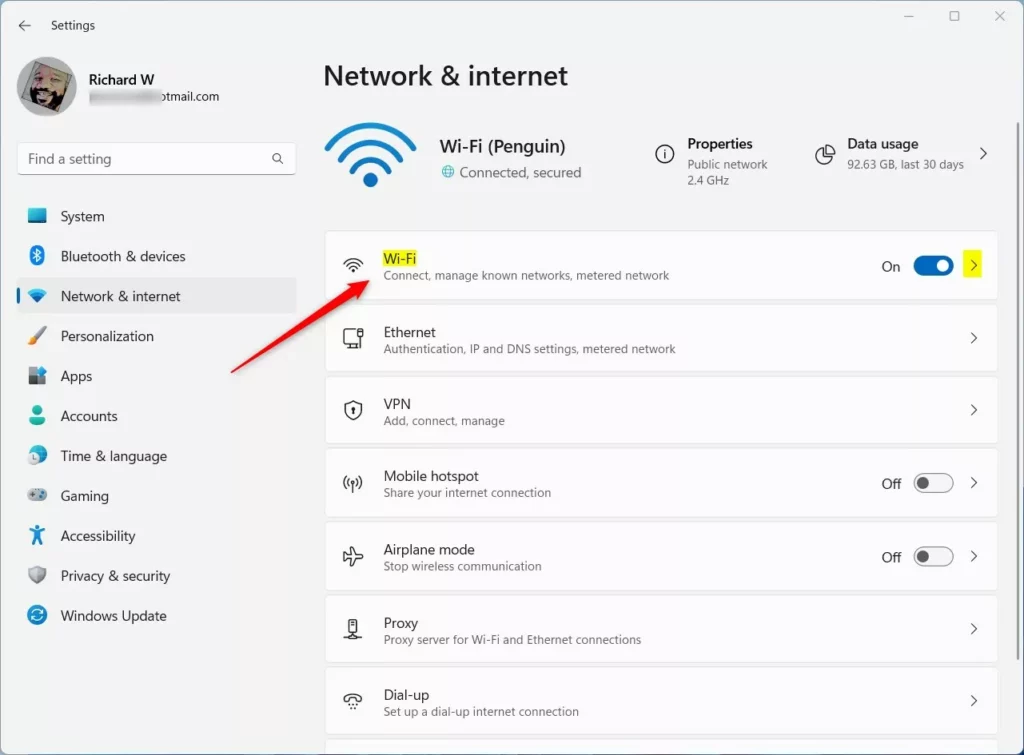
- Click on Manage known networks. You should now see a list of every WiFi network saved on this PC, whether or not it is in range.
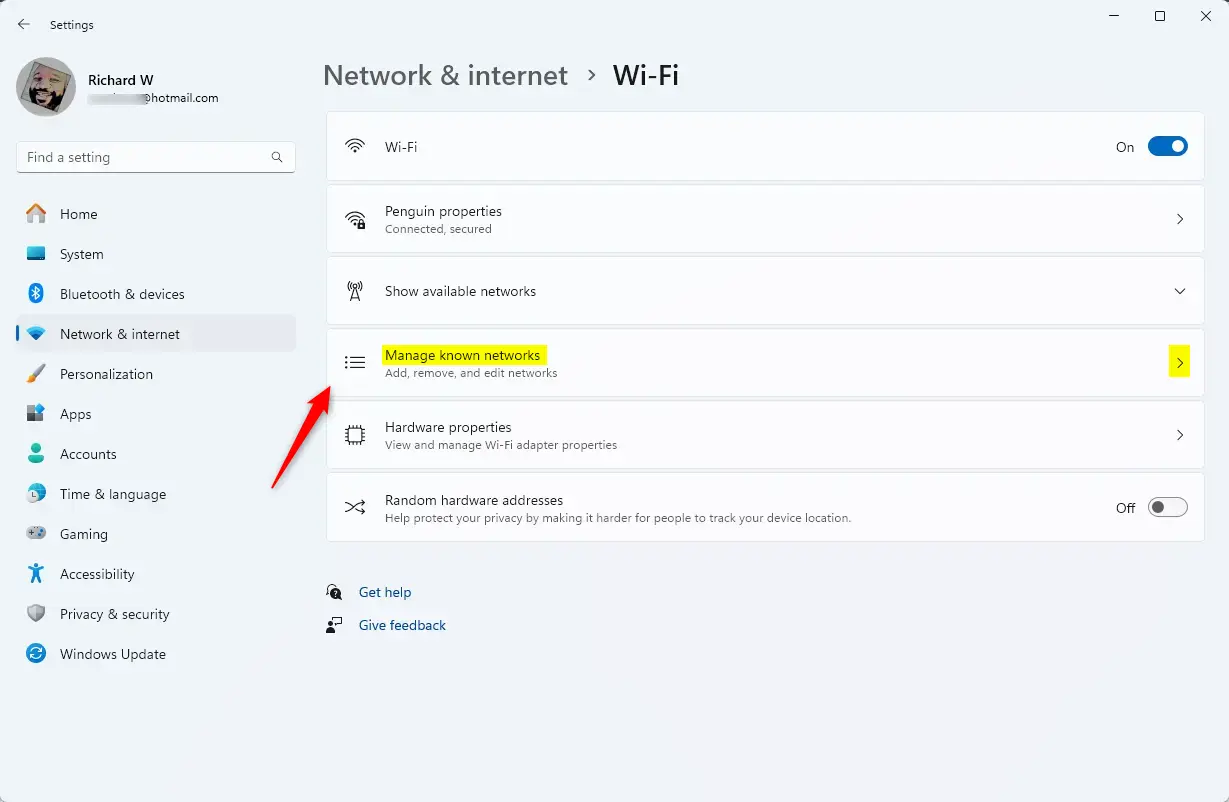
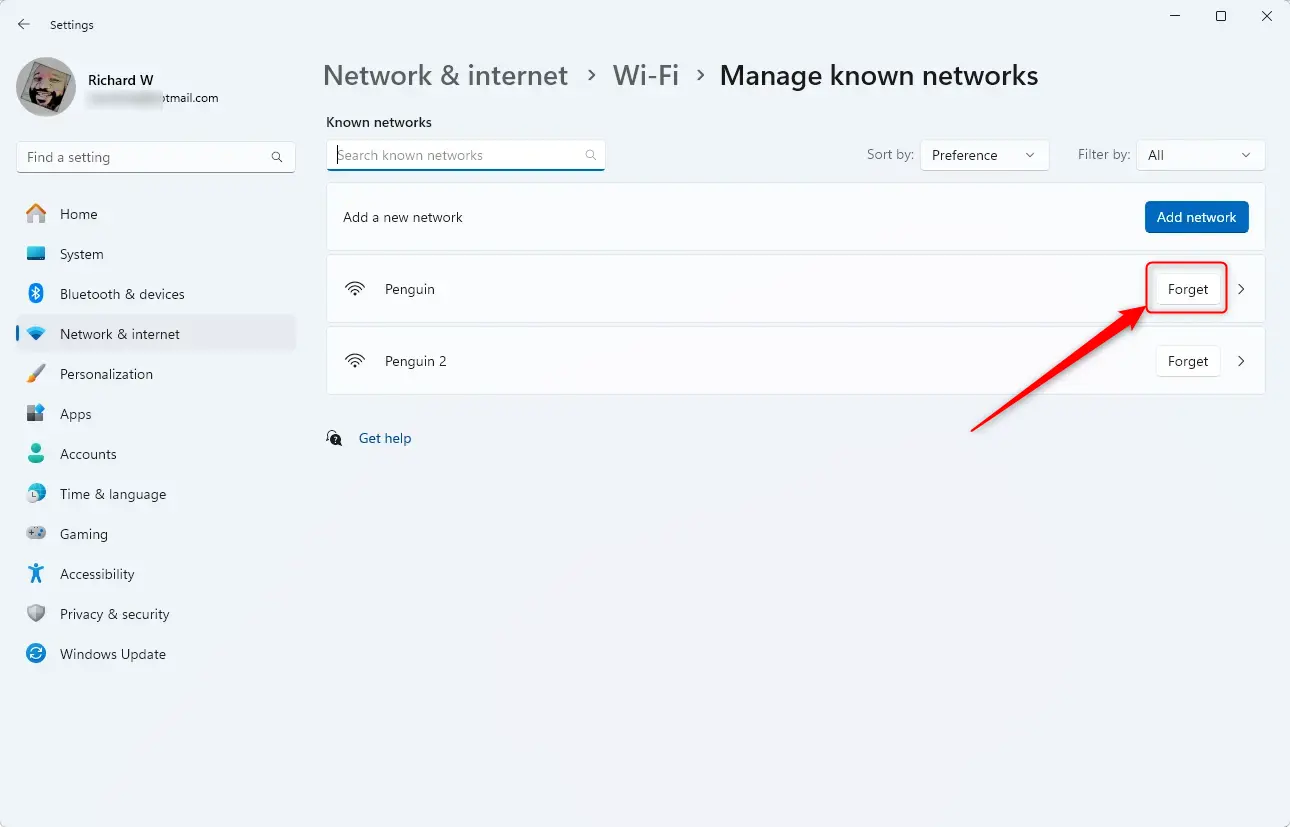
- Find the network you want to remove in the list. Check the exact name, because many routers broadcast two names, such as a separate 2.4 GHz and 5 GHz network.
- Click the Forget button next to that network name. The network disappears from the list straight away, and no restart is needed. Repeat for any other networks you want to remove.
Advanced Tip: Using Command Prompt
First, type netsh wlan show profiles to see every network your computer remembers, and then use the delete profile command to remove any connection that is causing you trouble. This method is useful when the Settings app is slow, or when you want to remove several profiles quickly.
Open Command Prompt as an administrator. To do this, click Start, type cmd, right-click Command Prompt in the results, and select Run as administrator. Click Yes if User Account Control asks for permission. Then, type `netsh wlan show profiles` and press Enter. This command lists all previously connected WiFi networks under the heading User profiles. It is a crucial first step before removal, because you need the exact profile name for the next command.
Replace `"NetworkName"` with the exact name of the WiFi network you wish to forget, keeping the quotation marks. Windows then confirms that the profile was deleted. If you get an error saying the profile was not found, check the spelling against the list you just printed. This action prevents your Windows 11 computer from automatically reconnecting to that network in the future, helping manage your available connections.
netsh wlan delete profile name="NetworkName"Troubleshooting Connectivity Issues
If your PC continues to reconnect to a network you've forgotten, it could be a settings issue. First, open Settings Network & internet > WiFi Manage known networks again and check for a second profile with a similar name, such as the same network with a number added. Forget that one too. If the network still comes back, a full network reset in Windows 11 often resolves persistent connection problems. You can find it in Settings Network & internet > Advanced network settings Network reset. Be aware that a reset removes all saved WiFi networks and their passwords, not just one, and it restarts your PC. Have your WiFi passwords ready before you use it.
Summary
Forgetting WiFi networks keeps your computer secure and organized by ensuring it only connects to trusted networks. Make it a habit to remove public and old networks you no longer use. If you ever need one back, select it from the WiFi list and enter the password again.
Have a question about this guide?
Answered by AI from this guide. Good questions may be added to this page — please don't include personal details.
Did this guide fix your problem?

About the Author
Richard
Tech Writer, IT Professional
Richard is a writer at Geek Rewind who turns complex IT tasks into clear, step-by-step guides. He draws on years of hands-on experience in system administration and enterprise IT operations, focusing on Windows, Linux and WordPress: the problems people actually run into, and the fixes that work. His server and WordPress guides come from systems he runs himself. Richard builds and maintains the platform behind Geek Rewind, from its Ubuntu servers and Nginx configuration to its custom WordPress plugins. Many new tutorials start with readers' questions, and he's always glad to answer them in the comments.
No comments yet — be the first to share your thoughts!