How to Change Wi-Fi Roaming Aggressiveness in Windows 11

Wi-Fi roaming aggressiveness determines how quickly your Windows 11 PC drops a weak wireless access point and connects to a stronger one nearby. If your connection freezes or stalls as you walk around your house or office, this setting is one of the first things to check.
The driver offers five levels, from lowest to highest aggressiveness. You change them in the properties of your network adapter, and the steps below show three ways to get there. The setting is the same on Windows 11 Home and Pro, and you don’t need a restart.
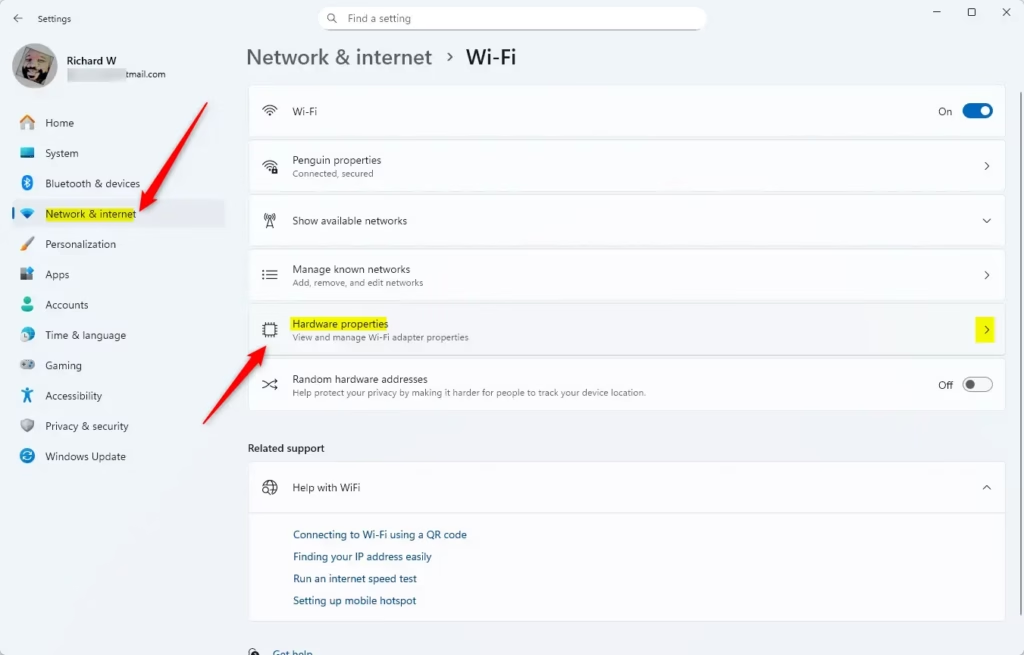
Open Settings, go to Network & Internet Wi-Fi, click Hardware properties, then find your network adapter and select Advanced. Scroll to Roaming Aggressiveness and choose a level from 1 (Lowest) to 5 (Highest); the default Medium setting works for most users.
What is Wi-Fi Roaming Aggressiveness?
Wi-Fi roaming aggressiveness is a network adapter setting that controls how often your computer looks for a stronger wireless signal. When you move around, it decides whether your laptop stays on its current access point or switches to a closer one with a better connection. A well-chosen level helps prevent sudden dropouts.
With a single router, there is nothing to switch to.
Roaming aggressiveness controls when a Wi-Fi adapter starts searching for a better signal. For example, when your current signal weakens, the adapter can switch automatically to a stronger access point nearby.
A low setting makes the adapter hold on to the current access point until the signal is quite poor. A high setting makes it start looking, and switching, much sooner.
A higher setting helps your computer stay on the strongest signal as you move around. The cost is that constant scanning uses more power. In testing, it drained the battery about 10% faster.
If your laptop stays on a desk and rarely moves, a high setting gives you little benefit and still costs you battery. If you carry it between rooms on a video call, a low setting can leave you stuck on a distant access point.
There are 5 levels of roaming aggressiveness. The exact names depend on your adapter’s driver, but they always run from the least aggressive to the most aggressive:
| Level | What It Means |
| 1. Lowest | Switches only when the current signal is very weak. |
| 2. Medium-low | A bit more sensitive than lowest. |
| 3. Medium (Default) | Balanced between switching often and staying connected. |
| 4. Medium-high | Looks for better signals more actively. |
| 5. Highest | Switches even when the current signal is still good. |
The default Medium setting works best for most people, so leave it alone unless you have a reason to change it.
- If you move around a lot, go one step higher so the adapter latches onto stronger signals faster.
- If you get persistent Wi-Fi disconnections, or the battery drains faster than it should, lower the value by one step.
Change one level at a time and test for a day or so before changing it again. If you end up worse off, set it back to Medium.
How to Change Your Wi-Fi Roaming Aggressiveness
Option 1Change It in 🪟 Windows 11 Settings
You can’t set Wi-Fi roaming aggressiveness directly in the main Windows 11 Settings app. The standard network pages only show basic connection options and have no hardware-level roaming controls. Microsoft keeps those advanced adapter properties in the older adapter properties window.
The Settings app does link to that window, though, and Device Manager and Control Panel open it as well. The three methods below all end at the same Advanced tab.
If Roaming aggressiveness isn’t in the list, your adapter’s driver doesn’t offer it. Intel adapters usually do. Some other brands leave it out. Installing the latest driver from your laptop or adapter maker sometimes adds it. If it still isn’t there, you can’t change it from Windows.
- Press
Win + Ito open Settings. The Settings window appears. - Click Network & internet on the left, then select Wi-Fi on the right. You should see your Wi-Fi settings and the list of available networks.
- Click Hardware properties. This page lists details about your wireless adapter, such as its driver version.
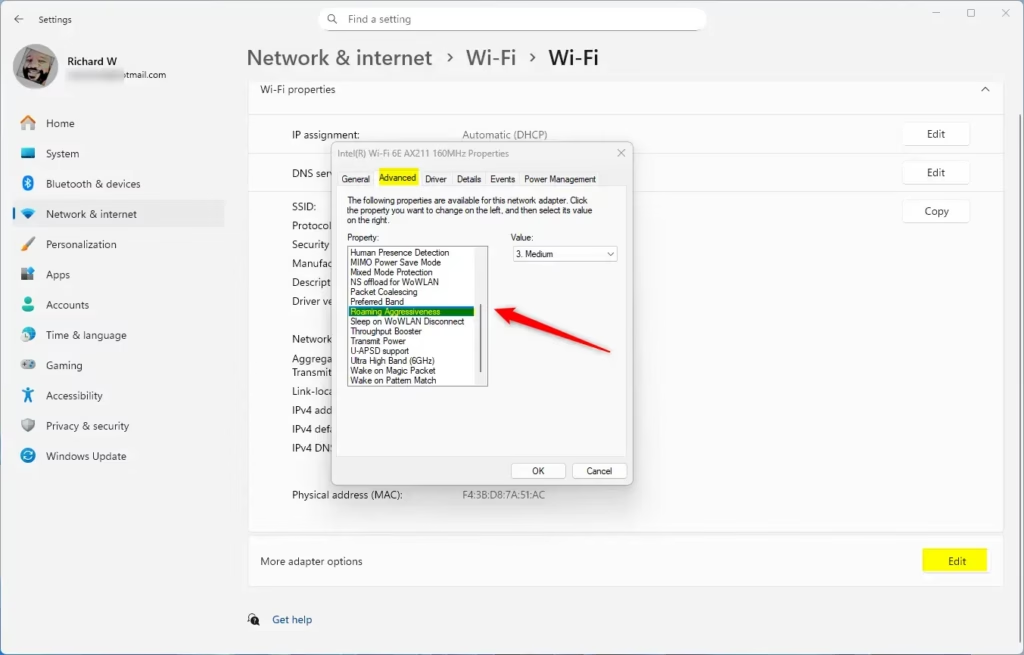
- Click Edit next to More adapter options. The adapter’s Properties window opens. Windows may ask for administrator approval first. Approve it, because you can’t change adapter settings without it.
- Click the Configure button. A second window opens with the properties of the wireless card itself.
- In the new window, go to the Advanced tab. You should see a Property list on the left and a Value box on the right.
- Select Roaming aggressiveness in the list on the left. The current level appears on the right.
- Choose your preferred level from the dropdown menu on the right.
- Click OK to save your changes. Your Wi-Fi may drop for a few seconds while the adapter restarts, and then it reconnects by itself. To undo the change, repeat the steps and pick the previous level, usually Medium.
Option 2Change It Using Device Manager
Device Manager is the most direct way to change Wi-Fi roaming aggressiveness in Windows 11. It’s a built-in hardware tool. You open your wireless card’s properties there and use the Advanced tab to set how aggressively the laptop scans for better access points, from low to high.
Use this method if you already know your way around Device Manager or if the Settings route doesn’t show the adapter options.
- Press
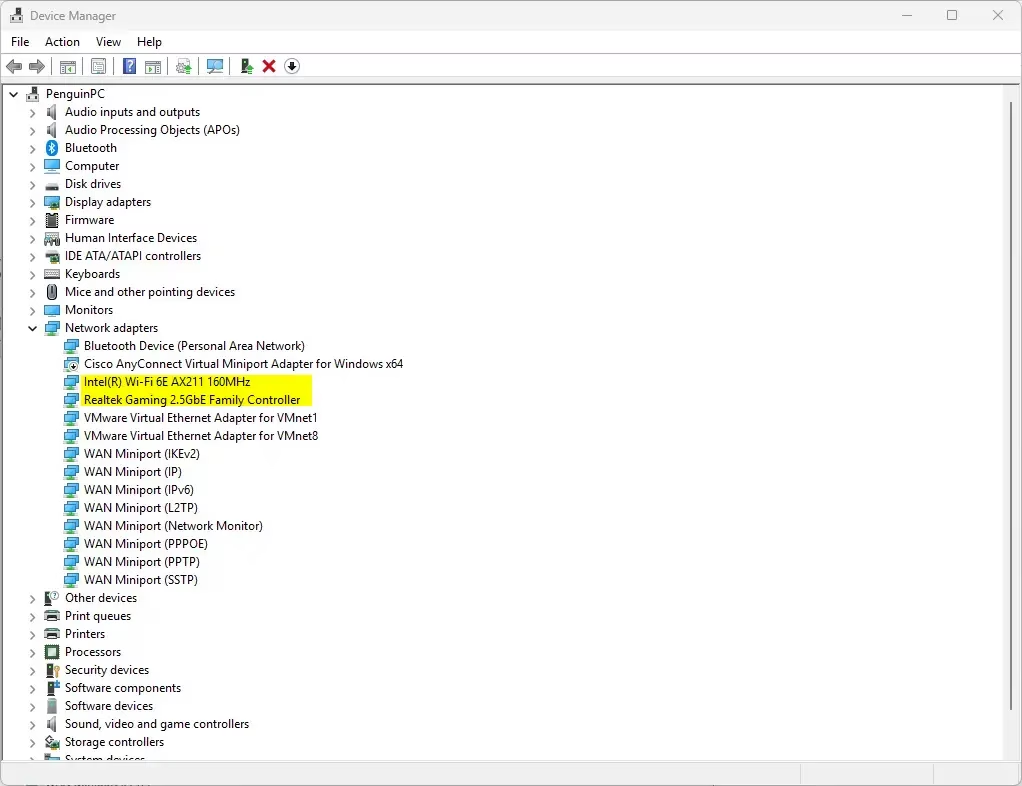
Win + Xand select Device Manager, or pressWin + R, typedevmgmt.mscand press Enter. The Device Manager window opens with a list of hardware categories. - Expand Network adapters. Click the arrow next to it to see every network device in the PC.
- Double-click your Wi-Fi adapter. Its name might include “Wireless” or “Wi-Fi”. Don’t pick the Ethernet, Bluetooth or virtual adapters. The adapter’s Properties window opens.
- Go to the Advanced tab. If there’s no such tab, you’ve opened the wrong device.
- Select Roaming aggressiveness from the list. The current level appears in the Value box on the right.
- Pick the level you want from the dropdown menu.
- Click OK. The adapter restarts, so expect a brief Wi-Fi drop. To undo the change, reopen the same page and select the previous level, usually Medium.
Option 3Change It in Network and Sharing Center
- Open the Control Panel and select Network and Sharing Center. If you don’t see it, switch View by in the top-right corner to Large icons or Small icons. In the default Category view, it sits under Network and Internet.
- Click Change adapter settings on the left. A window opens with all your network connections, including Wi-Fi and Ethernet.
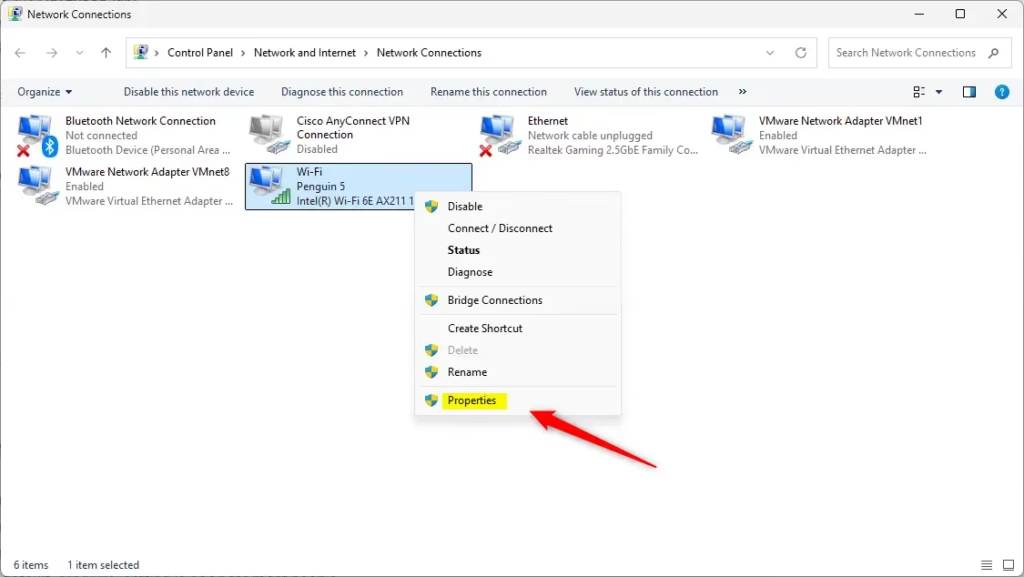
- Right-click your Wi-Fi adapter and choose Properties. Approve the administrator prompt if Windows asks.
- Click the Configure button. The properties of the wireless card open in a new window.
- Go to the Advanced tab.
- Select Roaming aggressiveness and choose your level in the Value dropdown on the right.
- Click OK to save. The Wi-Fi connection may drop briefly and then come back. To go back to the default, repeat these steps and choose Medium.
Summary
Wi-Fi roaming aggressiveness gives you control over how your laptop switches between routers or access points. By telling your wireless card when to scan for a stronger signal, you can find the balance between a stable connection and battery life that suits how you work.
- Your computer saves Wi-Fi network info for easier connections.
- Roaming aggressiveness controls how often your Wi-Fi looks for a stronger signal to switch to.
- There are 5 levels, from very relaxed to very aggressive.
- The default “Medium” setting works well for most people.
- If you move around a lot and want better performance, try higher levels.
- If you experience connection drops or faster battery drain, try lowering the level.
- You can change this setting via Settings, Device Manager, or Network and Sharing Center. All three lead to the same Advanced tab of your adapter.
- By adjusting roaming aggressiveness, you improve your Wi-Fi experience based on how you use your device. If the option is missing, your adapter’s driver doesn’t support it.
More Info
Learn more about Wi-Fi roaming aggressiveness from Intel: Intel Wi-Fi Roaming Aggressiveness Setting
If you're comfortable with command-line tools (text-based interfaces for running computer commands), you can also manage this setting with PowerShell: Set-NetAdapterAdvancedProperty (NetAdapter)
Have a question about this guide?
Answered by AI from this guide. Good questions may be added to this page — please don't include personal details.
Did this guide fix your problem?

About the Author
Richard
Tech Writer, IT Professional
Richard is a writer at Geek Rewind who turns complex IT tasks into clear, step-by-step guides. He draws on years of hands-on experience in system administration and enterprise IT operations, focusing on Windows, Linux and WordPress: the problems people actually run into, and the fixes that work. His server and WordPress guides come from systems he runs himself. Richard builds and maintains the platform behind Geek Rewind, from its Ubuntu servers and Nginx configuration to its custom WordPress plugins. Many new tutorials start with readers' questions, and he's always glad to answer them in the comments.
No comments yet — be the first to share your thoughts!