How to Reset AutoPlay Settings in Windows 11


AutoPlay in Windows 11 controls what happens when you plug in a removable device such as a USB drive, memory card, camera or phone. Resetting it restores the default behavior for every connected drive and device type. Windows forgets the choices you saved earlier, such as “always open this folder” or “always import photos”.
Windows 11 lists more than 20 media types and device actions, and you can reset them all at once. The reset button is in the classic Control Panel , not in the Settings app . Settings Bluetooth & devices > AutoPlay only has the main on/off switch and the default choices for removable drives and memory cards. Resetting stops random programs from opening and helps Windows react to your plugged-in accessories again.
Open Control Panel , go to Hardware and Sound, then click AutoPlay. Select “Reset all defaults” at the bottom and click Save. This restores AutoPlay to its original settings.
Why reset AutoPlay?
Reset AutoPlay when a connected device does not open automatically, opens the wrong app, or does not respond the way you expect. Clearing your saved choices lets you start fresh, so Windows asks what to do each time you plug in a camera, phone or memory card.
The reset affects only your own user account. It does not delete files on your drives or uninstall any apps. You can set your preferred actions again at any time.
What happens when done?
When you reset AutoPlay settings in Windows 11, your computer stops using your saved preferences for devices. Instead of opening a specific app automatically, Windows asks what you want to do each time you connect something new, like a USB stick or memory card.
The change applies to devices you connect from now on. You do not need to restart the PC. If you want a device to open the same way every time again, choose that action the next time Windows asks and tick the option to remember it.
How to reset AutoPlay in 🪟 Windows 11
Resetting AutoPlay in Windows 11 takes a few clicks in the Control Panel . You open the hardware settings, scroll to the bottom of the AutoPlay page, and click the reset button to clear all custom actions. This works the same on Windows 11 Home and Pro.
- Open the Control Panel by searching for it in the Start menu . Type “Control Panel ”, then press Enter. The Control Panel window opens.
- Select the Hardware and Sound group. If your Control Panel is set to show large or small icons instead of categories, skip this step and look for AutoPlay in the list.
- Click on AutoPlay. The page “Choose what happens when you insert each type of media or device” opens. It lists each media type with the action Windows currently uses for it.
- Scroll to the bottom of the window and click the Reset all defaults button. Every drop-down list above it goes back to its default value.
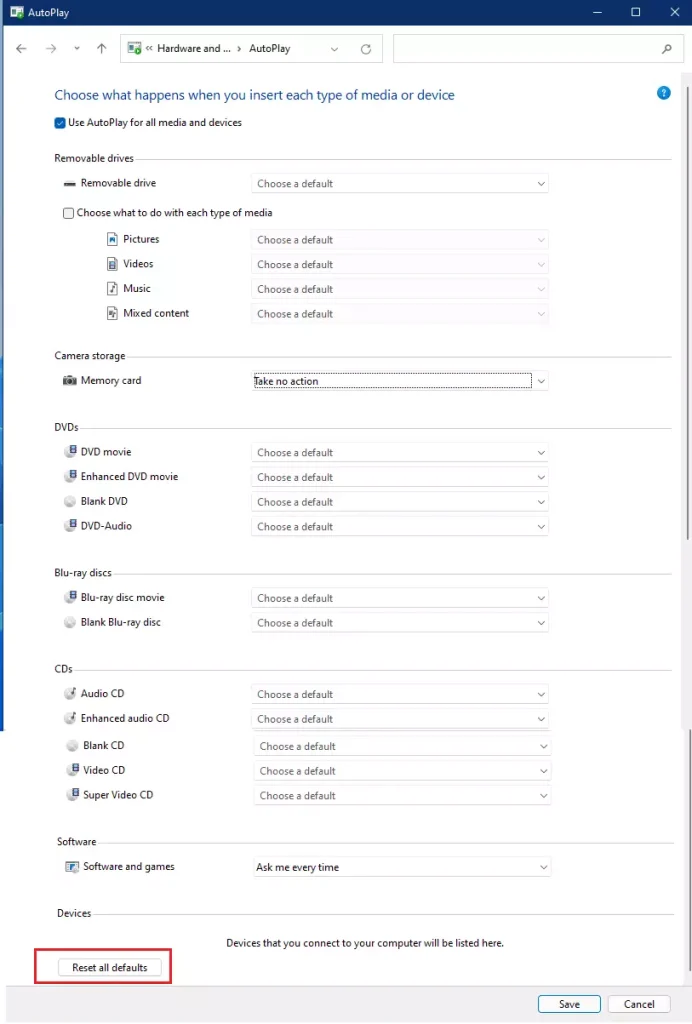
Click the Save button at the bottom right to finish. The reset is not stored until you save, so do not close the window before then. Your settings are now reset.
If the Use AutoPlay for all media and devices box at the top of the page is cleared, tick it. Without it, Windows will not show AutoPlay prompts at all, whatever you reset below. To undo the reset, come back to this page and pick the actions you want for each media type, then click Save again.
Troubleshooting AutoPlay failures
AutoPlay problems with one specific USB drive or device often have quick fixes. Start with the simple ones:
- Try a different USB port, preferably one directly on the PC and not on a hub or front-panel extension.
- Try the device on another computer. If it fails there too, the device itself is likely the problem.
- Update or reinstall device drivers (small programs that help Windows communicate with hardware). In Device Manager, expand Universal Serial Bus controllers, right-click the entry for your device, and choose Update driver or Uninstall device. If you uninstall it, unplug the device and plug it back in so Windows reinstalls the driver.
These steps solve many AutoPlay issues without touching your settings.
Checking Shell Hardware Detection
Shell Hardware Detection (a background service that monitors connected hardware) must be running for AutoPlay to work. If AutoPlay does not pop up when you connect a device, check this service in the Windows Services app and make sure it is turned on. It is normally set to Automatic by default, but third-party “tuning” tools sometimes change that. You need an administrator account to change service settings.
- Press Win+R, type services.msc, and hit Enter. The Services window opens with an alphabetical list.
- Scroll down to find Shell Hardware Detection. Check the Status column. It should say Running.
- Right-click it and select Properties. The properties dialog opens on the General tab.
- Ensure the Startup type is set to Automatic. If it is not, pick it from the drop-down list and click Apply.
- If the service is stopped, click Start. The status changes to Running. Click OK to close the dialog, then unplug your device and plug it in again to test.
Advanced Registry and Policy Fixes
Advanced users can reset AutoPlay in Windows 11 by deleting specific registry keys in the Registry Editor. This forces Windows to rebuild the default handler list when the standard Control Panel options fail to fix stubborn device behavior. Use this method only after the Control Panel reset and the service check have failed.
Editing the registry can break things if you delete the wrong entry. Before you change anything, back up the key (in Registry Editor, right-click it and choose Export) or create a restore point. Importing the exported file puts everything back.
reg delete "HKEY_CURRENT_USER\Software\Microsoft\Windows\CurrentVersion\Explorer\AutoplayHandlers" /fYou can also check the registry path at 🗝️HKEY_CURRENT_USER\
Summary
Resetting AutoPlay settings in Windows 11 means clearing your saved app choices in the Control Panel and checking background services if devices fail to trigger an action. You can fix most problems by restoring the default values or updating your system drivers.
- Access Control Panel: Navigate to Control Panel Hardware and Sound AutoPlay to find your AutoPlay settings.
- Reset to Defaults: Click the "Reset all defaults" button to clear your custom choices, then click Save.
- Check Services: Ensure the Shell Hardware Detection service is running and set to Automatic if AutoPlay fails.
- Update Drivers: Reinstall USB drivers via Device Manager to fix connection issues.
- Immediate Effect: Your computer will now prompt you for actions when you connect new devices, just like when it was new. No restart is needed.
Frequently asked questions
Where is auto play in Settings?
Open Settings, then go to Bluetooth & devices AutoPlay This page holds the main on/off switch for AutoPlay and the default choices for removable drives and memory cards. Other device types, such as cameras and phones, are not listed here. Those are reset in the classic Control Panel.
How do I stop 🪟 Windows 11 from automatically restarting?
Set Active hours in Settings Windows Update Advanced options so Windows avoids restarting during the hours you use your PC. Choose a time range that covers your normal working day. To delay updates entirely, select Pause updates on the Windows Update page. Windows still restarts when you choose to finish an update.
How do I Reset my default theme in 🪟 Windows 11?
Open Settings, go to Personalization Themes, and select Windows (light) or Windows (dark). This restores the default wallpaper, colors, sounds and mouse pointer. Any custom theme you saved stays in the list, so you can switch back to it at any time.
How do I disable AutoPlay in 🪟 Windows 11?
Open Settings and go to Bluetooth & devices AutoPlay. Turn off the main on/off switch. Windows will then stop acting on USB drives, memory cards, cameras and phones when you plug them in. You can turn the switch back on at any time.
Still have a question?
Answered by AI from this guide. Good questions may be added to this page — please don't include personal details.
Did this guide fix your problem?

About the Author
Richard
Tech Writer, IT Professional
Richard is a writer at Geek Rewind who turns complex IT tasks into clear, step-by-step guides. He draws on years of hands-on experience in system administration and enterprise IT operations, focusing on Windows, Linux and WordPress: the problems people actually run into, and the fixes that work. His server and WordPress guides come from systems he runs himself. Richard builds and maintains the platform behind Geek Rewind, from its Ubuntu servers and Nginx configuration to its custom WordPress plugins. Many new tutorials start with readers' questions, and he's always glad to answer them in the comments.
No comments yet — be the first to share your thoughts!