What Breaks When You Disable Screenshots and Screen Recording App Permissions in Windows 11

- 2 ways to do it
- Needs administrator rights
- Includes a restart or sign-out
Turning off the global screenshots and screen recording app permission in Windows 11 stops apps from capturing your display. This privacy setting covers single-frame screenshots and continuous video capture, and Windows enforces it through its privacy framework.
With the toggle off, the Desktop Window Manager (dwm.exe, the Windows component that draws everything on screen) stops handing screen content to tools that ask for it. That breaks specific workflows in productivity software, gaming tools and support utilities. The exact behavior depends on your Windows 11 build and on how each app captures the screen. The sections below cover the common cases, then show how to change the setting and undo it.
Disabling screenshots and screen recording app permissions in Windows 11 breaks the Snipping Tool, Print Screen, Xbox Game Bar recording, OBS Studio and Discord screen sharing, remote support tools like Quick Assist and TeamViewer, and automated testing software that relies on screen capture APIs.
Core Features and Apps That Break Immediately
Several built-in and third-party tools read the screen to do their job. If you use them for work, gaming or troubleshooting, you will probably notice the failure right away. Rather than assuming a tool still works, test each one you rely on after you change the setting.
The Snipping Tool and Print Screen Functionality
Disabling the permission breaks the built-in Snipping Tool and Print Screen capture. With permissions revoked, the Snipping Tool can show a black screen, an error message, or a capture border that never loads. The result varies a little between builds.
The Snipping Tool in current Windows 11 builds also records video, so screen recording is affected along with still captures. The Win+Shift+S shortcut opens the same Snipping Tool capture overlay, so it behaves the way the app does. If the Snipping Tool fails, expect Win+Shift+S to fail in the same way.
To capture your desktop again, turn the permission back on in your privacy settings. The steps are in the restore section further down.
Xbox Game Bar and Background Recording
Xbox Game Bar can no longer capture gameplay footage, save background replays or broadcast your screen when this permission is off. The overlay relies on the same permission framework to record video. If you press the keyboard shortcut to save a clip while permissions are blocked, the recording fails.
If a Game Bar clip fails and you can’t see why, check this setting first. It is a setting people forget, especially on a PC someone else configured.
Third-Party Streaming and Recording Software
Third-party streaming and recording software such as OBS Studio, Discord screen sharing and Zoom can fail to capture your display when Windows 11 restricts screen permissions. Some desktop apps use alternative capture hooks (other ways of reading the screen) that get around the privacy setting. Their primary capture methods, though, tend to return black screens.
If you stream, record or present from this PC, you need active permissions to capture the screen cleanly. A black preview in OBS or a black shared window in a meeting is a typical sign that this setting is blocking capture.
Impact on Enterprise and Productivity Utilities
The effects go beyond consumer recording tools. Enterprise software and workflow automation utilities can be seriously disrupted when screen capture permissions are disabled. This matters most on shared or managed machines, where one privacy change can quietly affect support and testing workflows.
Remote Desktop and Support Tools
If you expect a remote support session, re-enable the permission beforehand. That saves you from troubleshooting the troubleshooting tool in the middle of the call.
Automated Testing and UI Monitoring Software
Automated testing suites and visual regression tools (which compare screenshots to spot unwanted changes) can fail instantly when the permission is revoked. Development environments that take periodic screenshots to verify user interface states can’t reach the screen capture API. The scripts then time out, which shows up as failures across your continuous integration pipelines.
If a test machine suddenly starts failing screenshot steps with no code changes, check this privacy setting before you debug the tests.
How to Disable Screenshots and Screen Recording App Permissions in 🪟 Windows 11
You can manage screen capture permissions through the Settings app or directly through the Windows registry (the database where Windows stores its configuration). Settings is quicker to undo. The registry method suits cases where you need to apply the restriction in a more controlled way. Choose whichever fits your environment.
Method 1Using the Settings App
The Settings app lets you manage capture access globally or for individual programs, and you don’t have to touch system files. This works the same on Windows 11 Home and Pro. The exact name and location of the setting can differ between builds, as the steps below note.
- Press Win+I to open Settings. The Settings window opens.

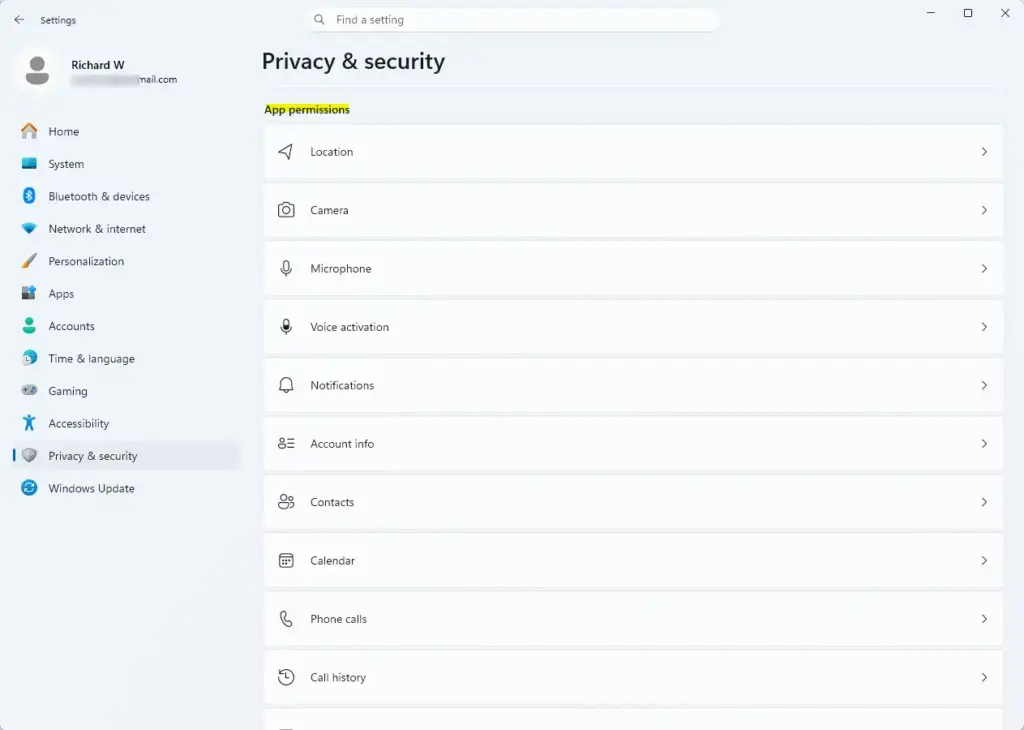
- Select Privacy & security from the left sidebar. The right pane now lists the privacy categories.

- Scroll down to the App permissions section and click Screenshots (or Screenshot and app recordings, depending on your Windows 11 version). If you can’t find either entry, your build may not include this setting yet. Install the latest Windows updates and check again.
- Set the switch for Let apps take screenshots and record screen to Off. The switch label changes to Off, and apps can no longer capture the screen.
- Optionally, expand the list below the master switch to disable access for specific individual applications while leaving others enabled. This is the less disruptive option if only one app is the concern.
That’s it. Screen capture is now blocked, either for every app or only for the ones you switched off in the list. You can reverse it at any time from the same page.
If the toggle is greyed out or reverts after a restart, a work or school policy is probably controlling the setting on a managed PC. In that case, ask your administrator.
Method 2Using the Registry Editor
The Registry Editor change under 🗝️HKEY_CURRENT_USER applies only to the current user account. This method edits system settings directly, so work carefully. The Registry Editor is available on both Home and Pro.
Before you change anything, create a System Restore point. Open Start, type Create a restore point and open the result. On the System Protection tab, select your system drive, then click Create, name the point and confirm. If the Create button is greyed out, System Protection is off for that drive. Click Configure and choose Turn on system protection first.
Also export the key as a second safety net. Once you reach the key in step 3 below, select it and use File Export to save a backup file you can double-click to restore.
- Press Win+R to open the Run dialog box.
- Type
regeditand press Enter to open the Registry Editor. Because this key is under 🗝️HKEY_CURRENT_USER, administrator rights are not required for the change itself. Approve a User Account Control prompt only if one appears. - Navigate to the following key in the left pane:
HKEY_CURRENT_USER\SOFTWARE\Microsoft\Windows\CurrentVersion\CapabilityAccessManager\ConsentStore\graphicsCaptureProgrammatic - If the
graphicsCaptureProgrammatickey is not present, right-click theConsentStorekey, select New Key, and name itgraphicsCaptureProgrammatic. - In the right pane, look for a value named Value. If it doesn’t exist, right-click an empty space, select New String Value, and name it
Value. - Double-click the Value entry and change its data to
Denyto block screen capture permissions, or toAllowto enable them. - Click OK and close the Registry Editor. Restart your computer so the change takes full effect.
That’s it. The registry value is now set for your user account, and after the restart Windows applies it. If something goes wrong, import your exported file or use the restore point to roll back.
After the restart, check Privacy & security in Settings. The toggle should reflect the value you set.
How to Re-Enable Permissions If Something Breaks
Turning the permission back on fixes the black screens, broken streaming software and non-working recording tools described above. Reversing the restriction is quick. Follow these steps.
- Press Win+I to open Settings.
- Go to Privacy & security Screenshots (or Screenshot and app recordings).
- Set the switch for Let apps take screenshots and record screen back to On.
- If you used the Registry Editor method, reopen
regeditand navigate toHKEY_CURRENT_USER\SOFTWARE\Microsoft\Windows\CurrentVersion\CapabilityAccessManager\ConsentStore\graphicsCaptureProgrammatic. Change the Value string data fromDenytoAllow. - Restart your PC so that running system services reinitialize the capture APIs correctly. Then test the Snipping Tool or your recording app to confirm capture works.
You should now have screen capture working again for apps that request it. The Snipping Tool, Win+Shift+S and Game Bar should all respond as they did before.
If an app still shows a black screen after you re-enable the permission, close it completely and reopen it. Apps often check their capture access only at launch.
Does disabling screenshot permissions stop the Print Screen key entirely?
Disabling screen capture app permissions stops background apps and the Snipping Tool from intercepting the display. Physical hardware key behaviors that save directly to the clipboard may still work. That depends on your specific Windows 11 build and on any auxiliary keyboard software you have installed.
Don’t treat this setting as a guarantee that nobody can capture your screen. Test it on your own machine.
Have a question about this guide?
Answered by AI from this guide. Good questions may be added to this page — please don't include personal details.
Did this guide fix your problem?

About the Author
Richard
Tech Writer, IT Professional
Richard is a writer at Geek Rewind who turns complex IT tasks into clear, step-by-step guides. He draws on years of hands-on experience in system administration and enterprise IT operations, focusing on Windows, Linux and WordPress: the problems people actually run into, and the fixes that work. His server and WordPress guides come from systems he runs himself. Richard builds and maintains the platform behind Geek Rewind, from its Ubuntu servers and Nginx configuration to its custom WordPress plugins. Many new tutorials start with readers' questions, and he's always glad to answer them in the comments.
No comments yet — be the first to share your thoughts!