How to Uninstall Microsoft Teams from Windows 11


Microsoft Teams is a built-in chat and video call app that comes preinstalled on Windows 11 versions like 22621.1848. Uninstalling Microsoft Teams from Windows 11 removes the app and clears out its leftover files from your PC.
Some versions of Teams leave hidden files behind when you use standard removal steps. You can use the settings menu or run a quick command to wipe the app from your system completely. This guide uses the Settings route, which works on both Windows 11 Home and Pro. You will need an account with administrator rights, or the admin password, because Windows asks for permission during removal.
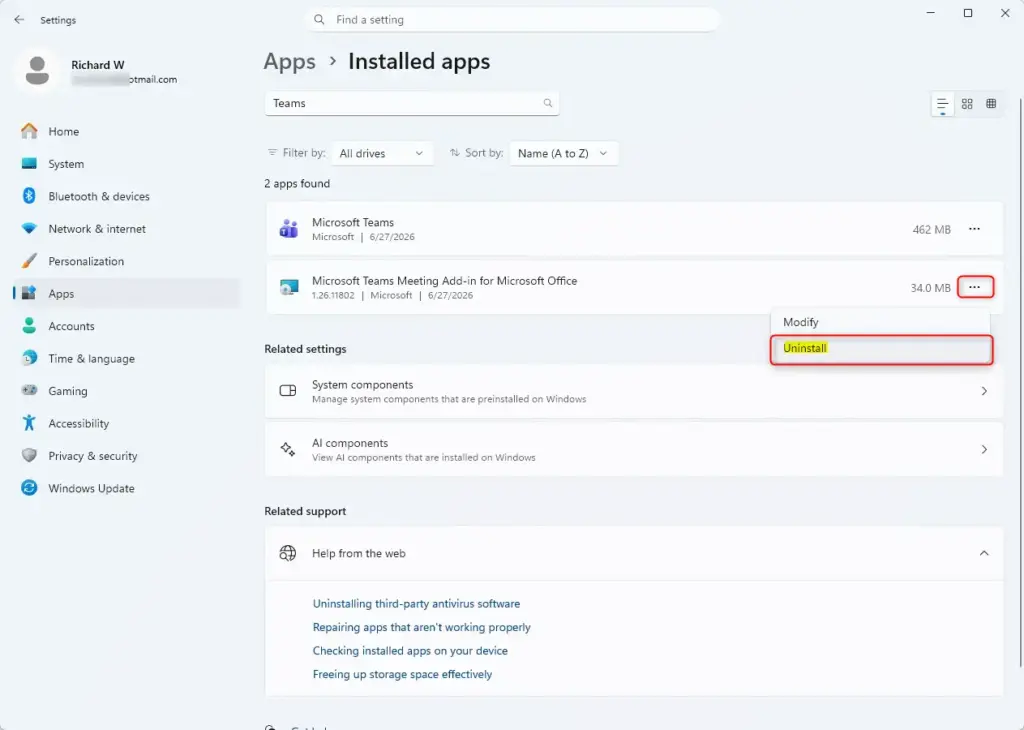
Press Win+I to open Settings , go to Apps Installed apps, search for Microsoft Teams, click the three dots next to it, select Uninstall, and click Uninstall again to confirm. Windows may ask for your administrator password. The app removes completely within moments.
Step 1Close Teams Completely
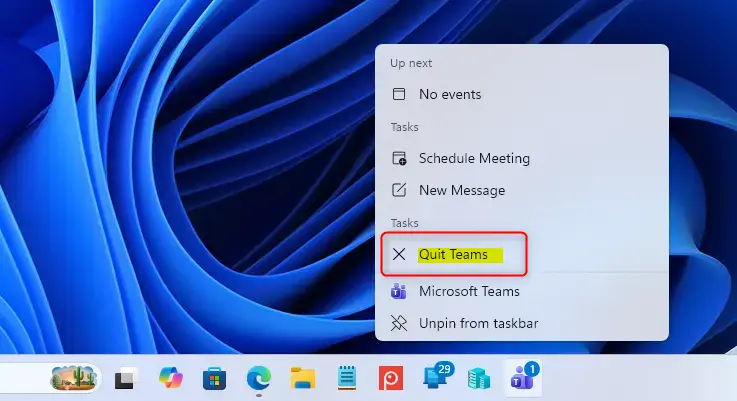
If Teams is still running, the uninstaller can fail because its files are in use. Clicking the close button (X) on the Teams window often only sends the app to the background, so quit it from the system tray near your clock to stop all of its processes.
- Find the Teams icon: Look in the area near your clock on the taskbar , usually on the right side. If you do not see it, click the small up arrow (Show hidden icons) to open the rest of the tray icons. You should see a row of small icons, and Teams is the one with the purple or blue “T” logo.
- Right-click the Teams icon: A small menu opens above the icon.
- Choose “Quit” or “Close window”: Select the option that closes the app completely. The icon should disappear from the tray. The wording depends on your Teams version, but “Quit” is the one you want if both are shown.
- Check Task Manager if the icon stays: If Teams will not quit, press Ctrl+Shift+Esc to open Task Manager , find any Microsoft Teams entries under Processes, right-click each one, and choose End task.
Step 2Use Windows Settings to Remove the Main App
You can uninstall Microsoft Teams quickly using the built-in Windows Settings menu. This removes the main application. The steps below follow Windows 11, where the app list is called Installed apps. Older Windows 10 builds call the same page Apps & features.
- Open Windows Settings : The fastest way is to press Win+I on your keyboard. You can also click the Start button and then click the gear icon for Settings. The Settings window should open.
- Go to “Apps”: In the left pane of the Settings window, click Apps.
- Click “Installed apps”: On Windows 11 this is one of the first options under Apps. You will see a list of everything installed on your computer. (On a Windows 10 style layout, this page is named Apps & features.)
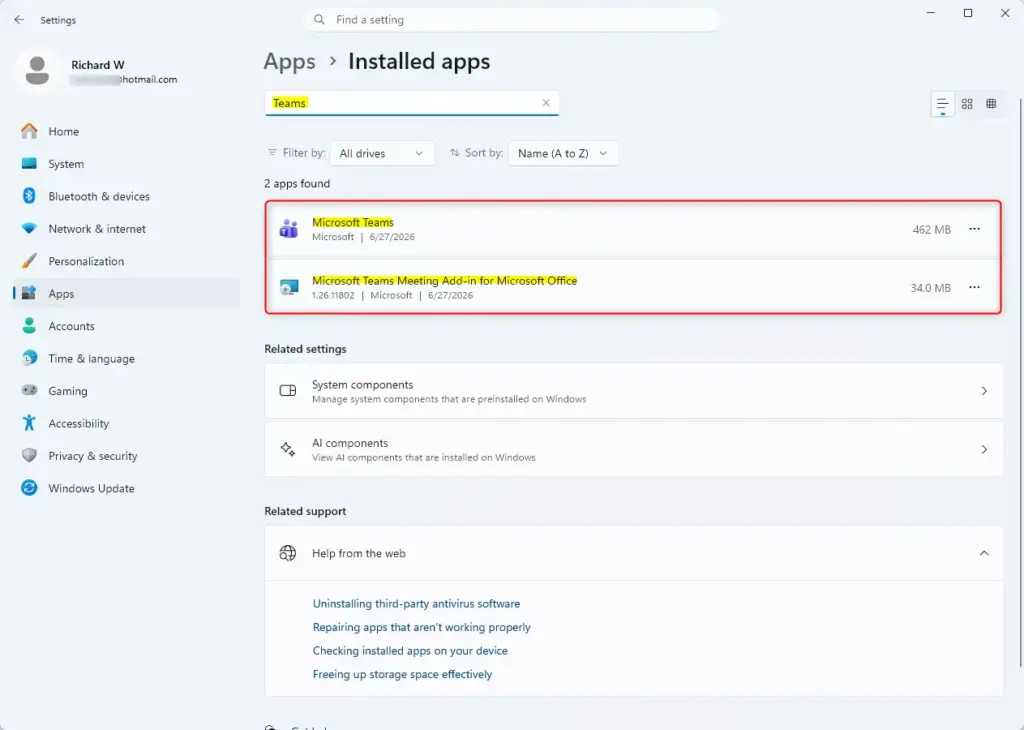
- Search for “Teams”: Click the search box at the top of the list and type Teams. The list should shrink to apps with Teams in the name.
- Find “Microsoft Teams”: You should see Microsoft Teams in the results. You may also see a similar entry such as Microsoft Teams classic. Remove the one called Microsoft Teams first.
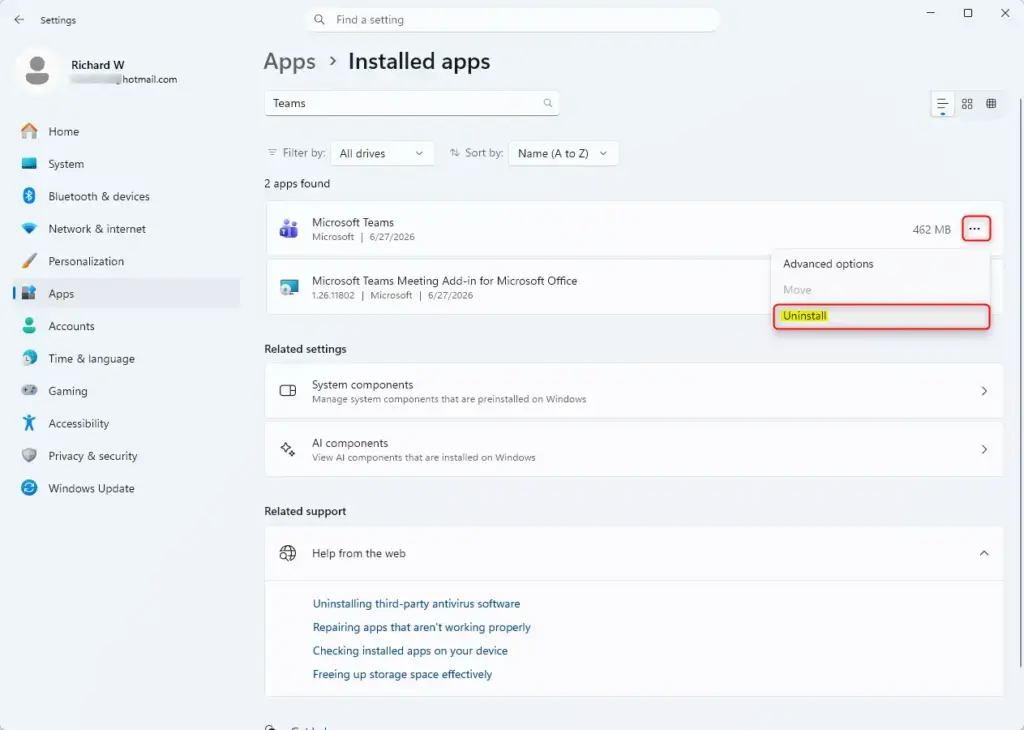
- Open the app’s menu and click “Uninstall”: Click the three dots at the right end of the Microsoft Teams row, then click Uninstall. On a Windows 10 style list, click the app name first and then the Uninstall button.
- Confirm the uninstall: A pop-up asks if you are sure. Click Uninstall again. If the Uninstall option is greyed out, the app is likely managed by your work or school, and you will need your IT department to remove it.
- Grant permission: Windows may ask, “Do you want to allow this app to make changes to your device?” This is a normal security question. Click Yes, or enter an administrator password if asked. After a few moments, Microsoft Teams should vanish from the list.
If you change your mind later, you can reinstall Teams from the Microsoft Store or from Microsoft’s Teams download page.
Step 3Find and Remove the “Machine-Wide Installer”
If you leave it in place, it can put Teams back on user profiles later. Stay in the Apps list in Windows Settings , search for Teams a second time, and remove this installer component so no leftover files remain.
- Stay in "Installed apps": You should still be in the same app list in Windows Settings where you just uninstalled the main Teams app.
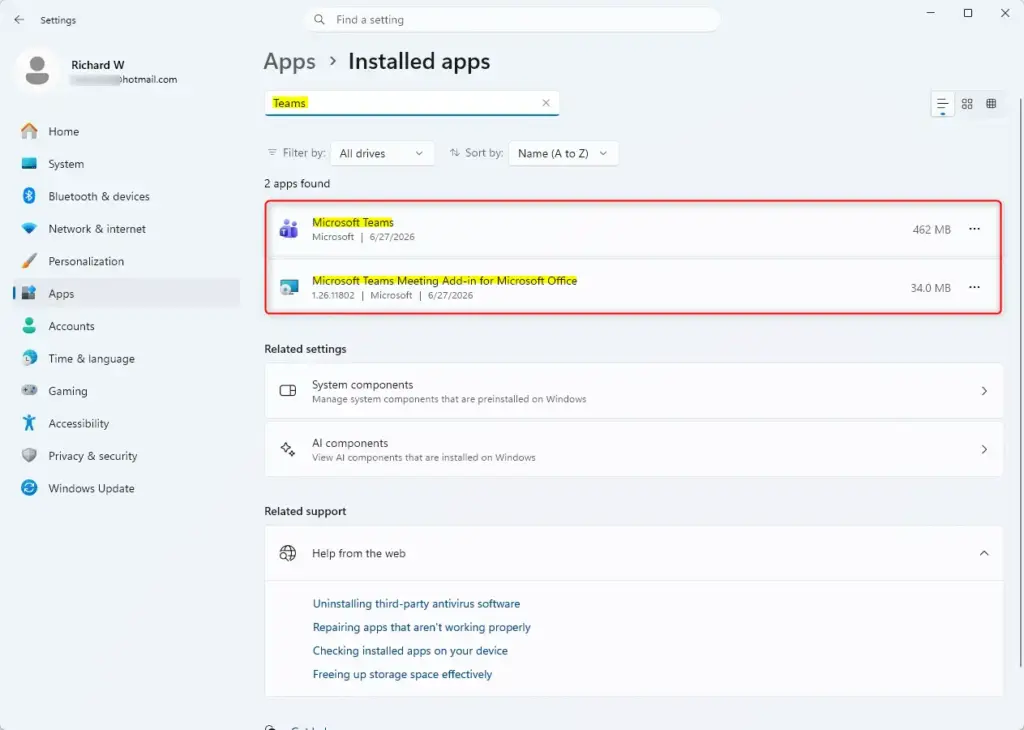
- Search for "Teams" again: If you closed Settings, press Windows key + I, go to Apps Installed apps, and type Teams in the search box.
- Look for "Teams Machine-Wide Installer": You should see another item in the list, probably called Teams Machine-Wide Installer. If it is not there, your PC never had it, or it is already gone. In that case, you can skip to the restart.
- Select and Uninstall: Click the three dots next to Teams Machine-Wide Installer, then click Uninstall. On a Windows 10 style list, click the entry first and then the Uninstall button.
- Confirm and Grant Permissions: Just like with the main Teams app, you will likely see a message asking if you want to uninstall. Click Uninstall again. Then click Yes when Windows asks for permission to make changes. The entry should disappear from the list when it finishes.
Step 4Restart Your PC to Finish
Restarting your computer finishes the process to uninstall Microsoft Teams by clearing out any leftover system processes. A restart is not always required, but it is a cheap way to make sure Windows applies all the recent changes, so do it anyway.
- Save your work: Before you restart, save any files you have open in other programs.
- Restart Windows: Click the Start button, then click the Power icon, and choose Restart. Use Restart rather than Shut down, because on Windows 11 a normal shutdown can keep some system state through Fast startup.
- Check the result: After you sign back in, search the Start menu for Teams. Nothing should come up, and the tray icon should be gone.
Reference:
https://support.microsoft.com/en-US/teams/troubleshooting/uninstall-microsoft-teams
Summary
Uninstalling Microsoft Teams requires removing both the main application and the background installer through Windows Settings. Completing these steps and restarting your computer ensures you successfully uninstall Microsoft Teams without leaving any hidden files behind on your hard drive.
Uninstalling Microsoft Teams from Windows 11 removes the main Teams application and the Teams Machine-Wide Installer. This removal process prevents leftover files or running processes from causing computer problems. Restarting the Windows 11 computer finalizes the uninstallation of Microsoft Teams.
Did this guide fix your problem?

About the Author
Richard
Tech Writer, IT Professional
Richard is a writer at Geek Rewind who turns complex IT tasks into clear, step-by-step guides. He draws on years of hands-on experience in system administration and enterprise IT operations, focusing on Windows, Linux and WordPress: the problems people actually run into, and the fixes that work. His server and WordPress guides come from systems he runs himself. Richard builds and maintains the platform behind Geek Rewind, from its Ubuntu servers and Nginx configuration to its custom WordPress plugins. Many new tutorials start with readers' questions, and he's always glad to answer them in the comments.
No comments yet — be the first to share your thoughts!