How to Choose a Default App for PDFs, Email, or Web in Windows 11

- 24 steps
- Needs administrator rights
Default apps in Windows 11 work per file type and link type, not with one switch as in older versions of Windows. A file type is the extension at the end of a file name, such as .pdf. A link type is the start of an address, such as mailto: for email addresses or https: for web pages.
To set one, open Settings Apps Default apps, find the app, and assign it to the types it should handle. PDFs use .pdf, email uses MAILTO, and the web uses HTTP and HTTPS.
Windows sometimes ignores your choice, especially after an update or when another app claims a file type. This guide covers PDFs, email and web links, and what to check when a default does not stick.
Open Settings Apps Default apps and search for the file type or link type you want to change. For PDFs, type.pdf and pick your app from the list. For email, search MAILTO. Windows assigns the app immediately, with no restart needed. Each Windows user account keeps its own defaults.
Before you start
Check these four points first. They explain most of the problems people hit later.
- The app must be installed. Windows can only offer apps that are installed and registered with it. If an app is missing from the list, install it first. Portable apps that run without an installer often do not register, so they will not appear.
- The choice is per user account. Each person who signs in to the PC has their own defaults. Changing yours does not change anyone else’s.
- You do not need administrator rights for any step in this guide on a personal PC. On a work or school PC, an organisation can lock these settings (see the troubleshooting section below).
- You do not need to restart. The change applies as soon as you make it. If an app that is already open still behaves the old way, close it and open it again.
These steps match current Windows 11. Button labels shift slightly between builds, and I flag those moments as they come up.
Home and Pro editions use the same screens. The only difference appears on managed PCs, where an organisation’s policy can override your choice.
Open the Default apps page
Every method below starts on the same page. It lists your installed apps and lets you search for a file type or link type.
- Press Win+I to open Settings.

Windows 11 Start menu with Settings gear icon highlighted. - Select Apps in the left sidebar.
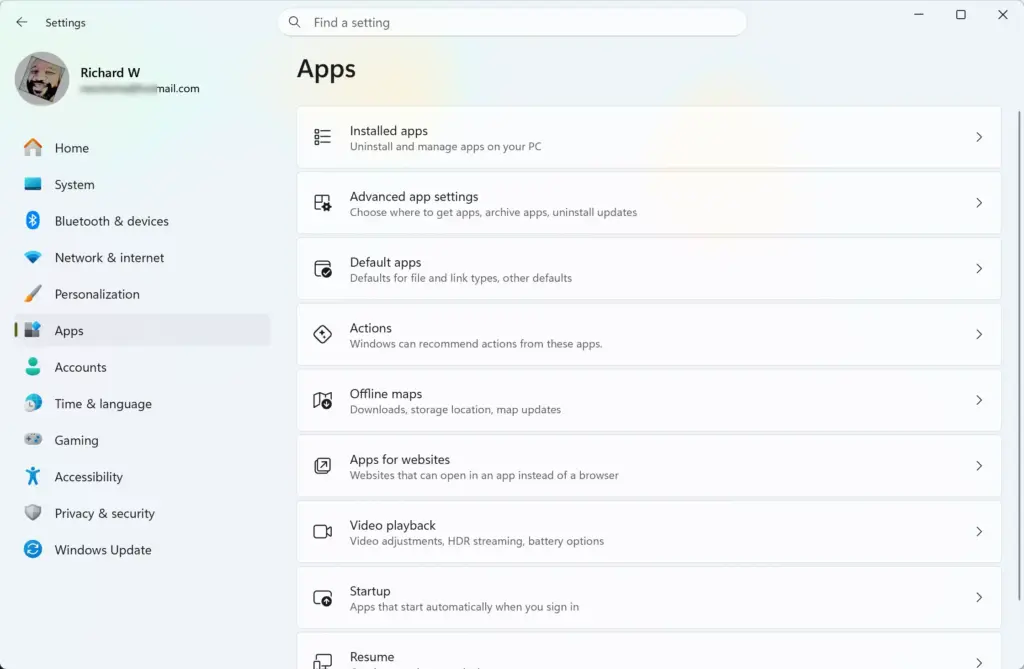
Settings › Apps - Select Default apps. The page now shows a search box labelled Set a default for a file type or link type, a second box labelled Search apps, and a list of installed apps below them.
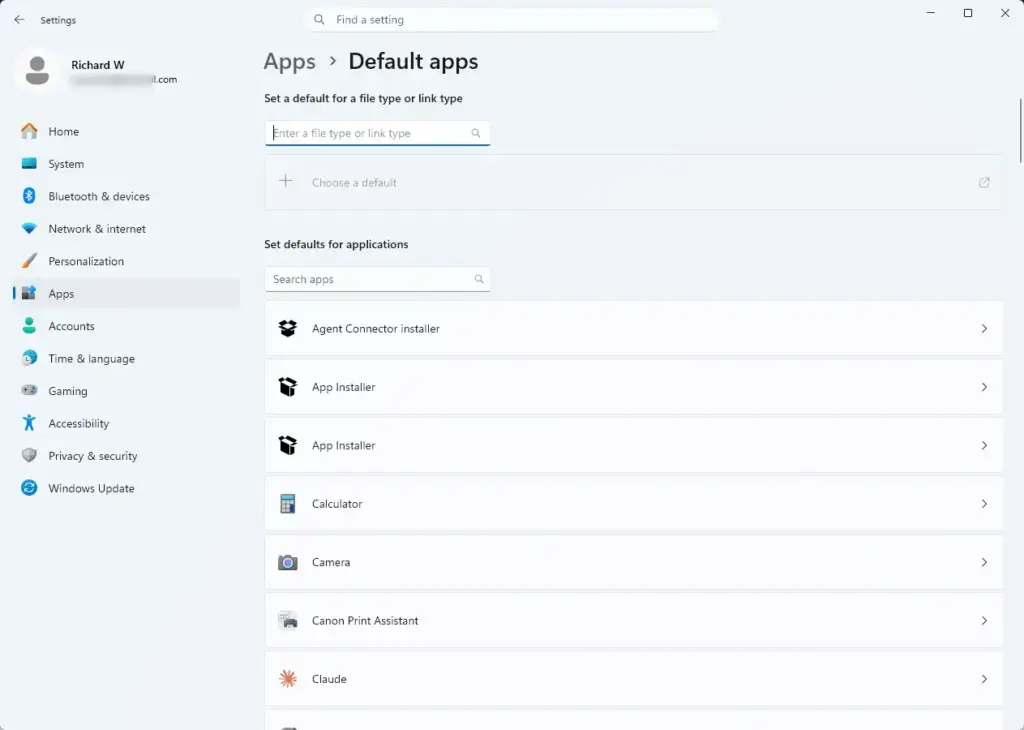
Settings › Apps › Default apps
From here you can work in two ways. Start from the file type if you already know which app you want, as in “I want PDFs to open in Adobe”. Start from the app if you want to see what it can handle, as in “I want Firefox to handle all my links”. Each section below uses whichever is faster.
Choose a default app for PDFs
Windows opens PDFs in Microsoft Edge unless you change it, or unless an installed PDF reader has taken over. This setting decides which app opens when you double-click a PDF file.
- On the Default apps page, select the box labelled Set a default for a file type or link type.
Settings › Apps › Default apps - Type .pdf, including the dot. A result for .pdf appears with the name of the app that currently handles it.
- Select the .pdf result. A picker opens and lists the apps that can open PDF files.
- Select the app you want, such as Microsoft Edge or Adobe Acrobat, and confirm with Set default. The .pdf entry now shows your chosen app.
If your PDF app is not in the picker: the app is either not installed or did not register itself with Windows. Look in the picker for an option such as Look for an app in the Microsoft Store or Choose an app on your PC. The wording varies by build.
If neither option helps, reinstall the app using its full installer, then repeat the steps. Many PDF readers also have a setting such as “make default PDF viewer” in their own options.
Check the result
Open File Explorer, find any PDF and double-click it. It should open in the app you chose, and the file’s icon should change to match that app.
Choose a default app for email
Email works differently from PDFs. The setting you change is a link type called MAILTO. It controls which app opens when you click an email address on a web page, or choose “Email” in another program. It does not change which email account or service you use.
- On the Default apps page, select the box labelled Set a default for a file type or link type.
Settings › Apps › Default apps - Type mailto. A result for MAILTO appears with the current email app.
- Select the MAILTO result. A picker lists the email apps installed on the PC.
- Select your email app, such as Outlook, and confirm with Set default. MAILTO now shows your chosen app.
To test it, open any web page with an email link and click it. A new message window should open in your chosen app.
If your email app is missing from the list: the app may not register for MAILTO. Web-based email such as Gmail in a browser is not an installed app, so it will not appear here.
Those services use a separate setting inside the browser that lets the site handle email links. That setting belongs to the browser, not to Windows. For an installed app, open its own settings and look for an option to make it the default mail app.
Choose a default web browser
Your default browser opens when you click a link in another program, such as an email or a document. It handles the HTTP and HTTPS link types, and the .htm and .html file types. On current builds, Windows 11 lets you set them from the browser’s own page in one step.
- On the Default apps page, select the box labelled Search apps and type the name of your browser, for example Firefox or Chrome.
- Select the browser in the results. Its page opens and lists the file types and link types it can handle.
- Select Set default at the top of the page, if you see it. Windows then assigns the browser to the main web types in one go.
- Scroll through the list and check that HTTP, HTTPS, .htm and .html all show your browser’s name.
In recent Windows 11 builds, the Set default button can also cover related types, such as PDF and HTML files, when the browser supports them. This varies by build and by browser. Always scan the list afterwards, because a type you wanted to keep elsewhere may have moved.
If you are moving away from Microsoft Edge, Edge may show its own prompt asking you to reconsider. Choose the option to continue with the change. The wording varies by build.
If there is no Set default button, your build handles this one type at a time. Select each of the four entries above, choose your browser from the picker, and confirm.
Firefox, Chrome or another browser says it is not the default, but Settings shows it is: the browser checks all the types it wants, not only the four above. Open the browser's page under Default apps again and look through the full list. Any entry still showing another app is the cause.
Select that entry and assign your browser. Then open the browser's own settings and check its default status again. Closing and reopening the browser makes it re-check.
Set the default from inside the browser
Most browsers include a button that sends you to the same Windows page. In Firefox, Chrome and Edge, open the browser's settings and look for a Make default or Set as default option, usually in the default browser or startup section.
Selecting it opens the matching page in Settings Apps Default apps. You still confirm the change there, because Windows requires you to make the choice yourself.
What still opens in Microsoft Edge
Web results in Windows Search and links in the Widgets panel do this. It is a Windows design choice, not a sign that your default failed.
Links you click in your own apps, such as email or documents, follow your default browser.
Choose a default app from a file you already have
If you have a file in front of you, you can set the default without opening Settings. This works for PDFs and any other file type, but not for email or web links.
- Right-click the file in File Explorer.
- Select Open with. A short list of apps appears.
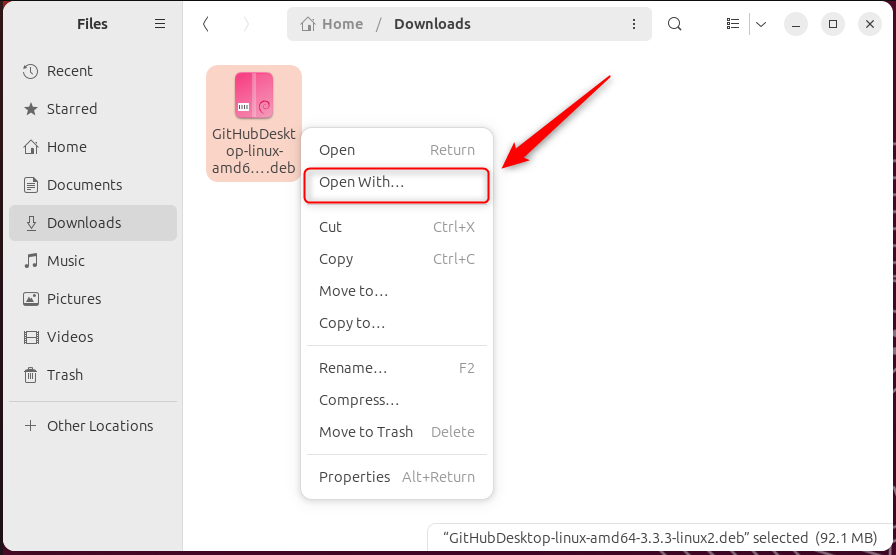
- Select Choose another app at the bottom of the list. A window opens with a list of apps.
- Select the app you want.
- Select Always. The file opens in that app, and every file of the same type now opens in it by default.
If you select the other button, Once, the file opens in that app this time only. Your default does not change.
If the right-click menu in Windows 11 shows only a short list, select Show more options to reach the full classic menu. Then choose Open with from there.
Change the default for many file types at once
If you want one app to handle all the types it supports, such as a media player or a photo viewer, start from the app instead.
- On the Default apps page, find the app in the list or search for it with Search apps.
- Select the app. A page opens showing each file type and link type it can handle, with the current default beside each.
- Select an entry that does not show this app, choose the app in the picker, and confirm.
- Repeat for each entry you want to change. Entries you leave alone keep their current defaults.
Some apps show a long list, so change only the entries you need. For example, setting a PDF reader as the default for image types as well can change how your pictures open.
If you change too many entries, look for a Reset or Restore option on the same app page. It undoes the changes for that one app (see the undo section below).
Fix a default that will not stick or cannot be changed
The choice reverts after a while
Windows protects default app choices so that other software cannot change them without you knowing. Even so, a few things can still undo your choice.
Updating or reinstalling an app can re-register it and change the default. A Windows feature update can do the same. Another app may also show a prompt asking to become the default, and accepting it replaces your choice.
If this keeps happening, open the app's own settings and turn off any option such as "always check whether this is the default app". Then set the default again in Windows.
The picker is greyed out or says a setting is managed
If you see a message such as Some settings are managed by your organization, or the choices are greyed out, your PC has policy settings from a work or school account. You cannot override these from Settings. Ask your IT team, or remove the work account if the PC is yours and you are allowed to do so.
This guide does not cover a Group Policy or registry route. I cannot confirm the exact path from the material I have, and a wrong value could lock the setting the wrong way.
The app is not in the list
Install the app using its standard installer. If it is a Microsoft Store app, install it from the Store. Then close Settings, reopen it, and go back to Apps Default apps.
An app that is installed but still missing usually needs a repair or reinstall.
You picked the wrong app and want it back
To undo one change, repeat the same steps and choose the original app.
To undo the changes for a single app, open Settings Apps Default apps and select that app. Look on its page for a Reset or Restore option. The label and position vary by build, and not every build shows it. Using it returns that app's defaults without touching the rest of your choices.
On current builds it sits under Related settings. This resets every default, not only PDFs, email or web links.
Your apps and files stay in place, but each type goes back to the app Microsoft sets. Use it only if you want a full reset.
What to do next
Keep the steps for the type you changed, because a Windows feature update or an app reinstall can reset it. If it does, repeat the same steps. You can also use Open with Choose another app Always on a sample file.
To change the app for another file type, such as images, music or video, use the same Set a default for a file type or link type search box with that extension.
Frequently asked questions
How do I set my default email application on 🪟 Windows 11?
Open Settings Apps Default apps. Scroll down and select your email app from the list. Windows will then assign it to handle mailto: links. If your app doesn't appear, it may not be registered with Windows yet—reinstall it or check the app's settings.
How to change default PDF viewer permanently?
Go to Settings Apps Default apps and find your PDF reader in the list. Select it, then choose .pdf from the file types shown. Windows may reset this after updates, so check periodically. If it reverts, repeat the process or use File Explorer to right-click a PDF and pick your app.
How do I remove default Apps?
You can't remove default apps entirely—Windows requires one. You can only change which app handles a file type or link type. Go to Settings Apps Default apps, find the file or link type, and pick a different app from the list. Windows will use that as the new default.
What is the best PDF reader for 🪟 Windows 11?
The best PDF reader depends on your needs. Adobe Reader is the standard and most compatible. Sumatra PDF is lightweight and fast. Microsoft Edge is free and built in. Try each and set your preferred one as default in Settings Apps Default apps by selecting .pdf.
Still have a question?
Answered by AI from this guide. Good questions may be added to this page — please don't include personal details.
Did this guide fix your problem?

About the Author
Richard
Tech Writer, IT Professional
Richard is a writer at Geek Rewind who turns complex IT tasks into clear, step-by-step guides. He draws on years of hands-on experience in system administration and enterprise IT operations, focusing on Windows, Linux and WordPress: the problems people actually run into, and the fixes that work. His server and WordPress guides come from systems he runs himself. Richard builds and maintains the platform behind Geek Rewind, from its Ubuntu servers and Nginx configuration to its custom WordPress plugins. Many new tutorials start with readers' questions, and he's always glad to answer them in the comments.
No comments yet — be the first to share your thoughts!