How to Access Recovery Settings and Reset This PC in Windows 11

- 3 ways to do it
- Needs administrator rights
- Includes a restart or sign-out
The Recovery page in Windows 11 groups the tools that fix problems with Windows, undo recent changes, or reinstall it from scratch. Open Settings System Recovery to find every recovery option in one place, including Reset this PC.
If Windows won’t start normally, hold Shift while you click Restart to open a blue recovery menu with the same tools. This menu also appears when Windows detects a problem or when you force it to load.
This article shows how to reach the Recovery page, what each option does, and how to run a reset from Settings or the recovery menu. It also covers what to do when an option is missing or a reset fails.
Open Settings System Recovery to reach every recovery option in Windows 11, including Reset this PC. If Windows won’t start, hold Shift while you click Restart to open the blue recovery menu with the same tools. Back up your files first, because a reset is hard to undo and Remove everything deletes your files.
Before you open recovery settings
Once it starts, your apps and settings are gone for good, and with Remove everything your files go too. Work through these checks before you begin:
- Back up your files. Copy documents, photos and browser data to an external drive or cloud storage. Do this even if you plan to choose Keep my files, because a failed reset can leave a PC in a bad state.
- Note which apps you need to reinstall. A reset removes desktop programs you installed yourself. Write down licence keys for any paid software before you start.
- Find your BitLocker recovery key if drive encryption is on. BitLocker is Windows drive encryption, and its recovery key is a 48-digit number that unlocks your drive if Windows asks for it. A reset or a recovery-menu session can ask for that key. If you signed in with a Microsoft account, you can usually find the key at
aka.ms/myrecoverykeyfrom another device. Windows 11 Home uses a lighter version called Device encryption, which can also ask for a key. - Plug in a laptop. A reset that loses power partway through can leave Windows unbootable.
- Sign in with an administrator account. Starting a reset requires administrator privileges. A standard account prompts for an administrator password or cannot continue.
How to open Recovery settings in 🪟 Windows 11
There are three ways in: the Settings app, Shift + Restart, and the automatic recovery screen that Windows shows after failed startups. Use the first or second if Windows starts normally. Use the second or third if Settings won’t open or Windows does not start.
Method 1Open Recovery from Settings
This is the normal route. It shows every recovery option in one place.
- Press Win+I to open Settings. Alternatively, right-click the Start button and select Settings.

Windows 11 Start menu with Settings gear icon highlighted. - Select System in the left pane.
- Scroll down the right side and select Recovery. A section called Recovery options appears with several rows, each with its own button.
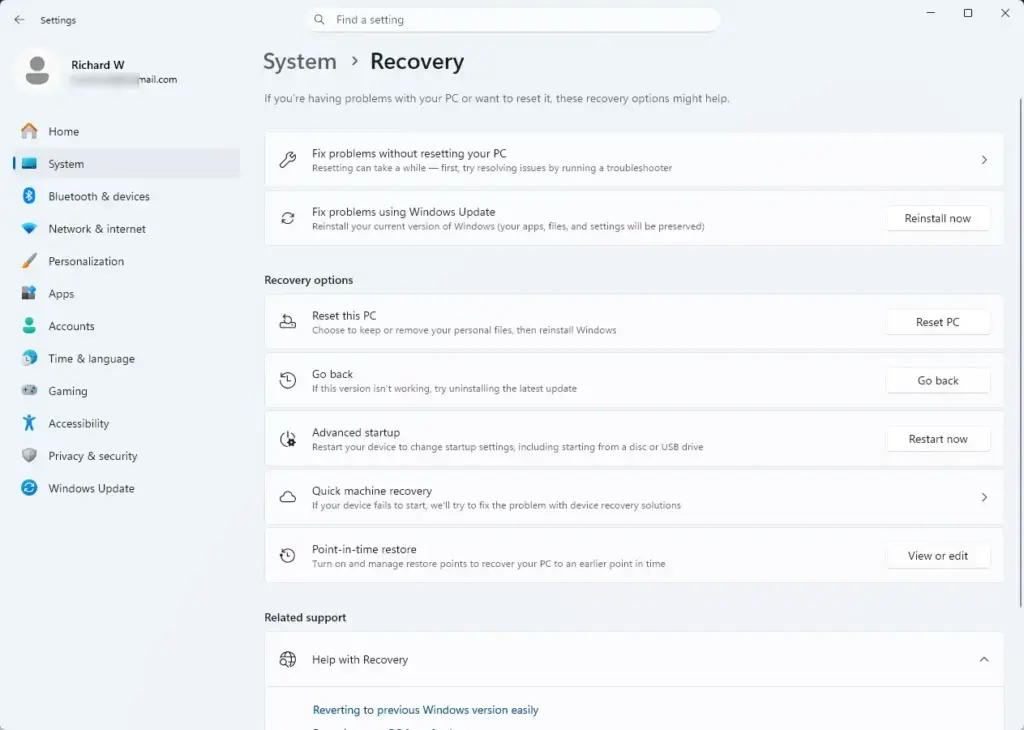
Settings › System › Recovery
The rows you see depend on your Windows 11 version and build. Here is what each one does:
- Fix problems using Windows Update reinstalls the current version of Windows through Windows Update and keeps your files, apps and settings. It appears on newer builds only, such as Windows 11 24H2. If you don’t see it, your build predates it.
- Reset this PC reinstalls Windows. The button is labelled Reset PC. This is the option the rest of this guide covers.
- Go back returns you to the previous Windows version after an upgrade or a feature update. It is available for a limited time after the update (10 days by default). It appears only while Windows still holds the old installation files, so it will be missing once that time passes or the files are gone.
- Advanced startup restarts the PC into the Windows Recovery Environment, often shortened to WinRE (a small separate recovery system that runs outside normal Windows). The button is labelled Restart now. Windows 11 25H2 also lists this option under Settings System Recovery
Method 2Restart into recovery with Shift + Restart
This route works from the desktop or from the sign-in screen. It also helps when Settings won’t open or behaves badly.
- Select Start, then the Power button. On the sign-in screen, select the Power icon at the bottom right.
- Hold down the Shift key and select Restart. Keep holding Shift until the screen changes.
- Wait for a blue screen titled Choose an option. If the PC restarts normally instead, you released Shift too early. Try again.
- Select Troubleshoot. The screen now shows Reset this PC and Advanced options.
If a BitLocker or Device encryption prompt appears, enter the recovery key. It is a 48-digit number, and you can type it with the keyboard or the on-screen keys.
If you can sign in to Windows, there is another way to reach the same menu. On Windows 11 25H2, open Settings System Recovery and select Restart now next to Advanced startup. The PC restarts into the blue menu without the Shift key.
Method 3Reach recovery when Windows won’t start
Windows 11 opens the recovery menu on its own after repeated failed startups. You often see Preparing Automatic Repair or Diagnosing your PC first.
- Wait for the repair screen to finish. If it says Automatic Repair couldn’t repair your PC, select Advanced options.
- Select Troubleshoot on the Choose an option screen.
- Select Reset this PC or Advanced options, depending on what you need.
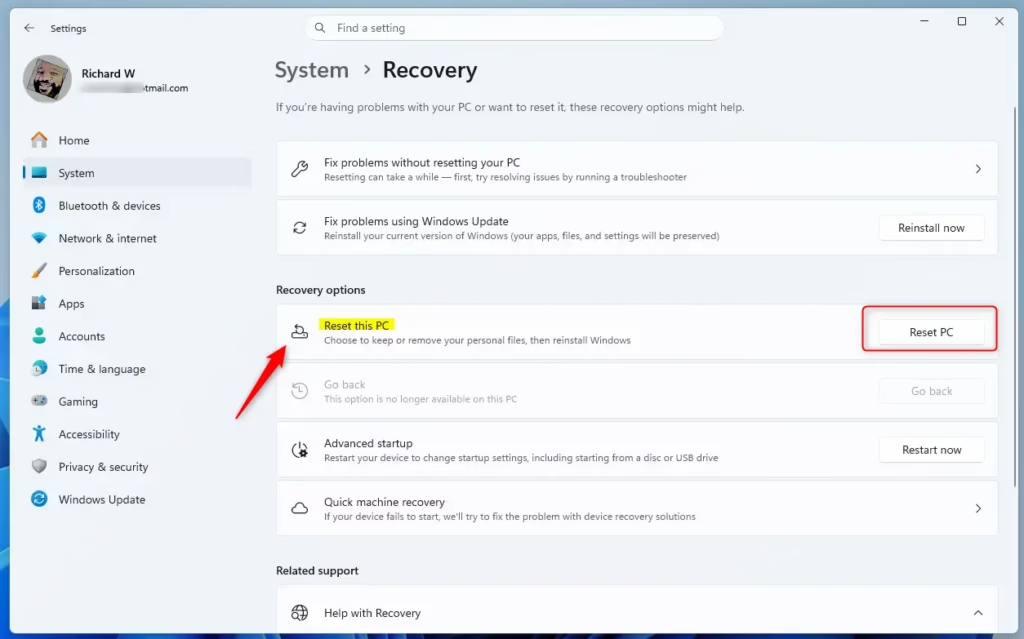
Reset this PC button in Windows 11 settings.
If the repair screen never appears and the PC fails to boot, you can interrupt startup to force it. Use this only as a last resort.
Back up your files first if you can, for example by connecting the drive to another PC. Do not use this method on a BitLocker-encrypted PC unless you have the BitLocker recovery key to hand, because the interrupted startups can trigger a key prompt you cannot get past without it.
- Power the PC on.
- As soon as the Windows logo or spinning dots appear, hold the power button to force a shutdown.
- Repeat this up to three times.
- Start the PC a final time and let it run. Windows usually opens the repair screen.
The Advanced options screen typically includes Startup Repair, Uninstall Updates, Startup Settings, Command Prompt, System Restore and UEFI Firmware Settings. The exact list varies by PC and build. Try Startup Repair or System Restore before a full reset if you want to keep your setup intact.
Choose the right recovery option before you reset
A reset is the heaviest option. Try the lighter ones first if your problem is a bad update or a recent change.
- Use Fix problems using Windows Update if Windows is unstable and you want a repair that keeps everything.
- Use Go back if the trouble started right after an upgrade and the option is still there.
- Use Uninstall Updates or System Restore from Advanced options if one recent update or driver caused the problem.
- Use Reset this PC if the system is badly corrupted, infected, slow beyond repair, or you are handing the PC to someone else.
How to reset this PC in 🪟 Windows 11
These steps run the reset from Settings. The screens are almost identical when you start from Troubleshoot Reset this PC in the recovery menu. Starting a reset requires administrator privileges.
Step 1Start the reset and choose what to keep
This choice decides whether your personal files survive. Both options remove the apps and settings you added.
- Open Settings System Recovery
Settings › System › Recovery - Select Reset PC next to Reset this PC. A window called Reset this PC opens with the heading Choose an option.
- Select Keep my files to remove apps and settings but keep your personal files. Select Remove everything to remove apps, settings and personal files.
Use Remove everything if you are selling, giving away or recycling the PC. Use Keep my files if you are fixing a problem on a PC you will keep using. Keep my files is not a backup, so back up first anyway.
Step 2Choose how Windows reinstalls
Windows now asks where to get the fresh copy of itself.
- On the How would you like to reinstall Windows? screen, select Cloud download to download a fresh copy of Windows from Microsoft. This needs a working internet connection and uses several gigabytes of data. It is the better choice if the files on the PC may be damaged.
- Select Local reinstall to rebuild Windows from files already on the PC. It needs no internet connection and is usually faster. It will not work if those local files are damaged.
If Local reinstall fails later, run the reset again and choose Cloud download.
Step 3Review the additional settings
This screen lets you change how thorough the reset is.
- On the Additional settings screen, read the summary. Select Change settings to adjust it.
- If you chose Remove everything, look for the Clean data switch. Turn it On when you are giving the PC away. It overwrites the drive so your files are much harder to recover, but the reset takes noticeably longer. Leave it Off if you are keeping the PC.
- If your PC came with apps installed by the manufacturer, look for the Restore preinstalled apps? option. Choose Yes to bring those apps back or No to leave them off. This option appears on many branded laptops and desktops, but not on PCs you built yourself.
- Select Confirm if you changed anything, then select Next.
The options shown vary by PC and Windows build. If a switch isn't on your screen, your PC doesn't offer it.
Step 4Confirm and wait
The next screen is your last chance to cancel. After you select Reset, the process cannot be stopped safely.
- If Windows warns that resetting will erase the option to go back to your earlier Windows version, note it. It means Go back will no longer be available. Select Next to continue or Cancel to stop.
- On the Ready to reset this PC screen, read the list of what will happen. Select Reset to start, or Cancel to stop.
- Wait while the screen shows a percentage. The PC restarts several times by itself. This can take from half an hour to several hours depending on the drive, the options and your connection.
- Watch for setup screens that ask for region, keyboard layout and a network. Once they appear, the reset is done. Complete setup as you would on a new PC.
Do not turn off the PC during this process, even if the screen sits at the same percentage for a long time. The reset has finished once you are at the setup screens or the sign-in screen.
Reset this PC is greyed out or blocked
On a work or school PC, an administrator can block resets through policy. If your PC is managed, ask your IT team.
On a personal PC, check that you are signed in with an administrator account in Settings Accounts Your info. Windows 11 Home and Windows 11 Pro both include Reset this PC, so your edition is not the cause.
Windows says the recovery environment can't be found
If you see Could not find the recovery environment, or Shift + Restart doesn't open the blue menu, WinRE may be turned off. Checking its status requires administrator privileges.
- Right-click Start and select Terminal (Admin). Select Yes at the User Account Control prompt.
- Type
reagentc /infoand press Enter. Look for the line Windows RE status. - If it says Disabled, type
reagentc /enableand press Enter. The window should show Operation Successful. - Run the reset again from Settings System Recovery
If reagentc /enable returns an error, the recovery partition may be missing or damaged. A reset from Settings may still work with Cloud download. If it doesn't, you need a recovery drive or Windows installation media.
The reset stops with "There was a problem resetting your PC"
This message means Windows hit a problem and left your PC unchanged. Repair the system files first, then try again. This also requires administrator privileges.
- Open Terminal (Admin) as above.
- Type
DISM /Online /Cleanup-Image /RestoreHealthand press Enter. Wait for it to finish. - Type
sfc /scannowand press Enter. Wait for the scan to complete. - Restart the PC and run the reset again. Choose Cloud download if you used Local reinstall the first time.
If it fails again from Settings, start the reset from the blue recovery menu instead. Use Shift + Restart Troubleshoot Reset this PC. That route runs outside your normal Windows session, so it avoids some problems that block a reset from Settings.
The PC asks for a BitLocker key you don't have
Sign in to your Microsoft account from another device and look for the recovery key linked to this PC. Work or school PCs may store the key with your organisation, so ask your IT team.
Without the key, you cannot get past the prompt. Your last option is to reinstall Windows using installation media (a USB drive or disc), which erases the drive.
What to do next
Once the reset finishes, open Settings Windows Update and install all available updates. Then reinstall your apps and restore your backed-up files.
To prepare for the next time Windows won't start, open Start, search for Recovery Drive and create a USB recovery drive while the PC is healthy. If you chose Remove everything to sell the PC, stop after the setup screens appear and leave the PC unconfigured for the new owner.
Frequently asked questions
How to force PC into recovery mode in 🪟 Windows 11?
Hold Shift and click Restart in the Start menu to boot into the recovery menu. If Windows won't start normally, restart your PC and Windows will detect the problem and load recovery tools automatically. You can also access recovery options through Settings System Recovery
How to completely wipe and reset PC 🪟 Windows 11?
Open Settings System Recovery and select Reset this PC. Choose Remove everything to wipe all files, apps, and settings. Windows will reinstall itself from scratch. Back up your files first—this action cannot be undone and removes everything on your drive.
How to bypass recovery key to reset PC 🪟 Windows 11?
You cannot bypass a recovery key if your PC is encrypted with BitLocker. You need the recovery key to proceed. If you've lost it, contact Microsoft Support or use a recovery account to regain access before resetting your PC.
How do I reset my 🪟 Windows 11 PC from Recovery mode?
In the recovery menu, select Troubleshoot Reset this PC. Choose Keep my files to remove apps and settings but save your documents, or Remove everything to wipe the entire drive. Follow the prompts and your PC will restart and reinstall Windows.
Still have a question?
Answered by AI from this guide. Good questions may be added to this page — please don't include personal details.
Did this guide fix your problem?

About the Author
Richard
Tech Writer, IT Professional
Richard is a writer at Geek Rewind who turns complex IT tasks into clear, step-by-step guides. He draws on years of hands-on experience in system administration and enterprise IT operations, focusing on Windows, Linux and WordPress: the problems people actually run into, and the fixes that work. His server and WordPress guides come from systems he runs himself. Richard builds and maintains the platform behind Geek Rewind, from its Ubuntu servers and Nginx configuration to its custom WordPress plugins. Many new tutorials start with readers' questions, and he's always glad to answer them in the comments.
No comments yet — be the first to share your thoughts!