Reset Windows 11 and Keep My Files

To reset Windows and keep my files, open Settings System Recovery, select Reset PC next to Reset this PC, and choose Keep my files. Reset this PC is the Windows 11 tool that reinstalls the operating system and puts its settings back to their defaults.
The Keep my files option leaves your personal files in place. It removes every app you installed yourself, including desktop programs, and it clears your changes to Windows settings . Use it when Windows is slow, unstable or misconfigured and you want a fresh system without wiping your documents and photos.
The steps below work on Windows 11 Home and Pro. They also cover resetting from the recovery screen when Windows no longer starts.
To reset Windows and keep my files, open Settings System Recovery, select Reset PC next to Reset this PC, and choose Keep my files. This reinstalls Windows and restores its default settings, while your documents, photos and user folders under 📁C:\
What Keep my files Removes and What It Keeps
Knowing the exact effect matters, because the reset cannot be undone once it starts. Windows 11 treats your apps and settings very differently from your files.
What stays
- Personal files in your user folders, such as Desktop, Documents, Downloads, Music, Pictures and Videos under 📁C:\
Users\ .USERNAME - Your user accounts, including the passwords you use to sign in.
- Your Windows activation. A PC with a digital license (an activation tied to your hardware or Microsoft account) stays activated.
- Files stored on other drives, though a backup is still the safe choice.
What goes
- Apps and programs you installed, such as browsers, Office, games and utilities.
- Settings you changed, including default apps, personalization and most Windows options.
- Drivers (the software that lets Windows talk to hardware) that you installed yourself. Windows reinstalls many of them through Windows Update .
- Files saved outside your user folders, for example in a folder you created in 📁C:\
. Treat these as at risk and copy them elsewhere first.
Apps that came with the PC from the manufacturer return only if your PC supports that option. You see it as a choice during the reset on many branded laptops and desktops.
Before You Reset 🪟 Windows 11
Ten minutes of preparation prevents most of the problems people run into afterwards. Do these checks first.
Back up your files anyway
Copy your important files to an external drive or to OneDrive before you begin. Files that OneDrive has finished syncing (copying so the local and online versions match) also exist online, so they survive even if something goes wrong locally.
Note your licenses and sign-ins
Write down the keys for paid software that does not use an online account. Check that you know your Microsoft account password and your Wi-Fi password, because the reset can clear saved networks.
Plug in power and find your recovery key
Connect a laptop to its charger. A reset can run for an hour or more, and a battery that dies mid-reset can damage the installation.
If your drive uses BitLocker or device encryption (Windows features that scramble the drive's contents), you may need the recovery key. Sign in at account.microsoft.com/devices/recoverykey with your Microsoft account to find it. Work and school PCs keep the key with the IT department.
Check your account type
The reset needs an administrator account. If you are using a standard account, sign in with an administrator account first. On a PC managed by an employer or school, IT policy can block the reset entirely.
Reset 🪟 Windows 11 and Keep My Files From Settings
These steps reset Windows and keep my files, starting from the Settings app on a PC that still boots normally. Work through the numbered steps below in order, from preparation to the final check.
- Back up your important files. Copy them to an external drive or confirm that OneDrive finished syncing.
- Plug your laptop into its charger. Desktops can skip this step.
- Press Windows + I to open Settings. The Settings window opens on the Home or System page.

- Select System in the left pane. The System pages list Display, Sound, Notifications and more.
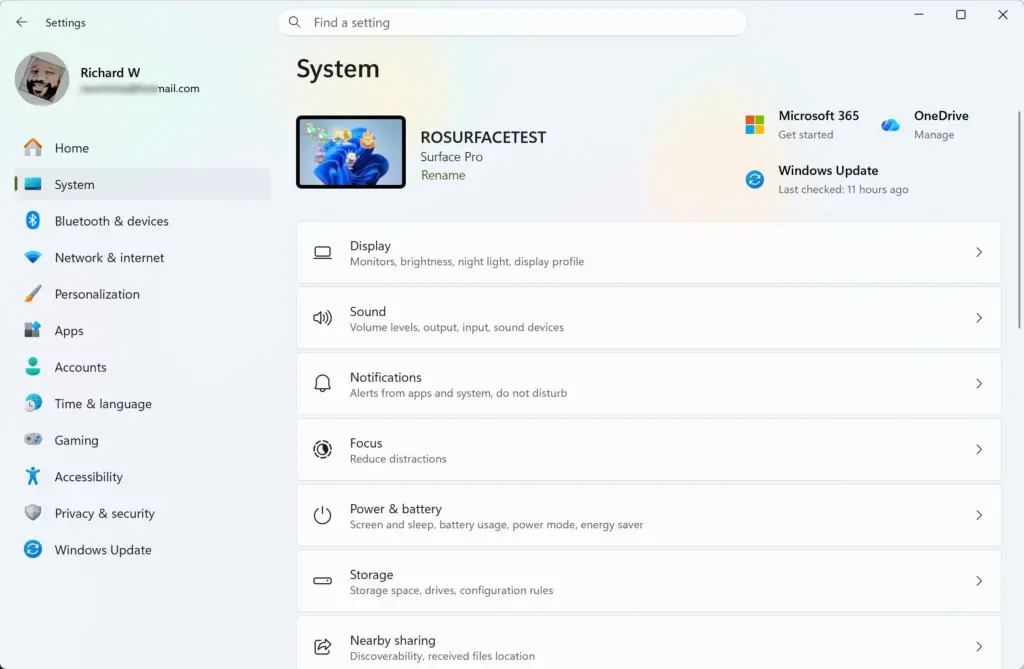
Settings › System - Scroll down and select Recovery. The page shows Recovery options with several entries.
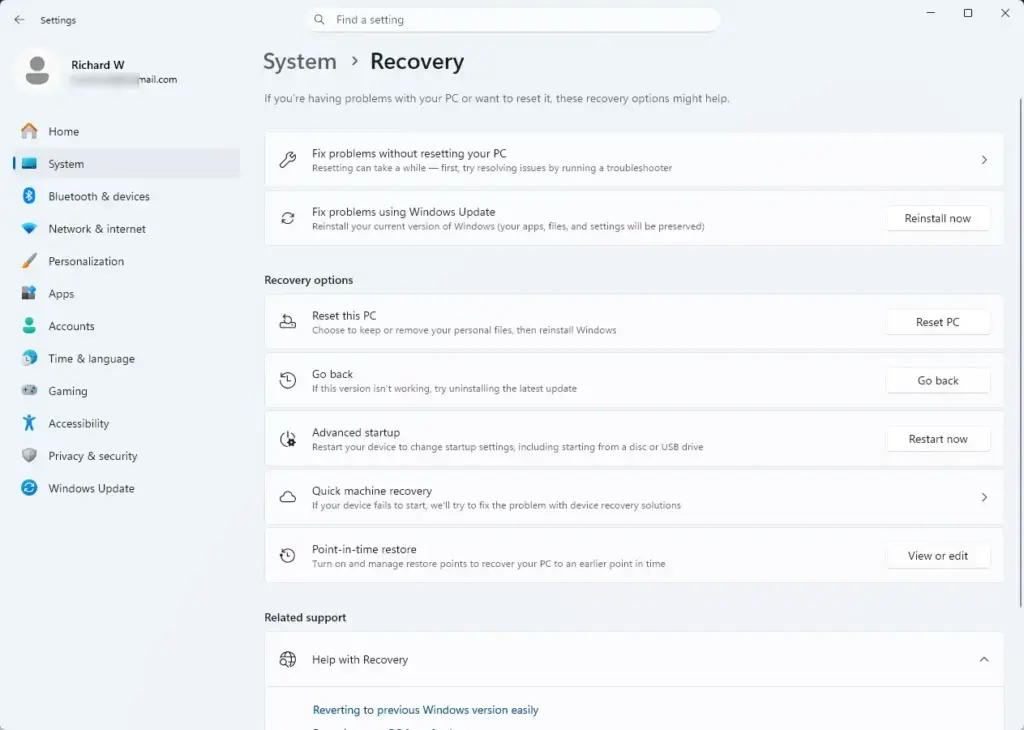
Settings › System › Recovery - Select Reset PC next to Reset this PC. This step needs an administrator account. A window titled Reset this PC opens with two options.
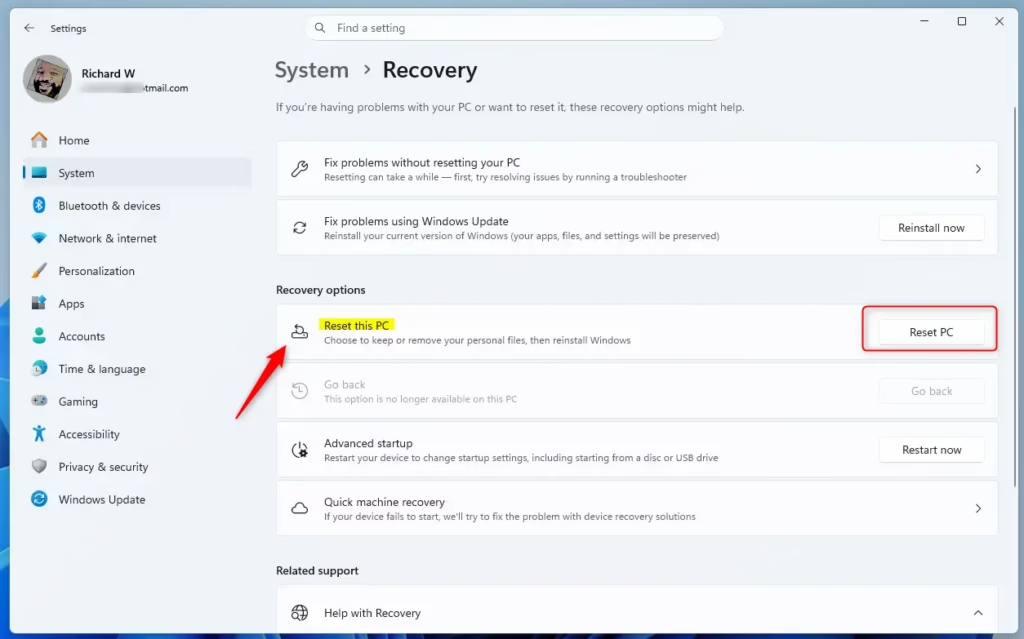
Reset this PC button in Windows 11 settings. - Select Keep my files. This is the choice that preserves your personal files. Do not select Remove everything, which erases them.
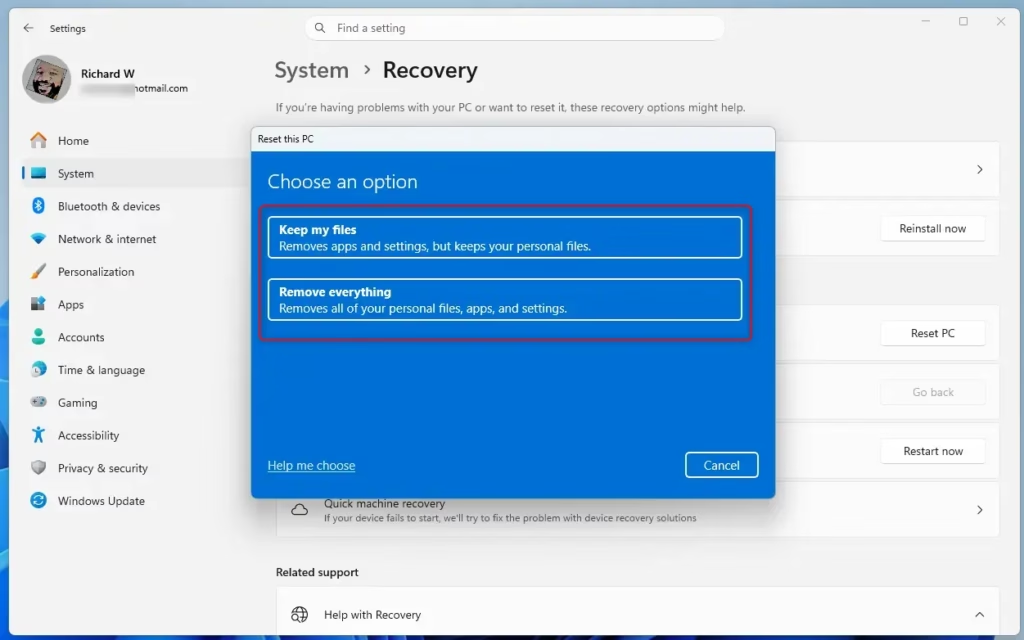
Windows 11 reset option: keep files or remove everything. - Select Cloud download or Local reinstall. Cloud download fetches a fresh copy of Windows from Microsoft and needs an internet connection. Local reinstall rebuilds Windows from files already on the PC.
- Review the Additional settings screen. It lists what the reset will do. If you see Change settings, select it to choose whether to restore manufacturer-installed apps, then confirm.
- Select Next. If Windows says you recently upgraded and cannot go back to the previous version afterward, read the warning and continue only if you accept that.
- Select View apps to be removed to check your app list. Close the list when you finish. This link appears on the Ready to reset this PC screen.
- Select Reset. This starts the reset, and you cannot cancel it once the PC restarts. The PC restarts and shows a progress percentage.
- Wait for the process to finish. Do not turn off the PC. The screen can stay black for long stretches, and the PC restarts several times.
- Sign in with your usual account. If Windows shows a setup screen for privacy or device choices, answer each question.
- Open your Documents, Pictures and Desktop folders. Confirm that your files are there.
- Check the Desktop for a file named Removed Apps. Windows normally leaves this list of the apps it removed, so you know what to reinstall.
- Open Settings Windows Update and select Check for updates. Install everything it finds, then restart if asked.
If you see a screen that says Windows cannot reset, jump to the troubleshooting section below. The failure usually leaves your files and the old Windows installation unchanged.
Choose Between Cloud Download and Local Reinstall
Windows 11 asks how to reinstall, and the choice affects reliability. Neither option changes whether your files are kept.
When to pick Cloud download
Choose Cloud download if the reset fails the local way or if you suspect system files are corrupt. It pulls a clean copy of Windows 11 from Microsoft instead of reusing files on your drive. Use a wired or stable Wi-Fi connection, and be aware that it uses a large amount of data. Avoid metered connections if you pay per gigabyte.
When to pick Local reinstall
Choose Local reinstall if you have no internet access or want less data use. It is usually quicker to start. If the existing Windows files are damaged, it can fail, and that is the moment to retry with Cloud download.
Reset 🪟 Windows 11 From the Recovery Environment
When Windows will not start or you cannot reach Settings, use the Windows Recovery Environment (a small repair system stored on your drive, often shortened to Windows RE). This section shows how to reset Windows and keep my files from there.
- Reach the recovery screen. If Windows is running, open Settings System Recovery and select Restart now next to Advanced startup. At the sign-in screen, you can hold Shift, select the power button, then select Restart.
Settings › System › Recovery - If Windows fails to start, wait for the recovery screen. Windows usually opens it on its own after a few failed starts in a row.
- Select Troubleshoot on the Choose an option screen.
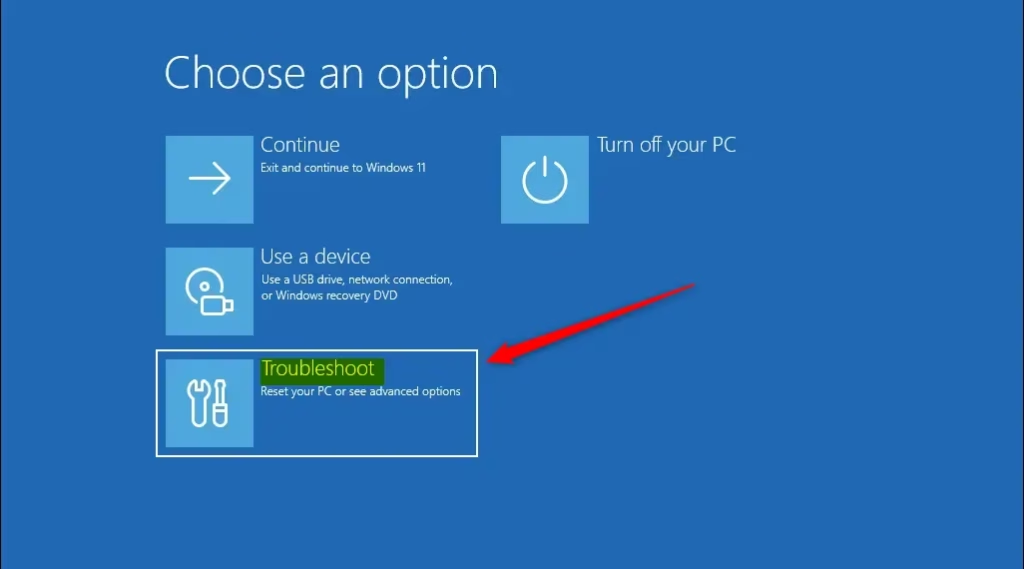
Windows RE troubleshoot screen with multiple options. - Select Reset this PC. The two familiar options appear.
- Select Keep my files. This keeps your personal files, as it does from Settings.
- Enter the BitLocker recovery key if asked. Then pick your administrator account and type its password when Windows prompts you.
- Select Cloud download or Local reinstall. Use Cloud download if the PC has been unstable or Local reinstall has already failed.
- Select Reset on the final screen. The PC restarts and shows progress while it reinstalls Windows.
- Sign in when the reset finishes and check your files, the Removed Apps list and Windows Update, as in the Settings method.
If the Reset Fails or the Option Is Missing
Most reset failures have a clear cause. Find the message you see below and follow the fix for it.
You see "There was a problem resetting your PC"
This message usually means Windows could not finish and left the system as it was. Your files should still be in place. Restart the PC, then try again and choose Cloud download instead of Local reinstall. If it fails again, start the reset from the recovery environment, which avoids files that are locked while Windows runs.
You see "Could not find the recovery environment"
Windows RE is switched off or damaged. Open Command Prompt as administrator (this step needs administrator rights). Right-click the Start button, choose Terminal (Admin), and select Yes at the prompt. [Verification Required: confirm which menu item opens Command Prompt on the reader's Windows 11 build.]
Type reagentc /info and press Enter to check whether Windows RE shows as Enabled or Disabled. If it is disabled, type reagentc /enable and press Enter. Then retry the reset.
Reset PC is greyed out or missing
A work or school PC may have this option blocked by its administrator. Contact IT for help, because you cannot override the policy yourself. On a personal PC, make sure you are signed in with an administrator account. If you are, reach the reset through the recovery environment instead, using the steps above.
The reset takes a very long time
A black screen and a slow progress percentage are normal during a reset. Give the PC time before assuming it has frozen, and leave it plugged in. If a percentage has not moved for several hours and the drive light is silent, restart the PC and run the reset again from the recovery environment.
You are asked for a BitLocker recovery key
Windows asks for the key because it cannot confirm a change to the encrypted drive is safe. Retrieve the key from your Microsoft account at account.microsoft.com/devices/recoverykey, or from your IT department on a managed PC, then type it in.
After the Reset: Reinstalling Apps and Restoring Settings
The PC now runs a clean copy of Windows 11 with your files in place. Reinstall your apps from the Removed Apps list, starting with the ones you need daily. Install Microsoft Store apps from the Store, and download desktop programs from the publisher's own site.
Reconnect to Wi-Fi if the PC forgot your network. Then re-sign in to your Microsoft account in the apps that use it, such as OneDrive and Microsoft 365. Check Settings Windows Update again after a day, since some drivers arrive in later batches.
Go through Settings Personalization, Settings Apps Default apps and Settings Privacy & security to restore the choices you made before. Those pages show the defaults that Windows has put back.
What to Do Next
If the problem returns after the reset, the cause is probably a failing drive or faulty hardware rather than Windows itself, so run the drive maker's diagnostic tool next. To remove everything instead, open the same Reset this PC screen and select Remove everything, but back up first because that choice erases your files. Once your apps are reinstalled, set up Windows Backup or File History (a feature that saves copies of your files on a schedule) so the next problem costs you minutes instead of hours.
Frequently asked questions
How to encrypt files in 🪟 Windows 11?
Turn on BitLocker in Control Panel to encrypt a whole drive on Windows 11 Pro, Enterprise or Education. Select BitLocker Drive Encryption, then click Turn on BitLocker next to your drive. On Windows 11 Home, check Settings Privacy & security Device encryption instead. It turns on automatically on some PCs.
How to reset 🪟 Windows 11?
Open Settings System Recovery and select Reset PC. Choose Keep my files to reinstall Windows while leaving your personal files in place. Windows removes the apps you installed and resets your settings to their defaults. Back up important files first, since the reset cannot be undone once it starts.
How to factory reset 🪟 Windows 11?
Open Settings System Recovery, select Reset PC, and choose Remove everything. This erases your personal files, apps and settings, and reinstalls Windows 11 as if the PC were new. Back up your files first, because the erase cannot be undone. Keep the PC plugged in until the reset finishes.
How to reset 🪟 Windows 11 installation?
Reset Windows 11 installation by reinstalling the operating system from Settings System Recovery Reset PC. Choose Cloud download to get a fresh copy of Windows from Microsoft, or Local reinstall to use files already on the PC. Cloud download needs a working internet connection and takes longer.
How to reset 🪟 Windows 11 laptop?
Reset a Windows 11 laptop from Settings System Recovery Reset PC. Plug the laptop into its charger first, because the reset can fail or stall on low battery. Choose Keep my files to keep your documents and photos, or Remove everything for a full wipe. Back up anything important before you start.
Still have a question?
Answered by AI from this guide. Good questions may be added to this page — please don't include personal details.
Did this guide fix your problem?

About the Author
Richard
Tech Writer, IT Professional
Richard is a writer at Geek Rewind who turns complex IT tasks into clear, step-by-step guides. He draws on years of hands-on experience in system administration and enterprise IT operations, focusing on Windows, Linux and WordPress: the problems people actually run into, and the fixes that work. His server and WordPress guides come from systems he runs himself. Richard builds and maintains the platform behind Geek Rewind, from its Ubuntu servers and Nginx configuration to its custom WordPress plugins. Many new tutorials start with readers' questions, and he's always glad to answer them in the comments.
No comments yet — be the first to share your thoughts!