Turn On/Off Search Improvement in Edge Browser

Search improvement in Microsoft Edge is a background telemetry feature. It sends data about your web searches back to Microsoft to help shape future software updates. On Windows 11 this data collection runs by default, and it gathers details on the terms you type and the links you click.
Turning the feature off stops Edge from sharing your search habits with Microsoft. The setting sits in your browser’s privacy settings, and the change takes only a few clicks. The steps below also show how to turn it back on.
Search improvement in Microsoft Edge is turned off from the browser’s settings. Open Settings and more (the three dots in the top-right corner), select Settings, then choose Privacy, search, and services. Under the Privacy tile, flip the Search and service improvement toggle to off. Edge saves the change immediately, with no Save button or restart needed.
Enable or disable Search and service improvement in Edge
The search improvement setting controls whether the search queries you type are shared with Microsoft to make results more accurate. You can turn it on or off in Edge’s settings. Go to the privacy settings and find the search improvement toggle.
With the toggle off, your search data stays with you. With it on, Edge shares search data and Microsoft uses it to learn what people look for. The setting belongs to your Edge profile, and you don’t need an administrator account to change it.
Start by opening the browser.
- Open Microsoft Edge from the Start menu , the taskbar or the desktop. You should see an Edge window with your home page or a new tab.
Next, open the Edge settings from the menu in the top-right corner of the window.
- Click the Settings and more button in the top-right corner. It looks like three horizontal dots. You can also press Alt+F to open it. A drop-down menu appears.
- Select Settings from the menu. The Settings page opens, usually in a new tab.

The privacy options are grouped under their own section in the Settings page.
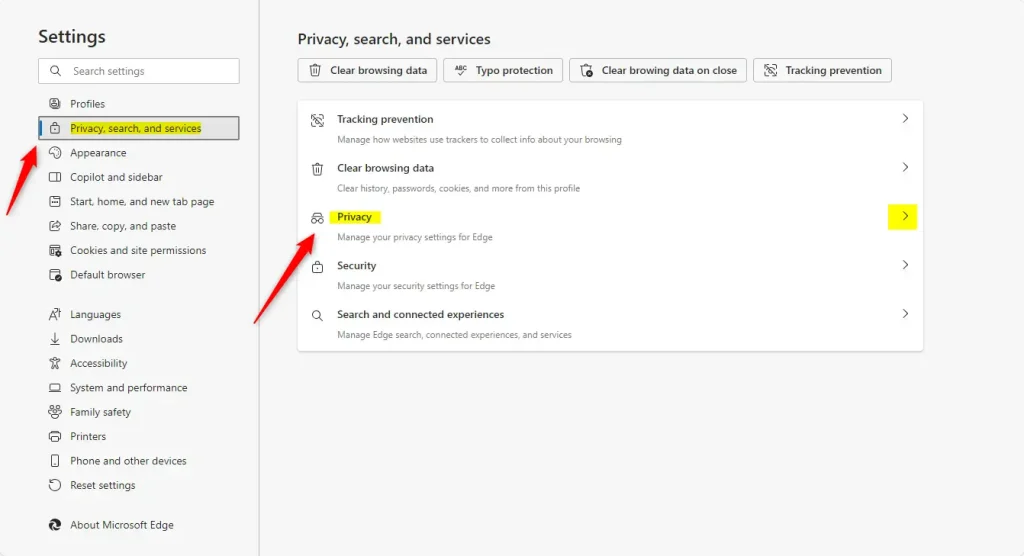
- On the left side of the Settings page, select Privacy, search, and services. The privacy options appear on the right.
- Click the Privacy tile on the right to expand it. The settings inside the tile are now visible.
If you don't see the left-hand list, the window may be too narrow. Widen the window, or click the menu icon at the top left of the Settings page to bring the list back.
Now find the search improvement toggle and set it the way you want.
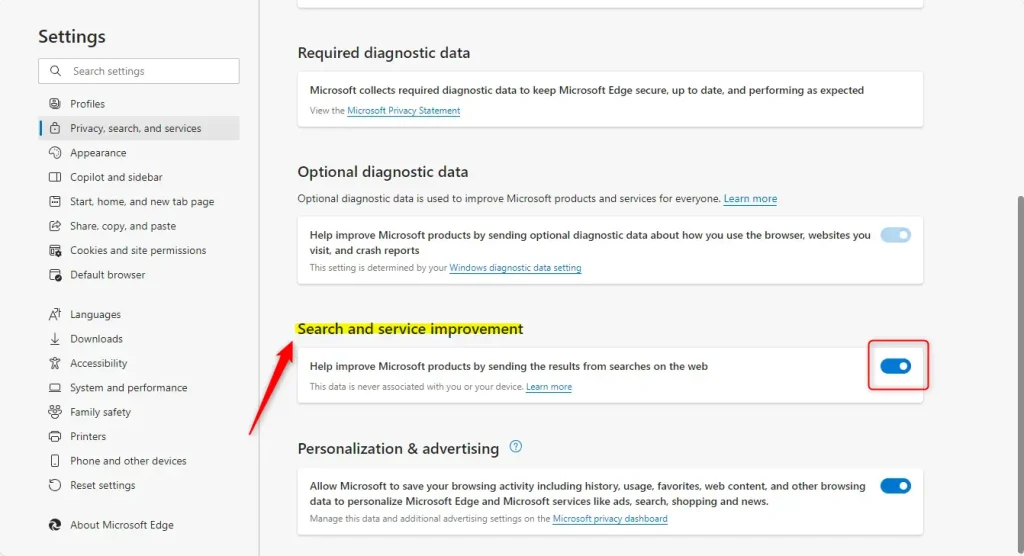
- Look for the setting labeled Search and service improvement. This is the feature that collects data to enhance Microsoft products.
- Find the toggle for Help improve Microsoft products by sending the results from searches on the web.
- Click the toggle to turn it off or on. When it is on, the switch is filled and moved to the right. When it is off, the switch is empty and moved to the left.
To undo it later, come back to this same spot and flip the toggle again.
You will need to ask your administrator to change it. Edge menus and wording are updated often, so the label may differ slightly in your version. Look in the same Privacy section for a similar name.
- Close the Edge settings tab to finish the process. Edge applies the setting right away, so you don't need to restart the browser or the PC.
Reference:
Conclusion:
Whether to leave this feature on depends entirely on your personal privacy preferences. Here is what each choice means in practice.
- Personalized Experience: Enabling the feature enhances your browsing experience by tailoring search results to your preferences.
- Control Over Privacy: Users can disable data collection, providing greater control over their privacy. If you would rather not share what you search for, turn the toggle off.
- User-Friendly Process: The steps to enable or disable the feature are simple and can be completed in just a few minutes. You can switch the setting back at any time.
- Constant Improvement: Participating in data sharing helps improve Microsoft services and Edge, benefiting all users in the long run.
Take a few moments to adjust these settings so Microsoft Edge matches your privacy preferences. It is worth checking the setting again after a major Edge update, in case the option has moved or been renamed.
Have a question about this guide?
Answered by AI from this guide. Good questions may be added to this page — please don't include personal details.
Did this guide fix your problem?

About the Author
Richard
Tech Writer, IT Professional
Richard is a writer at Geek Rewind who turns complex IT tasks into clear, step-by-step guides. He draws on years of hands-on experience in system administration and enterprise IT operations, focusing on Windows, Linux and WordPress: the problems people actually run into, and the fixes that work. His server and WordPress guides come from systems he runs himself. Richard builds and maintains the platform behind Geek Rewind, from its Ubuntu servers and Nginx configuration to its custom WordPress plugins. Many new tutorials start with readers' questions, and he's always glad to answer them in the comments.
[…] Edge is the default browser in Windows 11. However, users can switch to their preferred or favorite browser anytime. Edge is […]