How to Enable/Disable Address Bar Filters in Edge

- 15 steps
- Needs administrator rights
- Includes a restart or sign-out
Address bar settings in Edge are under Settings Privacy, search, and services > Address bar and search. The address bar filters are turned on or off there, under Search suggestions and filters > Search filter. These filters put shortcut buttons for history, favorites, and open tabs in the drop-down list as you type. They are available starting with Edge version 110.
The filters narrow the suggestions to one category, so you find an open page or saved site faster. You can switch them on or off in a few clicks in Edge settings. If you prefer, you can also set them through the registry. Both methods are below.
Open Edge, select Settings and more (the three dots), then go to Settings Privacy, search, and services > Address bar and search > Search suggestions and filters, and switch Search filter on or off. The change applies immediately, with no restart needed. This needs Edge version 110 or later, and no administrator rights.
Turn on or off search filter in the address bar in Edge
The simplest way to turn the filters on or off is through the browser’s own settings. This works on every edition of Windows 11, Home included, and needs no administrator rights. If you do not see the options below, your Edge is probably older than version 110. Update it under Settings About Microsoft Edge and try again.
- Open the Microsoft Edge browser.
- Click the three horizontal dots (Settings and more) in the top-right corner, then select Settings. A Settings page opens in a new tab, with a menu on the left.

- In the left-hand menu, click Privacy, search, and services. The page on the right now shows the privacy and search options.
- Scroll down and click the Search and connected experiences tile to open its options.
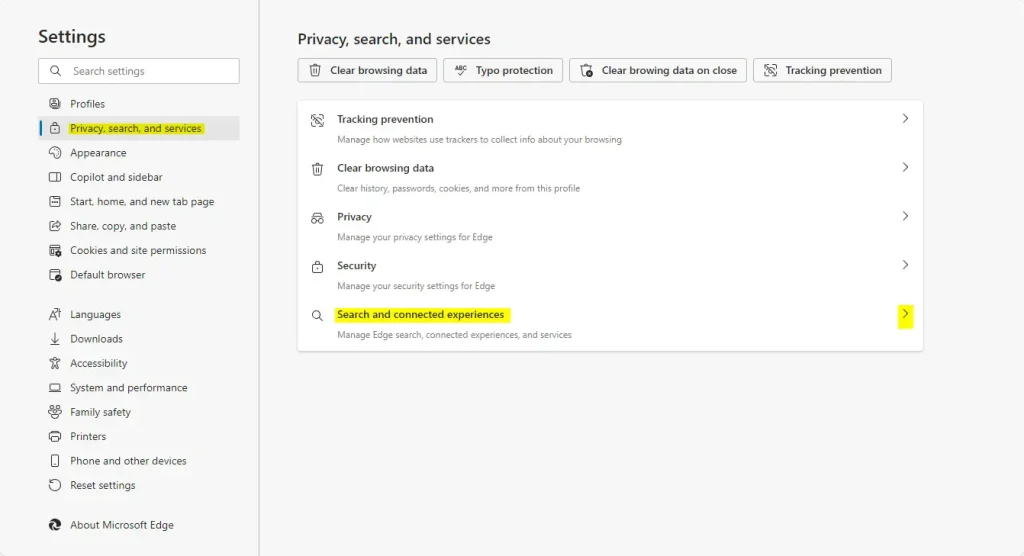
- Click the Address bar and search tile. The page changes to show the address bar options.
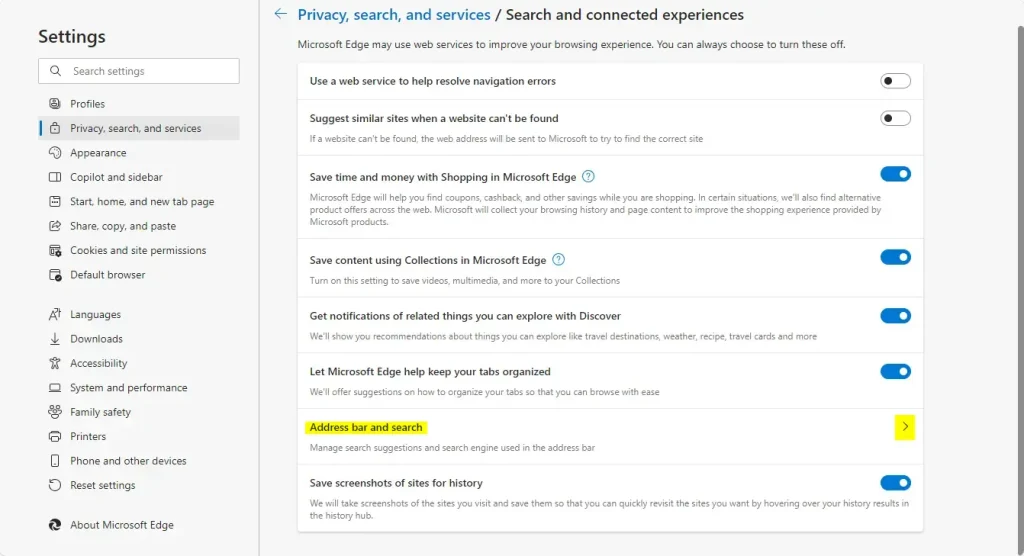
- Click the Search suggestions and filters tile. The list of suggestion and filter options opens.
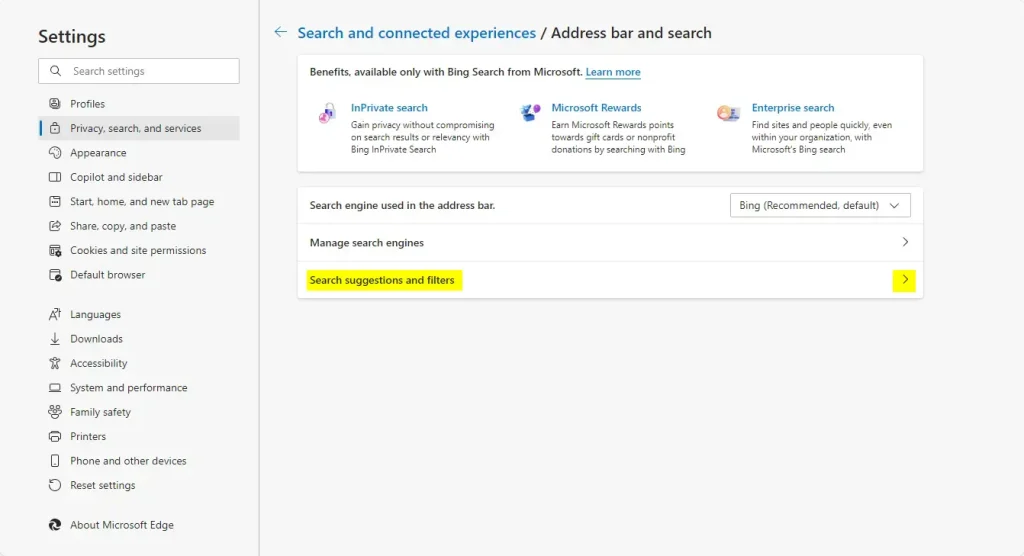
- Find the Search filter option and move its switch. Turn it on to show the filter buttons in the address bar drop-down, or off to hide them.
The change applies right away. You do not need to restart Edge. To check it, click in the address bar and start typing. The filter buttons should show or not show in the drop-down list, depending on the switch. If the switch is greyed out, or Edge says some settings are managed by your organization, a policy is controlling it. A registry value from the second method can cause this too. Delete that value, as described below, to get the switch back.
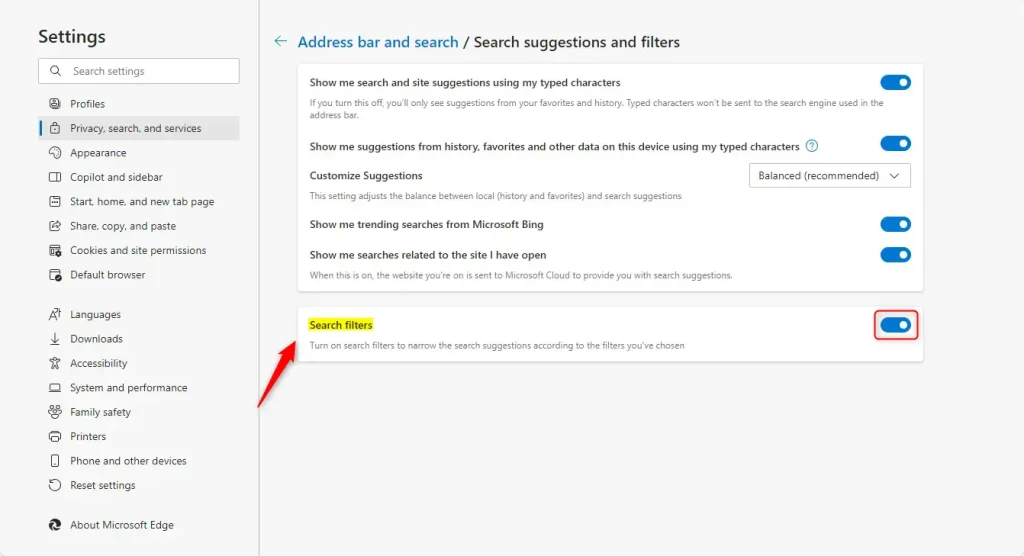
- Close the Edge settings tab when you are done.
Enable / Disable Search filter in address bar in Edge
It is useful when you manage several PCs or when the switch in Settings is not available. Edge treats a value set this way as a policy, so the switch in Settings may then show as managed and locked. A wrong change in the registry can cause problems, so make a backup first.
- Open the Windows Registry with an administrator account. Confirm the User Account Control prompt if it appears.
- Go to the key path shown for this method. The Edge key may not exist yet on a PC that has never had Edge policies set.
- Right-click the Edge key in the left pane, select New, then choose DWORD (32-bit) Value. A new value appears in the right pane with its name ready to edit.
- Name the value SearchFiltersEnabled and press Enter.
- Double-click SearchFiltersEnabled. In the Value data box, enter 1 to enable the search filter.
- To disable the search filter, enter
0in the Value data box instead. - Click OK. The new value is listed in the right pane with the data you entered.
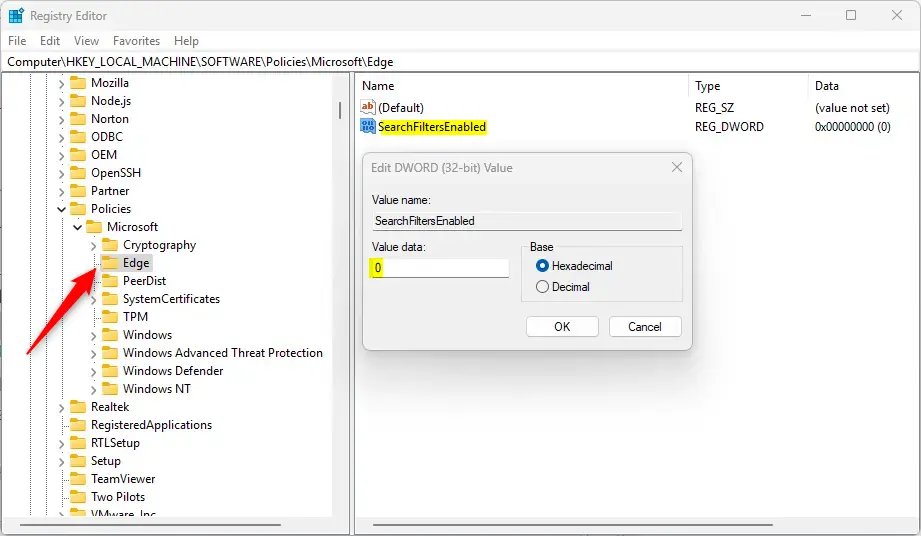
To undo the change, right-click SearchFiltersEnabled in the right pane and select Delete. Confirm the prompt. Without the value, Edge goes back to its default behavior, and the switch in Settings is yours to use again.
SearchFiltersEnabled
Restart the computer so the change is applied. In many cases, closing and reopening Edge is enough. A full restart is the safe choice. After the restart, type in the address bar and check that the filters show or are hidden as you set them.
That completes the process.
Reference:
These steps allow customization of the search experience in Microsoft Edge by controlling how the browser filters content shown in the address bar.
Conclusion:
Controlling address bar search filters in Microsoft Edge gives you more control over how you navigate. In short:
- Easy AccessThe search filter feature can be found within the Edge settings under “Privacy, search, and services.”
- Quick ToggleYou can turn the search filters on or off using the toggle switch.
- Registry MethodFor advanced users, the Windows Registry Editor allows enabling or disabling the search filter with specific values. Deleting the value restores the default.
- Backup PrecautionAlways back up your registry and create a System Restore point before making changes.
- Reboot RequiredChanges made in the registry may require a computer restart to take effect.
With these steps, you can set up the Edge address bar to match how you search and browse.
Have a question about this guide?
Answered by AI from this guide. Good questions may be added to this page — please don't include personal details.
Did this guide fix your problem?

About the Author
Richard
Tech Writer, IT Professional
Richard is a writer at Geek Rewind who turns complex IT tasks into clear, step-by-step guides. He draws on years of hands-on experience in system administration and enterprise IT operations, focusing on Windows, Linux and WordPress: the problems people actually run into, and the fixes that work. His server and WordPress guides come from systems he runs himself. Richard builds and maintains the platform behind Geek Rewind, from its Ubuntu servers and Nginx configuration to its custom WordPress plugins. Many new tutorials start with readers' questions, and he's always glad to answer them in the comments.
No comments yet — be the first to share your thoughts!