
Ask to save passwords is the Edge setting that makes the browser offer to store your sign-in each time you enter a username and password on a site. For most people the answer is to leave it on. Turn it off only if you use a different password manager, share the PC, or follow a work rule against browser-stored logins.
The setting lives in Microsoft Edge, not in Windows, so the steps are the same on Windows 10 and Windows 11. This post helps you decide, then walks through turning it off, fixing the toggle if it is greyed out, and undoing the change.
Yes, turn off Ask to save passwords in Edge only if you use a separate password manager such as 1Password or Bitwarden, share your Windows account or Edge profile, or follow a work rule against browser-stored logins. Otherwise, leave it on. To change it, open Settings , select Profiles or Passwords and autofill, then switch off Ask to save passwords and passkeys.
Should You Turn Off Ask to Save Passwords in Edge?
Ask to save passwords is a convenience feature, and it comes with a trade-off. With it on, Edge builds a vault of your logins and fills them in for you. With it off, Edge stops offering to add new ones. Which is better depends on how you manage passwords today.
Keep it on if
- Edge is your main browser and you have no other password manager.
- You sign in to Edge with a Microsoft account and want your logins on more than one device.
- You currently reuse the same few passwords. A browser that saves a different password for each site is safer than memory.
- You use a private Windows account that nobody else can sign in to.
Turn it off if
- You use a separate password manager, such as 1Password or Bitwarden. Two tools offering to save the same login causes duplicate entries and confusion about which copy is current.
- Several people share one Windows account or one Edge profile. Anyone who opens Edge could use the saved logins.
- Your employer forbids storing work credentials in the browser.
- You use a public or borrowed PC.
What turning it off does not do
Turning off ask to save passwords stops new prompts only. It does not delete logins Edge has already saved, and Edge can still fill those in. If you want them gone, delete them from the Passwords page described later in this post.
The setting applies only to the Edge profile you are signed in to. An Edge profile is a separate set of settings and saved data, so another profile on the PC keeps its own choice. I cannot confirm that the toggle itself syncs to your other devices, so check each device where you use Edge.
How to Turn Off Ask to Save Passwords in Edge
None of these steps need administrator privileges. The labels below match current Edge on Windows 11. Edge updates often, so a menu name may differ slightly on your build, and I note where that is likely.
These steps turn off ask to save passwords for your current Edge profile:
- Open Microsoft Edge. Use the profile you want to change, because the setting belongs to that profile.
- Select Settings and more. This is the three-dot icon (⋯) at the top right of the window. The keyboard shortcut is Alt+F. A menu opens.

micrsoft edge browser more option and settings - Select Settings. The Settings page opens in a new tab with a list of sections down the left side.
- Select Profiles in the left pane. On newer builds the section is called Passwords and autofill instead. Use whichever one your build shows.
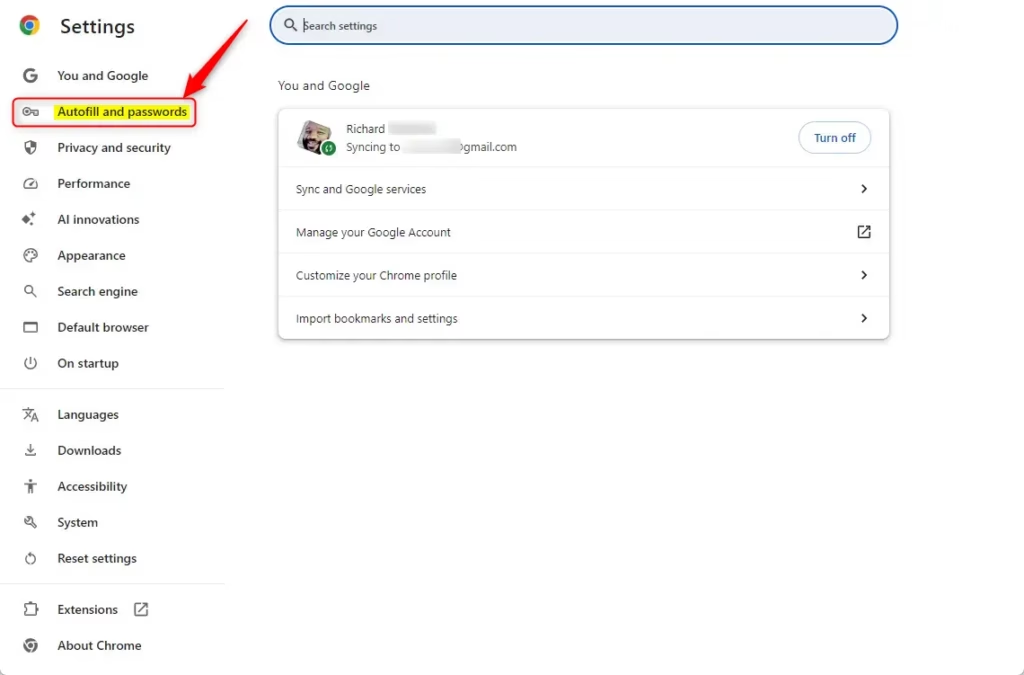
- Select Passwords. On builds with the Passwords and autofill section, select Microsoft Password Manager instead. The page lists your saved passwords and several toggles.
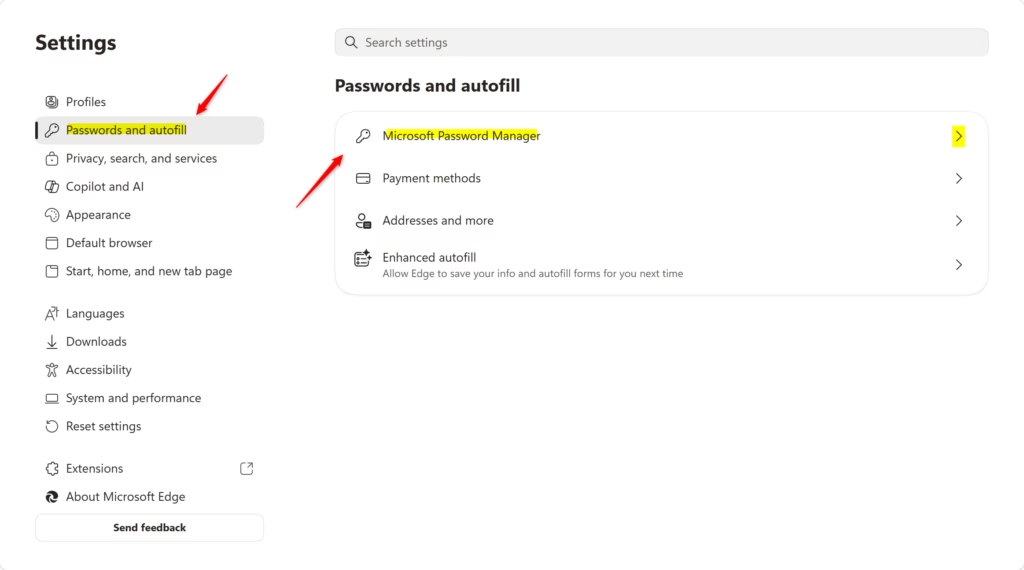
Microsoft Password Manager settings tile in Microsoft Edge browser. - Find the toggle named Ask to save passwords and passkeys. Older builds word it as Offer to save passwords. On some builds it sits one level deeper, behind a Settings or More settings link on the password page.
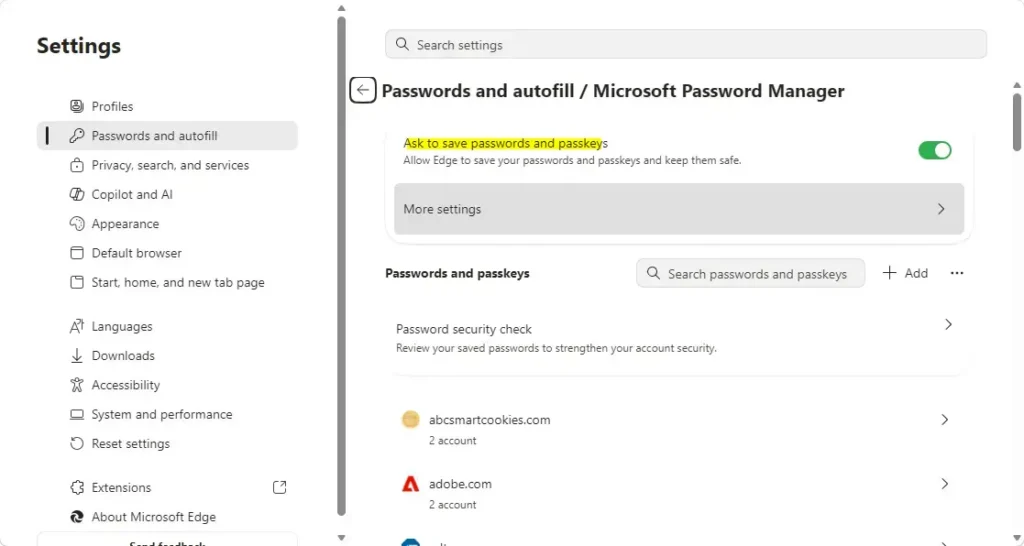
- Switch the toggle to Off. The toggle changes colour and the knob moves to the left. The change saves at once. You do not need to restart Edge or Windows.
- Close the Settings tab. Nothing else needs saving.
A faster route to the same page is to type edge://settings/passwords in the address bar and press Enter. If that address redirects you to a different page, your build has moved the setting, and the menu route above still works.
Check That It Worked
Open a site you rarely visit and sign in with a test account, or one you can afford to lose. After you submit the form, Edge should no longer show the save prompt, which has a small key icon, asking to save the password. If the prompt still appears, make sure you changed the setting in the same profile you are browsing in. The profile picture at the top right of the window shows which one is active.
Passwords already saved in Edge keep filling in automatically. That is expected, and it confirms that the change affects only new prompts.
If the Toggle Is Greyed Out or Missing
Most failures here come from one of three causes: a policy set by an administrator, a different profile type, or a changed menu layout. Work through them in this order.
Check Whether Your Browser Is Managed
If the toggle is locked, Edge may be under a policy set by your employer, school or a previous administrator. Edge shows a briefcase icon and the text Your browser is managed by your organization in the Settings menu or at the bottom of the Settings page. Type edge://management in the address bar and press Enter to see which policies apply.
If the page lists policies, the person who manages the PC controls the setting. Ask them to change it. On a home PC you own, a leftover policy from an old management tool or a tweaking utility may be the cause, and removing it needs administrator rights.
Why Add Password Can Be Greyed Out
Some people find the Add password button on the Passwords page greyed out. That can happen when a policy blocks password saving. Some reports say the button also greys out when the save setting is off. I cannot confirm this on every Edge build. To test, switch Ask to save passwords and passkeys back to On, reload the Passwords page, and see whether the button becomes available.
If the button stays grey with the toggle on and no policies are listed on the policy page at edge://management, update Edge first. Open Settings and more > Help and feedback > About Microsoft Edge, which checks for updates, then relaunch Edge when asked.
Home vs Pro: Changing It for Every User
The steps above change one profile. To enforce the setting for every user on a PC, an administrator has to use an Edge policy. Windows 11 Home does not include the Local Group Policy Editor, an admin tool for settings that apply to every user. It ships with Pro, Enterprise and Education, and it needs the Edge policy templates installed.
I do not have a verified registry path or Group Policy name for this setting, so I have not listed one. Editing the registry by hand is hard to undo without a backup, so export the key first.
Stop the Prompt for One Site Only
If a single site keeps asking, you do not need to turn off the whole feature. When the save prompt appears, select Never. Edge remembers the site and stops asking about it, while still offering to save logins elsewhere.
Sites you have blocked this way appear in a Never saved list on the Passwords page. To undo a block, open Settings Profiles Passwords, find the site in that list, and remove it. The next sign-in on that site triggers the prompt again.
Delete Passwords Edge Already Saved
Open edge://settings/passwords, find the site in the saved passwords list, select the three-dot menu on its row, and choose Delete.
Edge may ask you to confirm with Windows Hello, your PIN or your Windows password before it shows or changes saved entries. This is a safeguard that stops someone at an unlocked PC from reading them. If you signed in to Edge with a Microsoft account and sync passwords, deleting an entry typically removes it on your other devices after they sync.
How to Turn Ask to Save Passwords Back On
The change is fully reversible and takes about 10 seconds. Open Settings Profiles Passwords, or Settings Passwords and autofill > Microsoft Password Manager on newer builds. Switch Ask to save passwords and passkeys back to On.
Edge starts offering to save new logins on your next sign-in. Nothing you saved before is lost, and sites you blocked with Never stay blocked until you remove them from the Never saved list.
What to Do Next
If you turned the prompt off because you moved to another password manager, import your saved logins into it. Then delete the old copies from Edge so only one vault remains. A new Edge profile starts with its own settings, so repeat the steps there if you add one. If the toggle stays locked, take the edge://management results to whoever manages the PC.
Have a question about this guide?
Answered by AI from this guide. Good questions may be added to this page — please don't include personal details.
Did this guide fix your problem?

About the Author
Richard
Tech Writer, IT Professional
Richard is a writer at Geek Rewind who turns complex IT tasks into clear, step-by-step guides. He draws on years of hands-on experience in system administration and enterprise IT operations, focusing on Windows, Linux and WordPress: the problems people actually run into, and the fixes that work. His server and WordPress guides come from systems he runs himself. Richard builds and maintains the platform behind Geek Rewind, from its Ubuntu servers and Nginx configuration to its custom WordPress plugins. Many new tutorials start with readers' questions, and he's always glad to answer them in the comments.
No comments yet — be the first to share your thoughts!