How to Turn On or off Notifications for Reminders and VoIP Calls on Lock Screen in Windows 11

Lock screen notifications show alerts from apps like Skype or Microsoft Teams on your sign-in screen before you unlock the PC. Turning this on or off controls what other people can read when you step away from your desk.
You can manage it from the Settings app, or from the Registry Editor if you prefer that route. Either way, you decide whether reminders and voice over IP (VoIP) calls show up while the device is locked. Both methods work on Windows 11 Home and Pro.
Open Settings , go to System Notifications, and check or uncheck “Show reminders and incoming VoIP calls on the lock screen” to turn the feature on or off. The change applies immediately with no restart needed.
Option 1Using Settings
Use it unless you have a reason to edit the registry.
- Press Win+I to open Settings. You should see the Settings window with a list of categories on the left.
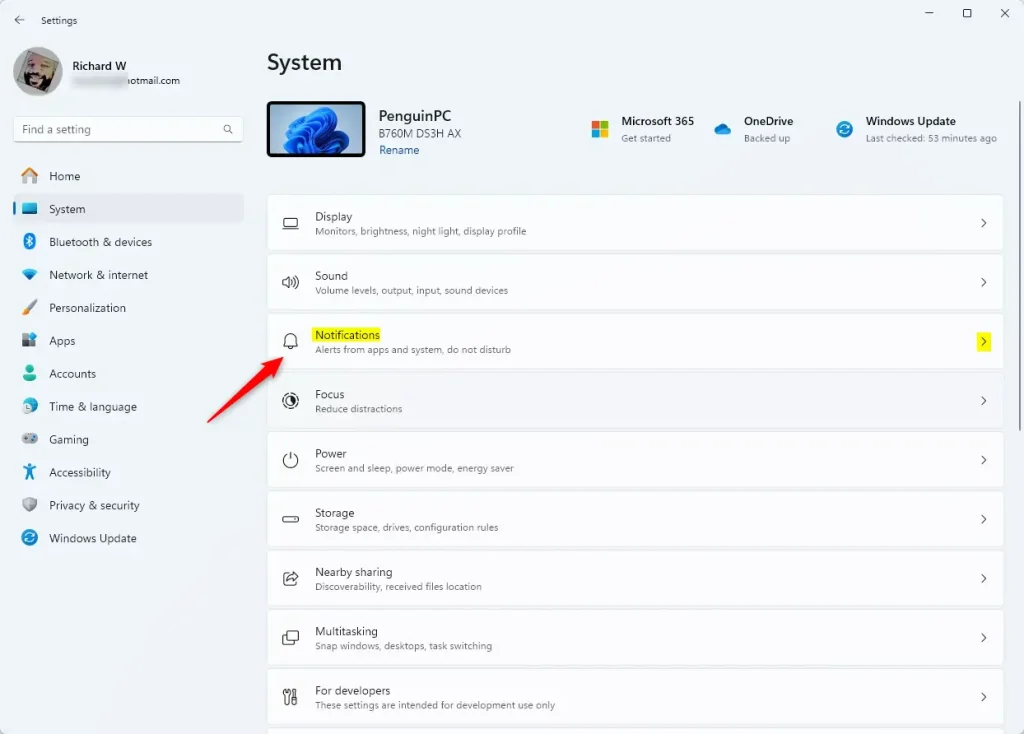
- Click System in the left-hand menu.
- Click Notifications on the right side. The notification options for your PC now open.
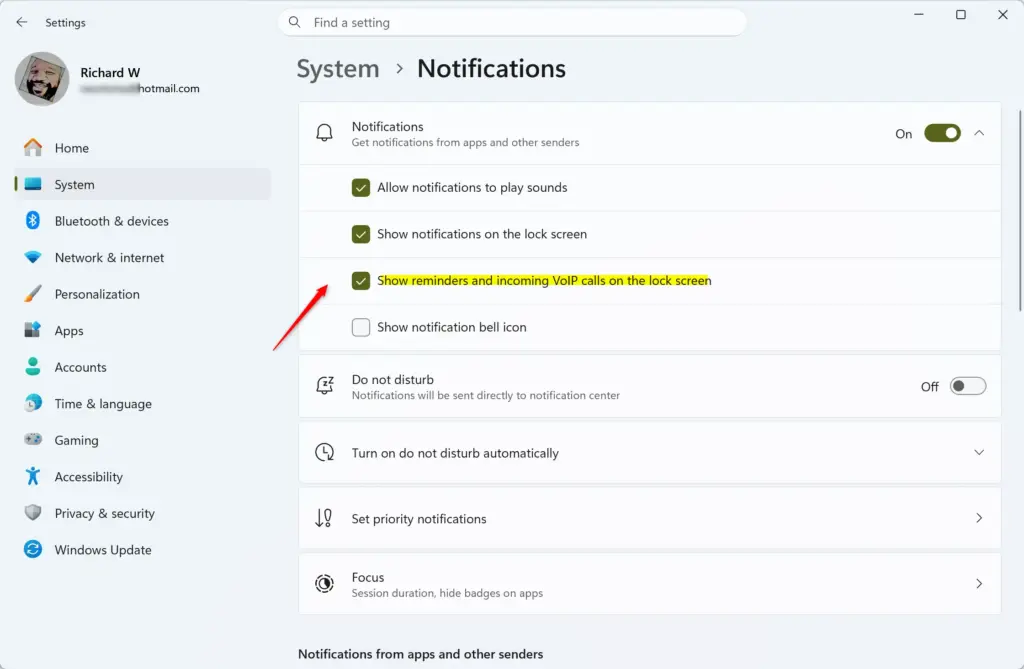
- Under the Notifications section, click Notifications to expand it.
- Find the option “Show reminders and incoming VoIP calls on the lock screen”. Check the box to turn it on, or uncheck it to turn it off.
If you can’t find the option, look in the notification settings for the individual app, such as Skype or Teams. The reminder and VoIP option may only be offered for apps that send those kinds of alerts. It may also depend on lock screen notifications being allowed for that app.
The change applies straight away. To undo it, come back to the same place and flip the box the other way.
Closing the Settings window completes the process. To check, press Win+L to lock the PC and wait for a reminder or call to come in. You may have to try this with a real alert from the app.
Option 2Using the Registry Editor (Advanced)
Wrong changes in the registry can cause system instability, so follow the steps exactly. Before you start, it's worth exporting a backup: in Registry Editor, choose File Export and save the file somewhere safe. To restore it later, double-click the saved file.
To Turn On Reminders and VoIP Calls on the Lock Screen:
This configuration acts as the default behavior.
- Press Windows key + R to open the Run dialog box.
- Type
regeditand press Enter. Click Yes if User Account Control prompts you. The Registry Editor window opens. - Navigate to the following key:
HKEY_CURRENT_USER\Software\Microsoft\Windows\CurrentVersion\Notifications\Settings - Right-click the Notifications key.
- Select New DWORD (32-bit) Value. A new value appears in the right pane with its name ready to edit.
- Name the new value
NOC_GLOBAL_SETTING_ALLOW_CRITICAL_TOASTS_ABOVE_LOCK - Double-click the new value. The Edit DWORD dialog opens.
- Make sure the Value data is set to
1. - Click OK.
If the value already exists, skip the creation steps and just edit it. If the change doesn't show up, sign out and back in, or restart the PC.
To Turn Off Reminders and VoIP Calls on the Lock Screen:
- Follow steps 1-6 above to create or find the
NOC_GLOBAL_SETTING_ALLOW_CRITICAL_TOASTS_ABOVE_LOCKvalue. - Double-click the
NOC_GLOBAL_SETTING_ALLOW_CRITICAL_TOASTS_ABOVE_LOCKvalue. - Set the Value data to
0. - Click OK.
Configuration finishes here. Close Registry Editor. If the lock screen still behaves the same way, sign out and back in, or restart. To go back, set the value to the earlier data or use the backup you exported.
Summary
The choice comes down to convenience versus privacy. Keeping reminders and VoIP calls on the lock screen means you won't miss an important call or alert. Hiding them gives you a cleaner, more private lock screen. You can switch at any time, with either the Settings app or the Registry Editor.
When the feature is on, reminders and VoIP (Voice over Internet Protocol) calls appear on the Windows 11 lock screen. When it's off, they are hidden there, but the PC still shows the notifications after you unlock it.
Was this guide helpful?

About the Author
Richard
Tech Writer, IT Professional
Richard is a writer at Geek Rewind who turns complex IT tasks into clear, step-by-step guides. He draws on years of hands-on experience in system administration and enterprise IT operations, focusing on Windows, Linux and WordPress: the problems people actually run into, and the fixes that work. His server and WordPress guides come from systems he runs himself. Richard builds and maintains the platform behind Geek Rewind, from its Ubuntu servers and Nginx configuration to its custom WordPress plugins. Many new tutorials start with readers' questions, and he's always glad to answer them in the comments.

No comments yet — be the first to share your thoughts!