How to Create a Guest Account on Windows 11

A guest account on Windows 11 is a separate local user profile that lets friends or family use your PC safely without touching your personal files. Windows 11 does not include a built-in guest mode, so you have to set up a standard local account yourself. The Settings app is the easiest way to do it.
Standard user accounts block most app installations and system changes, so visitors cannot accidentally break your computer. The whole job takes a few minutes, so you can set it up whenever someone needs to borrow your device. You need to be signed in as an administrator to create the account.
Create a standard local user account in Settings. Go to Accounts, then Family & other users, and click Add account. Name the account (e.g., “GuestUser”) and leave the password blank for easy guest access.
Why create a guest account?
A restricted profile lets someone use your PC without risking your personal files or settings. The guest gets their own desktop, their own Documents and Downloads folders, and their own browser data. They cannot open your files through your account, and as a standard user they cannot install most software or change system-wide settings without an administrator password.
This also helps you. If a visitor changes the wallpaper, saves a pile of downloads or signs in to their email, all of that stays in their profile and not in yours.
What happens when you are done?
The new user profile lets your guest sign in to the computer. Their activity stays separate from yours, including browsing history, saved files and app settings. When the guest has finished, you can delete the account to wipe their history and files from the PC. The deletion steps are near the end of this guide.
One thing to know: this is a normal local account, not a temporary one. Windows will not clear it for you when the guest signs out, so the cleanup is up to you.
Method 1Using System Settings
You can create a guest account on Windows 11 entirely from the Settings app, without touching the command line. The visitor gets a clean profile to browse the web, while your personal files, passwords and apps stay in your own account. The steps below were written for current Windows 11 builds. Some labels differ slightly between versions, and I point those out where they matter.
- Open Settings by pressing the Windows key + I on your keyboard. The Settings window opens with a list of categories on the left.
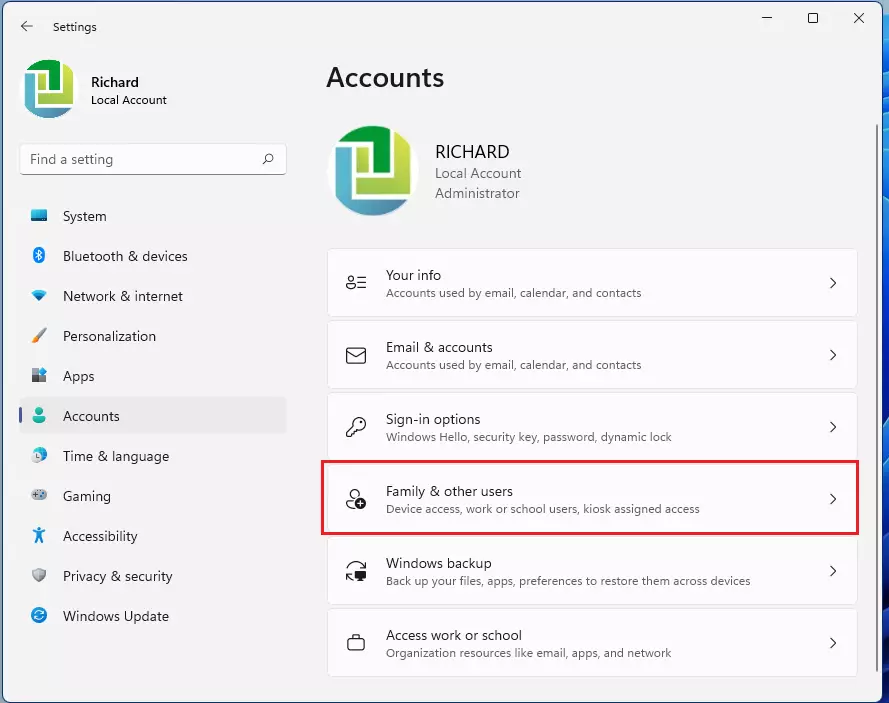
- Click on Accounts in the left menu. Your account details appear on the right.
- Select Family & other users. On some newer builds this page is labelled Other users instead. It is the same page with the same options.

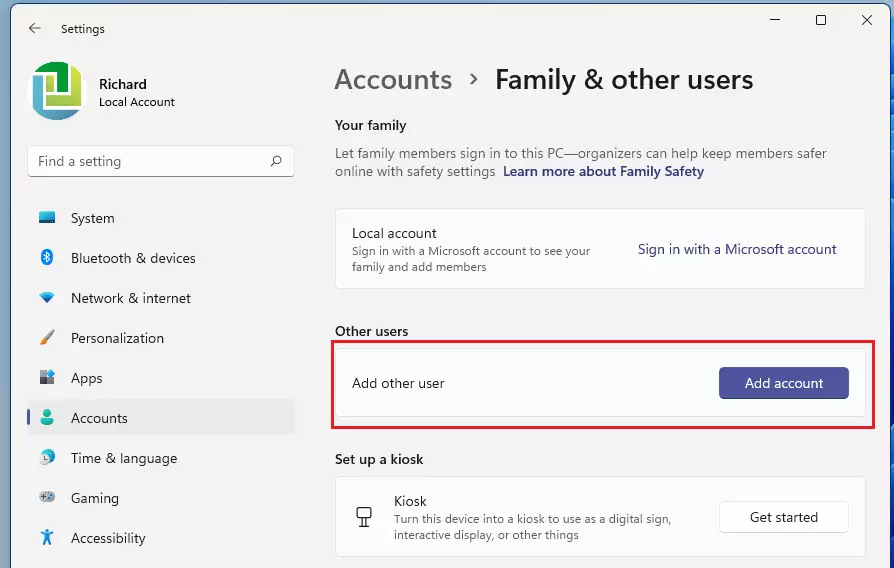
- Look for the Other users section and click the Add account button. (Requires admin privileges) If you are signed in as a standard user, Windows will ask for an administrator password. If the button is greyed out or missing, sign in with an administrator account and try again. A Microsoft sign-in window then opens.
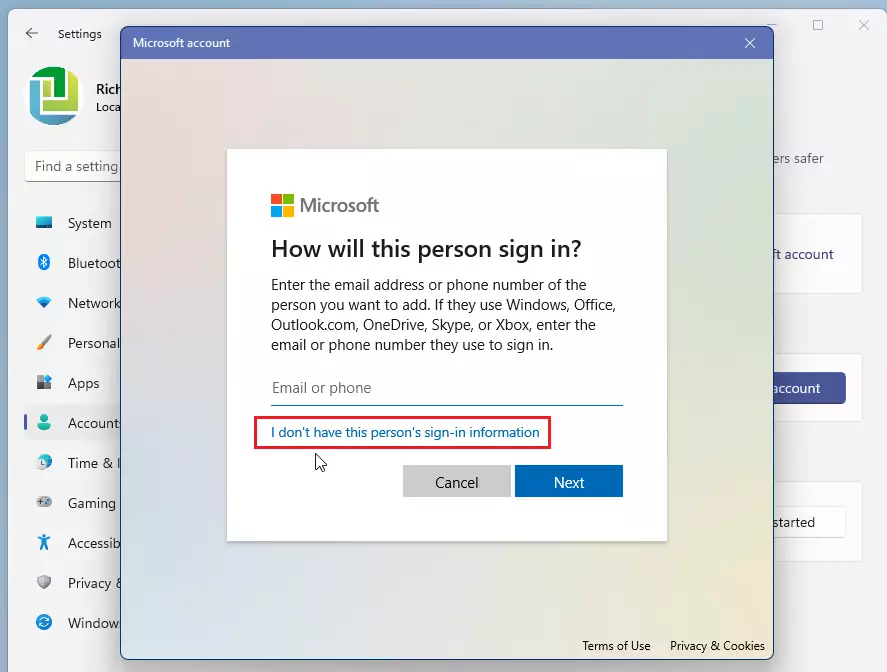
- When the Microsoft sign-in window pops up, click I don't have this person's sign-in information. This link is small and sits near the bottom of the window. The next screen asks you to create a Microsoft account.
- Click Add a user without a Microsoft account. This is the choice that makes the account local, so your guest does not need an email address or a Microsoft login. A Create a user for this PC form appears.
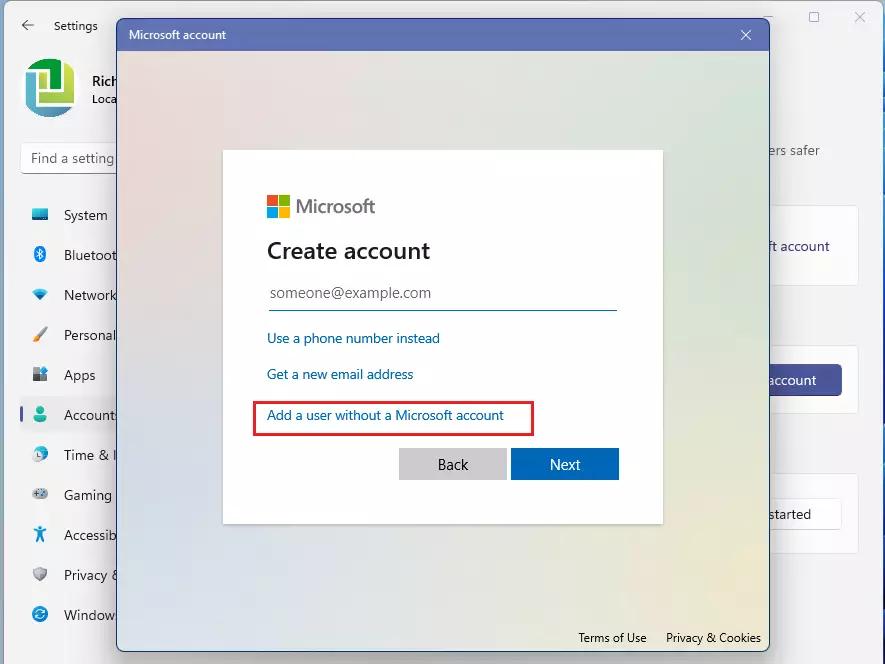
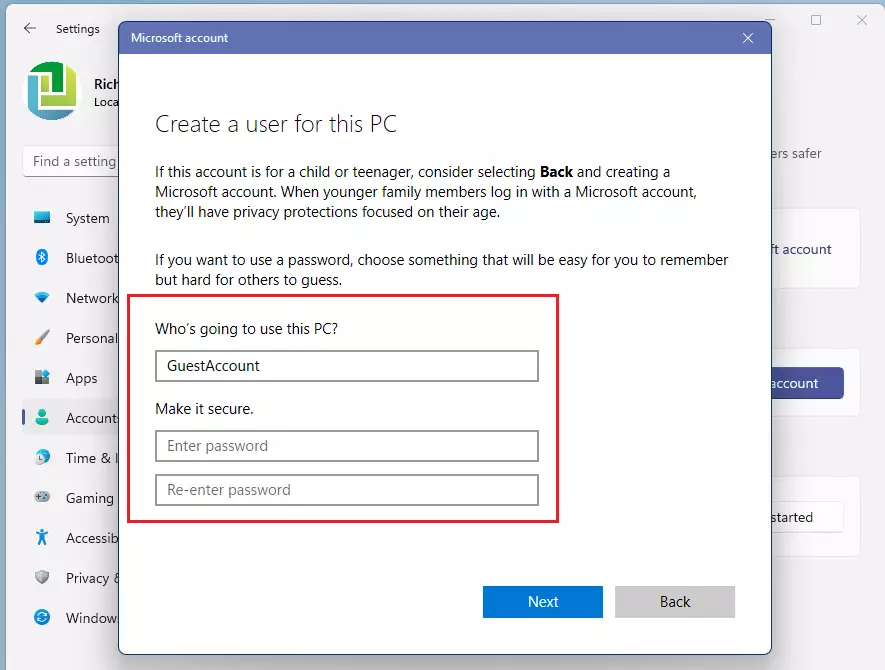
- Type a name for the account (like "GuestUser"). Windows will not let you name it "Guest," because that name is reserved by the system. If you try, you will see an error and need to pick a different name.
- Leave the password fields blank to make it easy for guests to sign in. This is fine for a short visit. If the guest will stay for several days, or the PC is somewhere others can reach it, set a simple password and share it with them instead.
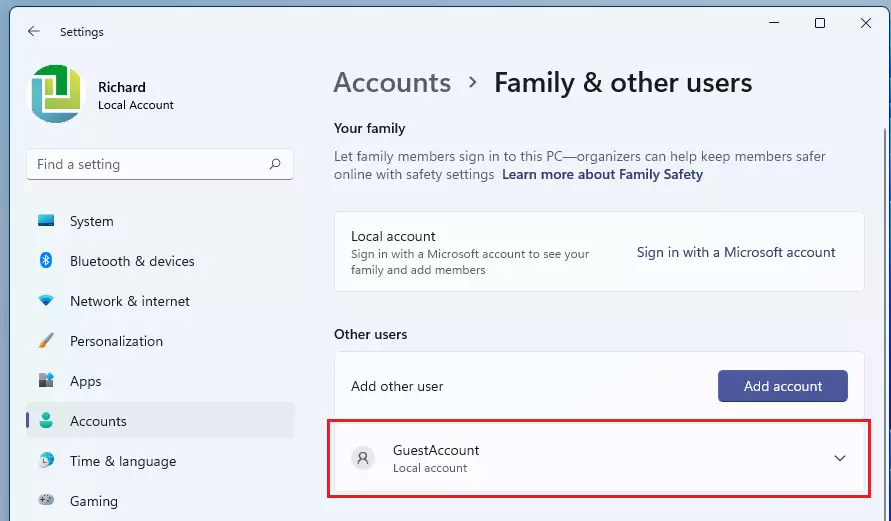
- Click Next. The new account is created and appears under Other users. By default it is a standard user, which is what you want for a guest.

Press Windows + L to lock the screen, then pick the guest profile from the list of accounts at the bottom left of the sign-in screen. You can also open the Start menu, click your profile picture and choose the guest account there. Your own session stays open in the background, so save your work first.
The first time the guest signs in, Windows takes a minute or two to set up the profile. This is normal.
Method 2Using Command Prompt
Command Prompt is another way to build a guest profile, using a single terminal command. It is quicker if you are comfortable in a terminal, and it works on both Home and Pro editions. You need administrator rights for this too.
- Search for cmd in the Start menu. Command Prompt should appear at the top of the results.
- Right-click it and select Run as administrator. Click Yes if User Account Control asks for permission. A Command Prompt window opens, and its title bar should say Administrator.
- Type the following command and press Enter. Command Prompt should reply with a message saying the command completed successfully. If you see "Access is denied," the window is not running as administrator, so close it and repeat the steps above:
net user GuestAccount /add /active:yesWarning for 🪟 Windows 11 Home Users
Windows 11 Home does not include the Local Users and Groups tool (lusrmgr.msc), a management snap-in for handling user profiles. It is only available in Pro, Enterprise and Education. If you run it on Home, you get an error message. The tool is not broken, it simply is not part of that edition.
If you have Home, stick to the Settings app method or the Command Prompt method above. Both work fine and avoid the problem entirely.
How to Delete the Guest Account
Deleting old guest profiles keeps your storage drive clean and protects your guest's privacy. The Settings app removes the user account and all of its files in one go. Deleting cannot be undone, so ask the guest to copy anything they want to keep before you start.
- Sign out of the guest account, then sign in with your administrator account.
- Open Settings Accounts Family & other users
- Under Other users, click the guest account. The entry expands and shows more options.
- Click Remove next to Account and data.
- Click Delete account and data to confirm. The guest account disappears from the list, and its files are deleted from the PC.
Summary
Windows 11 has no native guest account, but a local standard user account does the same job well. Your private files stay secure, and system settings stay protected from accidental changes. Create the account when a visitor needs it, and delete it afterwards so nothing is left behind. Follow the steps above and you can share your PC safely.
Was this guide helpful?

About the Author
Richard
Tech Writer, IT Professional
Richard is a writer at Geek Rewind who turns complex IT tasks into clear, step-by-step guides. He draws on years of hands-on experience in system administration and enterprise IT operations, focusing on Windows, Linux and WordPress: the problems people actually run into, and the fixes that work. His server and WordPress guides come from systems he runs himself. Richard builds and maintains the platform behind Geek Rewind, from its Ubuntu servers and Nginx configuration to its custom WordPress plugins. Many new tutorials start with readers' questions, and he's always glad to answer them in the comments.




No comments yet — be the first to share your thoughts!