How to Enable or Disable Developer Mode in Windows 11

Developer Mode in Windows 11 is a system setting that lets you install apps from outside the Microsoft Store and run unsigned code. Windows 11 includes it mainly for software creators. Turning it on takes only a few clicks, so you can switch it on whenever you need to test apps from other sources and off again when you are done.
You do not need any special tools or downloads. Open the Settings app and go to System Advanced. On older Windows 11 builds the same switch sits under Privacy & security For developers. This guide covers four ways to change it: Settings, Registry Editor, Local Group Policy Editor, and registry policies.
Open Settings , go to System Advanced, find Developer Mode, and switch it On or Off. Click Yes to confirm. Windows applies the change immediately without requiring a restart on most systems.
What is Developer Mode?
Developer Mode is a Windows 11 setting that lets you install apps from outside the Microsoft Store and use advanced debugging tools. Software creators and people testing their own apps rely on it to run local code. Everyday computer tasks do not need it.
If you are not writing or testing software, leave this setting off.
If you use tools like Visual Studio and test custom apps on your own hardware, you will need Developer Mode active.
What Happens When You Turn On Developer Mode?
Turning Developer Mode on changes the following:
- You can install apps from anywhere, not just the Microsoft Store.
- Extra features like debugging and app testing become available.
- Services like SSH (a way to connect remotely to your PC) can be turned on for app deployment.
Only sideload software you trust.
How to Turn On or Off Developer Mode
Option 1Using Windows Settings
This is the fastest and safest method. It works on every edition, Home included, and needs no advanced tools.
- Press Win + I on your keyboard to open Settings.
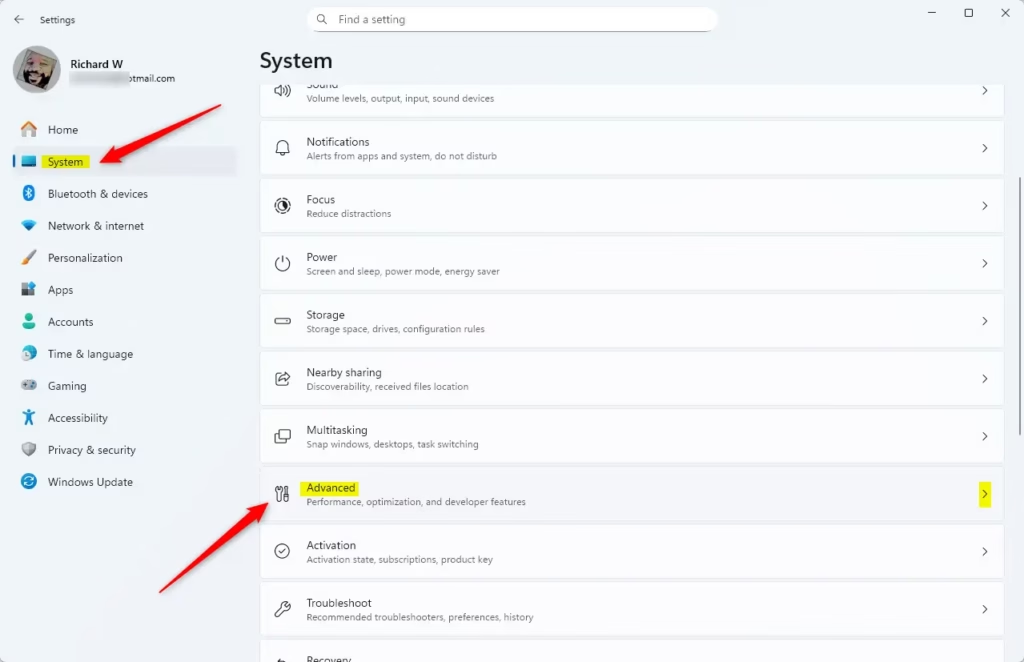
- Click System on the left menu. The System pages appear on the right.
- Click Advanced on the right side. Open Advanced Developer Settings On older builds this page is called For developers, or you will find it under Privacy & security.
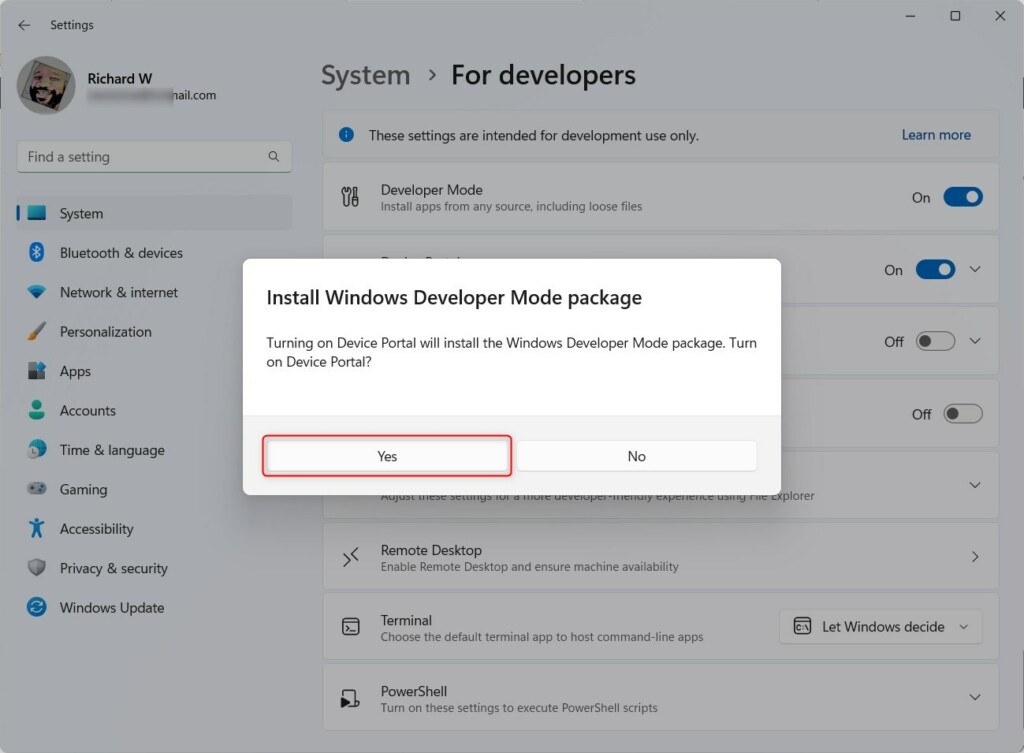
- Find Developer Mode and switch it On or Off.
- If you are turning it on, Windows shows a confirmation prompt. Click Yes. The switch now reads On. Windows may take a moment to install developer features in the background.
- Close Settings when done. You normally do not need to restart.
If the switch is greyed out, or Windows says some settings are managed by your organization, a policy is controlling it. Check Option 3 or Option 4 below. A work or school PC may also be locked down by an administrator.
Path: System Advanced
Option 2Using the Registry Editor (Advanced)
Registry Editor lets you turn Developer Mode on or off by changing system keys directly. Use it only if you prefer not to use the Settings app. It needs careful typing, because a wrong entry can cause system errors.
Before you start, sign in with an administrator account. Back up the registry first: in Registry Editor, click File Export and save a copy. If something goes wrong, you can import it again.
To Turn On Developer Mode:
Use the code below, then check System Advanced in Settings to confirm the switch shows On.
reg add "HKEY_LOCAL_MACHINE\SOFTWARE\Microsoft\Windows\CurrentVersion\AppModelUnlock" /v AllowDevelopmentWithoutDevLicense /t REG_DWORD /d 1 /fTo Turn Off Developer Mode:
Use the code below, then check Settings again to confirm the switch shows Off. If it still shows the old state, sign out and back in, or restart the PC.
reg add "HKEY_LOCAL_MACHINE\SOFTWARE\Microsoft\Windows\CurrentVersion\AppModelUnlock" /v AllowDevelopmentWithoutDevLicense /t REG_DWORD /d 0 /fOption 3Using Local Group Policy Editor (For 🪟 Windows 11 Pro, Enterprise, Education)
Local Group Policy Editor lets Windows 11 Pro, Enterprise, and Education users control Developer Mode restrictions across the whole system. It manages app installation behavior from one central place. Windows 11 Home does not include this tool, so Home users should use Option 1 or Option 4.
- Press Win + R, type
gpedit.msc, and press Enter to open Local Group Policy Editor. If you see an error that the file cannot be found, you are on Home. - In the left sidebar, go to: Computer Configuration Administrative Templates Windows Components App Package Deployment. The policies in that folder are listed on the right.
- On the right, double-click Allow development of Windows Store apps and installing them from an integrated development environment (IDE). A settings window opens.
- You will see these options:
- Not Configured (default). This lets you turn Developer Mode on or off manually.
- Enabled with Force Allow to always turn Developer Mode on.
- Enabled with Force Deny to always turn Developer Mode off.
- Choose the option you want, click OK, then close the editor.
To undo this, open the same policy and set it back to Not Configured. If you used Force Allow or Force Deny, the switch in Settings may be greyed out until you do. If the change does not show up straight away, restart the PC or sign out and back in.
Images for this:
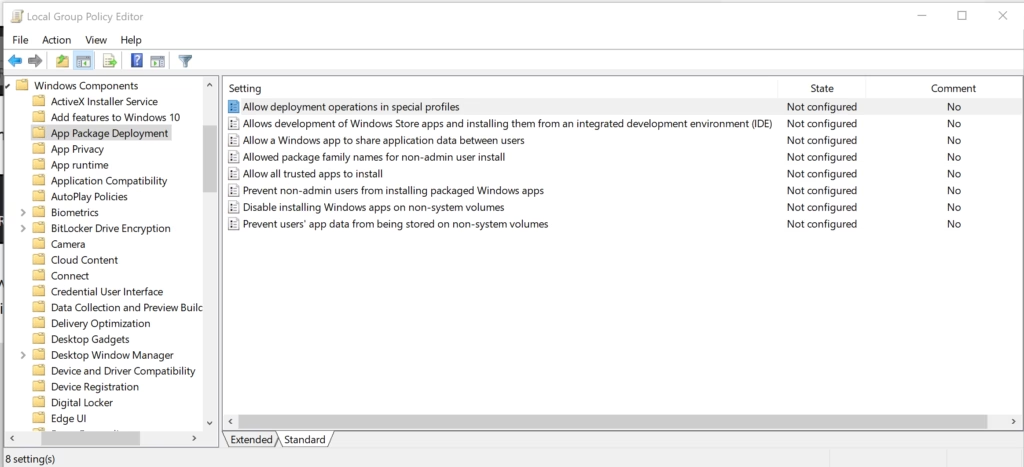
Navigate to App Package Deployment
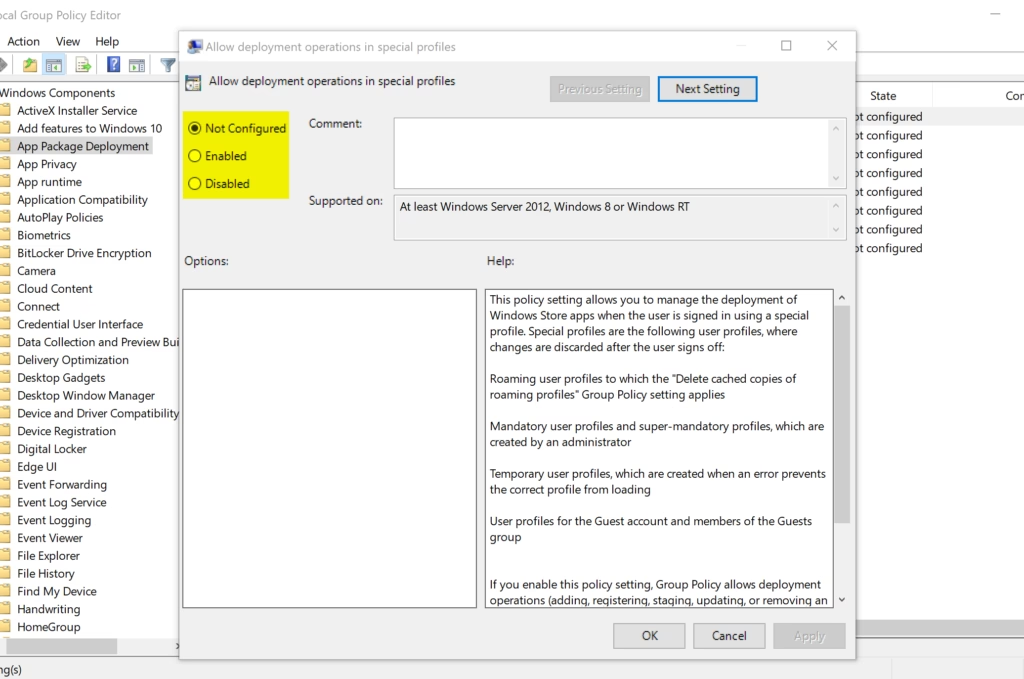
Set the policy to Enabled and choose Force Allow to keep Developer Mode on
Option 4Using Registry Policy (Advanced)
Registry policies let power users lock Developer Mode on or off for every user account on the machine. They work by writing registry keys directly instead of using the Settings toggle, and they skip the graphical interface completely. That makes them useful for automated setups. They also work on Windows 11 Home, which has no Group Policy Editor.
This is the registry version of Option 3, and it has the same global effect. As in Option 2, sign in as an administrator and export a registry backup first.
To remove any policy and allow manual control:
Use this to undo a forced setting. Afterwards you can use the switch in Settings again.
reg delete "HKLM\SOFTWARE\Policies\Microsoft\Windows\Appx" /v AllowDevelopmentWithoutDevLicense /fTo always enable Developer Mode:
reg add "HKLM\SOFTWARE\Policies\Microsoft\Windows\Appx" /v AllowDevelopmentWithoutDevLicense /t REG_DWORD /d 1 /fTo always disable Developer Mode:
reg add "HKLM\SOFTWARE\Policies\Microsoft\Windows\Appx" /v AllowDevelopmentWithoutDevLicense /t REG_DWORD /d 0 /fAfter applying any of these, restart the PC or sign out and back in so the policy takes effect. Then check System Advanced in Settings to confirm the result.
Things to Remember
Windows 11 Developer Mode requires administrator privileges to turn on and is meant primarily for software creators and testers. Turning it on unlocks external software installation and debugging capabilities, which can expose your computer to unverified code. Only turn it on if you actually write or test apps.- Who needs Developer Mode? Only developers or people testing apps should turn it on.
- Extra features: Developer Mode lets you install apps from outside the store, debug apps, and use remote tools.
- How to change it: You can use Settings, Registry Editor, or Local Group Policy Editor (for some Windows editions).
- Administrator access: You must be signed in as an administrator to change Developer Mode.
- Be careful: Turning on Developer Mode can expose your PC to security risks if you install untrusted apps.
More Information
Official documentation resides on Microsoft's page covering Settings for Developers.
Summary
Windows 11 Developer Mode lets software creators install and test external applications, with toggles available via Settings, Registry, or Group Policy.
Frequently asked questions
How do I remove dev home from 🪟 Windows 11?
Dev Home is an app you can uninstall like any other. Open Settings, go to Apps Installed apps, find Dev Home in the list, click the three dots next to it, and select Uninstall. This removes the app but doesn't turn off Developer Mode itself.
What does developer mode do on PC?
Developer Mode lets you install apps from outside the Microsoft Store and run unsigned code for testing. It also enables advanced debugging tools. Most people don't need it—it's mainly for software developers and people testing their own applications.
How do I disable developer mode off?
Open Settings and go to System Advanced, then scroll down and toggle Developer Mode off. On older Windows 11 builds, find it under Privacy & security For developers The setting turns off immediately when you switch it.
What does it mean when developer mode is enabled on an Android phone?
On Android, Developer Mode enables hidden settings for testing and debugging apps. It unlocks USB debugging, allows installation of apps from unknown sources, and gives access to performance tools. It's meant for developers, not everyday users.
Still have a question?
Answered by AI from this guide. Good questions may be added to this page — please don't include personal details.
Did this guide fix your problem?

About the Author
Richard
Tech Writer, IT Professional
Richard is a writer at Geek Rewind who turns complex IT tasks into clear, step-by-step guides. He draws on years of hands-on experience in system administration and enterprise IT operations, focusing on Windows, Linux and WordPress: the problems people actually run into, and the fixes that work. His server and WordPress guides come from systems he runs himself. Richard builds and maintains the platform behind Geek Rewind, from its Ubuntu servers and Nginx configuration to its custom WordPress plugins. Many new tutorials start with readers' questions, and he's always glad to answer them in the comments.
[…] How to turn on Developer Mode in Windows 11 […]