How to Always Show the Forward Button in Microsoft Edge

Edge hides the forward button by default. It only appears after you have used the back arrow, so on a fresh tab or a page you have not left, there is nothing to click. You can change this so the forward arrow stays on the toolbar all the time, greyed out until you can use it. The change takes under 10 seconds.
A permanent forward button saves time if you often jump back and forth between pages. The button never moves around, so you always know where to click. The setting is in Edge’s appearance options. It is saved per profile, it needs no restart, and you can switch it back whenever you like.
Open Edge Settings, select Appearance, then scroll to Customize toolbar and click Select which buttons to show on the toolbar. Change the Forward button setting from Show automatically to Always show. The forward arrow then stays on the toolbar next to the back arrow, greyed out when there is no page to go forward to. The change saves immediately, with no restart needed.
How to Always Show the Forward Button in Microsoft Edge
Step 1Open Edge Settings
- Open Microsoft Edge. You should see the browser window with the address bar and toolbar along the top.
- Click the Settings and More button (the 3 dots in the top right corner of the window). A drop-down menu opens below it.
- If you prefer the keyboard, you can also press Alt+F. It opens the same menu, which is handy if the toolbar is crowded or you cannot find the dots.
- From the menu that appears, click Settings. Edge opens its Settings page, usually in a new tab.

Step 2Go to Appearance Settings
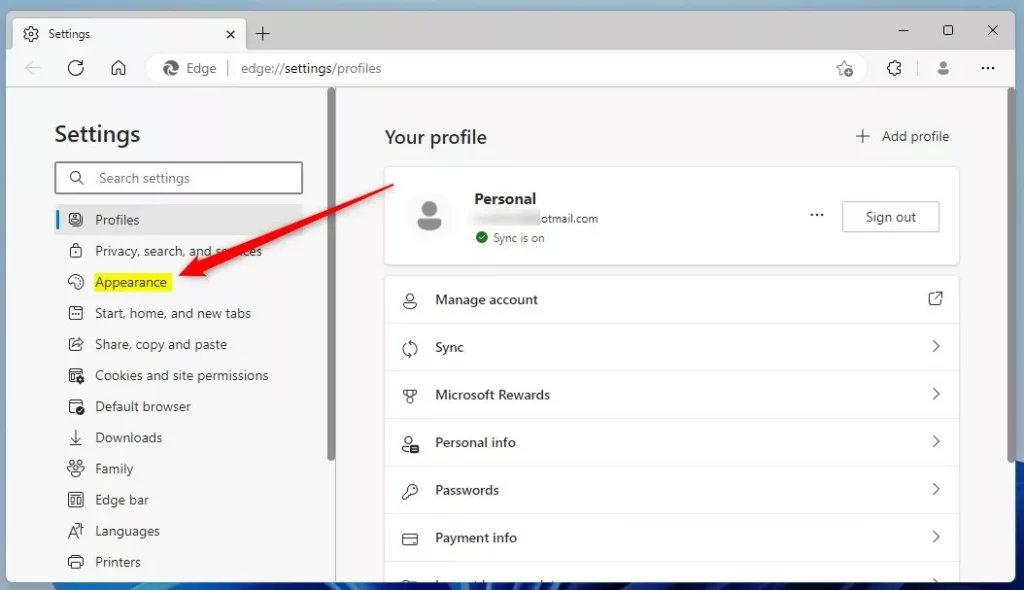
- On the Settings page, click Appearance on the left side. If you do not see the list of categories, the window may be too narrow. Widen it, or click the menu icon at the top left of the page to show the list. The right side should now show the look and feel options for the browser.
Step 3Customize Your Toolbar
- Scroll down the Appearance page until you find the Customize toolbar section.
- Click the option that says Select which buttons to show on the toolbar. A list of toolbar buttons opens, each with its own switch or drop-down. The exact layout can differ slightly between Edge versions as Microsoft updates the page.
- Find the Forward button option in that list.
- Choose one of these options:
- Show automatically – The forward button only appears when you can move forward. This is the default.
- Always show – The forward button is always visible, even when there is no page to go forward to. In that case it looks greyed out and does nothing when clicked.
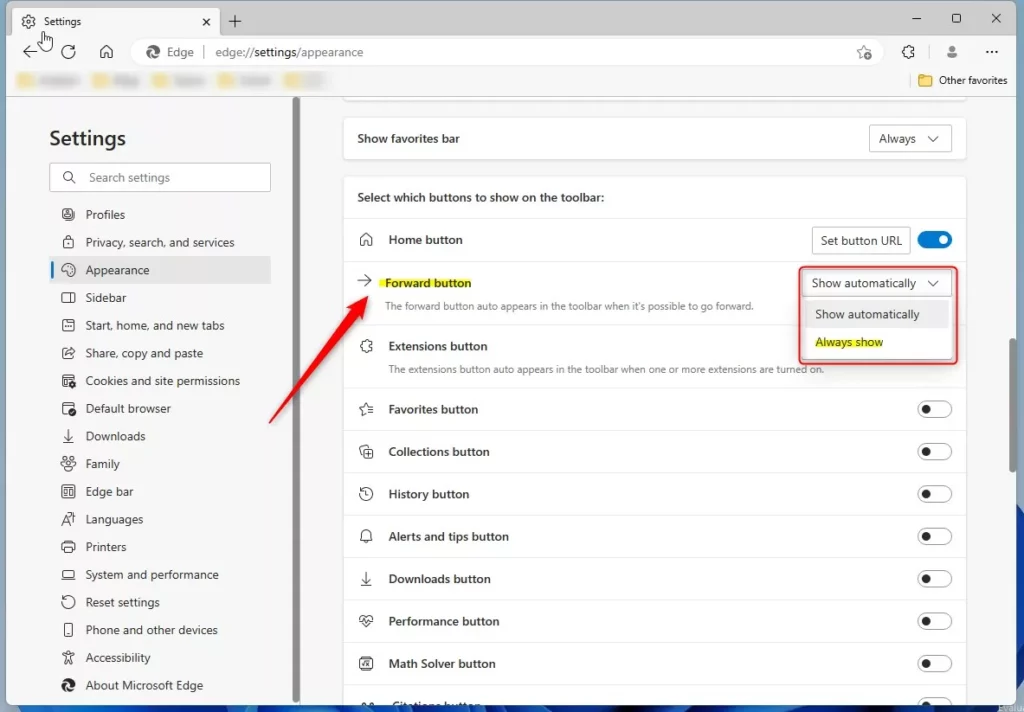
To always show the forward button in Microsoft Edge, open Settings , go to Appearance, and select which buttons to show on the toolbar. Then change the Forward button setting from Show automatically to Always show. The button then stays on your screen even when you cannot go forward yet.
That completes the process. Edge saves the change as soon as you pick the option, so there is no Save button and no restart. Look at the toolbar, just to the right of the back arrow, and you should see the forward arrow in place. It is greyed out on a page you have not navigated back from.
If the option is missing, check that Edge is up to date. If the browser is managed by an employer or school, an administrator policy may control the toolbar, and you will need to ask your IT team.
Summary
Adjusting the forward button in Microsoft Edge takes very little time. Open Settings, head to Appearance, locate 'Customize toolbar,' and then choose the option you want for the forward button. Whether it shows automatically or stays visible depends on how you browse. If you often go back and forth between pages, Always show is the better fit. If you want a cleaner toolbar, leave it on Show automatically.
Have a question about this guide?
Answered by AI from this guide. Good questions may be added to this page — please don't include personal details.
Did this guide fix your problem?

About the Author
Richard
Tech Writer, IT Professional
Richard is a writer at Geek Rewind who turns complex IT tasks into clear, step-by-step guides. He draws on years of hands-on experience in system administration and enterprise IT operations, focusing on Windows, Linux and WordPress: the problems people actually run into, and the fixes that work. His server and WordPress guides come from systems he runs himself. Richard builds and maintains the platform behind Geek Rewind, from its Ubuntu servers and Nginx configuration to its custom WordPress plugins. Many new tutorials start with readers' questions, and he's always glad to answer them in the comments.
No comments yet — be the first to share your thoughts!