How to Enable or Disable Collections in Microsoft Edge

Collections in Microsoft Edge is a built-in feature, added in version 81, that lets you save and sort web pages, images, and notes into lists. Think of it as a digital scrapbook inside your browser. It helps you keep track of research projects, online shopping ideas, and anything else you want to come back to.
You can add items to a collection straight from the sidebar on any website. Turn the feature off if it clutters your screen or you prefer a simpler browser. Turning it off does not uninstall anything. It only hides the feature, and you can switch it back on at any time.
To turn Collections on or off in Microsoft Edge, open the browser, click Settings and more (Alt+F), select Settings, then choose Privacy, search, and security. Under Search and connected experiences, flip the “Save content using Collections in Microsoft Edge” switch. Restart Edge to apply the change.
Enable or disable Collections in Edge
The easiest way to turn Collections on or off is in Edge’s own settings. You don’t need to touch any system files. Open the browser, go to the settings page, and flip the Collections switch. That shows or hides the Collections button on your toolbar. This method works the same on Windows 11 Home and Pro, and it only affects the Windows user account you are signed in to.
Here is how to do it. The whole process takes about a minute.
- Open the Microsoft Edge browser. You should see a normal browser window with your home page or last session.
- Click Setting and more (Alt+F) in the top right corner, then select Settings. A Settings page opens in a new tab, with a list of categories down the left side.

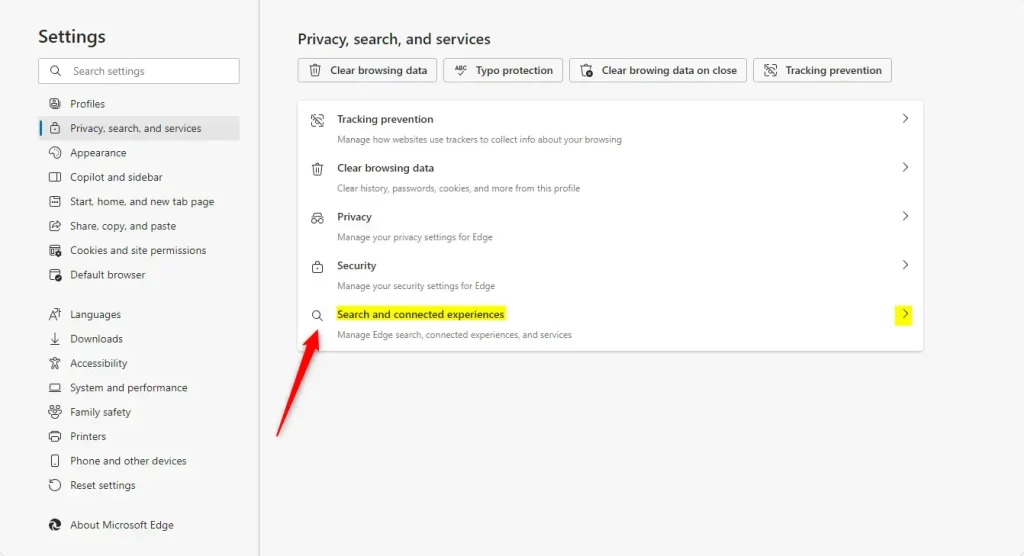
- Select “Privacy, search, and security” on the left side of the Settings page. In some Edge versions this category is labeled Privacy, search, and services. It is the same page. The privacy options appear on the right.

- Click the Search and connected experiences tile. This tile controls how Microsoft Edge uses connected services. Clicking it expands a list of options.
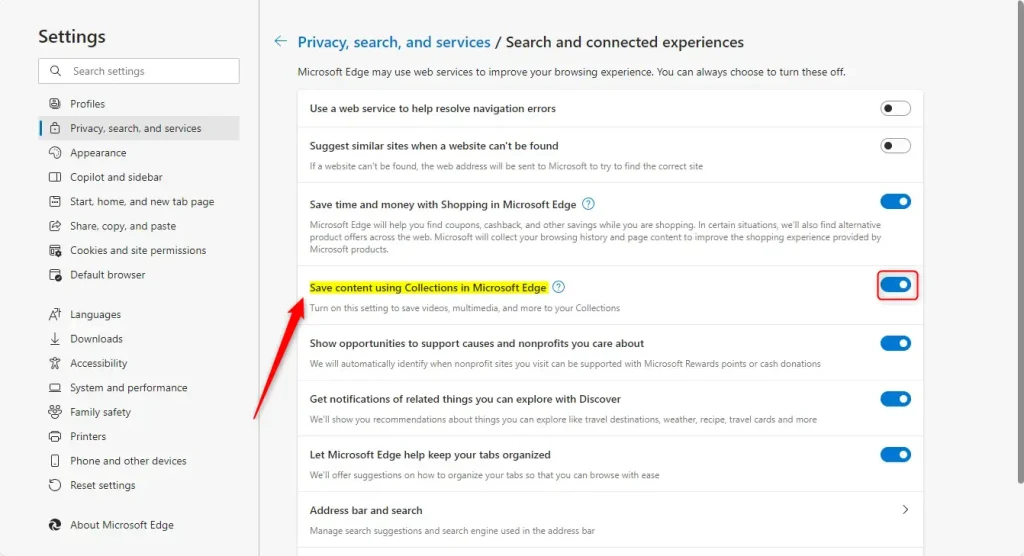
- Under the Search and connected experiences section, find “Save content using Collections in Microsoft Edge” and click its switch to turn it on or off. A blue switch means the feature is on. A grey switch means it is off.
That is often a registry value like the one in the next method, or a rule set by your workplace or school. You can’t change it here until that policy is removed.
- Restart Edge to apply your changes. Close all Edge windows and open the browser again. The Collections button should now be gone, or back, depending on what you chose.
To undo the change, repeat the same steps and flip the switch back.
Enable or disable the Collections feature using the Windows Registry
You can also turn Collections on or off by editing a value in the Windows Registry Editor. This method works well if you want the change to apply to every user on the PC, or if you manage browser policies on your computer. Registry Editor is available in both Home and Pro editions. You need administrator rights, and Windows may ask you to confirm with a User Account Control prompt.
- Open the Windows Registry and navigate to the key path listed below. The path appears in the left pane. Click the small arrow beside each folder to expand it.
A wrong edit in the registry can cause problems that are hard to trace, and a backup lets you roll back.
Computer\HKEY_LOCAL_MACHINE\SOFTWARE\Policies\Microsoft\Edge
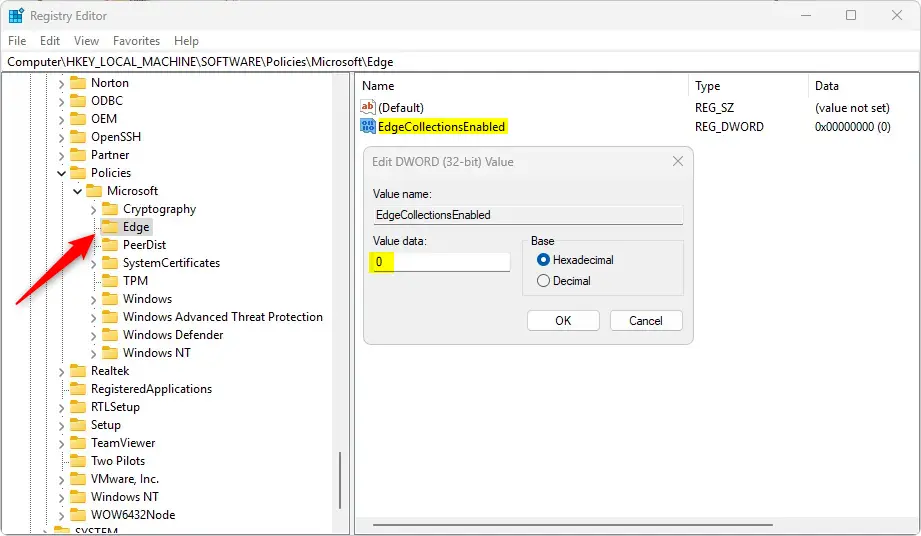
- Right-click the Edge key, then select New > DWORD (32-bit) Value. Name this new DWORD EdgeCollectionsEnabled. If the Edge key does not exist yet, right-click its parent key, select New > Key, and name it Edge first. The new value appears in the right pane.
- Double-click EdgeCollectionsEnabled and set its Value data to
0to disable the feature, or 1 to enable it. Click OK. The new number now shows in the Data column.
To undo the change and re-enable Collections, delete the EdgeCollectionsEnabled value you created. Right-click it, select Delete, and confirm. Edge then goes back to using its own setting.
EdgeCollectionsEnabled
- Reboot your computer to apply the changes. After you sign back in, open Edge and check whether the Collections button is shown or hidden.
That completes the process. You can now use either method to switch Collections on or off whenever you need to.
Reference:
Collections lets you group websites and notes for research or shopping. Manage the Collections feature in Microsoft Edge by following these steps to tailor your browsing experience.
Conclusion:
Enabling or disabling the Collections feature in Microsoft Edge customizes your browsing experience. Review these key takeaways:
- Organize Web Content: Collections make gathering and categorizing information from multiple sources easier.
- Improved Collaboration: Sharing saved collections can enhance teamwork and project discussions.
- Easy Management: Users can quickly revisit their saved content without navigating browser history.
- Customization Options: Users can enable or disable the feature to suit their preferences and streamline their browser interface.
- Registry Editor: For advanced users, the Windows Registry offers another method to toggle the Collections feature.
Manage the Collections feature in Microsoft Edge and tailor your browsing experience by following these steps. For most people the Edge settings method is the right choice. Use the registry only when you need the change to cover every user on the PC.
Have a question about this guide?
Answered by AI from this guide. Good questions may be added to this page — please don't include personal details.
Did this guide fix your problem?

About the Author
Richard
Tech Writer, IT Professional
Richard is a writer at Geek Rewind who turns complex IT tasks into clear, step-by-step guides. He draws on years of hands-on experience in system administration and enterprise IT operations, focusing on Windows, Linux and WordPress: the problems people actually run into, and the fixes that work. His server and WordPress guides come from systems he runs himself. Richard builds and maintains the platform behind Geek Rewind, from its Ubuntu servers and Nginx configuration to its custom WordPress plugins. Many new tutorials start with readers' questions, and he's always glad to answer them in the comments.
No comments yet — be the first to share your thoughts!