How to Change Mouse Cursor Size in Ubuntu Linux


High-resolution displays can make the default mouse pointer small and hard to follow, especially on a laptop panel or a large monitor. Ubuntu lets you scale the pointer up from the Settings app, and the change applies to the whole desktop. This tutorial uses the standard GNOME-based desktop in current Ubuntu releases.
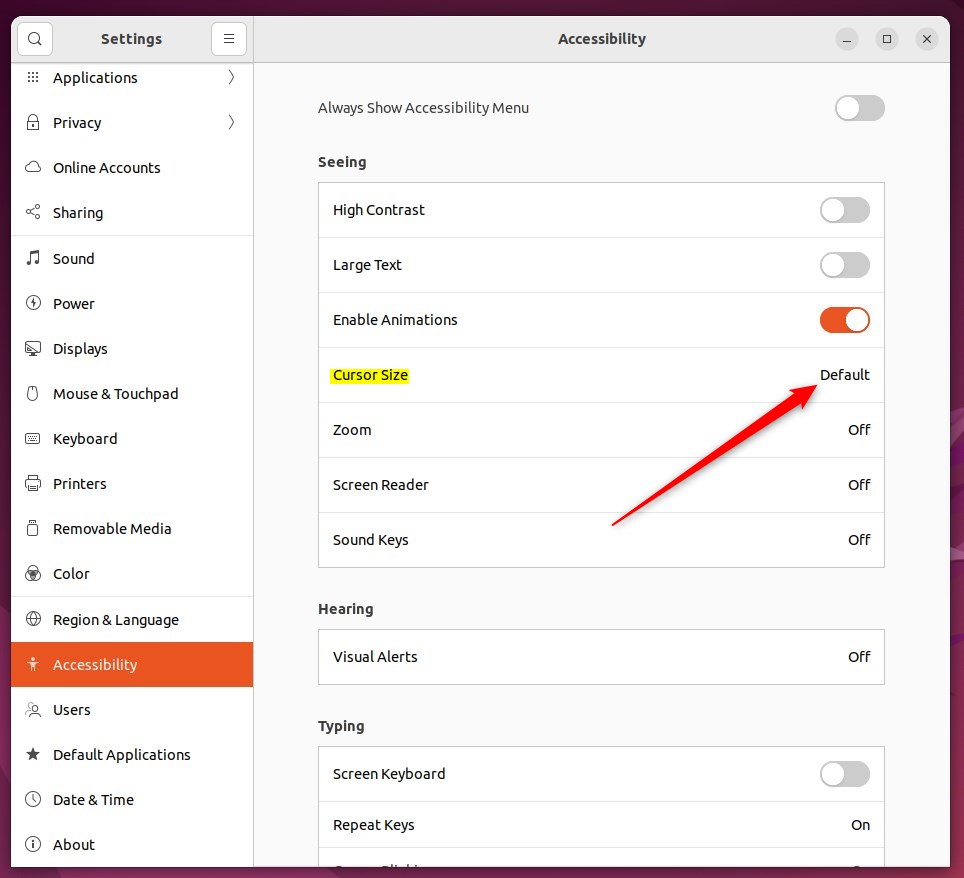
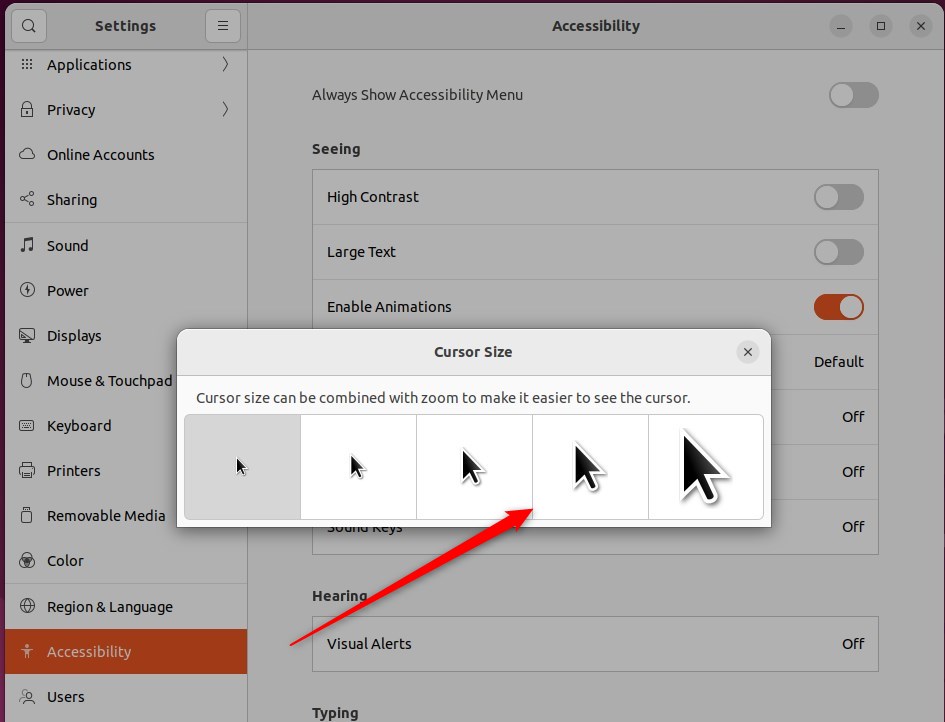
Open Settings , go to Accessibility, and under Seeing click Cursor Size, then pick a larger or smaller pointer. The change applies immediately across the whole desktop, with no restart or logout needed. Select the default size again to undo it.
How to change your mouse pointer size in Ubuntu Linux
The short version: open the Settings app and go to Accessibility. Under Seeing, open Cursor Size and pick a larger or smaller pointer. The change applies as soon as you select it, so you can see right away whether the size works for you. The steps below walk through each screen.
Ubuntu lets you adjust the cursor size to suit any display, from a small laptop screen to a 4K monitor. You don’t need to install anything or use the terminal. Everything is done in Settings, and you can undo it at any time by picking the default size again.
The Settings app is where Ubuntu keeps system preferences such as display, network, user accounts and accessibility options. There are two common ways to open it. Use whichever is quicker for you.

The second way is through the system menu on the top bar:
- Look in the top-right corner of the desktop panel and click the System menu. This is the group of icons for network, volume and power.
- A drop-down panel opens with quick toggles and a row of buttons along the bottom.
- Click Settings in this menu. It is usually shown as a gear or wrench icon, as in the screenshot below.
- The Settings window opens, with a list of categories on the left.

- In the Settings app, find the Accessibility entry. In the sidebar it is a person-shaped icon. On some versions you may need to scroll down the list to reach it.
- Click Accessibility to open the panel.
You should now see the accessibility options on the right, grouped under headings such as Seeing, Hearing and Typing. The exact layout varies slightly between Ubuntu releases.

- In the Accessibility panel (Settings Accessibility), find the Seeing section. If your window is small, you may have to scroll down to reach it.
- Click the Cursor Size tile to expand it.
Other options in the same section, such as High Contrast and Large Text, can help too if the pointer is not the only thing you struggle to see.
- Choose a size from the window that appears. Each option shows a preview of the pointer at that size.
- Move your mouse around the screen to check how it looks. The desktop applies the change immediately, with no restart or logout needed.
If the pointer is still too small, or now too big, open the same tile and pick a different size. To go back to how it was, select the default size. A few applications, such as ones that were already running, may keep the old pointer until you close and reopen them.
Nothing needs saving. Once you are happy with the size, close the Settings window. The new cursor size stays in place across restarts and new logins.
Conclusion:
- Adjusting the cursor size in Ubuntu Linux can significantly improve visibility for users with poor vision or vision impairments.
- The cursor size can be modified through the Accessibility settings in the System Settings panel, providing a centralized location for customizing various system configurations.
- By following the outlined steps and selecting a cursor size that suits individual needs, users can enhance their overall experience and productivity on the Ubuntu Linux platform.
Have a question about this guide?
Answered by AI from this guide. Good questions may be added to this page — please don't include personal details.
Did this guide fix your problem?

About the Author
Richard
Tech Writer, IT Professional
Richard is a writer at Geek Rewind who turns complex IT tasks into clear, step-by-step guides. He draws on years of hands-on experience in system administration and enterprise IT operations, focusing on Windows, Linux and WordPress: the problems people actually run into, and the fixes that work. His server and WordPress guides come from systems he runs himself. Richard builds and maintains the platform behind Geek Rewind, from its Ubuntu servers and Nginx configuration to its custom WordPress plugins. Many new tutorials start with readers' questions, and he's always glad to answer them in the comments.
Very useful. Didn’t realize it was hidden in the settings lol. I just needed 1 scale bigger cursor. I am browsing comfortably now. So thanks to you!
[…] on or off a mouse ClickLock, change their primary mouse button, show the mouse pointer location, change the mouse pointer size, and many […]