

How to Change Mouse Cursor Size in Ubuntu Linux

This post describes changing the mouse cursor or pointer size in Ubuntu Linux.

Ubuntu Linux comes with a standard mouse cursor size and color, which is small and black. Unfortunately, the default tiny size usually isn’t helpful, especially for people with poor vision.

With wide screens and higher resolutions, spotting the mouse pointer across bigger areas of the screen or even double screens can be challenging.

Ubuntu Linux allows users to increase or decrease the cursor size to help folks who can’t see clearly or have some vision impairment, making it difficult to see the cursor on the screen.

Cursor size can be combined with zoom to help you see clearly and make it easier to see the cursor on your screen.

How to change your mouse pointer size in Ubuntu Linux

As described above, the small default size usually isn’t helpful, especially for people with poor vision.

Ubuntu Linux allows you to change the cursor size so it is easier to see on your screen. Below is how to do that.

Ubuntu Linux has a centralized location for the majority of its settings. From system configurations to creating new users and updating, all can be done from the System Settings panel.

Ubuntu Linux activities overview screen for settings

Alternatively, click on the System menu at the top-right corner of the top bar on your desktop.

On the System menu, select Settings, as highlighted below.

Ubuntu Linux system menu highlighting settings option

In the Settings app, click on the Accessibility tile to open the panel.

Accessibility settings panel in Ubuntu Linux

In the System Settings -> Accessibility panel, under Seeing, select the Cursor Size tile to expand.
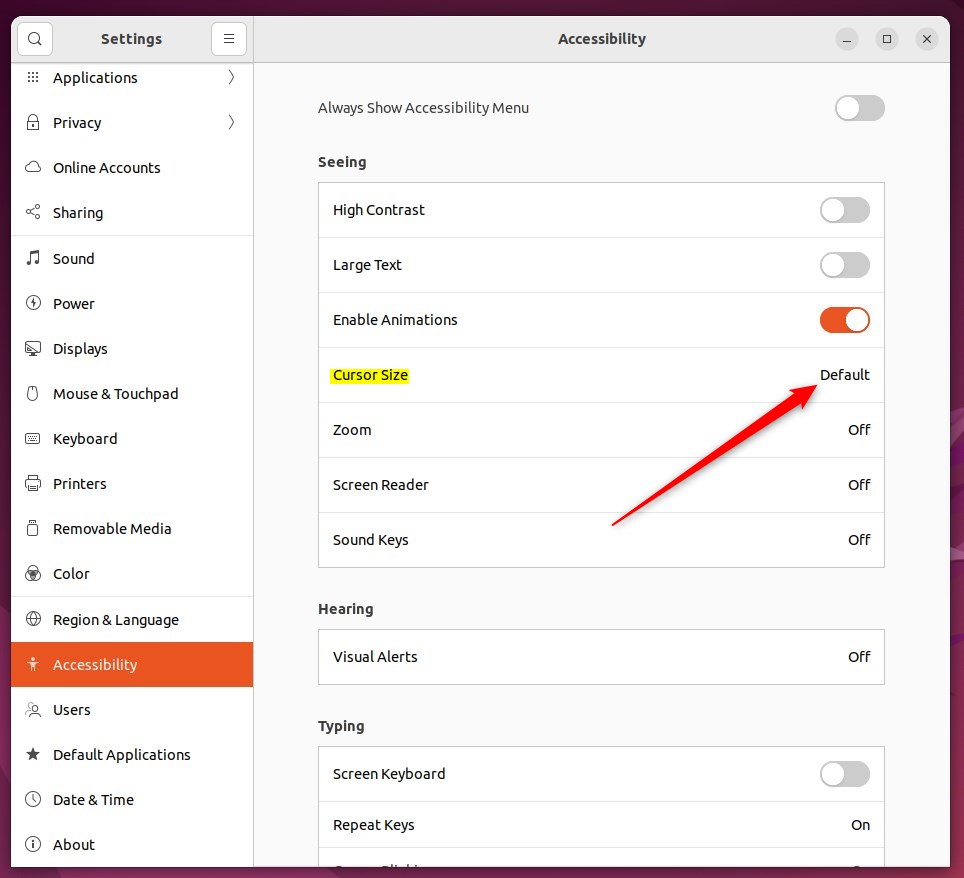
Cursor size adjustment options in Ubuntu Linux

On the pop-up window, choose a cursor size that fits your needs. Your selection should apply immediately.
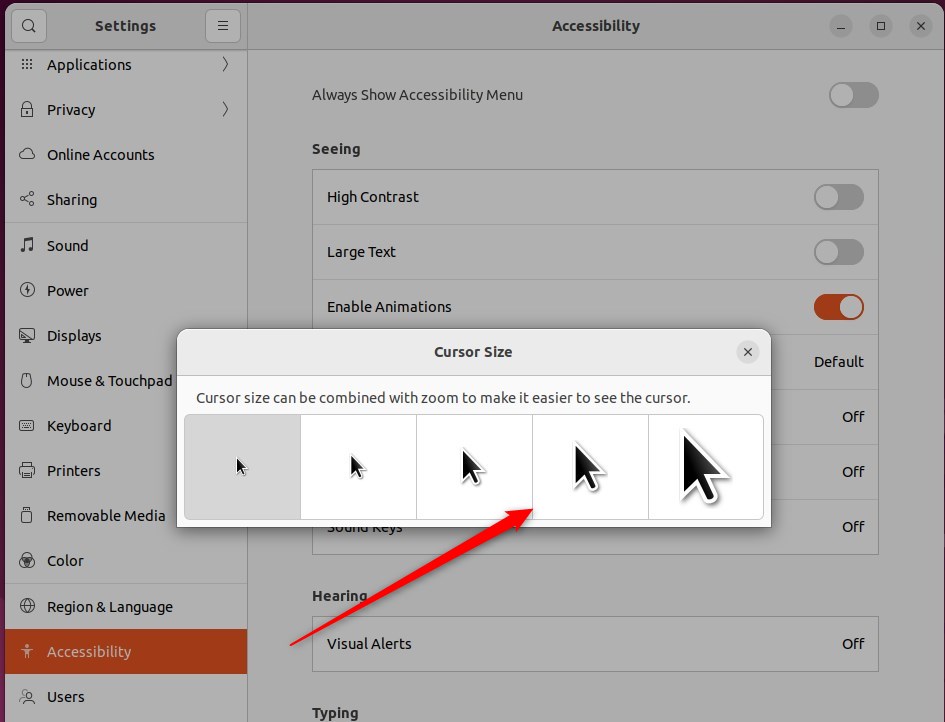
Selection of mouse cursor sizes in Ubuntu Linux

That should do it! You can now close the Settings app.

Conclusion:

  • Adjusting the cursor size in Ubuntu Linux can significantly improve visibility for users with poor vision or vision impairments.
  • The cursor size can be modified through the Accessibility settings in the System Settings panel, providing a centralized location for customizing various system configurations.
  • By following the outlined steps and selecting a cursor size that suits individual needs, users can enhance their overall experience and productivity on the Ubuntu Linux platform.


Frequently Asked Questions

How do I change the mouse cursor size in Ubuntu Linux?

To change the mouse cursor size in Ubuntu Linux, open the Settings app, navigate to the Accessibility panel, and select the Cursor Size tile. From there, you can choose a size that suits your needs, and the change will apply immediately.

Why is my mouse cursor too small in Ubuntu Linux?

The default mouse cursor size in Ubuntu Linux is often small and may not be suitable for users with poor vision. Adjusting the cursor size through the Accessibility settings can help improve visibility.

Can I make the mouse cursor larger for better visibility?

Yes, you can make the mouse cursor larger in Ubuntu Linux by accessing the Accessibility settings in the System Settings panel. This allows you to select a cursor size that enhances visibility based on your preferences.

Is there a way to change the cursor size quickly in Ubuntu?

While the main method to change the cursor size is through the Settings app, you can also use keyboard shortcuts to quickly access the Accessibility settings. This can streamline the process for users who need to adjust settings frequently.

Does changing the cursor size affect other display settings in Ubuntu?

Changing the cursor size in Ubuntu Linux does not directly affect other display settings, but it can enhance your overall experience, especially when combined with other accessibility features like zoom. This can help users with vision impairments navigate their screens more effectively.

Categories:

2 responses to “How to Change Mouse Cursor Size in Ubuntu Linux”

  1. Sabbir Hasan Avatar
    Sabbir Hasan

    Very useful. Didn’t realize it was hidden in the settings lol. I just needed 1 scale bigger cursor. I am browsing comfortably now. So thanks to you!

  2. […] on or off a mouse ClickLock, change their primary mouse button, show the mouse pointer location, change the mouse pointer size, and many […]

Leave a Reply to Sabbir Hasan Cancel reply

Your email address will not be published. Required fields are marked *
