How to Project Your Phone Screen to Your PC in Windows 11

- 17 steps
- Needs administrator rights
Projecting your phone screen to your PC in Windows 11 turns your computer into a wireless display receiver using Miracast (a standard for wireless display connections). Windows 11 does not install this feature by default, so an optional system component must be added before any phone can cast its screen to your desktop.
The process has three parts: install the component, allow projecting in Settings, then connect from your phone. It works the same on Home and Pro. The PC needs a Wi-Fi adapter that supports Miracast, which most laptops from the last several years have. If the feature won’t install or the PC never shows up on your phone, a missing or outdated Wi-Fi driver is a common cause.
These steps apply to Android phones. The phone must support Miracast or casting. Many iPhones do not support Miracast, because iOS uses AirPlay instead.
To project your phone screen to your PC in Windows 11, install the Wireless Display optional feature first: open Settings, go to System Optional features View features, and add it. Then set Projecting to this PC to Available everywhere on secure networks, and connect from your Android phone’s Cast or Smart View menu. Your phone must support Miracast.
Step 1Install Wireless Display
To install Wireless Display on Windows 11, open Settings, go to System, select Optional features, and click View features next to Add an optional feature. Search for Wireless Display, check the box, and click Next to install it. This adds the receiving tools your PC needs to accept a video feed from another device.
- Open Settings by pressing the Win and I on your keyboard. Make sure you are signed in to an administrator account, because installing optional features requires one. The Settings window opens on the System page or on Home, depending on what you used last.

- Select System from the left-hand menu.
- Click Optional features. A list shows the optional components already installed on your PC, and an Add an optional feature section sits at the top.
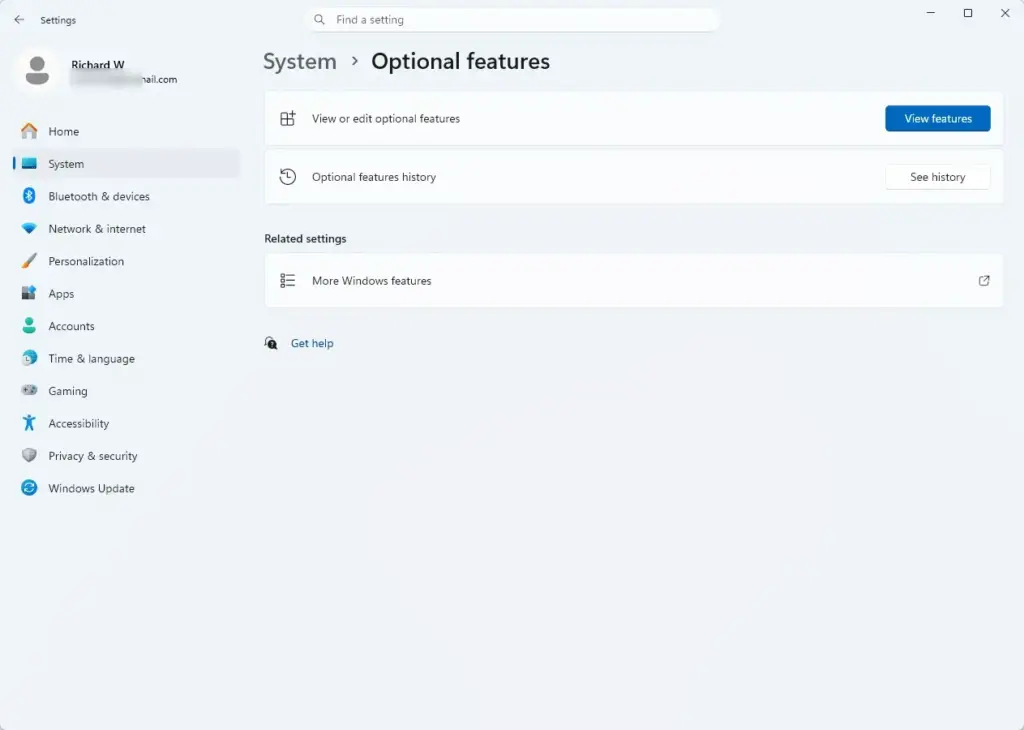
- Click the View features button next to Add an optional feature. A window opens with a list of features you can add.
- Type
Wireless Displayinto the search box. The list narrows to matching features.
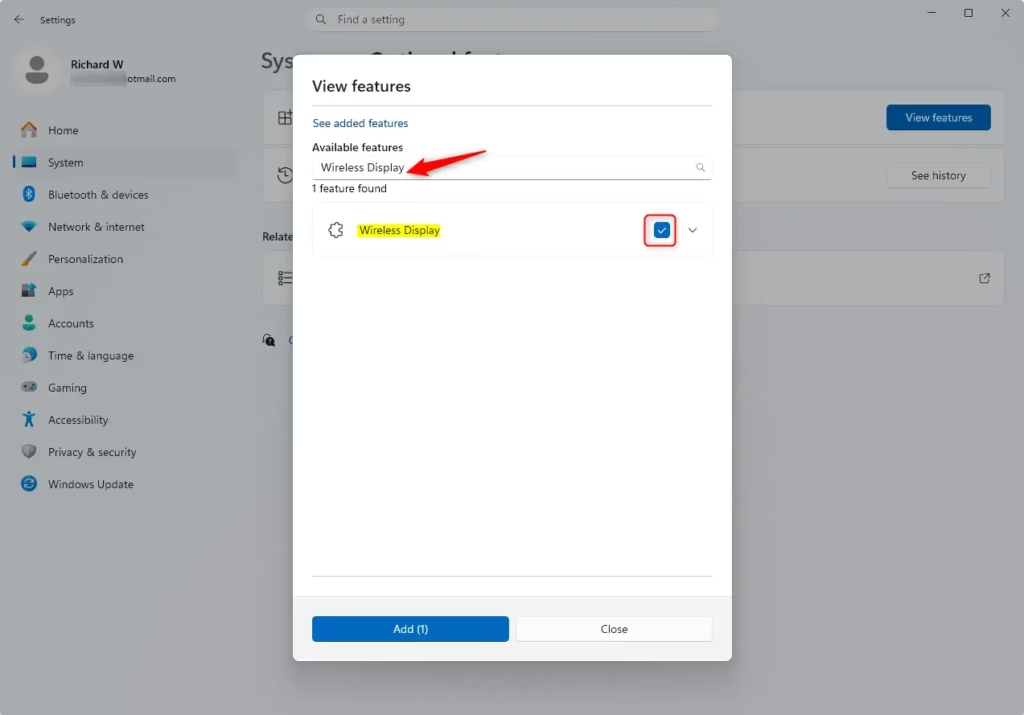
- Check the box next to Wireless Display in the search results and click Next.
- Click Install and wait for Windows to finish downloading and setting up the component. Progress appears on the Optional features page under the recent actions list. This step needs an internet connection, and a restart is normally not required.
If Wireless Display does not appear in the search, it may already be installed. Check the list of installed features on the Optional features page. To undo this later, find Wireless Display in that list, expand it, and click Uninstall.
Step 2Enable Projection on Your PC
To enable projecting to this PC in Windows 11, open Settings, go to System, and select Projecting to this PC. Change the first dropdown menu to Available everywhere on secure networks so your computer can receive connection requests and security prompts from your mobile device.
- Open Settings.
- Go to System and select Projecting to this PC. A few dropdown menus and a toggle appear on the page.
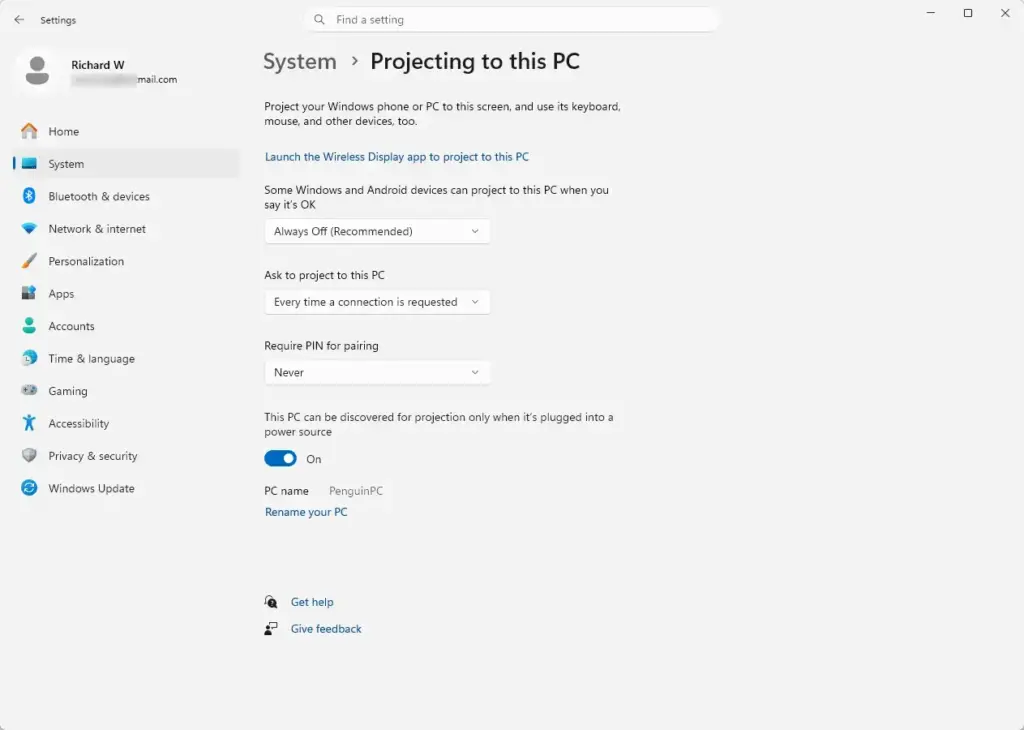
- Change the first dropdown menu from Available everywhere or Disabled to Available everywhere on secure networks so your computer is discoverable. Choose a secure option rather than leaving the PC open to every network, especially on a laptop you take to public places.
- Change the second dropdown menu, Require PIN for pairing, to either First time or Always, depending on how often you want to authorize connections. First time is less work for your own phone. Always suits a shared or office PC better.
- Look at the last setting, a toggle that limits discovery to when the PC is plugged into a power source. Leave it on if you only cast while on mains power and want to save battery. Turn it off if you want to receive casts while on battery.
If the dropdown menus are greyed out and a message says the Wireless Display optional feature is still installing, wait a few moments for the installation to complete. Then close and reopen the Settings app. If they stay greyed out, check that the feature shows as installed on the Optional features page. To turn projecting off again, set the first dropdown back to Disabled.
Step 3Connect From Another Device
To connect from another device to your Windows 11 PC, open the Start menu, type Wireless Display, and press Enter to launch the app. Next, open the quick settings menu on your phone, tap the screen mirroring or cast option, and select your computer from the list of available devices. Keep the Wireless Display app open on the PC while you do this, because the PC only listens for connections while the app is running.
- Launch the Wireless Display app on your PC by typing
Wireless Displayinto the Start menu search bar and pressing Enter. A blue window opens, showing that your PC is ready to connect. - Open the quick settings or notification shade on your Android phone by swiping down from the top of the screen.
- Tap the Cast, Smart View, Screen Mirroring, or Wireless Display tile. The name depends on your phone’s brand. If the tile is missing, check the edit or add-tiles option in the quick settings panel.
- Select your Windows 11 PC from the list of available devices. Keep both devices close together with Wi-Fi turned on for the best results.
- Enter the PIN shown on your computer screen into your phone if prompted. The PIN is only requested according to the choice you made in Require PIN for pairing.
More Than Just Screen Sharing
The Wireless Display app shows your phone’s screen on your PC once your phone connects. Your mouse and keyboard can control compatible mobile apps, move through your photo gallery, and type messages. Phone audio can also play through your PC speakers.
Why Use Wireless Display?
Using the native Windows 11 wireless casting feature removes the need to download unverified third-party apps, browser extensions, or paid utilities that introduce security risks. The feature uses built-in Wi-Fi Direct and Miracast protocols to keep your connection local and avoid routing your data through external servers. Lag is usually low, though it can still vary with Wi-Fi interference and distance.
Phone Link (formerly Your Phone) is another option worth knowing about. This Microsoft app can mirror an Android phone’s screen and apps on the PC without Miracast, so it is a simpler route if your phone or Wi-Fi adapter does not support casting. It needs its own setup, which pairs the phone with the PC.
What to do next
Your mobile device screen should now appear inside the Wireless Display app window on your desktop. Adjust the window size or switch to full-screen mode by clicking the maximize icon in the top right corner of the application frame. To stop projecting, disconnect from the cast tile on your phone or close the Wireless Display app on the PC.
Frequently asked questions
Can I screen mirror my phone to my Windows PC?
Yes. Install the Wireless Display optional feature in Windows 11 Settings under System Optional features. Then enable projection on your PC and use your phone’s cast or screen mirroring feature to connect. Miracast uses Wi-Fi Direct, so the phone and PC do not need to be on the same Wi-Fi network, but Wi-Fi must be on for both.
What does PC stand for?
PC stands for personal computer. It's a general term for any desktop or laptop computer, though it's often used to mean Windows computers specifically, as opposed to Macs.
Can 🪟 Windows 11 do screen mirroring?
Yes. Windows 11 supports screen mirroring through Miracast, a wireless display standard. You need to install the Wireless Display optional feature first, then enable projection settings to receive a video feed from another device.
How can I view my PC screen from my phone?
You can view your PC screen from your phone using third-party remote desktop apps like Windows App (which replaced Microsoft Remote Desktop), TeamViewer, or Chrome Remote Desktop. These let you control and see your PC from your phone over Wi-Fi or the internet.
Still have a question?
Answered by AI from this guide. Good questions may be added to this page — please don't include personal details.
Did this guide fix your problem?

About the Author
Richard
Tech Writer, IT Professional
Richard is a writer at Geek Rewind who turns complex IT tasks into clear, step-by-step guides. He draws on years of hands-on experience in system administration and enterprise IT operations, focusing on Windows, Linux and WordPress: the problems people actually run into, and the fixes that work. His server and WordPress guides come from systems he runs himself. Richard builds and maintains the platform behind Geek Rewind, from its Ubuntu servers and Nginx configuration to its custom WordPress plugins. Many new tutorials start with readers' questions, and he's always glad to answer them in the comments.
No comments yet — be the first to share your thoughts!