Why Does My Taskbar Keep Disappearing in Windows 11

The taskbar keeps disappearing in Windows 11 most often for one of three reasons. Automatically hide the taskbar is turned on, a full-screen app is covering it, or Windows Explorer (the process that draws the taskbar and desktop) has crashed. Check the auto-hide setting first, then restart Windows Explorer from Task Manager .
This article works through the causes in the order they are most likely, from a one-click setting to system file repair. Each fix says what you should see afterwards, so you can stop as soon as the taskbar stays put.
Steps that need administrator rights are marked. The Settings paths match current Windows 11 (version 22H2 and later). Labels can differ slightly on older builds.
The taskbar most often disappears because Automatically hide the taskbar is turned on, a full-screen app is covering it, or Windows Explorer has crashed. To check the first cause, open Settings , go to Personalization Taskbar, select Taskbar behaviors, and clear Automatically hide the taskbar .
Why Does My Taskbar Keep Disappearing in 🪟 Windows 11?
Find your symptom in the list below. Each one points to a single fix.
- The taskbar slides away when you click the desktop and returns when the pointer touches the bottom edge. Auto-hide is on. Go to Fix 1.
- The taskbar vanishes while you watch a video, play a game or use a browser in full screen. A full-screen app is covering it. Go to Fix 2.
- The taskbar is missing on a second monitor, or after you plug in or unplug a display. Display settings are the cause. Go to Fix 3.
- The taskbar goes blank, freezes or disappears with the desktop icons, then comes back after a while. Windows Explorer has crashed or stopped responding. Go to Fix 4.
- The problem began after a Windows update or after you installed a taskbar customization tool. Go to Fix 6 or Fix 7.
- The taskbar collapses on a 2-in-1 laptop or tablet when you detach the keyboard. Touch optimization is the cause. Go to Fix 5.
Fix 1: Turn Off Automatically Hide the Taskbar
Auto-hide is a built-in option that tucks the taskbar off the bottom of the screen until you point at it. It is the most common reason people think the taskbar has disappeared. This step turns it off so the taskbar stays visible.
- Press Win+I to open Settings . If the taskbar is hidden, this still works.

- Go to Settings Personalization Taskbar You can also right-click an empty area of the taskbar and choose Taskbar settings.
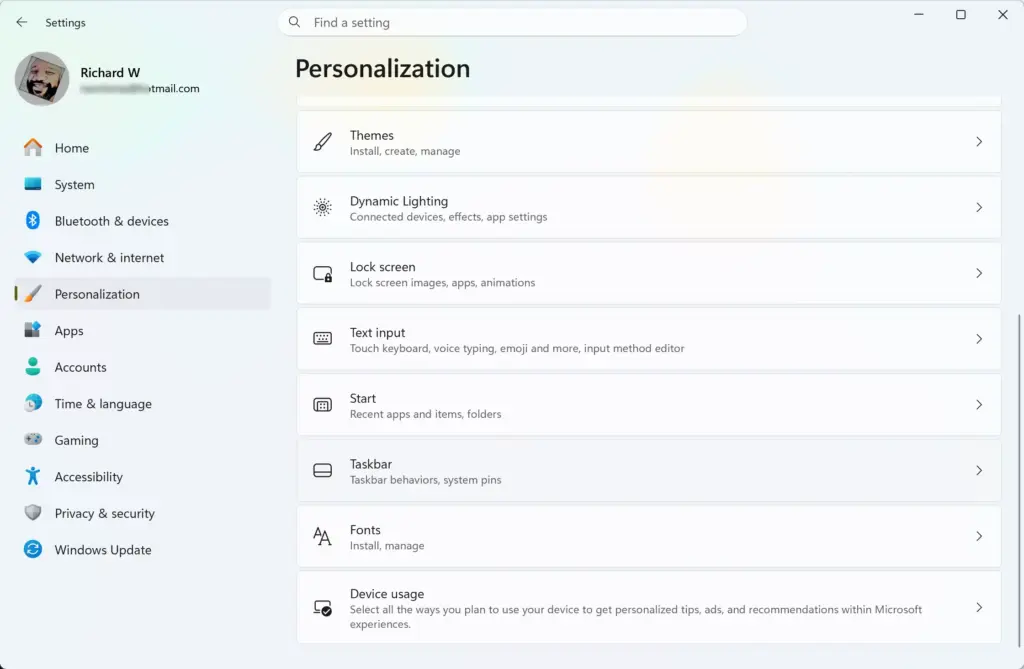
Settings › Personalization › Taskbar - Select Taskbar behaviors to expand the section. You see a list of checkboxes.
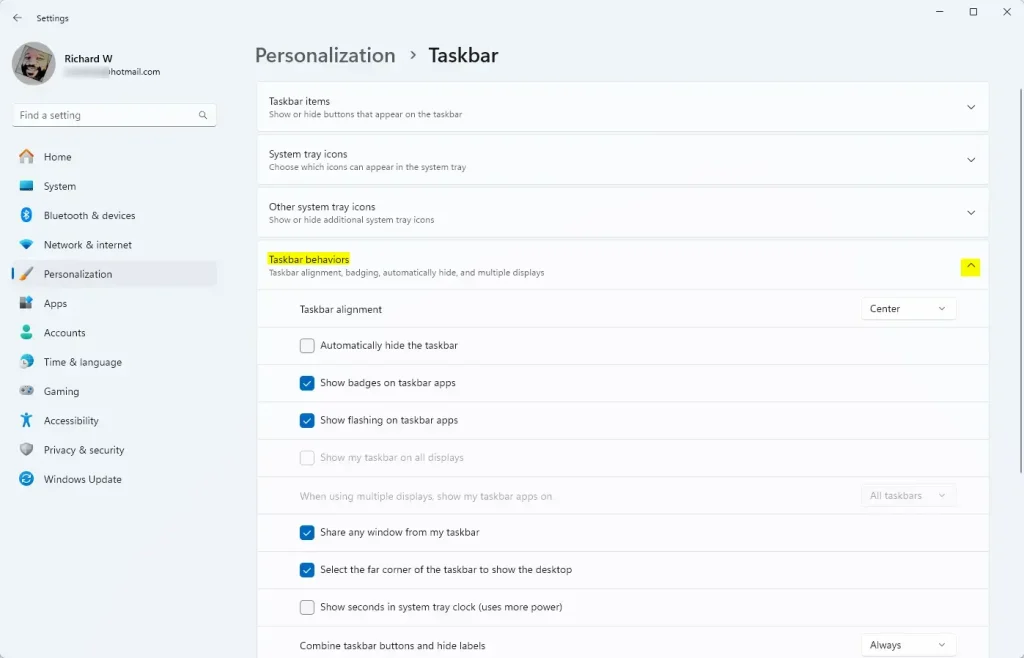
Expand Taskbar behaviors in Windows 11 Personalization settings. - Clear the checkbox next to Automatically hide the taskbar .
The taskbar now stays on screen all the time. To undo this, return to the same page and tick the checkbox again.
If the checkbox is already clear, auto-hide is not the cause. Move on to Fix 2.
If the page says some settings are managed by your organization, or the checkbox reverts after you change it, a management policy set by your organization is controlling the taskbar. Ask your IT team. Your change will not stick on a work PC.
Check the taskbar edge if auto-hide is off but the bar is still missing
With auto-hide on, Windows briefly shows the taskbar when you press the Windows key or move the pointer to the bottom edge of the screen. If neither works, the problem is a crash, not a setting. Go to Fix 4.
Fix 2: Exit a Full-Screen App
Full-screen apps cover the whole display, taskbar included. Browsers, video players, games and presentation software all do this. The taskbar is not gone. It sits behind the app.
- Press F11 if the app is a web browser. This toggles full-screen mode on and off in Microsoft Edge, Chrome and Firefox.
- Press Esc if the app is a video player, a slideshow or a game that supports it.
- Press the Windows key to bring up Start. The taskbar appears over the app while Start is open.
- Close the app, or switch to windowed mode in its display settings, if the taskbar still does not return.
When the taskbar reappears, the app was the cause. If you play games, look for a Borderless or Windowed option in the game's video settings. Those modes let the taskbar stay available.
If the taskbar stays hidden after you close the full-screen app, Windows Explorer failed to redraw it. Use Fix 4.
Fix 3: Check Your Display Settings
Windows 11 draws the taskbar on each display only when told to. A changed monitor setup can leave one screen without it.
Show the taskbar on all displays
- Open Settings Personalization Taskbar
- Expand Taskbar behaviors.
Expand Taskbar behaviors in Windows 11 Personalization settings. - Tick Show my taskbar on all displays.
The taskbar now appears on every connected monitor. If the option is missing, only one display is connected or detected. Check the cable and the next step.
Pick the right display mode
Press Windows + P to open the projection menu. If it is set to Second screen only, your main screen goes blank and the taskbar goes with it. Choose Extend or PC screen only, depending on what you want.
Set the correct main display
- Open Settings System Display
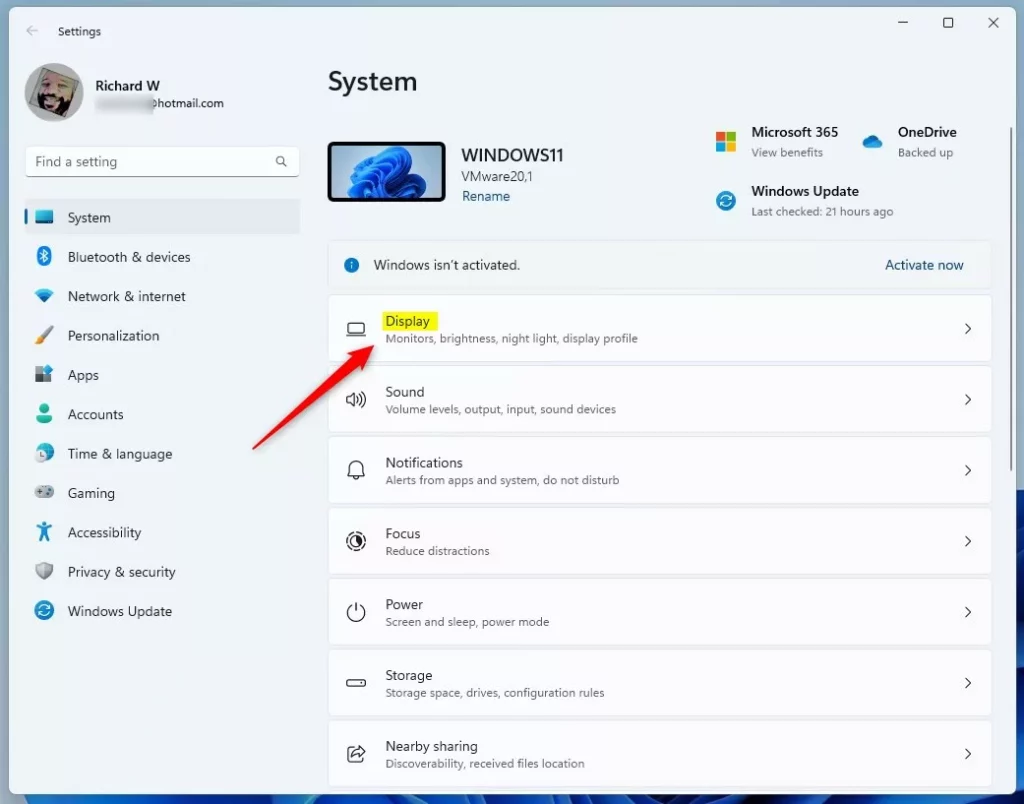
Windows Display Settings tile - Select the monitor you want as the primary one in the layout diagram at the top.
- Scroll to Multiple displays and tick Make this my main display.
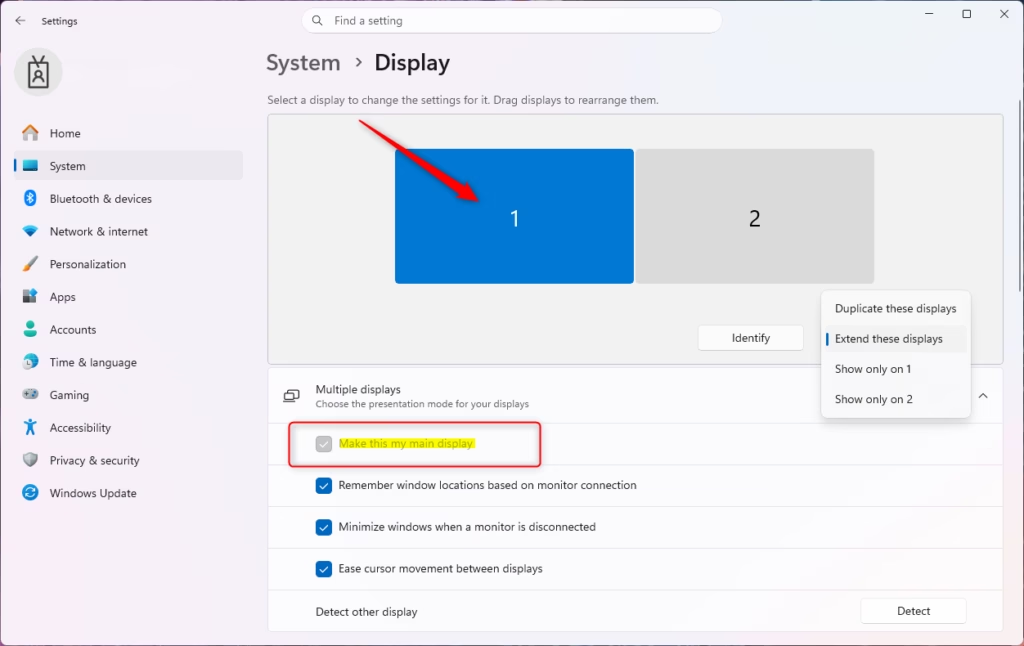
Windows 11 multiple displays set main display option highlighted.
The taskbar moves to the display you chose. This often fixes a taskbar that jumps to the wrong monitor after you dock or undock a laptop.
Fix 4: Restart Windows Explorer
When the taskbar disappears or freezes, Windows Explorer has usually crashed or stopped responding. Restarting it redraws the taskbar, Start menu and desktop without signing you out. Open files and apps keep running.
- Press Ctrl + Shift + Esc to open Task Manager (the tool that lists the programs and processes running on your PC). This shortcut works even when the taskbar is missing.
- Select the Processes page on the left if it is not already open.
- Find Windows Explorer in the list of Apps or Windows processes.
- Right-click Windows Explorer and choose Restart.
The screen flickers for a second or two. The taskbar and desktop icons then come back.
If Windows Explorer is not in the list, the process has stopped completely. Start it again:
- Select Run new task at the top of Task Manager.
- Type
explorer.exein the Open box. - Select OK.
The taskbar appears within a few seconds. You do not need administrator rights for this.
Restart the graphics driver
If the screen flickers or the taskbar blinks out at the same time, the display driver may be the problem. Press Windows + Ctrl + Shift + B. The screen goes black for a moment, you may hear a beep, and Windows reloads the graphics driver (the software that controls what your screen shows). Nothing you have open is closed.
If the taskbar problem returns after every restart, update the display driver. Open Settings Windows Update Advanced options Optional updates and look under Driver updates. You can also download the latest driver from your graphics card maker's website.
Fix 5: Turn Off Touch Optimization on a 2-in-1 or Tablet
On touch devices such as 2-in-1 laptops, Windows 11 can collapse the taskbar when you remove the keyboard. It then shows only a thin line until you swipe up from the bottom edge. Windows is meant to do this.
- Open Settings Personalization Taskbar
- Expand Taskbar behaviors.
- Clear the checkbox for the option that optimizes the taskbar for touch when the device is used as a tablet.
The exact label varies between builds, and the option shows up only on devices where Windows detects touch input. If you do not see it, skip this fix. When it is off, the taskbar keeps its normal size when you detach the keyboard.
Fix 6: Install or Remove a Windows Update
A bug in an update can break the taskbar, and a newer update often repairs it. Check for updates first. Remove one only if the problem began right after it installed.
Install the latest updates
- Open Settings Windows Update
- Select Check for updates.
- Select Download & install or Restart now if Windows offers it.
After the restart, check whether the taskbar behaves. If it does, no further steps are needed.
Uninstall a recent update (administrator required)
Do this only if the taskbar broke immediately after the update, and install newer updates as soon as they are available.
- Open Settings Windows Update Update history
- Scroll down to Related settings and select Uninstall updates.
- Select the most recent update in the list, then select Uninstall.
- Confirm the prompt and restart the PC.
The list shows each update's name and install date. Pick the one that matches the day the problem started. If you do not see an Uninstall button for an update, Windows does not allow that update to be removed.
To stop Windows reinstalling it straight away, go back to Settings Windows Update and choose Pause for 1 week.
Fix 7: Remove or Update Taskbar Customization Tools
Tools that change how the taskbar looks or works, such as StartAllBack, ExplorerPatcher and Windhawk, attach themselves to Windows Explorer. A Windows update can break that hook and make the taskbar disappear or crash. This is a common cause after a feature update.
- Open Settings Apps Installed apps
- Look for any taskbar, Start menu or shell customization tool.
- Select the three dots next to the app, then select Uninstall.
- Restart the PC.
If the taskbar stays visible after the restart, the tool was the cause. Check the tool's website for a version that supports your build of Windows 11 before you reinstall it.
Test with a clean boot (administrator required)
If you do not know which background app is causing the problem, a clean boot starts Windows with only Microsoft services. It is reversible, but you must undo it afterwards or your normal startup apps will stay off.
- Press Windows + R, type
msconfigand press Enter. Select Yes at the User Account Control prompt. - Select the Services tab.
- Tick Hide all Microsoft services.
- Select Disable all.
- Select the Startup tab, then select Open Task Manager.
- In Task Manager, open the Startup apps page, right-click each enabled app and choose Disable.
- Close Task Manager, select OK in System Configuration, and restart.
If the taskbar stays put, one of the disabled items is the cause. Re-enable the services and startup apps in small groups, restarting each time, until the problem returns. To return to normal, open msconfig again, choose Normal startup on the General tab and restart.
Fix 8: Repair System Files (Administrator Required)
Damaged Windows files can make the taskbar crash repeatedly. Two built-in tools repair them. DISM (Deployment Image Servicing and Management) fixes the stored copy of Windows that repairs draw from. SFC (System File Checker) then replaces damaged system files.
- Right-click the Start button and choose Terminal (Admin). Select Yes at the User Account Control prompt.
- Type
DISM /Online /Cleanup-Image /RestoreHealthand press Enter. The scan takes several minutes and can seem stuck at a fixed percentage. Let it finish. - Type
sfc /scannowand press Enter. - Wait for the message that the scan has finished. Restart the PC.
SFC reports one of two things. It may say it found no problems with system files, which means they are fine. Or it may say it found and repaired corrupt files, which can fix the taskbar. If it says it found corrupt files but could not fix some of them, run both commands again after a restart.
If you cannot right-click Start because the taskbar is missing, press Ctrl + Shift + Esc, select Run new task, type wt.exe, tick Create this task with administrative privileges and select OK. If Terminal does not open, type cmd instead.
Fix 9: Test with a New User Account (Administrator Required)
A damaged user profile, the set of files and settings Windows keeps for each account, can break the taskbar for one person while the rest of Windows works. A new account tells you whether the problem sits in your profile or in the system itself.
- Open Settings Accounts Other users
- Select Add account next to Add other user.
- Follow the prompts to create a local or Microsoft account.
- Sign out, then sign in to the new account.
If the taskbar behaves in the new account, the old profile is damaged. Copy your files from the old profile's folders into the new one and use the new account from now on. If the taskbar disappears in the new account too, the cause is system-wide, so go back to Fix 6 and Fix 8.
Fix 10: Last Resorts
Use these only when everything above has failed. Both change many things at once.
Use System Restore (administrator required)
System Restore rolls Windows back to an earlier saved state, called a restore point. It removes apps, drivers and updates installed after that point, but leaves your personal files alone.
- Select Search, type
Create a restore pointand open the result. - On the System Protection tab, select System Restore.
- Select a restore point dated before the taskbar problem began, then follow the prompts.
If the list is empty, System Protection was off and no restore points exist. Choose another fix.
Reset the PC
This is hard to undo, so back up your files first. Go to Settings System Recovery, select Reset PC and choose Keep my files to avoid deleting personal data. Apps are removed either way, and you must reinstall them.
If this didn't work
If the taskbar returns for a few days and vanishes again, note when it happens: after a specific app opens, after sleep, or after a restart. That pattern tells you whether to look at an app, a driver or an update. Run Fix 6 again whenever a new Windows update is available, since Microsoft fixes taskbar bugs in cumulative updates (large updates that bundle earlier fixes together).
To reverse auto-hide at any time, return to Settings Personalization Taskbar Taskbar behaviors and change the Automatically hide the taskbar checkbox.
Have a question about this guide?
Answered by AI from this guide. Good questions may be added to this page — please don't include personal details.
Did this guide fix your problem?

About the Author
Richard
Tech Writer, IT Professional
Richard is a writer at Geek Rewind who turns complex IT tasks into clear, step-by-step guides. He draws on years of hands-on experience in system administration and enterprise IT operations, focusing on Windows, Linux and WordPress: the problems people actually run into, and the fixes that work. His server and WordPress guides come from systems he runs himself. Richard builds and maintains the platform behind Geek Rewind, from its Ubuntu servers and Nginx configuration to its custom WordPress plugins. Many new tutorials start with readers' questions, and he's always glad to answer them in the comments.
No comments yet — be the first to share your thoughts!