Taskbar Keeps Hiding and Won’t Stay Locked in Windows 11

A vanishing Windows 11 taskbar usually comes down to one of two things. Either an app with an unread alert is interfering with the auto-hide behavior, or the graphical shell (the part of Windows that draws your desktop) has glitched. The taskbar is the strip at the bottom of your screen that holds your Start button , open app icons, and clock.
Fixing a taskbar that refuses to stay locked takes a few quick checks. They run from clearing unread alerts in your system tray to restarting the Windows Explorer process that runs your desktop. Work through the methods below in order, and stop as soon as the taskbar behaves.
The taskbar keeps hiding in Windows 11 usually because auto-hide is turned on, a flashing app alert is holding it open, or Windows Explorer has glitched. To lock it in place, open Settings Personalization Taskbar, expand Taskbar behaviors, and uncheck Automatically hide the taskbar . If it still disappears, restart Windows Explorer from the Processes tab in Task Manager .
Method 1Check and Toggle the Taskbar Settings
Turning the auto-hide setting off and back on resets the taskbar ’s display state. It clears temporary glitches and takes less than a minute. You will go to Settings Personalization Taskbar, find the automatic hide option, and toggle it. This works the same on Windows 11 Home and Pro.
- Click the Start button, then open the Settings app (the gear icon). You can also press the Win+I. The Settings window should open.

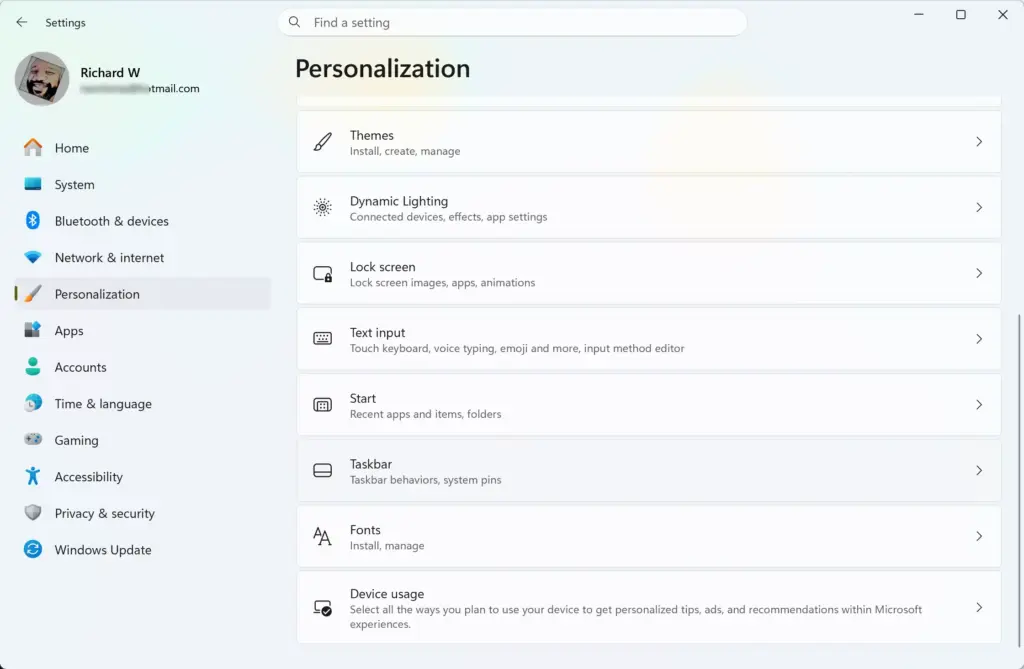
- Click Personalization in the left-hand menu. The right side should now show theme, background, and color options.

- Scroll down on the right side and click Taskbar. The taskbar settings page should open.
- Scroll to the bottom of that page and click Taskbar behaviors to expand the section. A list of checkboxes should appear.
- Find the option named Automatically hide the taskbar .
- If the box is checked, uncheck it. The taskbar should now stay visible and fixed at the bottom of the screen.
- If the box is already unchecked, check it, wait five seconds, and then uncheck it again. The taskbar will hide when you check the box and reappear when you uncheck it. That reset clears the stuck display state.
Leaving the box unchecked is the direct fix for a taskbar that keeps hiding. The taskbar no longer slides out of view, so it stays put while you work. If you actually want auto-hide on, leave it checked and move on to the notification check below, because a flashing app is the usual reason the bar misbehaves in that mode. You need no restart for this change, and you can undo it by ticking the same box again.
Method 2Restart Windows Explorer via Task Manager
Restarting Windows Explorer (the process that runs your desktop and taskbar) forces the interface to reload. It is the best next step if the toggle did not help, and it does not close your open apps or lose your files. Use Task Manager to do it.
- Press Ctrl+Shift+Esc to open Task Manager .
- If Task Manager opens in a small view, click More details at the bottom. The full list of running items should appear.

- Click the Processes tab on the left side.
- Scroll down the list until you find Windows Explorer . You can also press the “W” key to jump down the list faster.
- Click Windows Explorer to select it.
- Click the Restart task button in the top right corner of the Task Manager window. Your screen and taskbar will flash or disappear for a second while they reload.
- Once the screen returns, check whether your taskbar stays visible and locked.
If you cannot find the Restart task button, make sure Windows Explorer is highlighted. You can also right-click it and choose Restart. If a File Explorer window was open, it will close and you will need to reopen it.
Method 3Clear Flashing Notifications from Background Apps
Unread app alerts can keep the taskbar on screen when auto-hide is turned on. A program that wants your attention makes its icon flash or glow, and Windows keeps the taskbar visible until you deal with it. Clearing those alerts lets the taskbar go back to normal.
- Look across your taskbar icons for any app that is flashing orange or glowing. Chat and email apps are the usual culprits.
- Click the flashing app to open it, then read the message. You can also close the app entirely.
- Repeat for every app that is still flashing. Check the hidden icons in the system tray too, using the small arrow near the clock.
Once every pending alert is cleared, the taskbar should go back to its normal hiding behavior if you have auto-hide turned on. If one app keeps flashing again and again, check that app's own notification settings or update it.
Method 4Adjust Taskbar Settings via Command Prompt
Command Prompt can run text commands that change system behavior, and it needs administrator rights for that kind of work. For this problem, you should skip it unless the standard menus have not fixed your taskbar. The settings covered in Method 1 handle taskbar locking more safely, because a mistyped command can damage your operating system files. If you still want to open it, here is how.
- Click the Start button and type cmd.
- Right-click Command Prompt in the results and select Run as administrator.
- Click Yes if a warning box asks whether you want to allow the app to make changes to your device. A black Command Prompt window should open.
If the Yes button is missing or greyed out, you are signed in with a standard account and will need an administrator to approve it. For a hiding taskbar, close this window and use the graphical Settings app instead.
Method 5Modify Taskbar Settings Using the Registry Editor
The Registry Editor is the database where Windows stores its configuration rules. Corrupted values there can occasionally cause taskbar problems, but it is a last resort. A wrong change can cause bigger problems than the one you started with, so only go in if the earlier methods failed. You open it from the Run box with the regedit command.
Follow these steps carefully. Administrative privileges are required. Consider creating a restore point first, and use File Export in Registry Editor to back up anything you plan to change.
- Press the Windows key + R to open the Run dialog box. A small window with a text field should appear.

- Type regedit and press Enter.
- Click Yes on the prompt that asks for administrator permission. The Registry Editor window should open.
- Use the address bar at the top or the left sidebar to navigate to your user settings.
Registry paths vary by user profile, and one wrong edit can break things. For that reason, the graphical Settings app is the safer choice for taskbar behavior.
Alternatively, you can close the Registry Editor, open the Settings app, go to Personalization Taskbar, and use the built-in switches to reset your preferences safely.
Unique Expert Tip: Managing Registry Settings with PowerShell
PowerShell lets you change system values quickly with scripts, which makes it powerful and easy to misuse. Administrative privileges are required to run system commands. As with the other advanced options, try the Settings app first.
Note: Administrative privileges are required to run system scripts.
- Right-click the Start button.
- Select Terminal (Admin) or PowerShell (Admin), depending on what your menu shows.
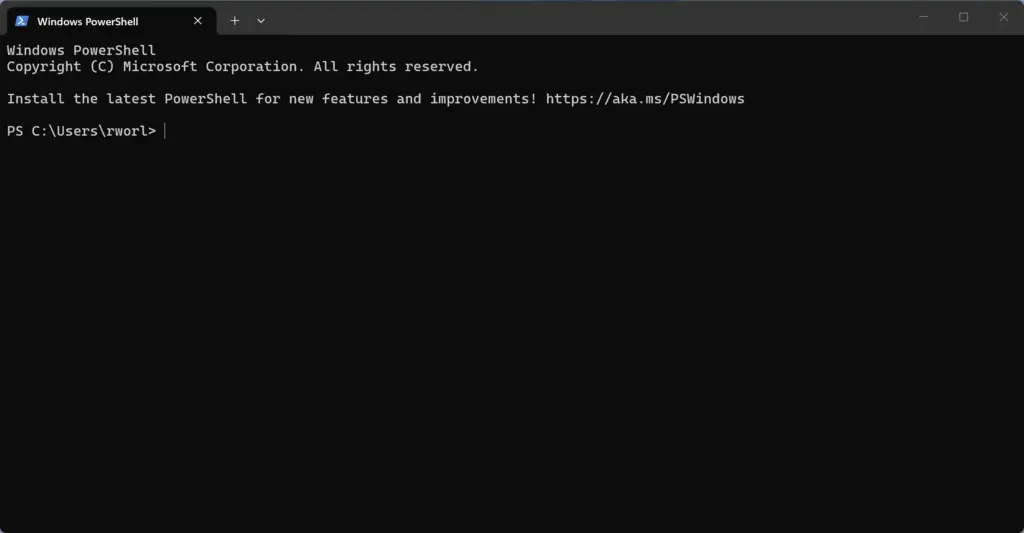
- Click Yes to allow the app to make changes. A terminal window should open.
Script adjustments can change system behavior instantly. Everyday users are strongly encouraged to use the standard Windows Settings app under Personalization Taskbar to avoid unintended configuration errors.
Summary
Fixing a taskbar that keeps hiding and won't stay locked in Windows 11 usually takes just a few simple steps. These quick fixes get your desktop working properly again without advanced technical skills. In order, try these:
- Toggling the "Automatically hide the taskbar" switch in your Personalization settings.
- Restarting Windows Explorer via the Task Manager to clear frozen user interface elements.
- Closing background apps with flashing notification icons that force the taskbar to stay visible.
- Checking for multi-monitor display conflicts and touchscreen input errors. Unplugging a second display or an external touch device for a moment is a quick way to test this.
By completing these troubleshooting steps, you can fix Windows 11 taskbar locking issues in under 5 minutes. It matters because you need quick access to your open apps and system tray, without the taskbar unexpectedly disappearing or staying stuck on your screen.
Have a question about this guide?
Answered by AI from this guide. Good questions may be added to this page — please don't include personal details.
Did this guide fix your problem?

About the Author
Richard
Tech Writer, IT Professional
Richard is a writer at Geek Rewind who turns complex IT tasks into clear, step-by-step guides. He draws on years of hands-on experience in system administration and enterprise IT operations, focusing on Windows, Linux and WordPress: the problems people actually run into, and the fixes that work. His server and WordPress guides come from systems he runs himself. Richard builds and maintains the platform behind Geek Rewind, from its Ubuntu servers and Nginx configuration to its custom WordPress plugins. Many new tutorials start with readers' questions, and he's always glad to answer them in the comments.
No comments yet — be the first to share your thoughts!