What to Do When Windows 11 Taskbar Icons Disappear After Booting

- 46 steps
- Needs administrator rights
- Includes a restart or sign-out
Disappearing taskbar icons in Windows 11 happen when Windows Explorer fails to load correctly during startup. Windows Explorer is the system process that runs your desktop, Start menu and taskbar. When it stumbles, you get blank spaces, missing program pictures, or a completely empty taskbar right after you turn on your PC.
The quickest fix is to restart Windows Explorer, which takes under 2 minutes and needs no special repair tools or technical skills. This guide starts there and then moves to stronger fixes, in case the first one does not hold after your next boot.
When Windows 11 taskbar icons disappear after booting, restart Windows Explorer from Task Manager. Press Ctrl+Shift+Esc, click the Processes tab, select Windows Explorer, and click Restart task at the top right. Your taskbar should redraw within seconds and icons will reappear.
Understanding Why 🪟 Windows 11 Taskbar Icons Disappear
Taskbar icons usually disappear after booting because Windows Explorer crashes or hangs just as your computer starts. This process draws your desktop, Start menu, taskbar and file folders. If it does not load correctly, the taskbar and its icons do not show up.
There are a few common triggers:
- Windows Explorer crashes during startup.
- A recent software update clashes with a program on your computer.
- The icon cache, where Windows stores the pictures for your programs, is full or corrupted.
- A damaged system file or a corrupted user profile.
When this happens, the taskbar often loads halfway. You see the bar itself, but not the pictures and symbols for your programs. The sections below go from the quickest fix to the most thorough one, so work through them in order.
Quick Fix: Restart Windows Explorer
Restarting Windows Explorer is the fastest fix. It makes the taskbar reload without rebooting the whole computer. You do it from Task Manager by selecting Windows Explorer and restarting it. This works whether the taskbar is empty or only partly drawn.
- Press Ctrl+Shift+Esc at the same time. Task Manager opens.
- If Task Manager opens as a small window with few details, click More details at the bottom to expand it. Newer builds open the full view by default, so you may not see this button.

Task Manager - Click the Processes tab on the left side of the window. You should see a list of running apps and background processes.
- Scroll down until you find Windows Explorer. You can also press the W key to jump down the list.
- Click once on Windows Explorer to select it.
- Click the Restart task button at the top right of the Task Manager window. You can also right-click Windows Explorer and choose Restart. Your screen and taskbar will flash or vanish for a few seconds. This is normal while the system refreshes itself.
- Check your taskbar. Your icons should reappear.
This fix lasts only until the process fails again. If the icons vanish at the next boot, keep going through the sections below.
Toggle Taskbar Settings to Force Icons to Refresh
If restarting Windows Explorer does not work, changing a taskbar setting forces Windows to redraw the entire bar. That often brings hidden icons back. Right-click an empty part of the taskbar, flip one display option, and then flip it back.
- Right-click an empty space on your taskbar.
- Click Taskbar settings in the menu that appears. The Settings app opens at Settings Personalization Taskbar.
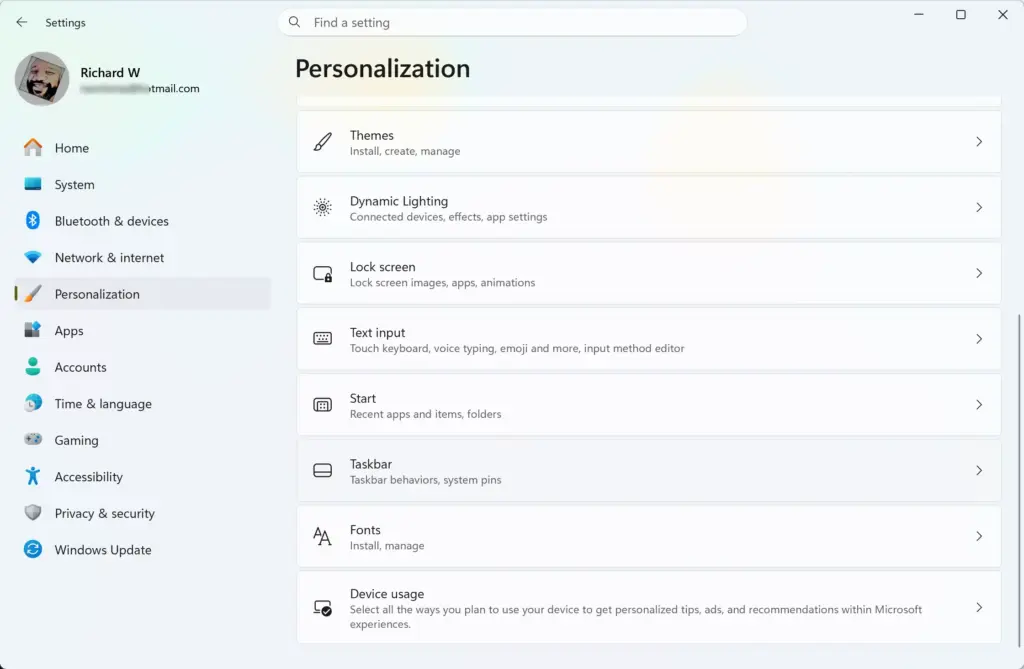
Settings › Personalization › Taskbar - Scroll down and click Taskbar behaviors to expand that section.
- Find the option Combine taskbar buttons and hide labels, or a similar setting. The exact wording can vary slightly between Windows 11 versions.
- Change the setting. If it is on, turn it off. If it is off, turn it on. The taskbar should redraw as soon as you change it.
- Watch the taskbar to see whether your missing icons come back.
- Change the setting back to your preferred choice once the icons return.
Check for Windows Updates
If a recent patch from Microsoft caused the glitch, installing the newest updates can fix it for good. Updates often carry bug fixes for startup errors that affect the taskbar and desktop shortcuts.
- Click the Start button on your taskbar.
- Click the Settings app, the small gear icon.

Settings - Click Windows Update in the left-hand list.

Settings › Windows Update - Click the Check for updates button. Windows will search and list anything waiting.
- If updates are found, let them download and install completely.
- Restart your computer when the installation finishes, then check whether the icons are back after booting.
Run System File Checker and DISM Scans
Windows 11 includes repair tools, System File Checker and DISM, that find and replace damaged core system files. Broken system files can stop Windows from loading the taskbar icons properly at startup.
- Click the Start button and type cmd into the search bar.
- Find Command Prompt in the results, right-click it, and choose Run as administrator. (Admin privileges required)
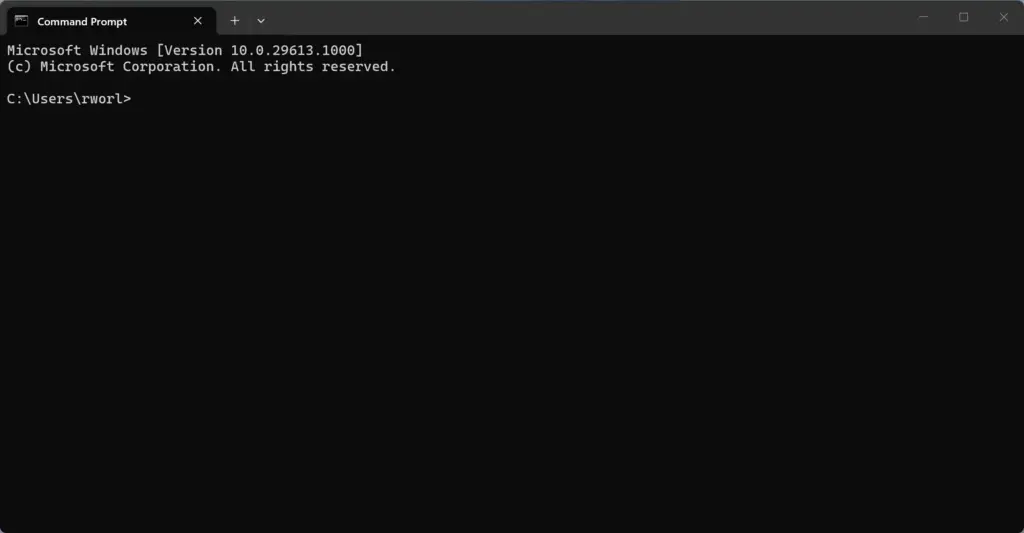
Command Prompt - If a window asks whether you want to allow this app to make changes to your device, click Yes. A black window opens with a blinking cursor.
- Type the System File Checker or DISM repair command at the cursor, then press Enter. The DISM health scan checks your system files against Windows Update over the internet, so you need a working connection.
- Wait for the scan to reach 100 percent. It takes about 10 to 15 minutes. Do not restart your computer or close the window before it finishes.
If the scans finish and your icons are still missing, the next step is to clear the icon cache. Windows rebuilds this cache on its own, so deleting it is safe. It needs administrator privileges too.
- Press Ctrl+Shift+Esc to open Task Manager.
- Click Processes, find Windows Explorer, right-click it, and choose End task. Your taskbar and desktop background will disappear, leaving a plain screen. This is expected.💡If you can't find Windows Explorer or Run new task
This step can look different on your PC. Windows Explorer is usually listed under the Apps or Windows processes heading on the Processes tab, so scroll through both or press W to jump. If you don't see
Run new taskat the top of Task Manager, clickFilein the menu bar and chooseRun new task. Keep Task Manager open the whole time. If you can't find Windows Explorer at all, don't restart your PC. Close Task Manager, press Ctrl + Shift + Esc again, and try the Processes tab once more. - With Task Manager still open, click Run new task at the top of the window.
- Type cmd into the box that appears.
- Check the box Create this task with administrative privileges. (Admin privileges required)
- Click OK. A black command window opens.
- Type this command to go to the folder where the icon caches live, then press Enter:Command Prompt
cd /d %userprofile%\AppData\Local\Microsoft\Windows\Explorer
- Type this command to delete the old icon cache files, then press Enter:Command Prompt
del iconcache*.*
- If the system says some files cannot be deleted because they are open, you can ignore the message or close any extra apps and try again.
- Type exit and press Enter to close the command window.
- In Task Manager, click Run new task again, type explorer.exe, and click OK. Your taskbar and desktop should come back.
- Restart your computer to finish the process. Windows will rebuild the icon cache during startup, so icons may take a moment to appear.
Create a New User Account to Fix Corrupted Profiles
A corrupted user profile can also make taskbar icons disappear at startup. To test this, create a brand-new user account. If your icons load normally there, your old profile is the root of the problem.
Creating a new account requires administrator privileges.
- Click the Start button and open the Settings app.
- Click Accounts in the left-side menu.
- Click Other users. On some Windows 11 versions this is called Family & other users.
- Click the Add account button next to the option to add another user to this PC. (Admin privileges required) A Microsoft sign-in window opens.
- Click I don’t have this person’s sign-in information at the bottom of the window.
- Click Add a user without a Microsoft account. Some newer builds hide this option, in which case you may only be offered a Microsoft account sign-up.
- Type a simple name for the new user, such as TestUser. Leave the password fields blank if you only want a quick test account. Click Next.
- Sign out of your current account: click the Start button, click your profile picture, and select Sign out.
- Sign in to the new test account and check whether the taskbar icons load properly after booting into this fresh profile.
Summary
Disappearing taskbar icons usually come from a temporary glitch in the Windows Explorer process. Restarting it from Task Manager is the quickest fix. If that does not hold, toggle a taskbar setting, install Windows updates, repair system files, clear the icon cache, or test with a new user account. Work through these in order and your desktop should be back to normal.
Questions readers asked
I can't find Windows Explorer or the Run new task button in Task Manager. What should I do?
Windows Explorer is often under the Apps or Windows processes heading in the Processes tab. Scroll through both, or press W to jump to the W entries. For Run new task, look in the File menu at the top left of Task Manager and choose Run new task. Keep Task Manager open while you do this. If you still can't find Explorer, close Task Manager, reopen it with Ctrl + Shift + Esc, and check the Processes tab again. Don't restart the PC during this step.
Still have a question?
Answered by AI from this guide. Good questions may be added to this page — please don't include personal details.
Did this guide fix your problem?

About the Author
Richard
Tech Writer, IT Professional
Richard is a writer at Geek Rewind who turns complex IT tasks into clear, step-by-step guides. He draws on years of hands-on experience in system administration and enterprise IT operations, focusing on Windows, Linux and WordPress: the problems people actually run into, and the fixes that work. His server and WordPress guides come from systems he runs himself. Richard builds and maintains the platform behind Geek Rewind, from its Ubuntu servers and Nginx configuration to its custom WordPress plugins. Many new tutorials start with readers' questions, and he's always glad to answer them in the comments.
No comments yet — be the first to share your thoughts!