How to Make the Taskbar Smaller in Windows 11

- 21 steps
- Needs administrator rights
- Includes a restart or sign-out
Making the taskbar smaller in Windows 11 takes one setting change: choose the Small option under Taskbar size in Settings. Microsoft documents this in update KB5120998, a numbered Windows update package that adds the Small taskbar option. The Small taskbar option reduces the size of taskbar icons and the height of the taskbar itself.
The setting lives at Settings Personalization Taskbar Taskbar behaviors Taskbar size. Start, Search and the system tray (the area at the right edge with the clock, volume and network icons) all stay on the taskbar after the change.
Open Settings Personalization Taskbar Taskbar behaviors and set Taskbar size to Small. The taskbar and its icons shrink as soon as you choose the option, with no restart needed. Start, Search and the system tray stay where they are. The option requires the update KB5120998 or later.
What the Small taskbar option changes
The Small option changes two things: the size of the icons and the height of the bar. A shorter bar gives app windows a little more vertical space, which helps most on laptop screens and low-resolution displays.
The option does not remove anything. Start, Search and the system tray remain available, so you keep the same controls in a tighter space.
The setting changes only the size. It does not change what the taskbar shows or how it groups windows. If you want to change those, see how to customize Windows 11 taskbar settings. For a second look at resizing, there is also a post on how to change taskbar size in Windows 11.
Before you start
Check that your 🪟 Windows 11 has the option
Earlier Windows 11 builds that lack this update may not show a Taskbar size setting at all. If you can’t find it later in the steps, install the latest Windows updates first. The section on a missing Taskbar size setting below covers this.
Permissions and restarts
The steps below change a personal taskbar preference in Settings. None of them require administrator privileges. Microsoft does not list a restart for this setting, so you should see the result as soon as you pick the option.
Home and Pro editions
Microsoft does not list an edition restriction for the Small taskbar option. Windows 11 Home and Pro should therefore both show it once the update is installed. This article does not confirm behaviour on other editions.
Steps to make the taskbar smaller in 🪟 Windows 11
These steps show how to make the taskbar smaller in Windows 11 by using the Taskbar size setting. Follow them in order, from opening Settings to confirming the new size.
- Open Settings. Press Win+I, or right-click Start and choose Settings. The Settings window opens with a list of categories on the left.

Start Menu - Select Personalization. It sits in the left-hand list. The right pane now shows options for backgrounds, colors, themes and similar items.

Settings › Personalization - Select Taskbar. It is in the Personalization page, below options such as Start and Lock screen. The page that opens is titled Taskbar and lists the taskbar settings.
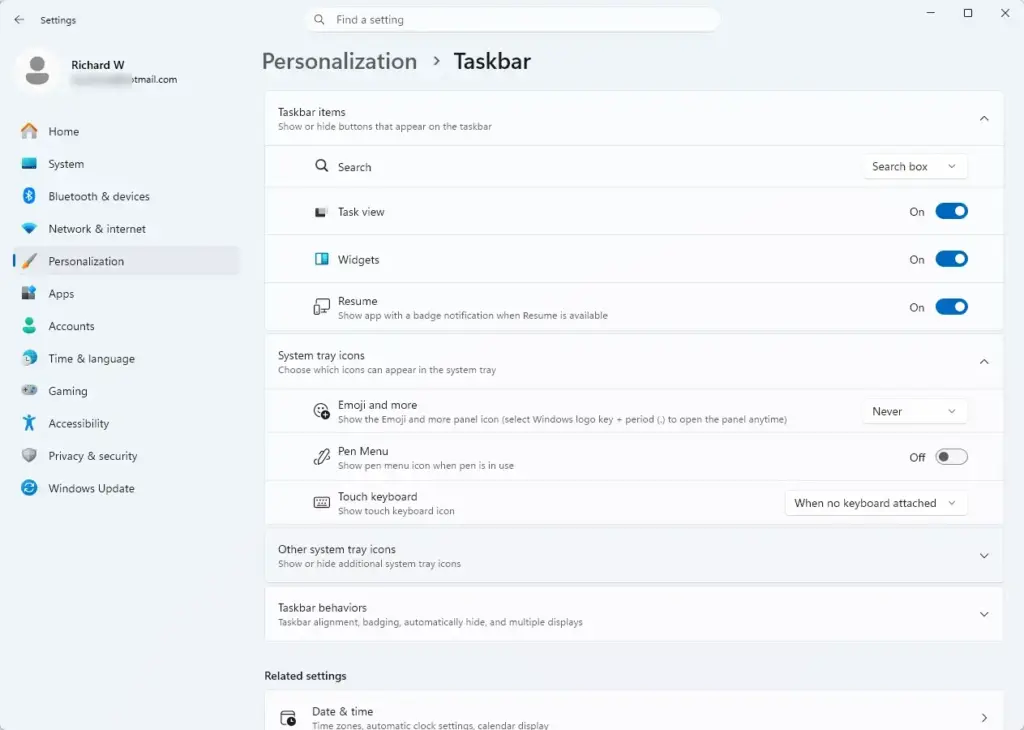
Windows 11 settings menu for managing optional diagnostic data sharing - Expand Taskbar behaviors. Click the heading near the bottom of the page. The section opens and shows more settings, including the one for size.
- Find Taskbar size. It is inside the Taskbar behaviors section. A drop-down list appears next to the label.
- Choose the Small option from the list. The taskbar shrinks at once. The icons get smaller and the bar becomes shorter.
- Check the taskbar. Confirm that Start, Search and the system tray are still in place.
- Close Settings. Click the X at the top right of the window. The choice saves as soon as you make it, so no further confirmation is needed.
You can also reach the same page from the taskbar. Use these numbered steps:
- Right-click an empty area of the taskbar and choose Taskbar settings.
- Expand Taskbar behaviors.
- Under Taskbar size, choose Small.
What you should see afterwards
The taskbar is visibly thinner, and the icons on it are smaller. The Start button, the Search entry and the system tray remain available, which means you still open the Start menu and search from the same places.
If you want to know more about those two items, there are short explainers. They cover what the Start feature on the Windows 11 taskbar does and what the Search feature on the taskbar does.
If the icons feel too small once you start working, go back and change the size again. The section called How to undo the change shows you how.
If Taskbar size is missing
A missing Taskbar size setting is the most likely thing to go wrong. The usual cause is a Windows 11 build that does not yet include the update that adds the Small taskbar option. Microsoft documents that update as KB5120998.
Check these in order, starting with the update.
- Open Settings. Press Win+I.
- Select Windows Update. It is at the bottom of the left-hand list.
- Click Check for updates. Windows searches for available updates and lists any it finds.
- Install the updates it offers. Wait for the install to finish. Restart your PC if Windows asks you to.
- Return to Settings Personalization Taskbar Taskbar behaviors. Look for Taskbar size again.
If the setting still does not appear after the PC is fully up to date, this article cannot confirm a further fix. No other cause is documented for the option to be missing, so there is no further fix to try here.
You may also see an expanded Taskbar behaviors section without Taskbar size in it. That points to the same cause, an update that is not installed yet. It is not a sign that you opened the wrong page.
How to undo the change
The change is fully reversible, and you can switch back at any time. Repeat the same path and pick a different size.
- Open Settings. Press Win+I.
- Go to Settings Personalization Taskbar.
- Expand Taskbar behaviors. Click the heading to open the section.
- Open the Taskbar size list. Click the drop-down next to the label.
- Choose the larger option you used before. The taskbar returns to its taller height, and the icons grow again.
Nothing else in your taskbar layout changes when you switch. Pinned apps, the system tray and the position of Start stay where they were.
Related taskbar settings to adjust next
A smaller taskbar leaves less room for labels and icons, so a few related settings can change how the bar feels. Each of these is covered in its own post.
- Window grouping (which combines open windows of the same app into one icon) affects how many icons fill the bar. Read whether you should use Windows 11 taskbar ungrouping before you change it.
- Colour changes how the bar looks against your wallpaper. See how to change the Windows 11 taskbar color.
- If the bar vanishes instead of shrinking, that is a separate problem. Check why your taskbar keeps disappearing in Windows 11.
What to do next
If a later update or a new user profile brings back the larger bar, return to Settings Personalization Taskbar Taskbar behaviors and set Taskbar size again. For other layout and behaviour choices, move on to the Windows 11 taskbar customization guide.
Have a question about this guide?
Answered by AI from this guide. Good questions may be added to this page — please don't include personal details.
Did this guide fix your problem?

About the Author
Richard
Tech Writer, IT Professional
Richard is a writer at Geek Rewind who turns complex IT tasks into clear, step-by-step guides. He draws on years of hands-on experience in system administration and enterprise IT operations, focusing on Windows, Linux and WordPress: the problems people actually run into, and the fixes that work. His server and WordPress guides come from systems he runs himself. Richard builds and maintains the platform behind Geek Rewind, from its Ubuntu servers and Nginx configuration to its custom WordPress plugins. Many new tutorials start with readers' questions, and he's always glad to answer them in the comments.
No comments yet — be the first to share your thoughts!