Should You Use Windows 11 Taskbar Ungrouping

- 6 steps
- Needs administrator rights
Windows 11 taskbar ungrouping splits stacked app icons into separate buttons with text labels, so you can spot and open any window with one click. Microsoft added this feature in Insider build 23516. Every open browser window, document or folder gets its own button across the bottom of your screen instead of hiding behind one grouped icon.
With this setting on, you no longer have to hover over a stacked icon and wait for a preview to find the right window. You read the label on each button and click the one you want.
This tutorial covers where the feature came from, the pros and cons, and the exact steps to turn it on. It also covers how to switch it back if you don’t like it.
Yes, you should use Windows 11 taskbar ungrouping if you want to switch between open windows with a single click and see clear text labels on your screen. However, you should skip it if you prefer a clean, minimal look or work on a smaller computer screen.
The History of Taskbar Grouping in Windows
Taskbar grouping has a long history. Older versions such as Windows 7 let you turn grouping off, so every window kept its own labelled button. When Windows 11 launched in October 2021, Microsoft removed that option, along with several other classic taskbar features, to keep the screen cleaner. Without the option, the taskbar always stacked windows from the same app under one icon, and the text labels were gone.
Removing taskbar ungrouping caused a big uproar in online forums and support communities. Office workers, writers and power users complained that hiding the labels slowed down their daily workflow. Many of them had a dozen windows open at once and relied on reading titles to switch between them.
Microsoft eventually responded to the feedback and restored the feature through regular system updates. It was tested in Insider builds first, then reached everyone with the 22H2 update in late 2023. It is also in 23H2 and 24H2. If your Windows 11 PC is up to date, you can choose whether icons stay grouped or spread apart. If you don’t see the option, open Settings Windows Update and install any pending updates first.
Pros of Using 🪟 Windows 11 Taskbar Ungrouping
The main pros of taskbar ungrouping are faster switching between open windows and clear text labels on every button. You click straight on the file or browser window you need. You don’t wait for a preview box to pop up, which saves real time on a busy workday.
- Faster SwitchingYou can jump to a specific window with a single click. With grouped icons, you first click or hover to open a preview, and then pick the window. Ungrouping removes that extra step.
- Clear Text LabelsEach button shows a title. You can read the name of the document, website or folder without guessing. This helps most when you have several windows of the same app open, such as five File Explorer windows or three Word documents.
- Better Multitasking ControlIt is much easier to keep track of multiple projects when every window has its own permanent button. Buttons also stay in the order you opened the windows, so you learn where things are.
- Familiar FeelIf you used older versions of Windows, such as Windows 7, or Windows 10 with ungrouped settings, this layout feels natural and comfortable.
Cons of Using 🪟 Windows 11 Taskbar Ungrouping
The main cons of taskbar ungrouping are a crowded taskbar and less free space for other icons. Every open window gets its own button and label, so the taskbar fills up fast. If you keep dozens of windows and programs open at once, it becomes hard to see everything.
- Cluttered TaskbarIf you open ten browser windows and five text files, the taskbar fills up almost at once. Once it runs out of room, the buttons shrink, lose their labels or scroll, and the benefit of ungrouping goes away.
- Less Screen Space for Other IconsText labels take up a lot of horizontal room. That leaves less space for pinned apps and system tray items.
- Visual MessIf you prefer a minimalist, clean desktop, a fully ungrouped taskbar can look busy and messy.
- Harder on Small ScreensOn a small laptop screen, ungrouped buttons crowd the taskbar quickly and make it difficult to find anything. The same goes for any screen with a low resolution.
How to Turn on Taskbar Ungrouping in 🪟 Windows 11
Turning on taskbar ungrouping takes a few clicks in the Settings app. You open Personalization, go to the Taskbar page, expand Taskbar behaviors, and change the setting that combines taskbar buttons. You don’t need an administrator account or a restart, and it works on both Home and Pro.
- Click the Start button, then open the Settings app (the gear icon). You can also press the Win plus I.
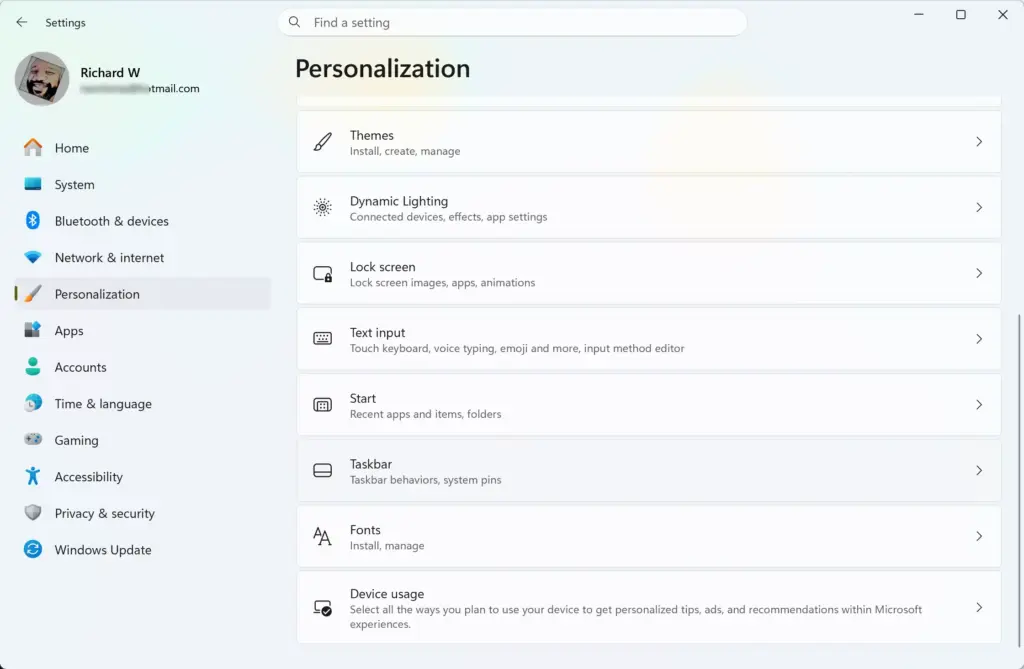
- Click Personalization in the menu on the left side of the window. The Personalization page opens on the right.

Settings › Personalization - Scroll down the list on the right and click Taskbar. The taskbar settings page opens.
- Scroll to the section named Taskbar behaviors and click it. The hidden options expand below it.
Settings › Personalization › Taskbar - Find the setting named Combine taskbar buttons and hide labels. It is set to Always by default.
- Click the drop-down menu next to it and choose Never. Choose When taskbar is full instead if you want labels until the taskbar runs out of room.
Your taskbar updates instantly. All your open windows spread out into individual buttons with clear text labels, and you can close Settings.
To undo the change, go back to Settings Personalization Taskbar Taskbar behaviors and set the drop-down to Always. If the setting is missing, your Windows 11 version is too old. Install the latest updates from Settings Windows Update and check again.
Summary
The Windows 11 taskbar ungrouping setting splits your open app windows into separate buttons with text labels instead of stacking them under one icon. Whether you should use it depends on your screen size and how many programs you keep open at the same time. On a large or wide monitor with a moderate number of windows, it is usually a clear win. On a small laptop screen with many windows open, try When taskbar is full, or leave the setting on Always. Since the change takes a few seconds and is easy to reverse, try it for a day or two and see how it fits your routine.
Frequently asked questions
How do I get my 🪟 Windows 11 taskbar back to normal?
Restart Windows Explorer to clear most taskbar glitches. Right-click the taskbar, choose Task Manager, find Windows Explorer under Processes, and click Restart. To undo settings changes, open Settings, go to Personalization, select Taskbar, and expand Taskbar behaviors to set them back to what you want. Your taskbar returns to its usual layout.
How to stop 🪟 Windows 11 grouping Windows?
Open Settings, go to Personalization, then Taskbar, and expand Taskbar behaviors. Open the Combine taskbar buttons list and choose Never. Each open window now gets its own labelled button. To group windows again, choose Always, hide labels.
Does the Translucent taskbar work on 🪟 Windows 11?
No. Windows 11 has no built-in translucent taskbar option, so the taskbar stays solid. To get a see-through taskbar, install TranslucentTB, a free app from the Microsoft Store that adds transparency and blur effects. Close the app to turn the effect off.
How do I stop apps from overlapping my taskbar?
Turn on automatic hiding so the taskbar stays out of the way. Open Settings, go to Personalization, select Taskbar, expand Taskbar behaviors, and check Automatically hide the taskbar. The taskbar slides away and reappears when you move the pointer to the bottom of the screen. Full-screen apps still cover it.
Still have a question?
Answered by AI from this guide. Good questions may be added to this page — please don't include personal details.
Did this guide fix your problem?

About the Author
Richard
Tech Writer, IT Professional
Richard is a writer at Geek Rewind who turns complex IT tasks into clear, step-by-step guides. He draws on years of hands-on experience in system administration and enterprise IT operations, focusing on Windows, Linux and WordPress: the problems people actually run into, and the fixes that work. His server and WordPress guides come from systems he runs himself. Richard builds and maintains the platform behind Geek Rewind, from its Ubuntu servers and Nginx configuration to its custom WordPress plugins. Many new tutorials start with readers' questions, and he's always glad to answer them in the comments.
No comments yet — be the first to share your thoughts!