How to Enable or Disable Changing Taskbar Position on Screen in Windows 11

- 12 steps
- Needs administrator rights
- Group Policy needs Windows 11 Pro, Enterprise or Education
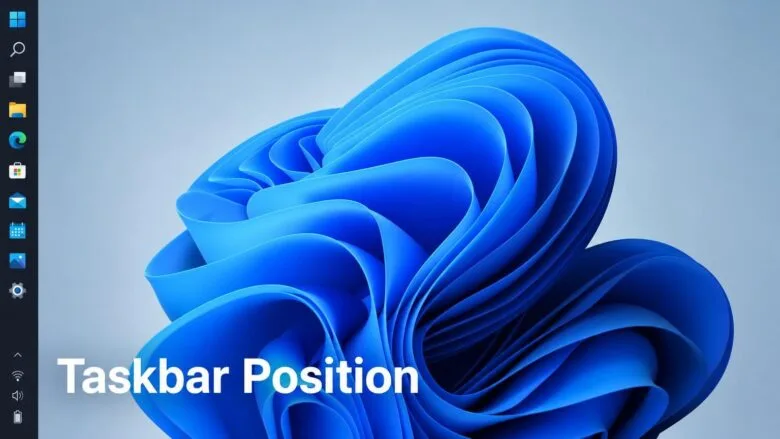
Windows 11 lets you move the taskbar to different edges of your screen — bottom, top, left, or right. A policy called “Disable changing the taskbar position” stops people from making this change, locking the taskbar in place.
This feature works in Windows 11 build 26100.9278 (the 24H2 update) and later. Even when the taskbar is on the side or top of the screen, tooltips, flyouts, and animations still come from the taskbar position. Other taskbar settings like making it smaller or combining window icons still work no matter where you place it.
You need administrator access to turn this policy on or off. The setting is available starting with Windows 11 version 26H2.
Open Local Group Policy Editor, navigate to Computer Configuration Administrative Templates Start Menu and Taskbar, double-click Disable changing the taskbar position, select Enabled to block moves or Not Configured to allow them, then click OK. In other Windows 11 editions, set the registry value DisableTaskbarPosition to 1 under 🗝️HKEY_LOCAL_MACHINE\
Option 1Use Local Group Policy Editor
- Open the Local Group Policy Editor for the scope you want: all users, specific users or groups, or all users except administrators.
- In the left pane, go to the policy location that matches your scope:
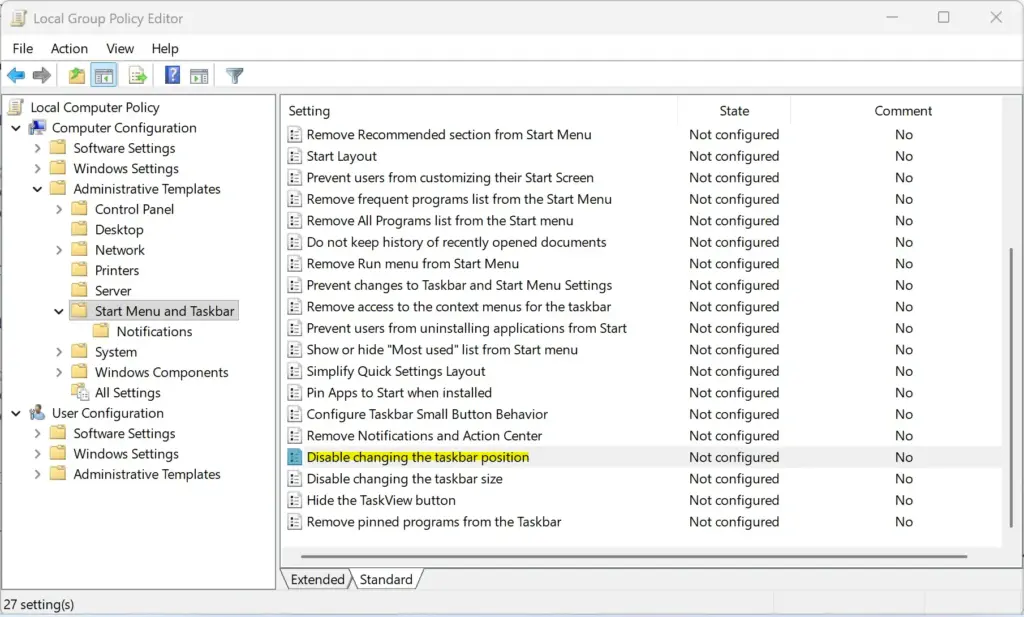
- All usersComputer Configuration Administrative Templates Start Menu and Taskbar
- Specific user or groupUser Configuration Administrative Templates Start Menu and Taskbar
- In the right pane of Start Menu and Taskbar, double-click or double-tap the Disable changing the taskbar position policy to open it.
Taskbar - Follow the section below for the result you want.
Enable changing the taskbar position
This step lets users move the taskbar. It is the default setting.
- Select Not Configured.
- Click or tap OK.
- Close the Local Group Policy Editor.
Disable changing the taskbar position
This step stops users from moving the taskbar.
- Select Enabled.
- Click or tap OK.
- Close the Local Group Policy Editor.
Option 2Use the Registry
In the registry, the policy uses a value named DisableTaskbarPosition. Confirm the key path before you edit anything.
HKEY_LOCAL_MACHINE\SOFTWARE\Policies\Microsoft\Windows\Explorer
Enable changing the taskbar position for all users
This step removes the DisableTaskbarPosition value, which restores the default setting. To delete the value using a .reg file (a text file that applies registry changes when double-clicked):
Disable changing the taskbar position for all users
This step sets the DisableTaskbarPosition value to 1, which blocks taskbar position changes. In .reg file syntax, the line is:
"DisableTaskbarPosition"=dword:1
To make the same change by hand in Registry Editor, use these details:
- Key
HKEY_LOCAL_MACHINE\SOFTWARE\Policies\Microsoft\Windows\Explorer - Value nameDisableTaskbarPosition
- Value typeDWORD
- Value data1 to disable changing the position. Delete the value to enable it again.
What to do next
To undo the change, go back through the steps in your chosen option and select the opposite setting. If the policy doesn’t take effect, make sure your PC is running Windows 11 version 26H2 or later, since the policy requires that version or newer.
Frequently asked questions
How can I permanently hide the taskbar in 🪟 Windows 11?
Windows has no setting that removes the taskbar completely. The closest option is auto-hide, which keeps it out of sight until you move your pointer to the edge of the screen. Open Settings, select Personalization, then Taskbar, expand Taskbar behaviors, and turn on Automatically hide the taskbar.
Why is my taskbar on the right side of my screen?
Your taskbar is on the right because someone dragged it there or changed its position in Settings. Windows normally places it at the bottom. To move it back, open Settings, select Personalization, then Taskbar, and look for the taskbar position option. If the option is locked, an administrator must change the policy.
How can I change the position of my taskbar?
Open Settings, select Personalization, then Taskbar, and look for the taskbar position option. On Windows 11 build 26100.9278 (the 24H2 update) and later, you can choose bottom, top, left, or right. If the option is missing or greyed out, an administrator may have turned on the Disable changing the taskbar position policy.
How do I make the bottom bar disappear?
Turn on auto-hide so the bottom bar disappears until you need it. Open Settings, select Personalization, then Taskbar, expand Taskbar behaviors, and turn on Automatically hide the taskbar. The bar slides out when you move your pointer to the bottom edge of the screen.
Still have a question?
Answered by AI from this guide. Good questions may be added to this page — please don't include personal details.
Did this guide fix your problem?

About the Author
Richard
Tech Writer, IT Professional
Richard is a writer at Geek Rewind who turns complex IT tasks into clear, step-by-step guides. He draws on years of hands-on experience in system administration and enterprise IT operations, focusing on Windows, Linux and WordPress: the problems people actually run into, and the fixes that work. His server and WordPress guides come from systems he runs himself. Richard builds and maintains the platform behind Geek Rewind, from its Ubuntu servers and Nginx configuration to its custom WordPress plugins. Many new tutorials start with readers' questions, and he's always glad to answer them in the comments.
No comments yet — be the first to share your thoughts!