Remove Trending News from the Taskbar Search Box in Windows 11

- 19 steps
- Needs administrator rights
- Includes a restart or sign-out
Windows 11 shows trending news in the taskbar search box through a feature called search highlights. These are daily illustrations and trending topics, such as holidays and popular searches, that Microsoft pulls from Bing. To remove trending news from the taskbar search box, turn off Show search highlights in Settings under Privacy & security Search More settings.
The change takes effect right away. The search box goes back to plain text, and the search panel stops listing trending items. You do not need administrator rights unless your PC is managed by an organization.
To remove trending news from the Windows 11 taskbar search box, open Settings, go to Privacy & security Search More settings, and turn off Show search highlights. The change takes effect right away, and the search box returns to plain text. No administrator rights are needed on a personal PC.
What Search Highlights Show in the Taskbar Search Box
With search highlights on, the search box on the taskbar displays a small picture instead of a plain “Search” label. Click the box, and the panel that opens lists trending topics and daily items from the web. Depending on your Windows 11 build, it may also list top searches, which are popular searches people make on Bing.
These items come from Bing, not from your PC. They are not your files, apps or settings. That is why the same trending content can appear on a machine you use only for work.
Two other features look similar but are separate switches:
- Web results in search: Bing results mixed in when you type a query. Windows 11 treats this separately from search highlights.
- The Widgets board: a news feed opened from the taskbar or with Win+W. Search highlights do not control it.
If you want the full picture of how the taskbar search works before changing anything, read what the Windows 11 taskbar search feature does.
Before You Start
The steps below use the Settings app on a standard release of Windows 11. They work on both Home and Pro. You do not need to restart.
One caution on versions. Microsoft is testing a new taskbar search with inline actions (buttons that act on results directly). Since October 7, only Windows Insiders (people who test preview versions of Windows) have it. The Start menu still uses the existing search. If you run an Insider build, some labels may differ from the ones below.
How to Remove Trending News from the Taskbar Search Box
These steps remove trending news from the taskbar search box by turning off search highlights. No administrator rights are needed on a personal PC.
- Open Settings. Press Win+I, or right-click the Start button and choose Settings.
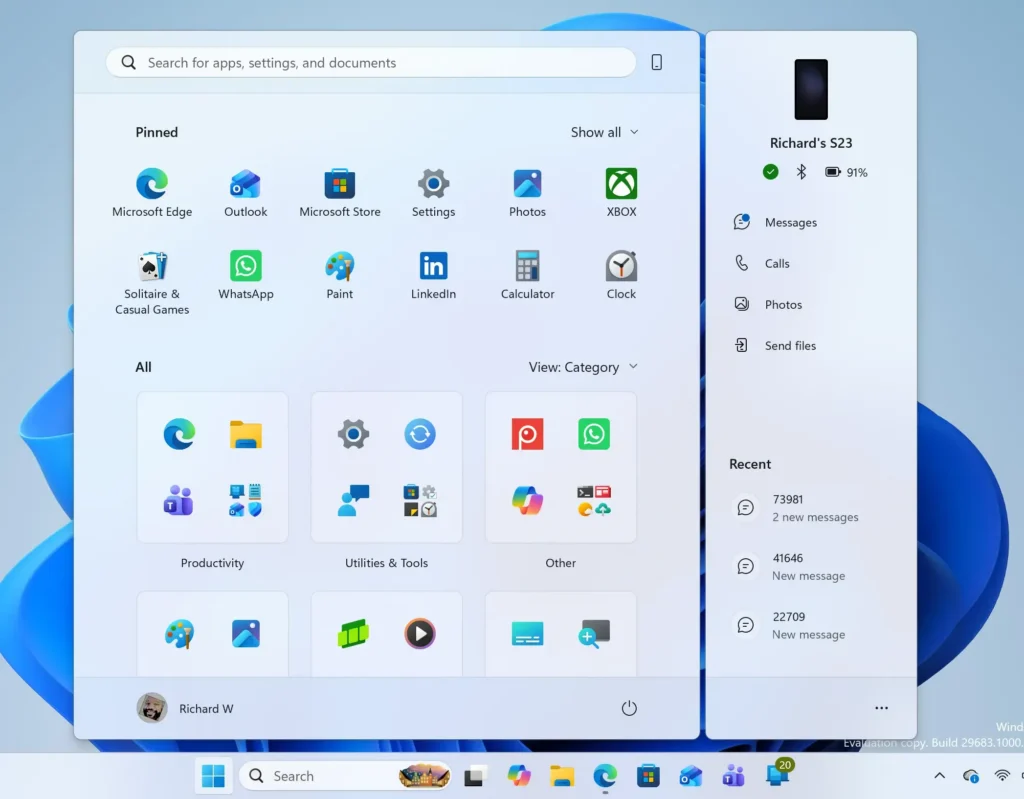
Start Menu - Click Privacy & security. It sits in the left pane of Settings, below Accounts and Time & language. The right pane now lists privacy categories.

- Scroll to Windows permissions and click Search. The page that opens is named Search permissions and shows options such as SafeSearch and Cloud content search.
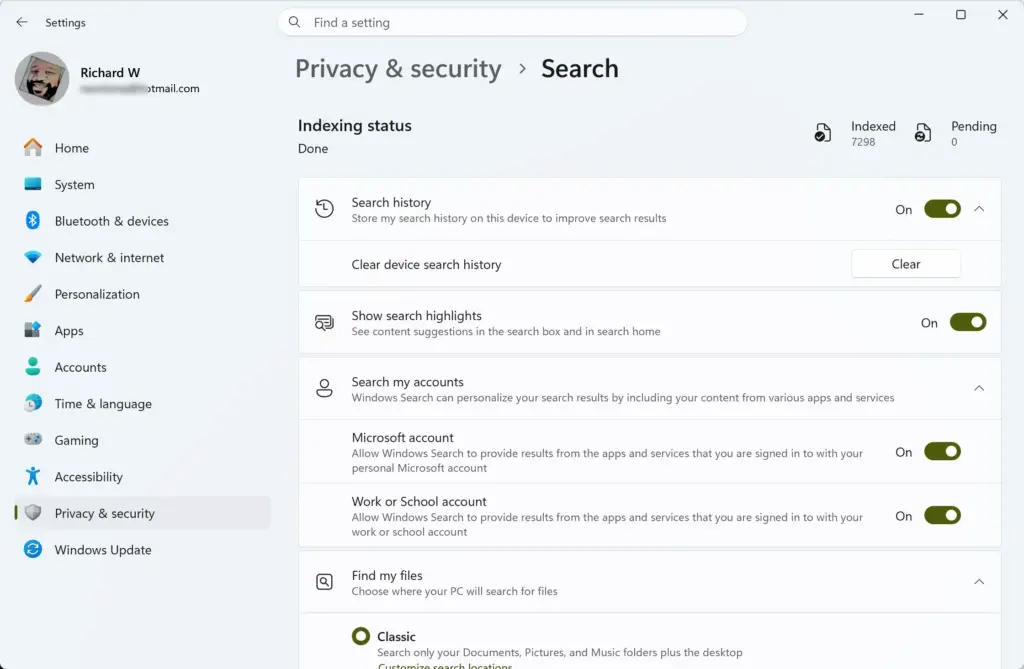
Settings › Privacy & security › Search - Scroll to the bottom and expand More settings. Click the heading or the arrow beside it. The section opens and shows Show search highlights.
- Turn off Show search highlights. Click the toggle so it reads Off. The change applies immediately.
- Click the taskbar search box to check the result. The picture in the box should be gone, and the panel should no longer list trending topics.
If the box still shows a picture, wait a few seconds and click it again. Taskbar elements sometimes refresh slowly. If it still looks the same, follow the fix in the next section.
If the Taskbar Still Shows the Old Search Box
If the box still shows the highlights, restart Windows Explorer (the process that draws the taskbar and Start menu) or sign out and back in. Restarting Explorer does not close your open apps, but the taskbar vanishes for a moment.
- Press Ctrl+Shift+Esc. This opens Task Manager.
- Find Windows Explorer in the Processes list. If you see a short list without tabs, click More details first.
- Right-click Windows Explorer and choose Restart. The taskbar flickers and returns within a few seconds.
If the highlights are still there after this, sign out and back in, or restart the PC. Then check that the toggle is still Off.
If Show Search Highlights Is Greyed Out or Missing
If you do not see More settings at all, scroll further down the Search page. It sits below the other on-off switches for search permissions. On an older version of Windows 11 (a build released before search highlights), this option does not appear. Open Settings Windows Update and install the latest updates, then check again.
This guide does not cover a Group Policy or registry method. On a personal PC, the Settings toggle is the supported way to make this change.
Hide the Search Box Instead
- Open Settings. Press Win+I.
- Click Personalization. It is in the left pane.
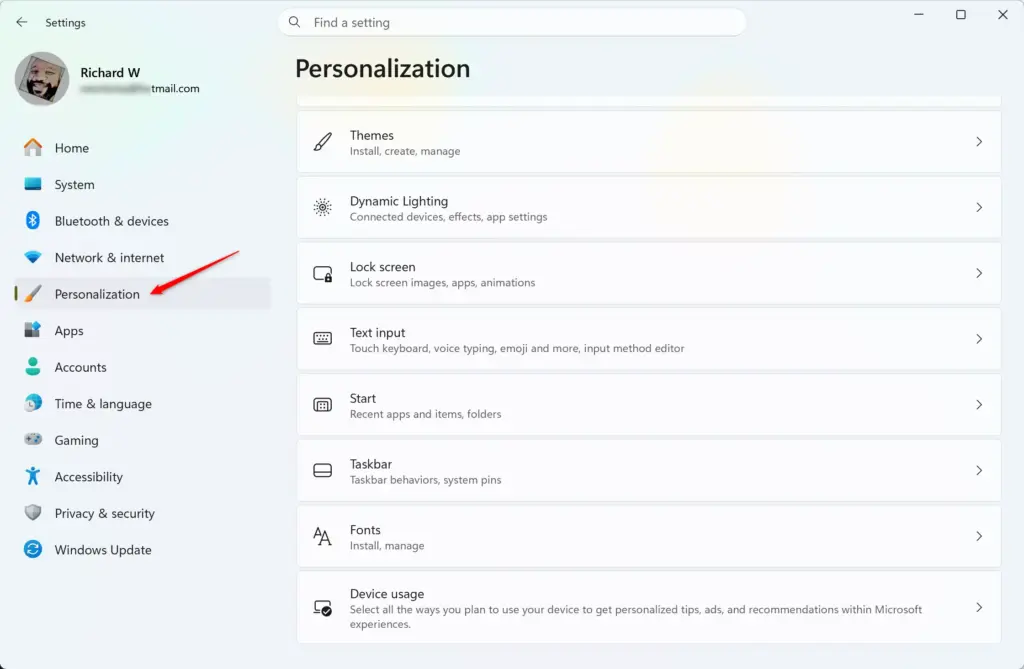
Settings › Personalization - Click Taskbar. The page lists taskbar settings.
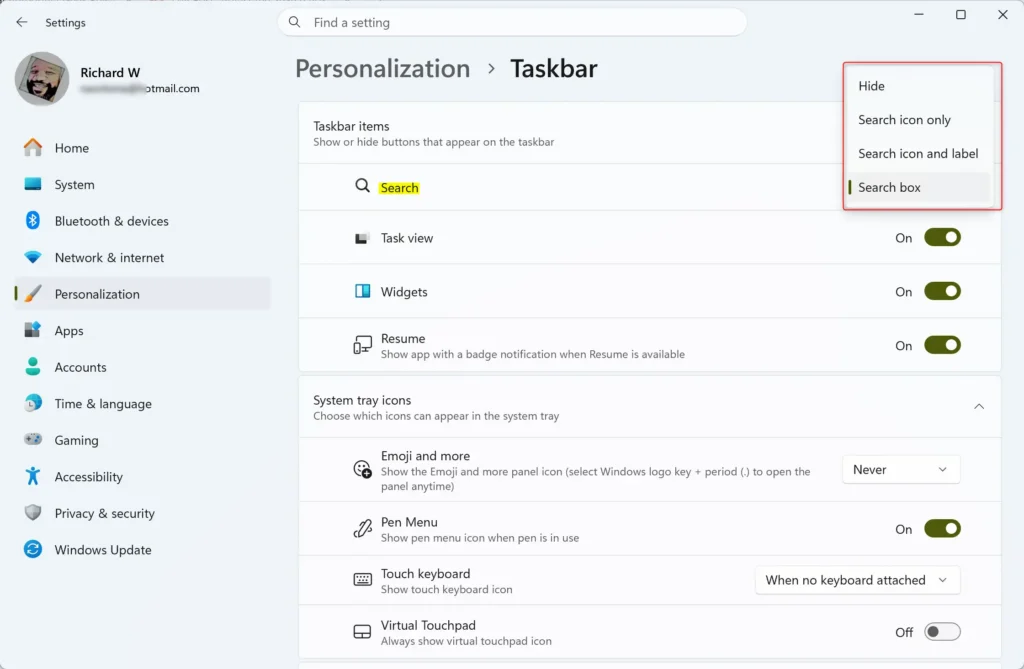
Settings > Personalization > Taskbar - Expand Taskbar items. The list shows toggles and dropdowns for items such as Search, Task view and Widgets.
- Open the Search dropdown and choose Hide. The box disappears from the taskbar at once.
The Search dropdown in Taskbar items offers three layouts: a search icon only, a search box, and an icon with a label. Pick one to bring search back. For details on each layout, see how to change the Windows 11 taskbar search button layout. The other search options are covered in adjusting the search box settings in Windows 11.
Stop Bing Web Results in Search
Turning off search highlights removes the trending content. It does not stop Bing web results from appearing when you type a query. Those are a separate setting. The exact steps depend on your version of Windows 11.
Microsoft’s notes for the September 2026 update describe clearer labels on search results. Each result now shows where it comes from: app, setting, file, web result or Store suggestion. A new setting lets you choose whether web and Microsoft Store suggestions appear alongside local results.
That update is rolling out, so you may not have it yet. If your Search settings include this option, turn it off to keep results local.
For the Start menu, follow how to turn off web results in Start menu search in Windows 11.
Remove News from the Widgets Board
If news headlines still appear when you hover over the left side of the taskbar or press Win+W, they come from the Widgets board. Search highlights do not control that board. You can hide the Widgets button from the taskbar, or remove the board entirely, by following how to add or remove Widgets on the Windows 11 taskbar.
How to Turn Trending News Back On
To turn trending news back on, go to Settings Privacy & security Search More settings and turn Show search highlights back On. You do not need to restart.
- Open Settings. Press Win+I.
- Click Privacy & security.
- Click Search.
- Expand More settings.
- Turn on Show search highlights. The toggle reads On, and the picture returns to the search box.
If you changed the taskbar layout, go to Settings Personalization Taskbar Taskbar items and set Search back to the layout you want.
Why Trending News May Come Back
This setting applies to your user account, so a new account on the same PC starts with its own default. Check each account separately if several people use the machine.
Insider builds also change the search experience. Microsoft states the new taskbar search with inline actions is for Windows Insiders only, so labels and defaults may differ there. If trending items return after an update, repeat the steps above and check that Show search highlights still reads Off.
Search that fails to open or return results is a different problem. For that, see Windows 11 search bar not working: 8 ways to fix it.
What to Do Next
Open the search box once more and confirm the panel no longer lists trending topics. If Bing web results still show when you type, turn those off next with the Start menu web results guide. If news still appears when you hover over the left side of the taskbar, hide or remove the Widgets board as described above.
Have a question about this guide?
Answered by AI from this guide. Good questions may be added to this page — please don't include personal details.
Did this guide fix your problem?

About the Author
Richard
Tech Writer, IT Professional
Richard is a writer at Geek Rewind who turns complex IT tasks into clear, step-by-step guides. He draws on years of hands-on experience in system administration and enterprise IT operations, focusing on Windows, Linux and WordPress: the problems people actually run into, and the fixes that work. His server and WordPress guides come from systems he runs himself. Richard builds and maintains the platform behind Geek Rewind, from its Ubuntu servers and Nginx configuration to its custom WordPress plugins. Many new tutorials start with readers' questions, and he's always glad to answer them in the comments.
No comments yet — be the first to share your thoughts!