How to Enable or Disable Bluetooth Swift Pair in Windows 11

Bluetooth Swift Pair in Windows 11 shows a notification on your screen when a supported accessory, such as a mouse, keyboard or headphones, is close to your PC and in pairing mode. You can pair the device from that notification without opening the Settings app and going through the Add a device flow.
Windows 11 turns Swift Pair on by default. If the pop-ups get in the way, for example in an office where other people’s accessories keep triggering them, you can turn the feature off at any time. The setting is the same on Home and Pro, and you don’t need to restart the PC after changing it.
Open Settings , click Bluetooth & devices, select Devices, then scroll to Device settings and uncheck Show notifications to connect using Swift Pair. The change applies immediately with no restart needed.
What is Swift Pair?
Swift Pair Swift Pair in Windows 11 makes pairing Bluetooth devices quick. Put a supported accessory near the PC and switch it into pairing mode, and Windows shows a desktop notification straight away. Connecting takes a couple of clicks.
A few things decide whether the notification appears:
- The accessory has to support Swift Pair. Many current mice, keyboards and headphones do, but older or very basic Bluetooth devices may not trigger a notification.
- The device has to be in pairing mode, not just switched on. The way to enter pairing mode differs by product. It is usually a button or a long press on the power or Bluetooth button, so check the accessory’s manual.
- The PC needs a working Bluetooth adapter, and Bluetooth must be turned on in Windows.
- The accessory has to be close to the PC. If it is too far away, no notification appears.
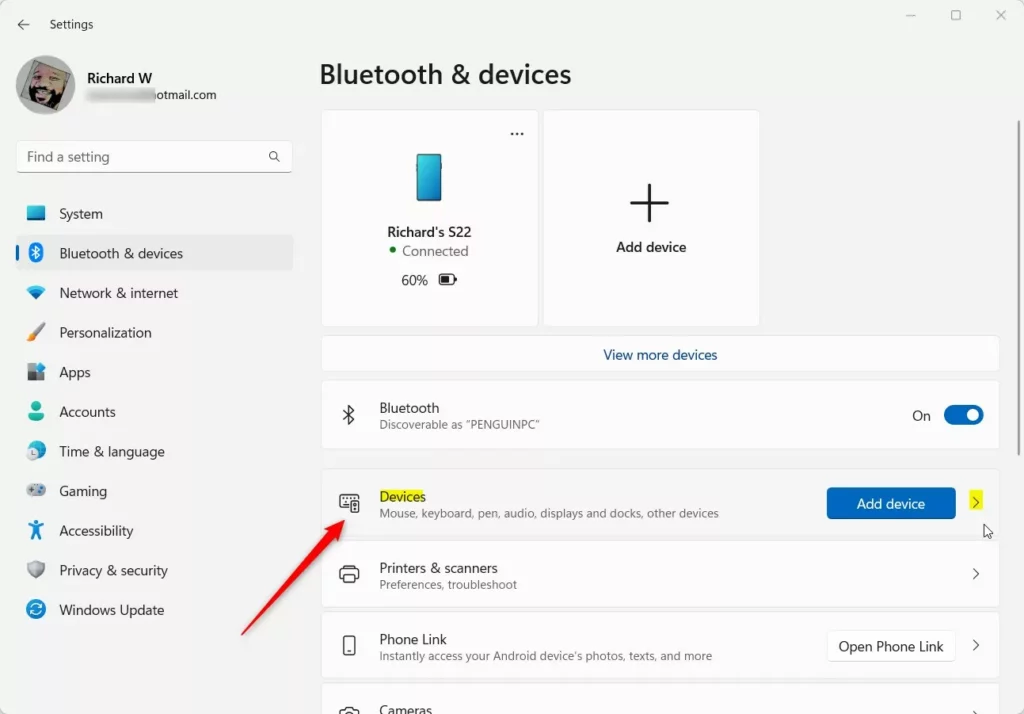
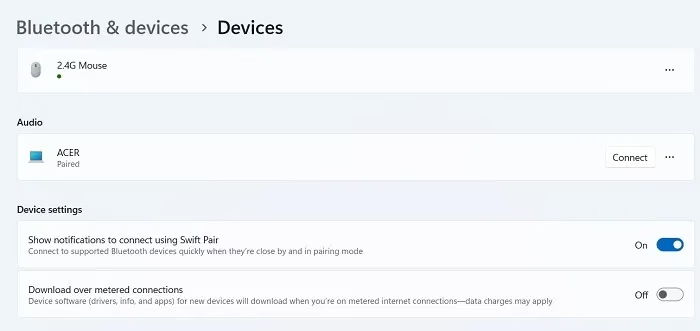
To change the setting, follow this order. The screenshots below show each stage.
- Open Settings and select Bluetooth & devices in the left pane.
- Click Devices. The page lists your paired devices and the Add device button.
- Scroll down to Device settings and find Show notifications to connect using Swift Pair.
- Tick the box to enable Swift Pair, or clear it to disable it.
The change applies immediately. To undo it, go back to the same page and set the checkbox the way it was.
Make sure the Bluetooth toggle at the top of Bluetooth & devices is on. If there is no toggle at all, check Device Manager for a Bluetooth adapter and update its driver.
Turning Swift Pair off does not unpair or remove any device you have already connected. You can still pair new accessories manually with Add device on the same page.

Option 1Use Settings
Turn Swift Pair On or Off for Your Account
You can turn off Swift Pair for your user account through the main Settings app in Windows 11. To disable swift pair windows 11 for your profile only, open Settings, select Bluetooth & devices, click Devices, and find the setting for showing notifications to connect nearby devices so you can turn it off.- Open Settings by pressing
Win+Ion your keyboard. - Click Bluetooth & devices on the left side.
- Click Devices on the right side.
- Under Device settings, find the option that says Show notifications to connect using Swift Pair.
- Turn it On (this is the default) or Off depending on what you want.
- Close Settings when you're done.
Option 2Use Registry Editor for Your Account
Turn Swift Pair On
System defaults keep this capability running. Run the following command to turn Swift Pair back on:
reg add "HKEY_CURRENT_USER\Software\Microsoft\Windows\CurrentVersion\Bluetooth" /v QuickPair /t REG_DWORD /d 1 /fTurn Swift Pair Off
Changing this system-wide setting stops Windows from showing connection pop-ups for any user account on the machine, which helps prevent unwanted pairing requests and speeds up your overall Bluetooth connections.
Administrator credentials are required to manage this feature across Windows 11. Logging in with an elevated profile governs peripheral discovery. Windows 11 blocks configuration updates unless these permissions are granted.
Enable Swift Pair for All Users
Activating this utility globally requires running the following command:
reg add "HKEY_LOCAL_MACHINE\SOFTWARE\Microsoft\PolicyManager\default\Bluetooth\AllowPromptedProximalConnections" /v value /t REG_DWORD /d 1 /fDisable Swift Pair for All Users
Deactivating peripheral discovery globally requires running the following command:
reg add "HKEY_LOCAL_MACHINE\SOFTWARE\Microsoft\PolicyManager\default\Bluetooth\AllowPromptedProximalConnections" /v value /t REG_DWORD /d 0 /fConfiguration updates apply immediately after execution.
Summary
Swift Pair in Windows 11 accelerates peripheral connectivity while remaining fully toggleable.
Learn more: pair Pair a Bluetooth device in Windows - Microsoft Support Swift Pair Open Bluetooth & devices settings Bluetooth Policy CSP
Was this guide helpful?

About the Author
Richard
Tech Writer, IT Professional
Richard is a writer at Geek Rewind who turns complex IT tasks into clear, step-by-step guides. He draws on years of hands-on experience in system administration and enterprise IT operations, focusing on Windows, Linux and WordPress: the problems people actually run into, and the fixes that work. His server and WordPress guides come from systems he runs himself. Richard builds and maintains the platform behind Geek Rewind, from its Ubuntu servers and Nginx configuration to its custom WordPress plugins. Many new tutorials start with readers' questions, and he's always glad to answer them in the comments.



No comments yet — be the first to share your thoughts!