Add New Multiple Desktops in Windows 11

Multiple desktops in Windows 11 let you create up to 60 separate workspaces on a single PC. Each desktop holds its own set of open apps and windows, so you can keep work, personal projects and entertainment apart without closing anything.
Task View is the built-in feature that shows all your open apps and workspaces. It opens with the Win+Tab shortcut or from the taskbar icon, and you can add as many new desktops there as you need. If you don’t see the Task View icon on the taskbar, go to Settings Personalization Taskbar and turn on Task view. The Win+Tab shortcut works either way.
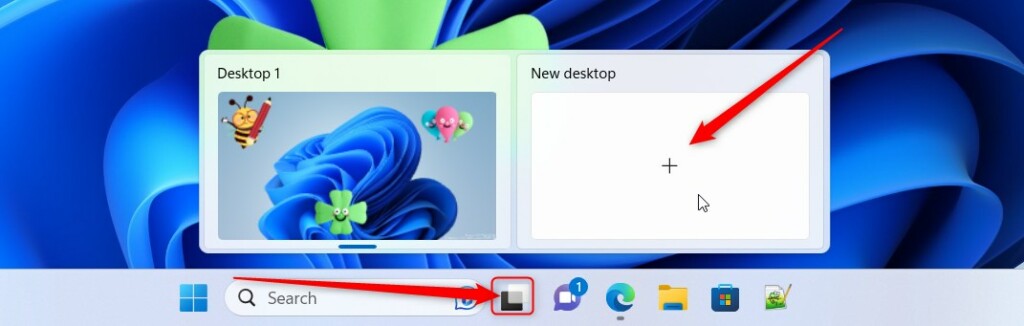
Click the Task View icon or press Win+Tab, then select “New desktop.” Alternatively, press Ctrl+Win+D to create a new desktop instantly. You can then rename your new desktop for organization.
How to Add New Virtual Desktops
Option 1Use a Keyboard Shortcut
The fastest way to add a desktop is the keyboard. Press the Win, Control and D at the same time. Windows creates a clean desktop and switches to it immediately, so you can sort your apps without reaching for the mouse.
Once a desktop exists, give it a name that tells you what it is for. Naming one “Work” separates professional projects from personal use, and “Games” keeps entertainment in its own space. Names are optional. Without one, Windows labels them Desktop 1, Desktop 2 and so on.
Windows moves you to the new desktop as soon as it is created. It starts empty, apart from the usual taskbar and desktop icons. Going back to an earlier desktop is quick, as the switching section below shows.
Option 2Use the Task View Button
If you prefer the mouse, use the taskbar button.
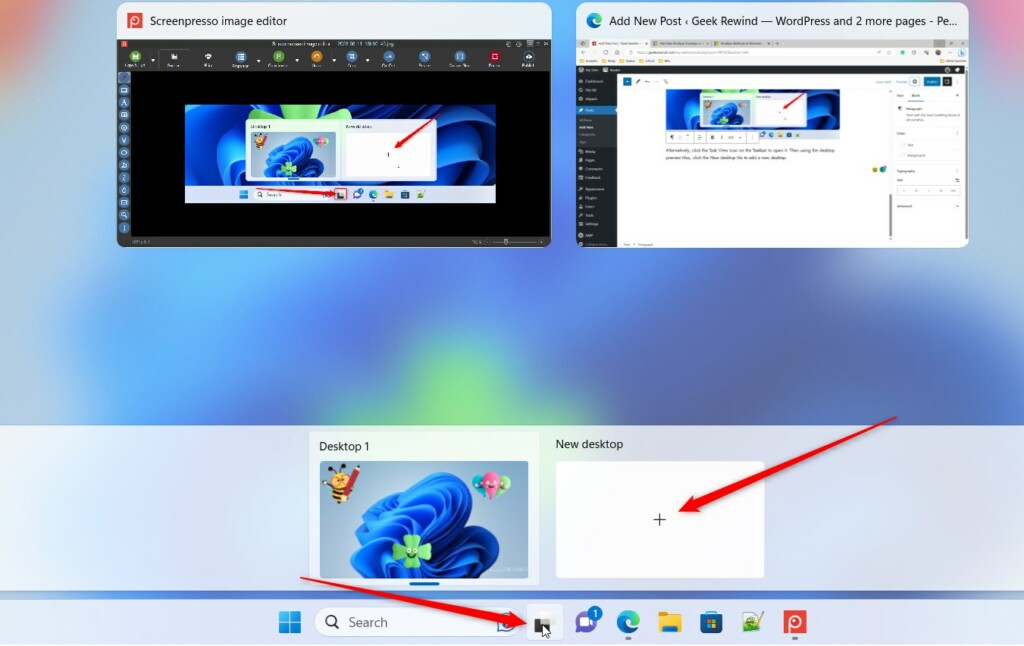
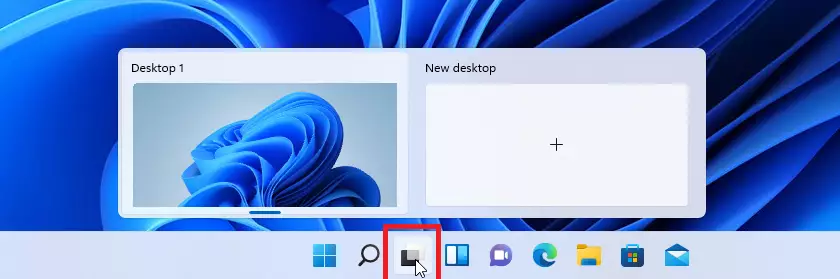
- Click the Task View button on the taskbar . Your open windows appear, with a bar of desktop thumbnails.
- Click New desktop to add a new desktop. The button sits in the desktop bar, and its exact position (top or bottom) varies a little between Windows 11 builds. A new thumbnail appears.
- Rename your new desktop to something you’ll easily remember. Click the name under the thumbnail and type a new one, then press Enter.
Option 3Open Task View Using Keyboard
You can also build the whole thing from the keyboard and Task View.
- Press
Win + Tabto open Task View. You will see your open windows and the desktop thumbnails. - Click the New desktop button at the top left corner. On some builds it sits in the desktop bar instead, so look there if you don’t see it.
- Wait a moment. You will switch to the new desktop automatically, and it will be empty.
- Rename it to whatever you like. Open Task View again, right-click the desktop thumbnail and select Rename. Type the name and press Enter.
To change a name later, repeat the last step. Renaming doesn’t affect the apps on that desktop.
How to Switch Between Desktops
You have two ways to move between desktops. Use whichever suits how you work.
- Press
Win + Tabto open Task View, then click on the desktop you want. Its apps appear and you are taken to that desktop. - Or use
Ctrl + Win + Left ArroworRight Arrowkeys to move between desktops quickly. This switches directly, with no need to open Task View first.
How to Close a Virtual Desktop
Closing a desktop does not close your apps. Windows moves them to a neighboring desktop, so you won’t lose unsaved work.
- Open Task View (
Win + Tab). The desktop thumbnails appear. - Hover over the desktop you want to close. A small X appears on its thumbnail.
- Click the X button on that desktop’s thumbnail. The thumbnail disappears and its open windows move to the adjacent desktop.
You can’t undo this, but you can create a new desktop in seconds and drag windows into it. In Task View, drag a window thumbnail onto a desktop thumbnail to move it.
Why Use Multiple Desktops?
- Stay organized: Keep your work apps separate from games or entertainment.
- Easy multitasking: Switch between projects without closing anything.
- Personalize: Name your desktops for quick access.
- Keep things running: Desktops stay even after restarting your PC. Apps don’t always reopen on their own, so you may need to relaunch them.
- Work smarter: Move fast between work and fun without clutter.
Using multiple desktops in Windows 11 helps you separate open apps into different workspaces so your screen stays organized. You can keep work programs on one desktop and entertainment apps on another, letting you switch between projects quickly without closing windows or cluttering your main display.
For more info, visit the official Microsoft support page: Multiple Desktops in Windows 11 - Microsoft Support
Summary
Windows 11 offers native tools to create and manage multiple desktops, allowing distinct workspaces for different tasks. No extra software is needed, and the feature works the same on Home and Pro editions.
Have a question about this guide?
Answered by AI from this guide. Good questions may be added to this page — please don't include personal details.
Did this guide fix your problem?

About the Author
Richard
Tech Writer, IT Professional
Richard is a writer at Geek Rewind who turns complex IT tasks into clear, step-by-step guides. He draws on years of hands-on experience in system administration and enterprise IT operations, focusing on Windows, Linux and WordPress: the problems people actually run into, and the fixes that work. His server and WordPress guides come from systems he runs himself. Richard builds and maintains the platform behind Geek Rewind, from its Ubuntu servers and Nginx configuration to its custom WordPress plugins. Many new tutorials start with readers' questions, and he's always glad to answer them in the comments.
No comments yet — be the first to share your thoughts!