How to Enable or Disable “Show Hover Cards for Inactive and Pinned Taskbar Apps” in Windows 11

Taskbar hover cards in Windows 11 show a small preview window or quick menu when you hover over an open or pinned app icon. The feature first appeared in build 22635.4000 (Beta). It lets you see recent files and common actions without right-clicking first.
You can turn this hover behavior on or off. Below are two ways to do it: the Settings app and the Registry Editor. Both are reversible.
Open Settings , go to Personalization, then Taskbar, expand Taskbar behaviors, and toggle “Show hover cards for inactive and pinned taskbar apps.” Alternatively, edit the Windows Registry at Computer\🗝️HKEY_CURRENT_USER\
Show or hide hover cards for inactive and pinned taskbar apps
The Settings app is the easiest method. Hover cards appear when you point at an open or pinned icon on the taskbar , and one toggle in the Taskbar settings controls them. Here’s how to change it.
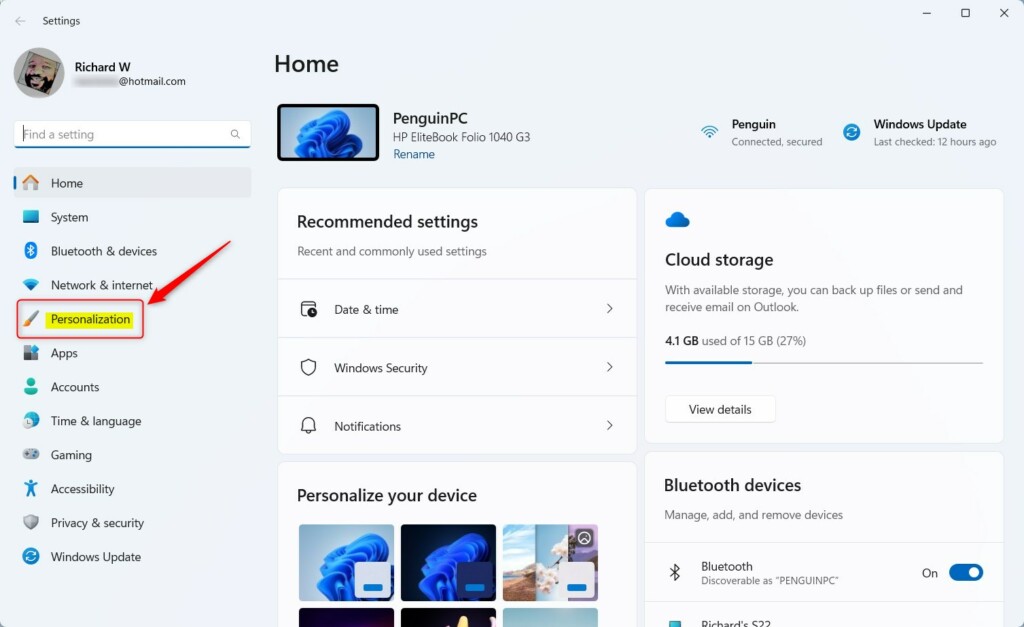
- Open Settings . Click Start and select Settings, or press the Win+I.
- In the Settings app, click Personalization in the left pane. The personalization options appear on the right.
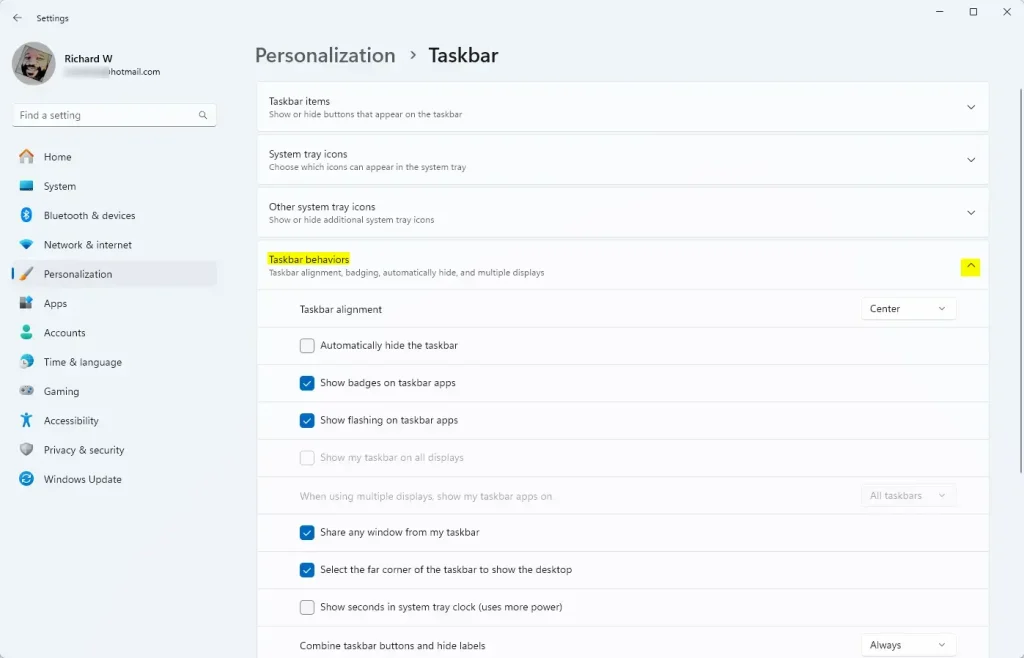
- On the right, select the Taskbar tile. The taskbar settings page opens.

- On the Personalization Taskbar page, scroll down and expand Taskbar behaviors.
- Find Show hover cards for inactive and pinned taskbar apps and switch it On or Off. The change applies right away, so you can test it by pointing at an icon on the taskbar .
If you don’t see this option, your build probably doesn’t include the feature yet. It first appeared in build 22635.4000 (Beta). Check Settings Windows Update for newer builds, or use the registry method below if your build supports the value. The Settings method works the same on Home and Pro. To undo the change, flip the toggle back.
- Close the Settings app to finish.
Turn on or off hover cards for inactive and pinned taskbar apps using the Windows Registry Editor
Registry Editor is a tool for changing advanced system settings. Use it if the Settings app doesn’t work for you or the toggle is missing. You open the program, browse to the right key in the left pane, and edit a value in the right pane. Registry changes can affect how Windows behaves, so export the key first (File Export) so you can restore it if something goes wrong.
- Open Registry Editor. Press the Win, type regedit, and press Enter. Click Yes if User Account Control asks for permission.
- Browse to the key path shown below. You can paste it into the address bar at the top of the window.
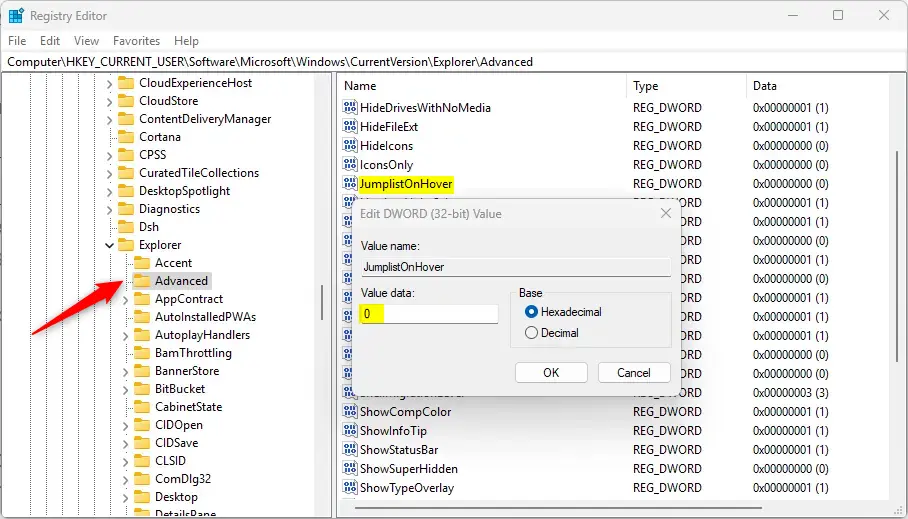
Computer\HKEY_CURRENT_USER\Software\Microsoft\Windows\CurrentVersion\Explorer\Advanced
- In the right pane of the Advanced key, find the REG_DWORD value named “JumplistOnHover” and double-click it. The Edit DWORD (32-bit) Value box opens.
- In the Value data box, enter 1 to turn hover cards on for inactive and pinned apps on the taskbar , or 0 to turn them off.
- Click OK.
If the “JumplistOnHover” value is missing, create it:
- Right-click an empty space in the right pane and select New DWORD (32-bit) Value.
- Name it “JumplistOnHover” and press Enter.
- Double-click the new value and enter 1 to enable the feature or 0 to disable it. Click OK.
- Close Registry Editor. The change is saved as soon as you click OK.
- Restart the computer so the new setting takes effect.
To undo the change later, set the value back to its previous number, or delete the value you created.
That completes the process.
Conclusion:
- You can enable or disable hover cards for inactive and pinned taskbar apps in Windows 11 through the Settings app or the Registry Editor.
- The feature appeared in Windows 11 build 22635.4000 (Beta). It gives quicker access to jump lists when you hover over an app on the taskbar.
- The "Show hover cards for inactive and pinned taskbar apps" setting lets you tailor taskbar behavior to your preference.
- For advanced users, the Registry Editor offers another method, using the "JumplistOnHover" REG_DWORD value.
Have a question about this guide?
Answered by AI from this guide. Good questions may be added to this page — please don't include personal details.
Did this guide fix your problem?

About the Author
Richard
Tech Writer, IT Professional
Richard is a writer at Geek Rewind who turns complex IT tasks into clear, step-by-step guides. He draws on years of hands-on experience in system administration and enterprise IT operations, focusing on Windows, Linux and WordPress: the problems people actually run into, and the fixes that work. His server and WordPress guides come from systems he runs himself. Richard builds and maintains the platform behind Geek Rewind, from its Ubuntu servers and Nginx configuration to its custom WordPress plugins. Many new tutorials start with readers' questions, and he's always glad to answer them in the comments.
No comments yet — be the first to share your thoughts!