How to Change Touchpad Right-Click Region in Windows 11

The touchpad right-click region in Windows 11 lets you set aside the bottom corner of your laptop’s touchpad so that pressing there opens context menus, just as a mouse right-click would. Microsoft Surface and many modern Windows 11 laptops include this setting, so you can match the pad to how you hold your hands.
The usual place to look is Settings, then Bluetooth & devices, then Touchpad. The right-click corner options are there, and you can choose whether the bottom-right or bottom-left corner triggers your secondary clicks. If you don’t see them, your device or Windows build may not support the option yet. The requirements are covered below.
Open the Surface app, tap Touchpad settings, and select Large, Medium or Small for the right-click region size. The change takes effect immediately without restart.
Why Change Your Right-Click Region Size?
The setting controls how much of the bottom corner acts as a right-click button. A bigger zone is easier to hit, and a smaller one leaves more of the pad for normal left-clicking.
What Happens When You Change This Setting?
Changing the right-click region adjusts how much of the bottom corner acts as a secondary click. A larger area makes a right-click easier to trigger. A smaller area lowers the chance of a right-click when you meant a left-click, and the reverse is also true. You will probably need a few minutes of normal use to find the size that suits you.
- Your laptop needs a precision touchpad.
- The pad needs a pressable surface. Hardware limitations apply, and the adjustment won’t take effect without one.
- You need a recent Windows 11 build. The native capability arrived in build 26220.8138 (Beta 25H2) and build 26300.8142 (Dev 25H2), and in anything newer.
That means the manufacturer has set the region itself. If you see “Custom”, you won’t see Large, Medium and Small until you pick one of those presets.
How to Change Your Right-Click Region Size
- Open the Surface app. On a Surface device this is the Surface app.
- Click or tap Touchpad settings to expand it. The touchpad options should now be listed on screen.
- Select the size you want for the right-click region: Large, Medium or Small.
- Press the bottom corner of the touchpad to test the new region. If it feels too sensitive or too hard to hit, go back and pick a different size.
- Close the Settings app when you're done. You don't need to restart.
To undo the change, repeat the steps and select your previous size.
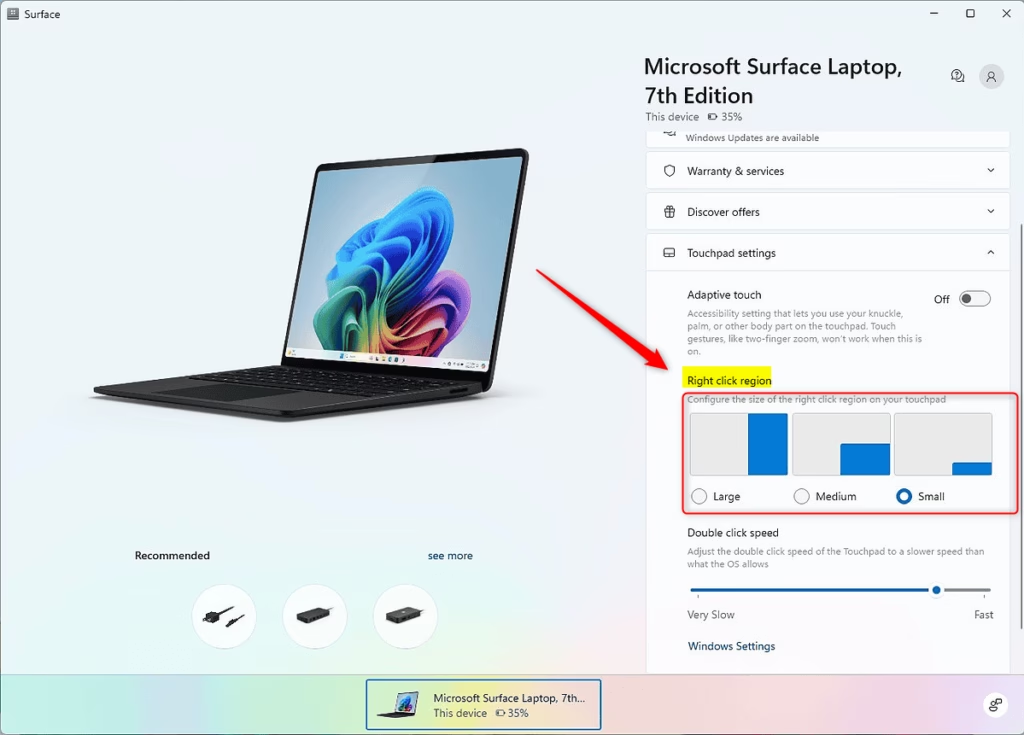
To change the region size, open the Surface app on your device and find the touchpad settings menu. You can pick one of three presets: Large, Medium or Small. The change takes effect right away, so you can test the new click area immediately. If the options are missing or greyed out, check that your touchpad is a precision touchpad and that Windows is up to date.
Summary
Adjusting the right-click zone takes only a few seconds. Open the Surface app, go to Touchpad settings, and choose Large, Medium or Small. Updating this boundary can make day-to-day navigation easier and more comfortable, especially if you often right-click by accident or struggle to hit the corner.
Have a question about this guide?
Answered by AI from this guide. Good questions may be added to this page — please don't include personal details.
Did this guide fix your problem?

About the Author
Richard
Tech Writer, IT Professional
Richard is a writer at Geek Rewind who turns complex IT tasks into clear, step-by-step guides. He draws on years of hands-on experience in system administration and enterprise IT operations, focusing on Windows, Linux and WordPress: the problems people actually run into, and the fixes that work. His server and WordPress guides come from systems he runs himself. Richard builds and maintains the platform behind Geek Rewind, from its Ubuntu servers and Nginx configuration to its custom WordPress plugins. Many new tutorials start with readers' questions, and he's always glad to answer them in the comments.
No comments yet — be the first to share your thoughts!