How to Turn Touchpad Haptic Feedback on or off in Windows 11

- 19 steps
- Includes a restart or sign-out
Touchpad haptic feedback in Windows 11 uses subtle vibrations to mimic a physical click on supported laptops. It only works on Precision Touchpads (the standard Windows touchpad type) with haptic hardware. On those machines you can turn the feature on or off, and you can change the vibration strength to suit your preference.
Most of this happens in the Settings app. Turning the feature off keeps the touchpad silent and saves a little battery power. Update KB5083631 also adds a newer Haptic signals setting, covered first below. If no option appears on your laptop, the touchpad probably does not support haptic feedback, and the registry method later in this article is the fallback.
To turn touchpad haptic feedback on or off in Windows 11, open Settings (Win+I), go to Bluetooth & devices Touchpad, and switch Haptic click off or on. The change applies immediately with no restart. If you have update KB5083631, look under Mouse, Touchpad, or Pen Haptic signals instead.
Option 1Taming Your Touchpad with Windows Settings
The newest way to do this comes with Windows 11 update KB5083631. Microsoft describes it as haptic signals for pen and mouse. Compatible input devices can give haptic feedback when you align objects in PowerPoint or snap and resize windows. Microsoft lists the Surface Slim Pen 2, ASUS Pen 3.0, and MSI Pen 2 as supported.
If your PC has this update, try the steps below first:
- Press Win+I to open Settings.
- Click Bluetooth & devices in the left-hand list.
- Click Mouse, Touchpad, or Pen, whichever matches the device you want to change. The full path is Settings Bluetooth & devices > Mouse, Touchpad, or Pen Haptic signals.
- Find Haptic signals and switch it on or off.
That’s it. Haptic signals are now set the way you want for that device. If you do not see Haptic signals, your PC does not have the update yet or your device does not support it. In that case, use the steps below. To undo the change, return to the same page and flip the switch back.
Step 1Open Your Settings
- Press Win+I on your keyboard at the same time.
The Settings app opens. You can also reach it from the Start menu if you prefer.
Step 2Go to Touchpad Settings
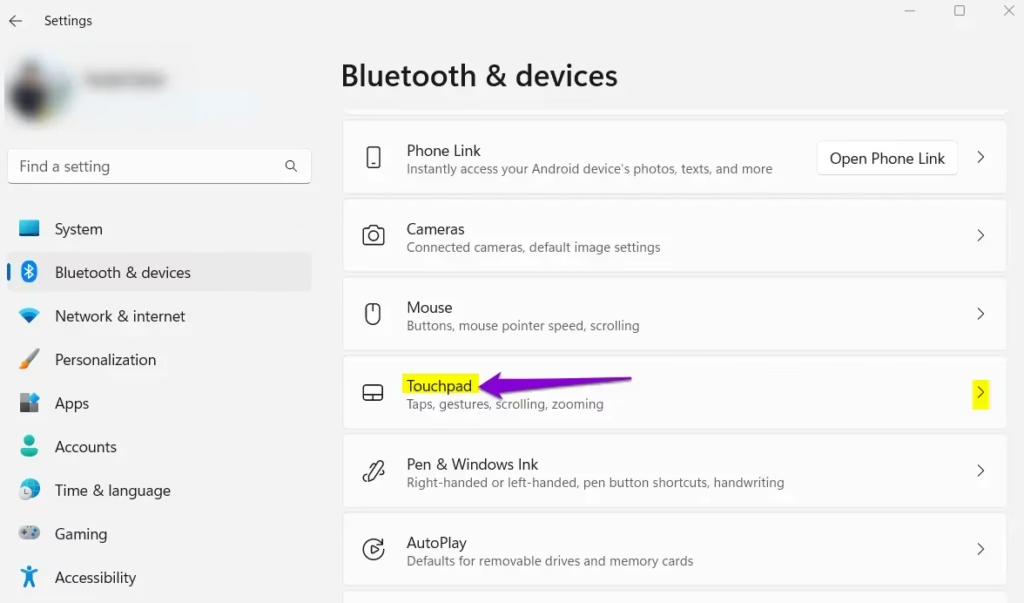
- Click Bluetooth & devices in the left-hand list.
- Click Touchpad on the right side of the window.
The touchpad settings expand on the page. If Touchpad is missing from the list, Windows does not see a touchpad. Check that it is not disabled and that the touchpad driver (the software that lets Windows talk to the hardware) is installed.
Step 3Turn the Haptic Click On or Off
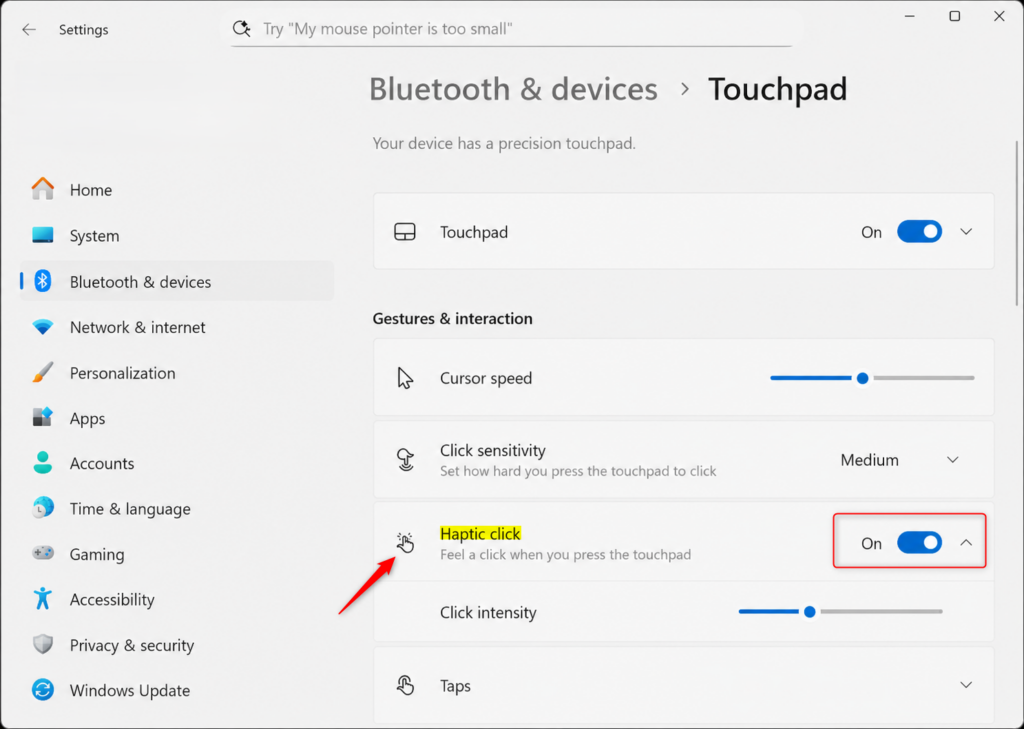
- Find the Haptic click option.
- Click the switch next to it to turn the simulated click feeling on or off.
The switch changes position right away, and the new setting applies at once. Most touchpads that support this feature have haptic click enabled by default.
If you do not see Haptic click, your touchpad hardware does not offer it. To undo the change at any time, return to this page and flip the switch back. There is no restart involved.
Step 4Close Settings and Test
- Close Settings.
- Tap and press the touchpad a few times to test your changes.
You should feel the difference right away between a firm click and a muted tap. If nothing seems to have changed, reopen the Touchpad page and check that the switch is where you left it.
That’s it. Haptic click is now on or off on your touchpad, and Windows keeps the setting until you change it again.
Option 2Using the Registry Editor for More Control
Open Registry Editor (a database for low-level system settings) if the standard menu options are missing. Be very careful here, because mistakes can cause system problems. This method lets you manage your touchpad feedback directly through system settings.
Back up your Registry before starting, or follow these steps exactly. In Registry Editor, you can make a backup with File Export. If you are not comfortable with registry editing, stick to Option One.
Step 1Open the Registry Editor
- Press Win+R to open the Run box.
- Type regedit into the Open field and press Enter.
- Click Yes if a User Account Control prompt asks for your permission.
Registry Editor opens, with a folder tree on the left and values on the right. If you are on a work or school PC, an administrator may have blocked Registry Editor, and you will see a message saying so.
Step 2Go to the Correct Registry Location
- In the left pane, expand the folders one at a time until you reach 🗝️HKEY_CURRENT_USER\
SOFTWARE\ .Microsoft\ Windows\ CurrentVersion\ PrecisionTouchPad - Click the PrecisionTouchPad folder to select it.
This folder holds the keys that control touchpad haptic feedback in Windows 11. The full path is:
HKEY_CURRENT_USER\SOFTWARE\Microsoft\Windows\CurrentVersion\PrecisionTouchPad
Click each folder name to open it and work down the path. If you do not see the PrecisionTouchPad folder, your system does not have this setting and this method will not work. Check that you followed the path correctly. If it is still missing, your computer likely does not support the feature.
This key is under 🗝️HKEY_CURRENT_USER, so it only affects the account you are signed in to.
Step 3Change the ‘FeedbackEnabled’ Setting
- With PrecisionTouchPad selected, double-click the FeedbackEnabled item in the right pane.
- In the Value data box, type the number for the state you want.
- Click OK to save the change.
The Value data box tells Windows whether to play the click sensation when you press the pad.
To turn haptic click feedback on, type 1 in the Value data box.
To turn haptic click feedback off, type 0 in the Value data box.
Use 1 for on and 0 for off. To undo the change later, open the same item and enter the other number.
Step 4Apply the Changes
Registry changes may not apply to the running session. Sign out and back in, or restart, to make sure they take effect.
- Sign Out and Sign InThis is usually the quickest way. Sign out of your Windows account, then sign back in.
- Restart Your PCTo make sure the change is fully applied, restart your computer.
After you sign back in or restart, test your touchpad right away. Press it a few times to confirm that haptic feedback is now on or off as you intended. If it is not, reopen Registry Editor and check the FeedbackEnabled value.
That’s it. The FeedbackEnabled value now controls haptic click for your account, and you can switch it back at any time by entering the other number.
Summary
To manage your Windows 11 touchpad haptic preferences in the Settings app, go to Bluetooth & devices > Touchpad and toggle the Haptic click switch. On PCs with update KB5083631, you can also use Bluetooth & devices > Mouse, Touchpad, or Pen Haptic signals.
If those menu options are missing, you can change the FeedbackEnabled value in Registry Editor instead. It is inside 🗝️HKEY_CURRENT_USER\
Have a question about this guide?
Answered by AI from this guide. Good questions may be added to this page — please don't include personal details.
Did this guide fix your problem?

About the Author
Richard
Tech Writer, IT Professional
Richard is a writer at Geek Rewind who turns complex IT tasks into clear, step-by-step guides. He draws on years of hands-on experience in system administration and enterprise IT operations, focusing on Windows, Linux and WordPress: the problems people actually run into, and the fixes that work. His server and WordPress guides come from systems he runs himself. Richard builds and maintains the platform behind Geek Rewind, from its Ubuntu servers and Nginx configuration to its custom WordPress plugins. Many new tutorials start with readers' questions, and he's always glad to answer them in the comments.
No comments yet — be the first to share your thoughts!