How to Stop Microsoft Edge from Creating Desktop Shortcuts

You can stop Microsoft Edge from creating desktop shortcuts by disabling a specific setting within Windows.
Microsoft Edge, the default browser for Windows 11, sometimes adds desktop shortcuts automatically, especially after updates, to promote its use. These shortcuts can be persistent and reappear even after you delete them.
This behavior is tied to how Edge manages its presence and update mechanisms. Fortunately, you can take control and prevent these shortcuts from reappearing, ensuring a cleaner desktop experience.
You stop Microsoft Edge from creating desktop shortcuts by modifying the Windows Registry. Open Registry Editor, navigate to the Update folder, create a new DWORD value named RemoveDesktopShortcutDefault, and set its data to 1.
How to Stop Edge from Creating Desktop Shortcuts
Step 1Open the Registry Editor
Step 1: Open the Registry Editor. First, you need to open the Windows Registry editor on your computer. (This is a powerful tool for making system changes.)
Step 2Navigate to the Correct Folder
Go to this folder location:
HKEY_LOCAL_MACHINE\SOFTWARE\Policies\Microsoft\Edge\UpdateIf you don’t see the EdgeUpdate folder, right-click on the Microsoft folder. Then create a new subfolder called EdgeUpdate.
Step 3Create a New Value ⚠️ Requires Admin Access
On the right side of the window, right-click in the empty space. Select New, then choose DWORD (32-bit) Value. (This creates a new data entry for the registry.)
Now, type this name for the new value:
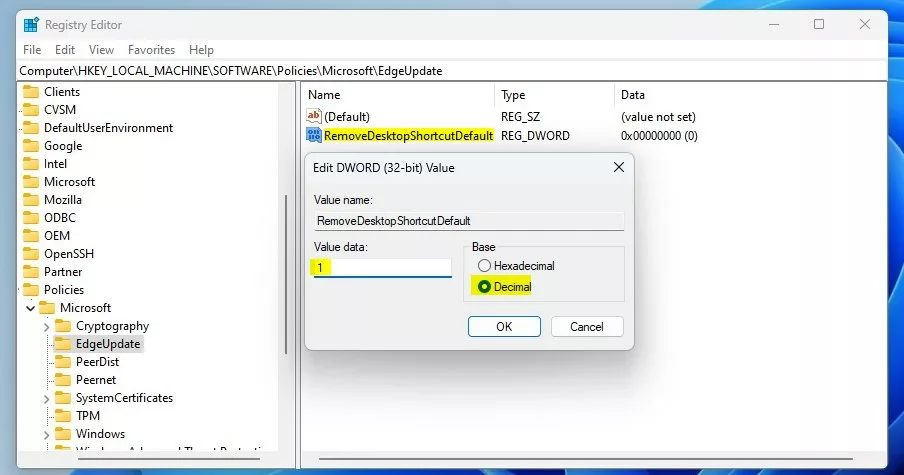
RemoveDesktopShortcutDefaultStep 4Set the Value
Double-click on RemoveDesktopShortcutDefault. In the box that opens, enter 1 as the value.
Setting it to 1 stops Edge from creating desktop shortcuts.
Setting it to 0 allows Edge to keep creating shortcuts automatically.
Step 5 Restart Your Computer
Restart your computer to apply these changes. After you restart, Edge will no longer create desktop shortcuts automatically.
Summary
Microsoft Edge sometimes adds desktop shortcuts automatically, which can clutter your screen.
Was this guide helpful?

About the Author
Richard
Tech Writer, IT Professional
Richard, a writer for Geek Rewind, is a tech enthusiast who loves breaking down complex IT topics into simple, easy-to-understand ideas. With years of hands-on experience in system administration and enterprise IT operations, he’s developed a knack for offering practical tips and solutions. Richard aims to make technology more accessible and actionable. He's deeply committed to the Geek Rewind community, always ready to answer questions and engage in discussions.



No comments yet — be the first to share your thoughts!