How to Enable Faster Microsoft Edge Updates on Windows 11

You can enable faster Microsoft Edge updates on Windows 11 directly within the browser’s settings. This allows you to receive new features and critical security patches sooner.
Microsoft Edge is the default browser for Windows 11 and is built on the Chromium engine, sharing its foundation with Google Chrome. Enabling this setting ensures you automatically get the latest AI-powered tools and security enhancements.
This feature works by delivering updates when your PC is not actively being used, providing a more secure and up-to-date browsing experience without requiring manual intervention. You’ll benefit from the latest advancements in performance and protection.
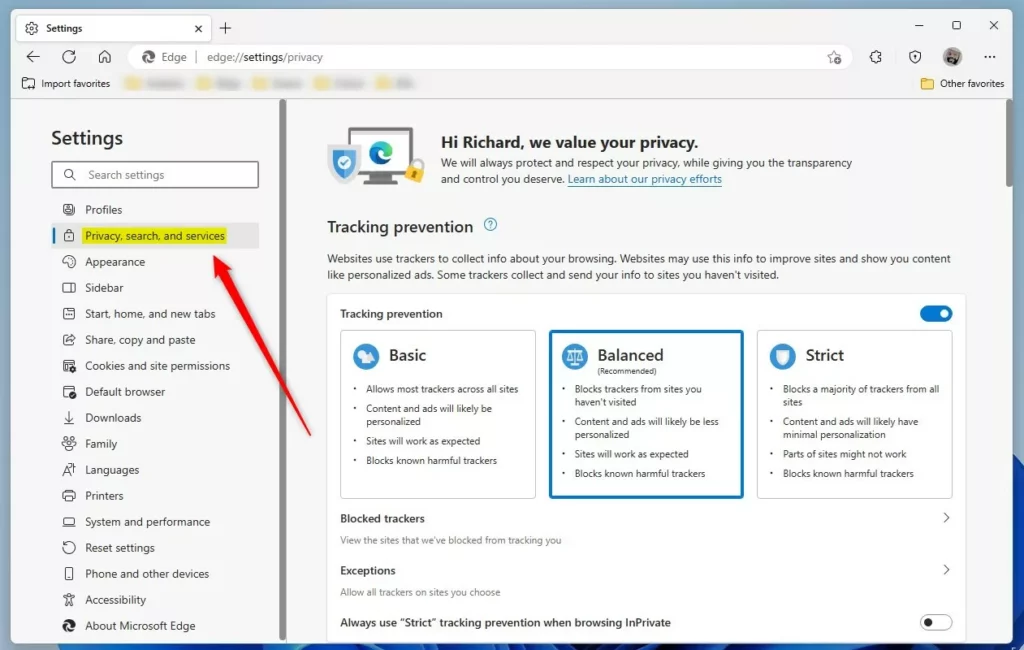
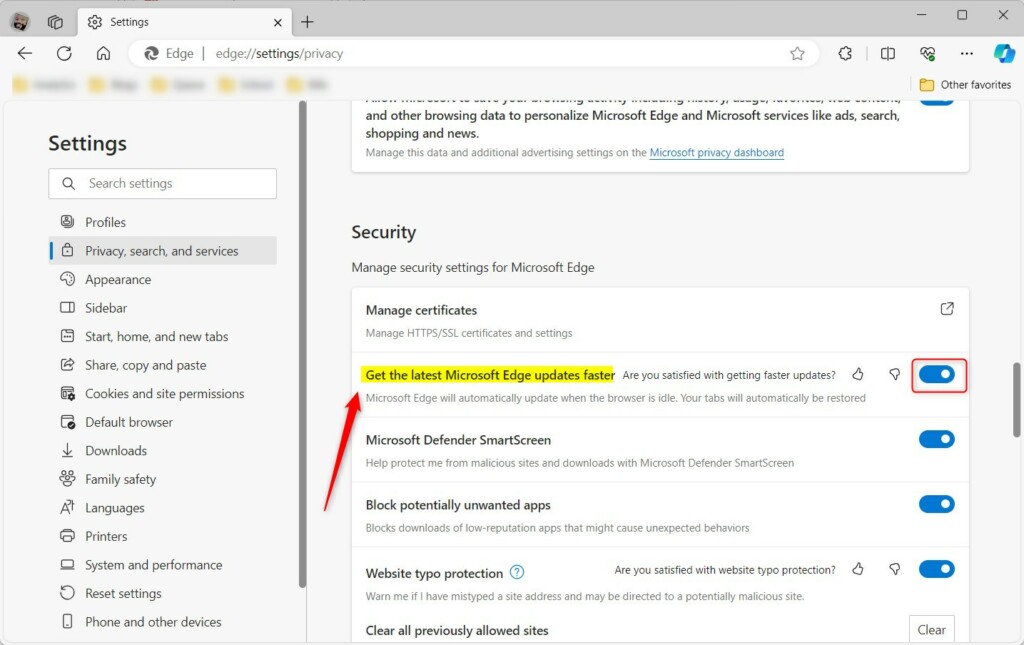
Navigate to Edge Settings, then click “About Microsoft Edge” in the left sidebar. Toggle “Get the latest Microsoft Edge updates faster” to the On position to receive updates sooner. This ensures you get new features and security patches automatically.
Turn ‘Get the latest Microsoft Edge updates faster’ on or off
You can turn on faster Microsoft Edge updates to get security fixes and new features sooner on your Windows 11 PC.
- Open the Microsoft Edge browser.
- Click the three dots (…) in the top right corner.
- Select Settings.
- Click About Microsoft Edge at the bottom of the left sidebar.
- Toggle Get the latest Microsoft Edge updates faster to On.
To turn it off, repeat those steps and toggle the switch to Off.
And that’s it!
Conclusion
Turning this feature on ensures your browser updates automatically when you are not using it. This keeps you safe and gives you the newest AI features. Turning it off is helpful if you have a limited internet connection or want to update your browser manually.
Was this guide helpful?

About the Author
Richard
Tech Writer, IT Professional
Richard, a writer for Geek Rewind, is a tech enthusiast who loves breaking down complex IT topics into simple, easy-to-understand ideas. With years of hands-on experience in system administration and enterprise IT operations, he’s developed a knack for offering practical tips and solutions. Richard aims to make technology more accessible and actionable. He's deeply committed to the Geek Rewind community, always ready to answer questions and engage in discussions.



No comments yet — be the first to share your thoughts!