How to Manage Startup Page in Microsoft Edge

You can manage your Microsoft Edge startup page to automatically open specific websites when you launch the browser.
Microsoft Edge allows you to control which web pages load automatically upon opening, offering a personalized browsing experience.
Setting your preferred startup pages, such as your work portal or favorite news site, saves you time by having them instantly accessible.
This feature, available from Edge version 120 onwards, lets you choose to open one or multiple pages simultaneously.
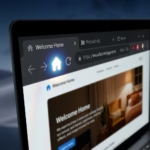
Configure your Microsoft Edge startup page by going to Settings > Start, home, and new tabs. There, you can choose to open a new tab, restore your last session, or specify custom pages to load automatically.
Manage Edge start settings
You can easily manage the startup page in Microsoft Edge to choose what opens when you start the browser. Whether you want a fresh new tab, to pick up where you left off, or to load specific sites, Edge lets you control its startup behaviour.
- Open the Microsoft Edge browser.
- Click the Settings and more (three dots) icon in the top right corner.
- Select Settings.
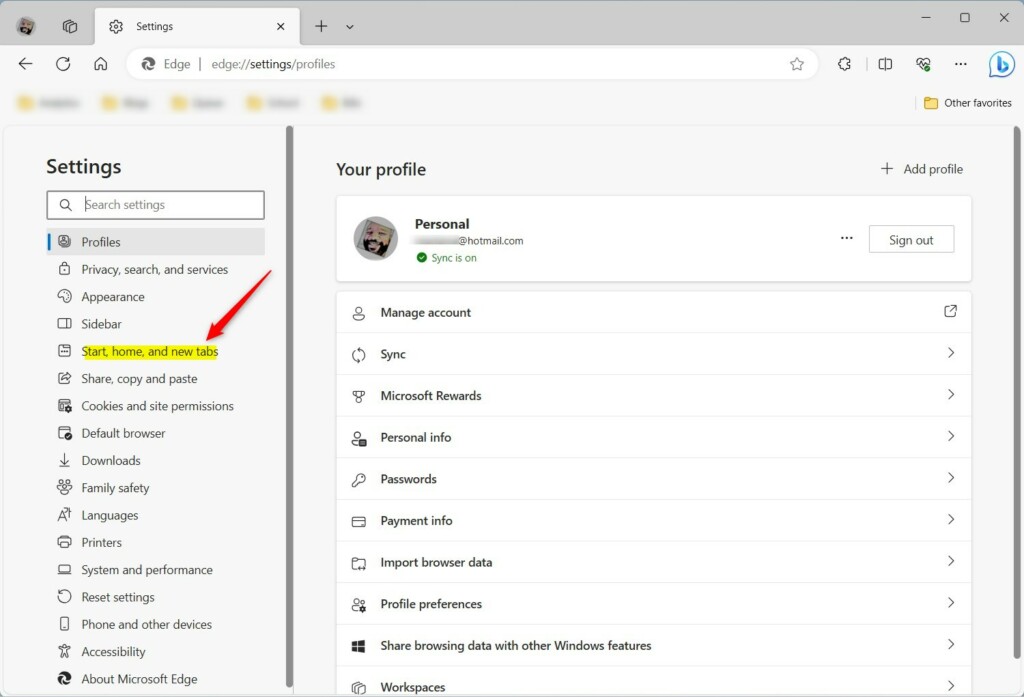
- In the Search settings bar at the top, type “Start” to quickly find the right section.
- Click on Start, home, and new tabs in the left menu.
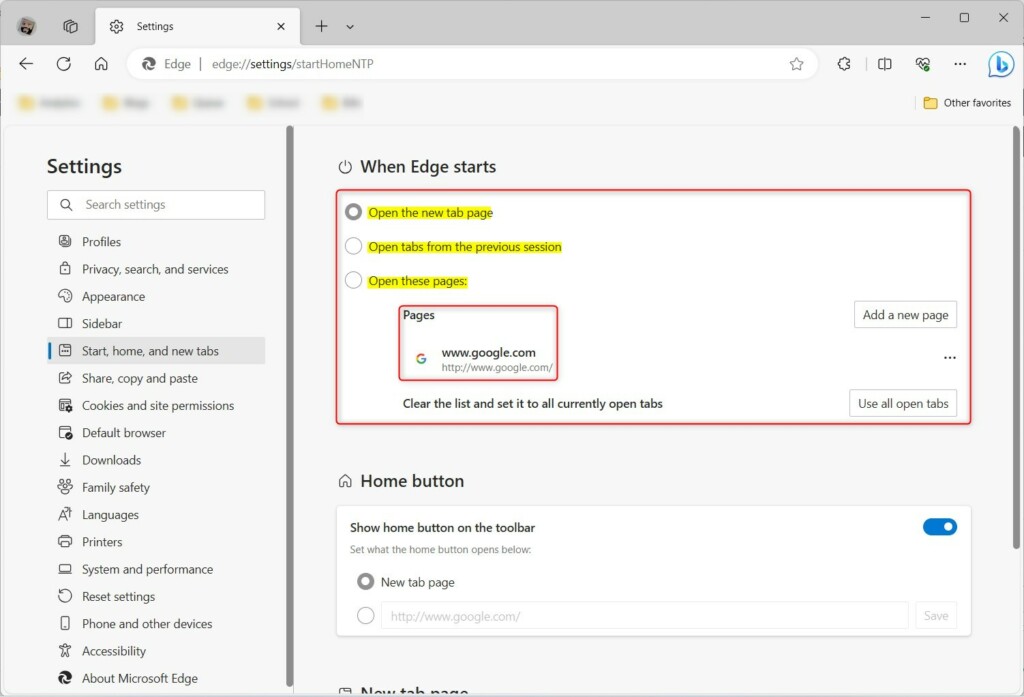
On the right side, under the When Edge starts section, you have a few choices:
- Open the new tab page: Shows a clean new tab every time.
- Open tabs from the previous session: Restores the websites you had open when you last closed the browser.
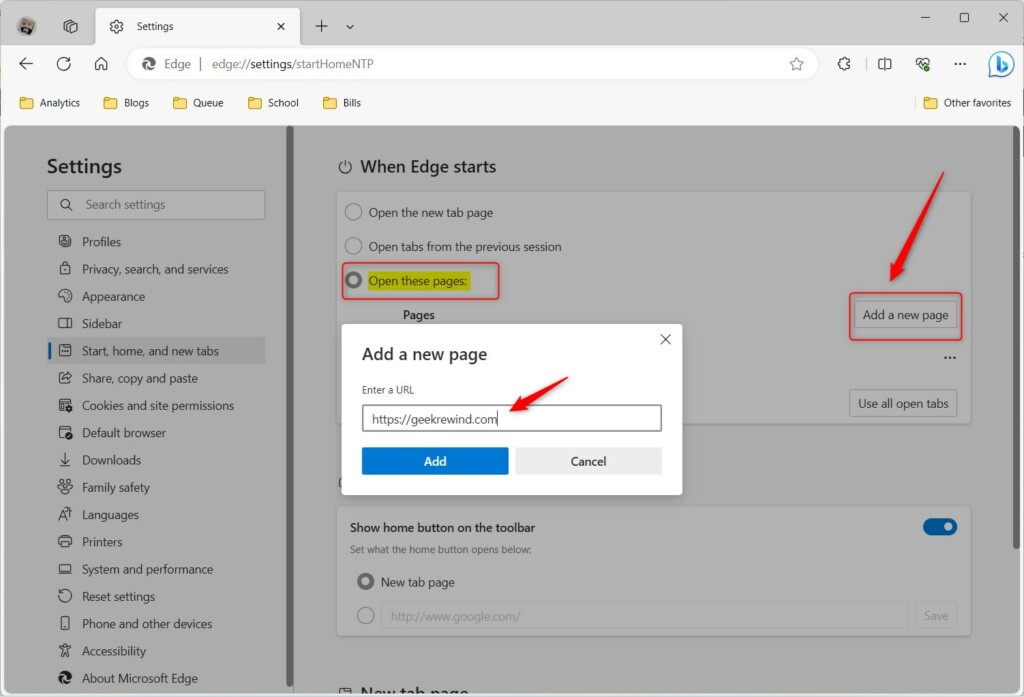
- Open these pages: Allows you to add specific websites that will always launch at startup.
If you choose Open these pages, click Add a new page to enter the URLs of the sites you want to see first.
System and Performance Features
Two settings, Startup boost and Sleeping tabs, can help your Microsoft Edge browser start up and run smoother. Startup boost makes Edge open faster by keeping a small part of it ready in the background, while Sleeping tabs saves memory if you reopen old tabs.
- Startup boost: Found under System and performance, this keeps a small version of Edge running in the background. It helps the browser open much faster. If this is on, your “Open these pages” selection will load almost instantly.
- Sleeping tabs: When you choose to “Open tabs from the previous session,” Edge uses Sleeping tabs to save memory. It puts inactive tabs to sleep so your computer stays fast, even if you had many pages open before closing the browser.
That should do it!
Source:
Configuring your Edge startup page optimizes your browsing experience by saving time and keeping you organized. By using the search bar in Settings and balancing features like Startup boost, you can make your browser work exactly the way you want.
Was this guide helpful?

About the Author
Richard
Tech Writer, IT Professional
Richard, a writer for Geek Rewind, is a tech enthusiast who loves breaking down complex IT topics into simple, easy-to-understand ideas. With years of hands-on experience in system administration and enterprise IT operations, he’s developed a knack for offering practical tips and solutions. Richard aims to make technology more accessible and actionable. He's deeply committed to the Geek Rewind community, always ready to answer questions and engage in discussions.


No comments yet — be the first to share your thoughts!