
You can easily change your Microsoft Edge browser’s home page to any website you choose, like Google, your favorite news source, or even a specific work portal.
Setting a custom home page means the page you want most will load automatically every time you launch Microsoft Edge, saving you clicks.
This is especially useful if you want to quickly access your email, a project dashboard, or a frequently visited reference site as soon as you open your browser.
For instance, in Microsoft Edge version 118, you can set a specific URL to load by navigating through the browser’s settings menu.
To change your Microsoft Edge homepage, go to Settings, then select “Start, home, and new tab page.” Choose “Enter URL for a page” and type the desired web address.
Step 1Open Edge and Go to Settings
First, open Microsoft Edge. You’ll find its icon, often a blue and green swirl, on your taskbar or in the Start menu. Once Edge is open, look at the top right corner of the browser window. You’ll see some icons there. Click the button with three stacked dots. This is the “Settings and more” button.
A menu drops down. Scan this menu for the word “Settings.” Click on it.

Step 2Find the Startup Settings
Now you’re in the main Settings area. On the left side of the screen, you’ll find a menu listing different settings categories. Look for the option that deals with how the browser starts or what shows up on new tabs. In Edge, this is called “Start, home, and new tab page.” Click it in the left-hand menu.
The main part of the Settings window will change to show you options for how your browser starts. Look for the section about the “Home button.”
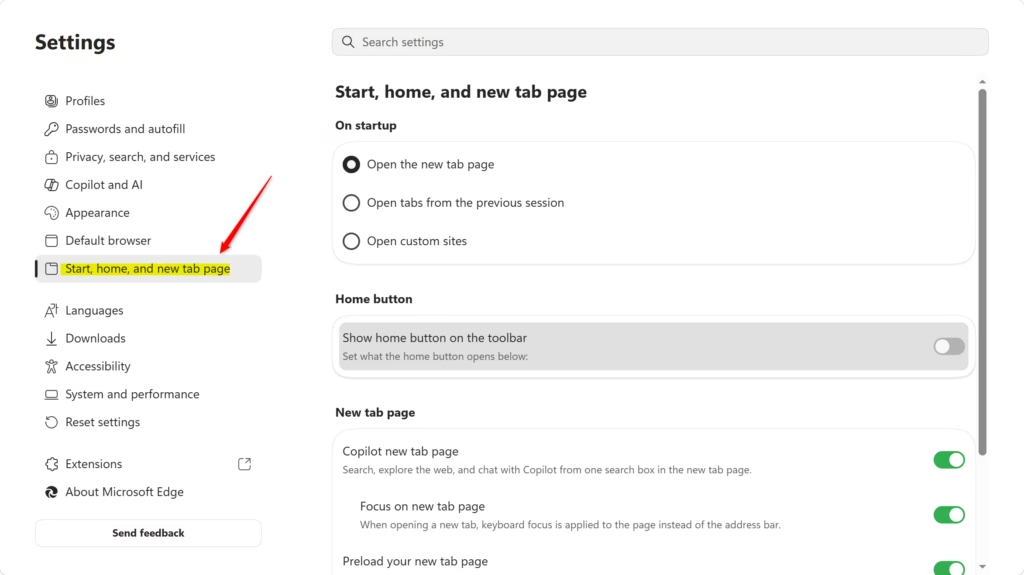
Step 3Turn on the Home Button
A “Home” button lets you quickly go to your chosen page. If you don’t see a little house icon, you need to turn it on. Look for a switch or a box that says “Show Home button on the toolbar.” Make sure it’s turned on or checked.
As soon as you turn this on, you should see a little house icon appear next to the address bar, near the top of the browser. This offers a quick way to get to your homepage.
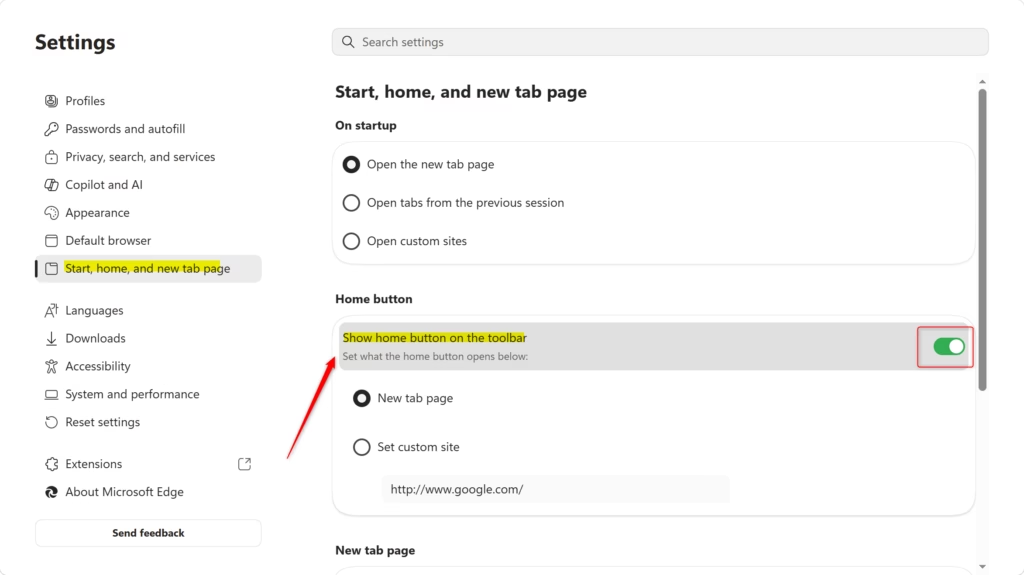
Step 4Pick Your Homepage
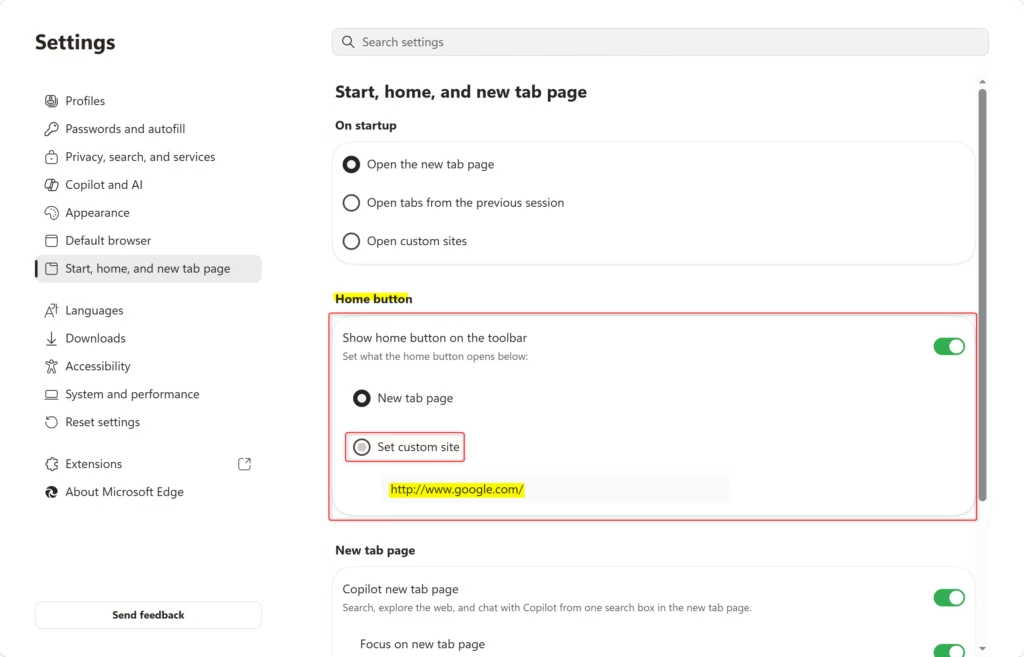
Now that the Home button is on, you need to tell Edge where it should go. Right below the “Show Home button on the toolbar” setting, you’ll see another option. This lets you choose what happens when you click the Home button.
You have two main choices:
- New tab page: If you pick this, clicking the Home button will just open a new tab with Edge’s normal new tab screen. This usually has a search bar and links to sites you visit often.
- Enter URL for a page that you want to use as your home page: This is where you can make it your own! If you choose this, a text box will appear. You can type or paste the web address (URL) of any site you want as your homepage.
Reference:
Summary
Why do this? Changing your browser’s homepage lets you quickly access the websites you use most every day, like your email or favorite news site, as soon as you open your browser or click the home button.
What happens when done? After following these steps, you’ll have a visible Home button on your Edge toolbar. When you click this button, Edge takes you directly to the web address you entered, making your browsing experience more efficient.
Was this guide helpful?

About the Author
Richard
Tech Writer, IT Professional
Richard, a writer for Geek Rewind, is a tech enthusiast who loves breaking down complex IT topics into simple, easy-to-understand ideas. With years of hands-on experience in system administration and enterprise IT operations, he’s developed a knack for offering practical tips and solutions. Richard aims to make technology more accessible and actionable. He's deeply committed to the Geek Rewind community, always ready to answer questions and engage in discussions.


No comments yet — be the first to share your thoughts!