How to Enable Tab Preview on Hover in Microsoft Edge
This guide explains how to manage the tab preview Microsoft Edge feature. Microsoft Edge is the built-in browser for Windows 11. It is fast and familiar because it uses the same technology as Google Chrome. Understanding how to manage your browser UI customization is key to better browser productivity.
Why use tab previews?
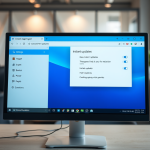
When you have many tabs open, it is easy to lose track of what is on each page. Tab previews let you see a small snapshot of a website just by resting your mouse cursor over the tab. This saves you from clicking on every tab to find the right one.
What happens when done?
Once you change this setting, Edge will immediately show or hide a small window when you hover your mouse over an open tab. This makes managing multiple websites much faster.
How to change the tab preview setting
You do not need special permissions for these steps. You can change this setting using your standard user account.
- Open the Microsoft Edge browser.
- Click the Settings and more button (the three horizontal dots) in the top right corner.
- Select Settings from the menu.

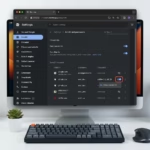
- Click on Appearance in the menu on the left side of the screen.

- Look for the Customize toolbar section.
- Find the “Show tab preview on hover” option.
- Toggle the switch to On to enable it, or Off to disable it.

Your changes take effect right away. You may need to restart your browser to see the full effect.
Tab Hover Previews vs. Taskbar Previews
It is common to confuse tab hover cards with taskbar thumbnail previews. Tab hover cards appear inside the browser when you point at a tab. Taskbar previews appear when you hover over the Edge icon on your Windows taskbar. These are two separate features managed by different settings.
IT and Enterprise Configuration
If you are an IT administrator, you can force these settings across your organization using Group Policy. You can use the ShowTabPreviewEnabled policy found in the Microsoft Edge ADMX templates. You can find more details in the official Microsoft Edge policy documentation.
[ADMIN PRIVILEGE REQUIRED] To set this via the Registry Editor:
HKEY_LOCAL_MACHINE\\SOFTWARE\\Policies\\Microsoft\\Edge
Create a new DWORD (32-bit) value named ShowTabPreviewEnabled and set it to 1 to enable or 0 to disable.
Summary
Customizing your browser helps you work more efficiently. By toggling the “Show tab preview on hover” setting, you can decide if you want to see a sneak peek of your tabs or keep your screen cleaner. This simple change helps you navigate your open windows with ease.” } }
Why are my tab previews not showing up in Microsoft Edge?
If tab previews are missing, first check your Appearance settings in Edge to ensure the feature is toggled on. If you are on a work or school computer, your IT department may have disabled this feature via a Group Policy, which prevents individual users from changing the setting.
Can I adjust the delay time for tab previews?
Currently, Microsoft Edge does not provide a built-in slider or setting to adjust the hover delay time for tab previews. The delay is hard-coded into the browser to prevent accidental pop-ups while you are simply moving your mouse across the top of your screen.
Was this guide helpful?
Leave a Reply Cancel reply