How to Disable Bing Trending Searches in Microsoft Edge

You disable Bing Trending Searches in Microsoft Edge by adjusting a specific setting within the browser’s privacy configuration.
Bing Trending Searches shows you popular and current search queries directly in the Microsoft Edge address bar dropdown. This feature aims to help you discover what others are searching for.
If you prefer a cleaner address bar or find these suggestions distracting, you can easily turn them off. This tutorial focuses on disabling this setting in Microsoft Edge, applicable to versions 110 and later.
To disable Bing Trending Searches, go to Settings > Privacy, search, and services > Search and connected experiences > Address bar and search. Then, toggle off “Show me trending searches from Microsoft Bing.
Turn on or off Bing Trending searches in the address bar in Edge
You can turn off the Bing trending searches that show up in the Microsoft Edge address bar when you open a new tab. This guide shows you how to disable or turn them back on easily.
Here’s how to enable or disable it.
First, open the Microsoft Edge browser.
Then click on Setting and more (Alt+F) – that’s the 3 horizontal dots button on the top right corner – and select Settings.
Select “Privacy, search, and services” on the Settings page on the left and click the “Search and connected experiences” tile on the right to expand it.
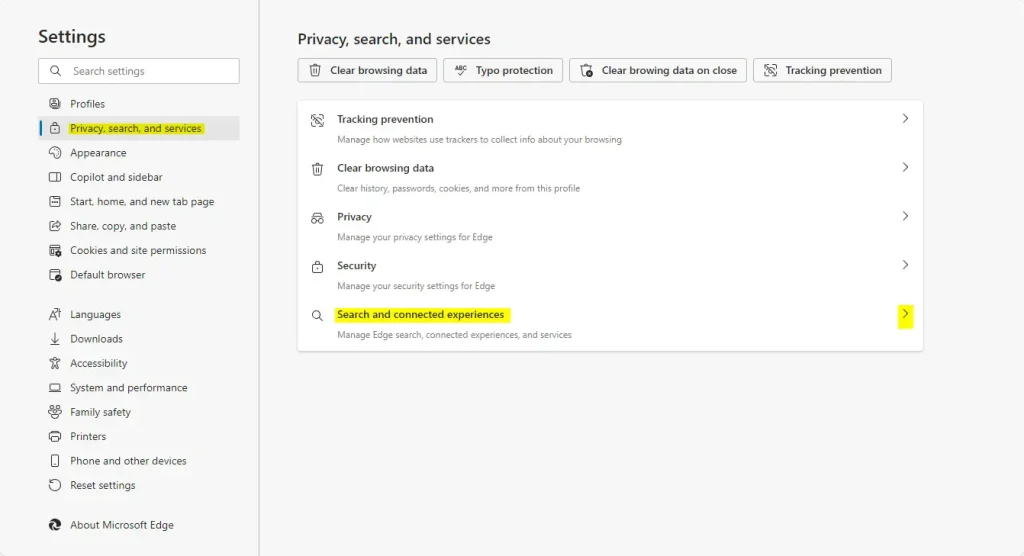
Next, click the “Address bar and search” tile to expand it.
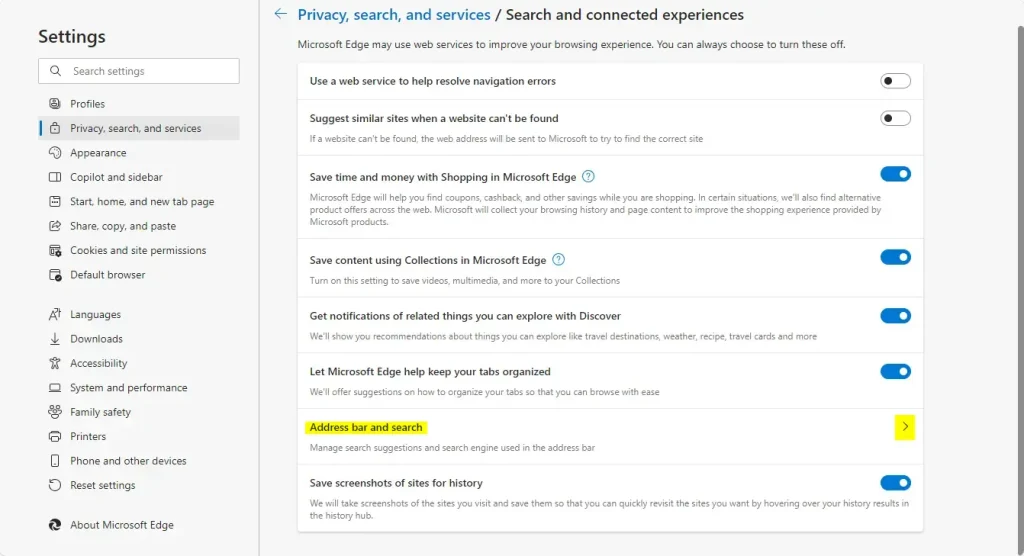
Click the “Search suggestions and filters” tile on the next page to expand it.
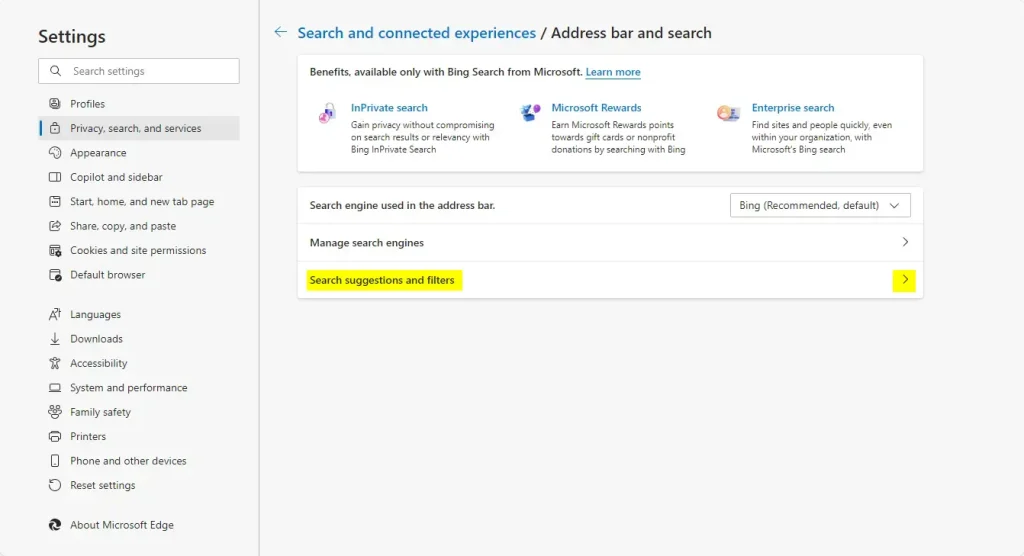
Then, select the “Show me trending searching from Microsoft Bing” tile and toggle the switch button to turn it on or off.
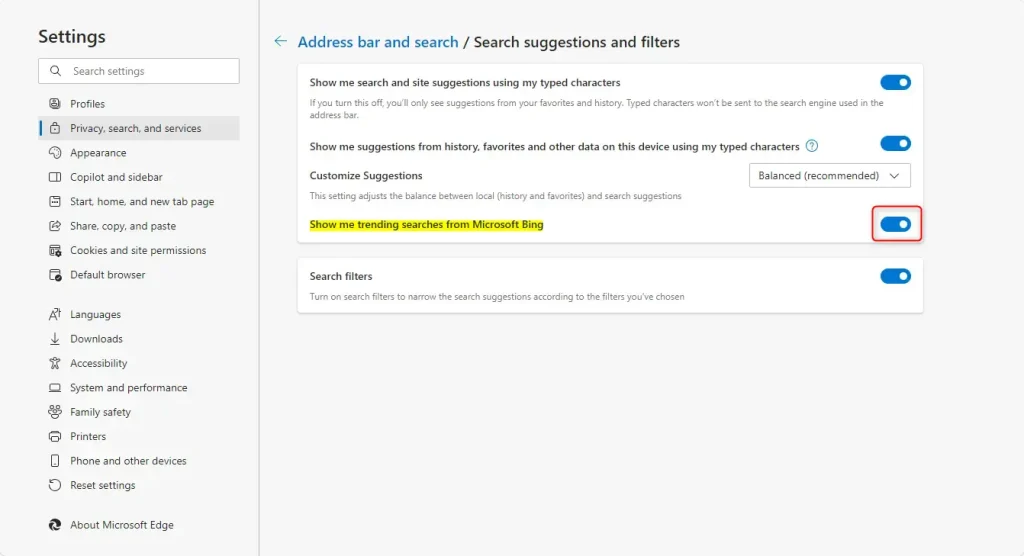
You can close the Edge settings page when finished.
Enable / Disable Bing Trending searches in Edge using the Registry
If you’re comfortable with advanced settings, you can disable Bing trending searches in Microsoft Edge by changing a setting in the Windows Registry. This method involves opening the Registry Editor and navigating to a specific folder.
First, open the Windows Registry and navigate to the folder key path below.
Before you make any changes, remember to back up your registry or create a System Restore point just in case.
ComputerHKEY_LOCAL_MACHINESOFTWAREPoliciesMicrosoftEdge
Right-click on ‘Edge’, then choose ‘New’ > ‘DWORD (32-bit) Value’. Name this new DWORD ‘AddressBarTrendingSuggestEnabled’.
Double-click the ‘AddressBarTrendingSuggestEnabled’ entry and set its value to 1 to turn on trending searches in Edge.
To turn them off, set the value to 0.
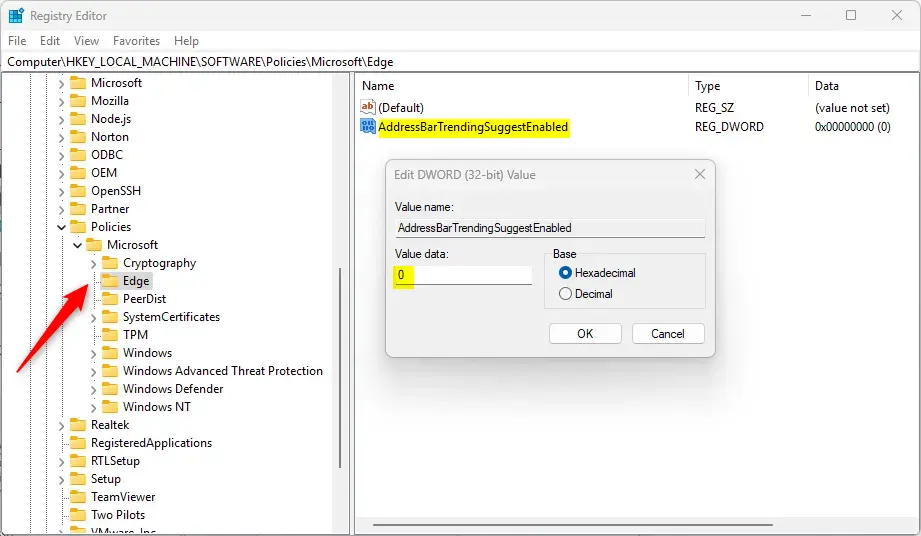
Delete the “AddressBarTrendingSuggestEnabled” name you created above to restore the default behavior in Edge.
AddressBarTrendingSuggestEnabled
You might need to restart your computer for the changes to take effect.
That should do it!
Conclusion:
- Enabling or disabling Bing’s “Trending Searches” feature in Microsoft Edge is straightforward and can be done through the browser settings or the Windows Registry Editor.
- Users who prefer a cleaner browsing experience can quickly turn off trending searches to avoid distractions.
- Modifying settings in Edge can enhance user experience and allow for personalized browsing.
- Always back up the registry before making any changes to ensure system stability.
- These adjustments give users greater control over their search and browsing preferences in Microsoft Edge.
How do I get rid of trending searches on Microsoft edge?
Under the Edge Settings, follow Privacy, search, and services, scroll to the bottom, select Address bar and search, select Search on new tabs uses search box or address bar, choose Address bar. DONE!
How do I turn off Bing search suggestions?
Turn off search suggestions. On the Settings page, under Search, clear the See search suggestions as you type check box. Search suggestions are off until you clear your cookies or you turn them back on.
Was this guide helpful?

About the Author
Richard
Tech Writer, IT Professional
Richard, a writer for Geek Rewind, is a tech enthusiast who loves breaking down complex IT topics into simple, easy-to-understand ideas. With years of hands-on experience in system administration and enterprise IT operations, he’s developed a knack for offering practical tips and solutions. Richard aims to make technology more accessible and actionable. He's deeply committed to the Geek Rewind community, always ready to answer questions and engage in discussions.




No comments yet — be the first to share your thoughts!