How to Turn Off Custom Scrollbars in Edge

You turn off custom scrollbars in Microsoft Edge by disabling a specific browser flag.
Custom scrollbars are visual elements added by websites that change the default appearance of your browser’s scrollbars. Disabling them returns Edge to using the standard Windows scrollbar design.
This helps you maintain a consistent look across your PC, especially if you find website-specific scrollbars distracting or hard to navigate. Microsoft Edge version 118 and newer supports this setting.
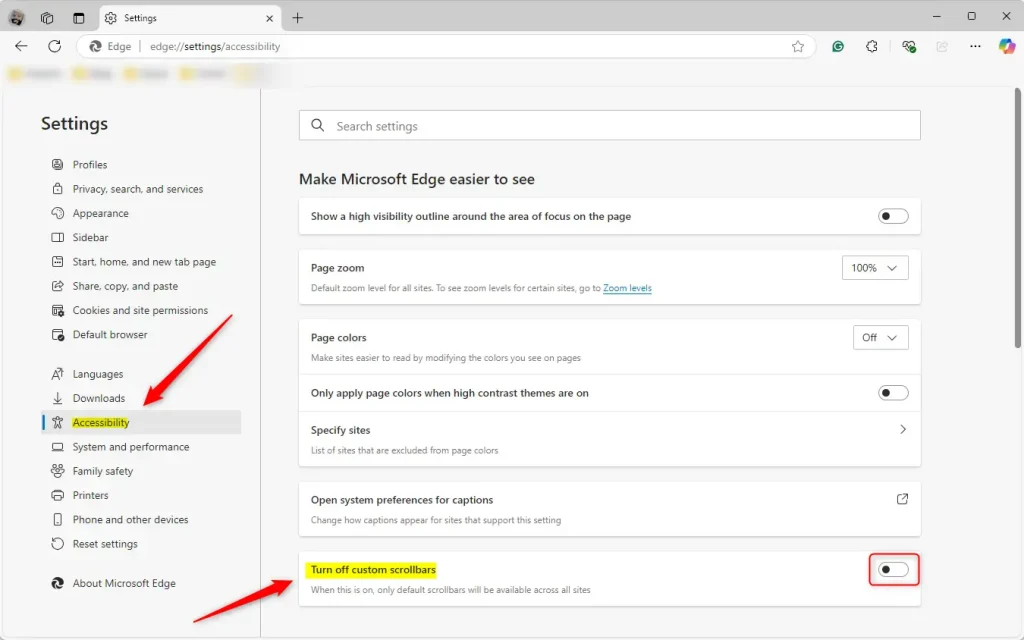
Go to Settings, then click “Accessibility” on the left side. Toggle the “Turn off custom scrollbars” setting to disable them. This restores the default scrollbar appearance.
Disable custom scrollbars in Edge
You can easily disable custom scrollbars in Edge if you find them distracting or prefer the classic look. This setting lets you switch back to the standard scrollbars that blend in with the browser’s appearance.
Here’s how to do it.
Then, click the 3 horizontal dots (Alt+F) for ‘Settings and more’ in the top right corner, and select ‘Settings’.
On the Settings page, select “Accessibility” on the left. Then, toggle the “Turn off custom scrollbars” setting.
That should do it!
Reference:
Conclusion:
Turning off custom scrollbars in Microsoft Edge can make your browsing more user-friendly, especially if you prefer the default look. Following the outlined steps ensures a more consistent experience. Here’s a quick recap:
- Microsoft Edge allows web developers to customize scrollbars.
- Disabling custom scrollbars helps maintain uniformity and ease of use.
- Access the setting through the “Accessibility” section in Edge settings.
- The process is quick and straightforward, ensuring a smoother browsing experience.
You can get back to a more traditional and familiar interface in Microsoft Edge by adjusting this setting.
How do I turn off scroll in Edge?
In Edge, navigate to edge://flags, search the word "scroll", and disable one flag at a time until you find the scroll feature you wish to turn off. I hope this helps.
How to hide customize toolbar in Microsoft Edge?
In the Settings window, navigate to Appearance from the sidebar on the left. Navigate to Customize toolbar. From there, customize which buttons you want on the toolbar and which you want hidden. Choose to show or hide the favorites bar, title bar, and any vertical tabs.
Was this guide helpful?

About the Author
Richard
Tech Writer, IT Professional
Richard, a writer for Geek Rewind, is a tech enthusiast who loves breaking down complex IT topics into simple, easy-to-understand ideas. With years of hands-on experience in system administration and enterprise IT operations, he’s developed a knack for offering practical tips and solutions. Richard aims to make technology more accessible and actionable. He's deeply committed to the Geek Rewind community, always ready to answer questions and engage in discussions.


No comments yet — be the first to share your thoughts!