How to Turn Off Custom Scrollbars in Edge

This article explains how to turn off custom scrollbars in Microsoft Edge.
Microsoft Edge is the default browser in Windows 11. However, users can switch to their preferred or favorite browser anytime. Edge is based on Chromium, similar to Google Chrome and other Chromium-based browsers today.
In the new Edge, users can “Turn off custom scrollbars.” This setting allows you to disable the customizations web developers might have added to their sites in Microsoft Edge.
Some websites add unique scrollbar styles, which might confuse some users. Certain users always prefer to see the default browser scrollbars, as this improves their consistency and accessibility.
A new setting has been added to Edge, allowing you to turn off custom scrollbars. The steps below walk you through managing the setting.
Disable custom scrollbars in Edge
As mentioned, a new feature added to Edge allows users to turn off custom scrollbars.
Here’s how to do it.
Then click on Setting and more (Alt+F) 3 horizontal dots button on the top right corner and select Settings.
On the Settings page, select “Accessibility” on the left. Then, toggle the “Turn off custom scrollbars” setting.
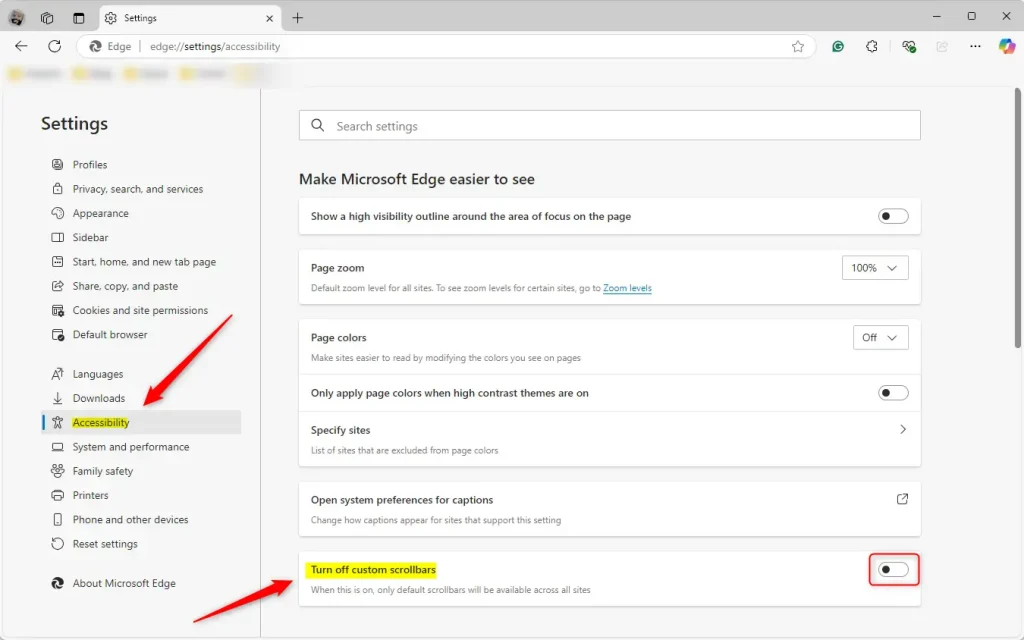
That should do it!
Reference:
Conclusion:
Turning off custom scrollbars in Microsoft Edge can enhance usability and accessibility for users who prefer the default browser appearance. You can ensure a more consistent browsing experience by following the simple steps outlined. Here are the key points:
- Microsoft Edge allows web developers to customize scrollbars.
- Disabling custom scrollbars helps maintain uniformity and ease of use.
- Access the setting through the “Accessibility” section in Edge settings.
- The process is quick and straightforward, ensuring a smoother browsing experience.
You can enjoy a more traditional and familiar interface using Microsoft Edge by managing this setting.
Frequently Asked Questions
How do I turn off custom scrollbars in Microsoft Edge?
Why would I want to disable custom scrollbars in Edge?
Can I revert back to custom scrollbars after turning them off?
What versions of Microsoft Edge support turning off custom scrollbars?
Are custom scrollbars in Edge added by websites?
Was this guide helpful?

About the Author
Richard
Tech Writer, IT Professional
Richard, a writer for Geek Rewind, is a tech enthusiast who loves breaking down complex IT topics into simple, easy-to-understand ideas. With years of hands-on experience in system administration and enterprise IT operations, he’s developed a knack for offering practical tips and solutions. Richard aims to make technology more accessible and actionable. He's deeply committed to the Geek Rewind community, always ready to answer questions and engage in discussions.


No comments yet — be the first to share your thoughts!