How to Delete Profiles (Profile 2) in Microsoft Edge

You can delete unwanted Microsoft Edge profiles, like the mysterious “Profile 2,” by directly removing them from your browser’s settings.
Microsoft Edge often creates distinct user profiles to keep your browsing data separate, a useful feature that can become cluttered if you don’t recognize a profile.
For instance, you might find “Profile 2” without remembering creating it, leading to confusion. Fortunately, removing these excess profiles is a straightforward process.
Access Edge settings by typing edge://settings/profiles into the address bar. Click the three dots next to the profile you want to remove and select “Delete”. Confirm by clicking “Remove profile”.
Delete Profile 2 from Microsoft Edge
If you accidentally created a second profile, called Profile 2, in Microsoft Edge, you can easily delete it by following these simple steps.
First, switch to the profile you want to delete in Edge. You can do this by clicking your profile name (or image) and then selecting the profile from the menu.
Alternatively, type the URL into Edge to take you to the profile settings page.
edge://settings/profiles
Then, click on the Switch button next to the profile name to switch to it.
Once you switch, click the Delete button on the account profile page.
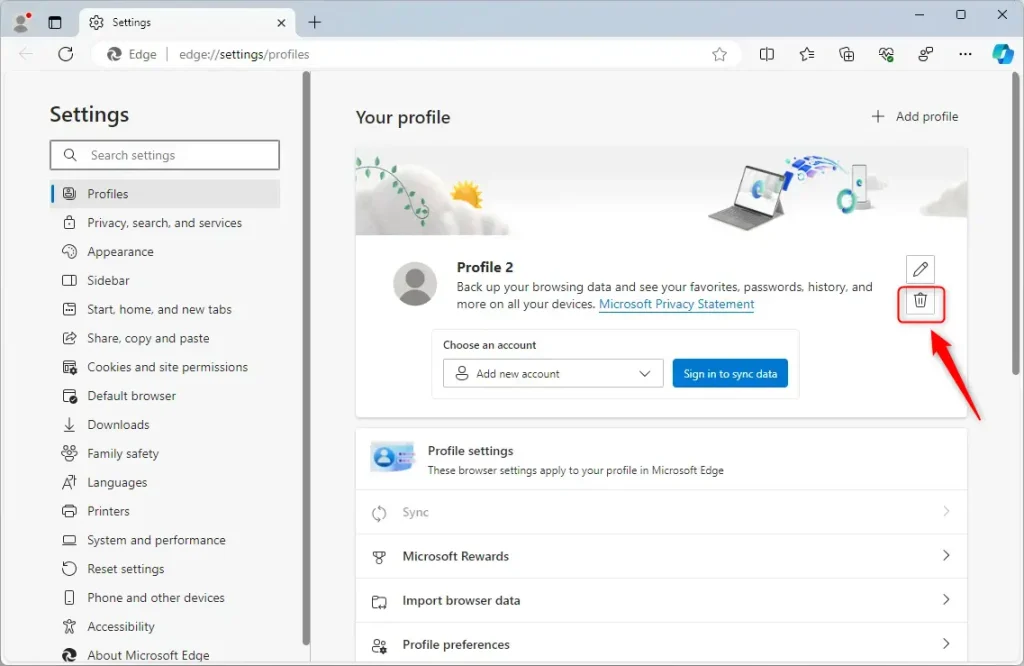
When prompted, click the “Remove profile” button to delete it.
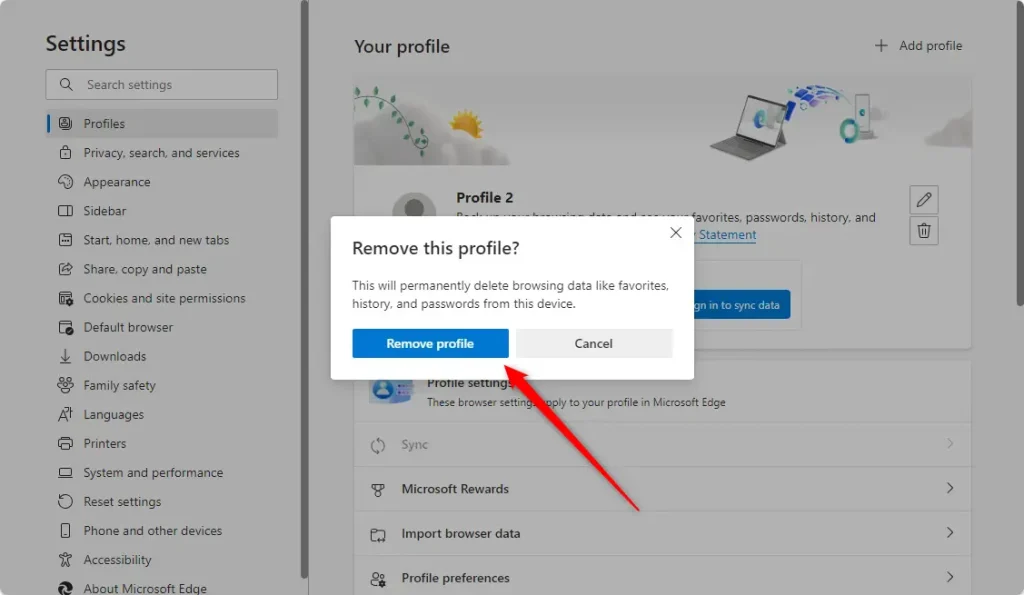
Repeat this for any other profiles you wish to remove.
That should do it!
Conclusion:
- Deleting user profiles in the Microsoft Edge browser is a simple process that involves a few straightforward steps.
- Following the guide, users can easily switch to the profile they wish to delete and remove.
- Feel free to reach out through the comments form below if you encounter any errors or have additional queries.
How do I delete unwanted profiles?
Up. Now they're on this page underneath user profiles. Select the settings. Button. Now if you have a different user. Account so if it's a local account or non-Microsoft.
How to reset Microsoft Edge and remove profile?
Press “Enter” to open Microsoft Edge. Click on the three dots in the top right corner of the browser. Select “Settings.” On the left menu, select “Reset settings.” Then click on “Restore settings to their default values.” Click on “Reset” in the pop-up window.
Was this guide helpful?
0% of readers found this helpful (1 votes)

About the Author
Richard
Tech Writer, IT Professional
Richard, a writer for Geek Rewind, is a tech enthusiast who loves breaking down complex IT topics into simple, easy-to-understand ideas. With years of hands-on experience in system administration and enterprise IT operations, he’s developed a knack for offering practical tips and solutions. Richard aims to make technology more accessible and actionable. He's deeply committed to the Geek Rewind community, always ready to answer questions and engage in discussions.




No comments yet — be the first to share your thoughts!