How to Export Favorites in Microsoft Edge

You export your Microsoft Edge Favorites to an HTML file to back them up or move them to another browser or device.
Microsoft Edge Favorites, essentially website shortcuts, are crucial for quickly accessing pages you love. Edge, the default browser for Windows 11, uses the same core technology as Google Chrome.
Exporting your Favorites generates a single HTML file containing all your saved links. This entire process typically takes less than a minute right from the browser’s settings.
This makes it super handy when setting up a new PC or switching browsers. You can easily import this file on your new system, ensuring you don’t lose those valuable website links.
Click the three dots in the upper right corner, then go to Settings and more, followed by Favorites. Click the three dots on the Favorites pane and select Export favorites. Choose a location to save the HTML file.
Export your “Favorites” to an HTML file in Edge
Exporting your Microsoft Edge favorites to an HTML file is a smart way to back them up or move them to another browser. This process lets you save all your favorite websites easily, so you don’t lose them if something happens to your browser.
Here’s how to do it.
First, open the Microsoft Edge browser.
Then click on Setting and more (Alt+F) three dots (…) in the upper right-hand corner to access the Settings menu.
Or, press the CTRL + SHIFT + O keys to open your Favorites.
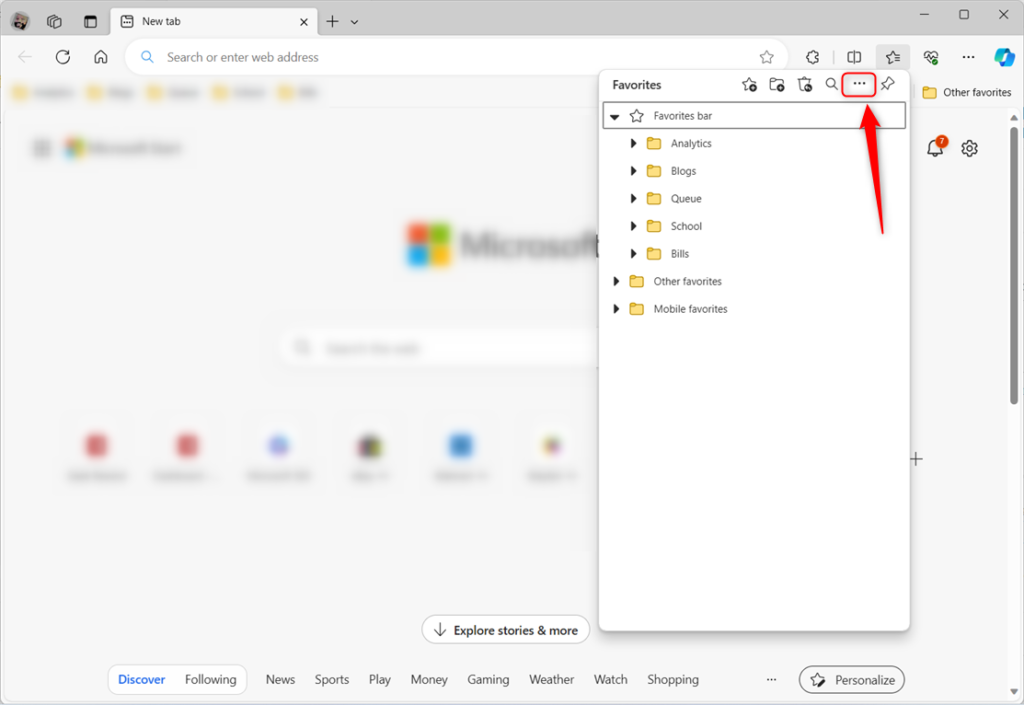
On the Favorites pane, click the ‘More option‘ (three-dots) button and select ‘Export favorites.’
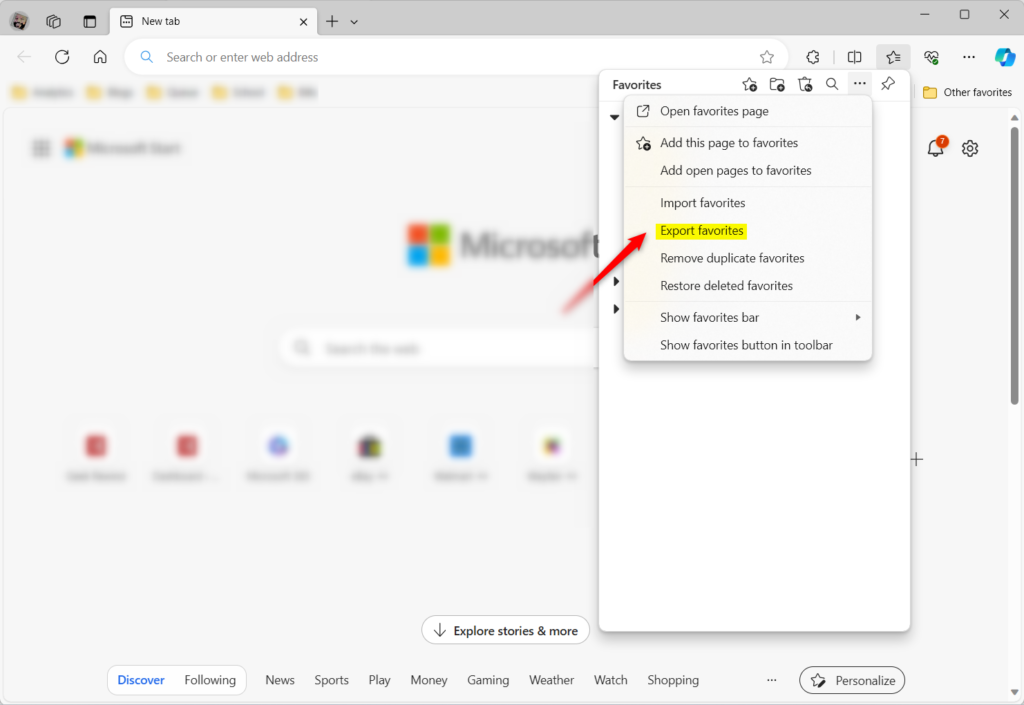
Click the ‘Export favorites‘ command on the context menu.
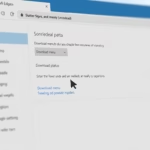
When you click ‘Export favorites‘ it will launch the File Explorer ‘Save As‘ window. Choose a location to save the file, preferably on your ‘Desktop.’
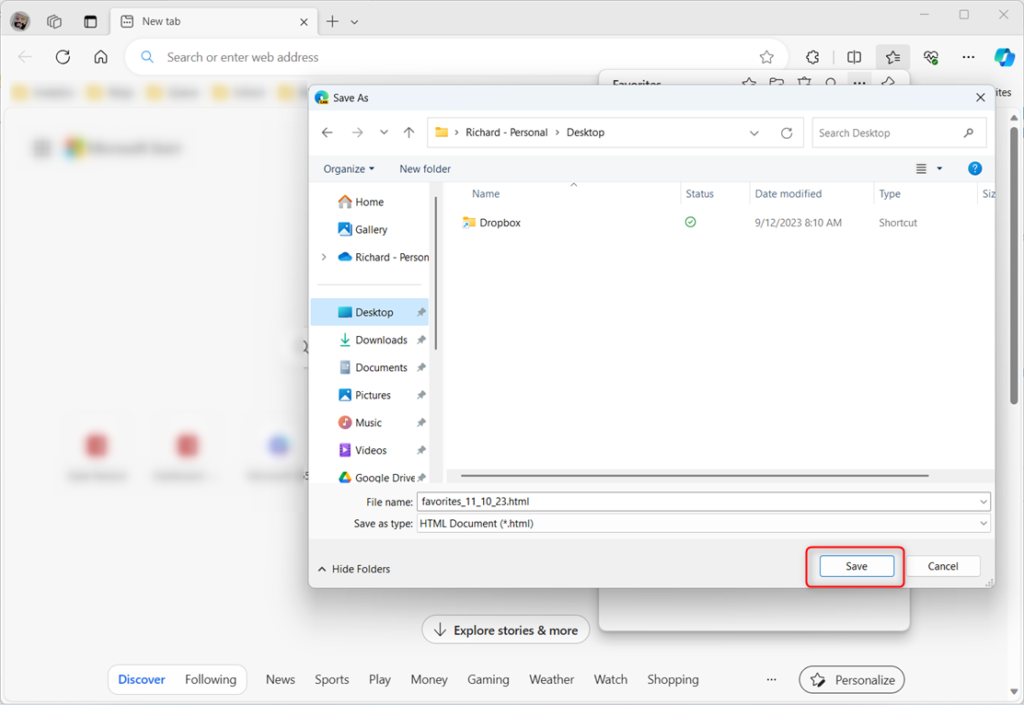
The file should appear at your selected location once you click the ‘Save‘ button.
Import Favorites in Microsoft Edge
Importing your favorites into Microsoft Edge is simple once you have your exported HTML file. You can bring back all your saved websites onto a new computer or into a fresh browser profile by following a few quick steps within Edge.
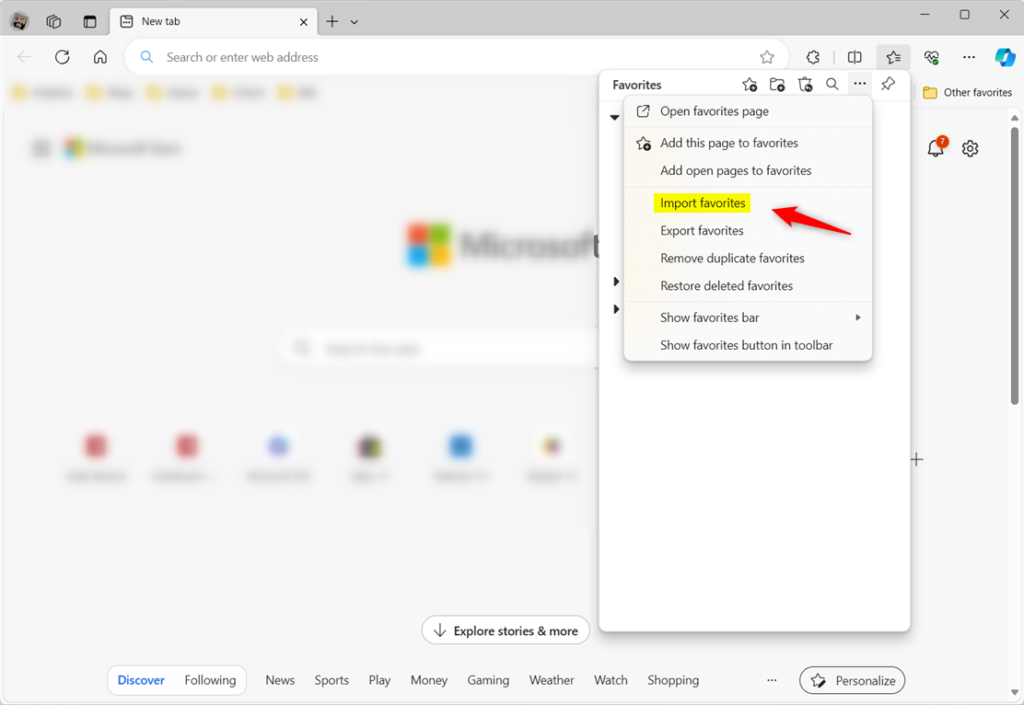
That should do it.
Conclusion:
- Exporting your “Favorites” in Microsoft Edge is a practical way to transfer saved websites to a new device. It eliminates the need to manually re-add each website.
- It is a valuable backup, safeguarding against accidental loss or deletion of saved websites.
- This feature also enables effortless sharing of frequently visited websites with others.
Was this guide helpful?

About the Author
Richard
Tech Writer, IT Professional
Richard, a writer for Geek Rewind, is a tech enthusiast who loves breaking down complex IT topics into simple, easy-to-understand ideas. With years of hands-on experience in system administration and enterprise IT operations, he’s developed a knack for offering practical tips and solutions. Richard aims to make technology more accessible and actionable. He's deeply committed to the Geek Rewind community, always ready to answer questions and engage in discussions.



No comments yet — be the first to share your thoughts!